Moving from Grok to ChatGPT is less about copying an account and more about preserving the information that makes a conversation useful. The right workflow depends on whether you need a few messages, one finished answer, an active project's context, or a private backup.
If you need to transfer Grok AI to ChatGPT, start by deciding exactly which context the new conversation needs. ChatGPT does not currently offer a native button that imports a Grok account and rebuilds its original sidebar, timestamps, or memory. A practical transfer therefore means exporting or summarizing Grok content, then giving ChatGPT a clean file or brief it can understand. The four methods below are distinct, realistic, and suitable for different amounts of data.
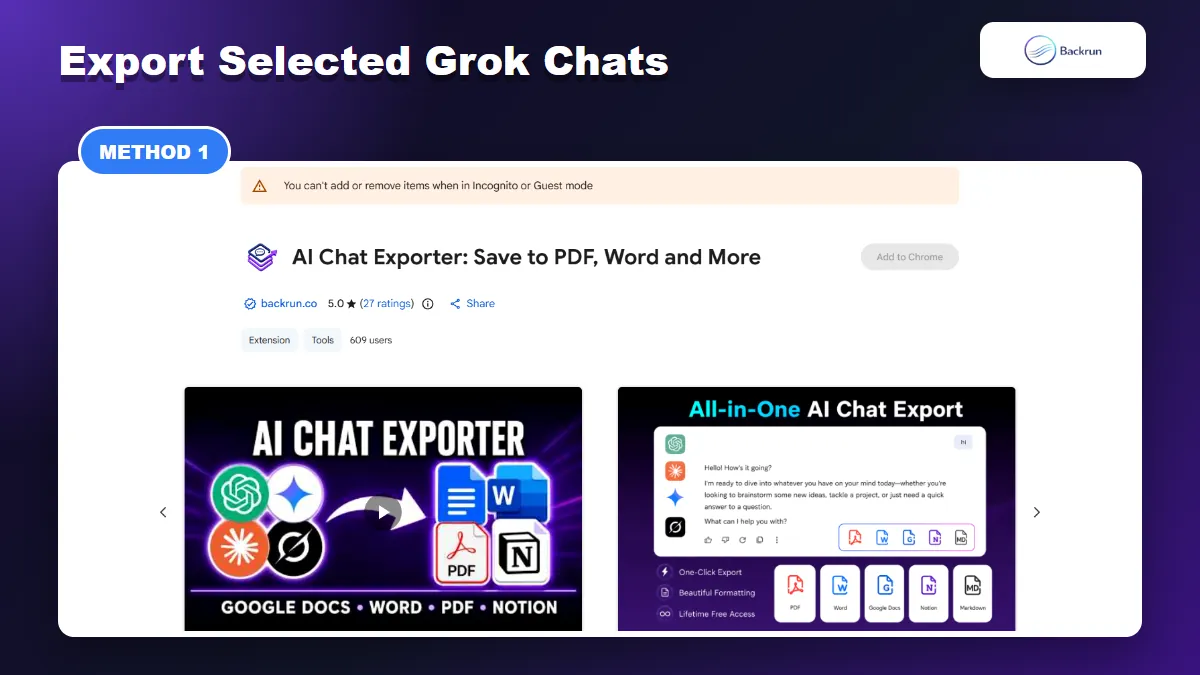
1. Use AI Chat Exporter by Backrun for Selected Grok Chats
AI Chat Exporter provides a practical way to save selected Grok messages or a complete thread before opening the material in ChatGPT.
This is the most convenient method when the conversation itself matters. It lets you preserve the order of a useful Grok thread without manually copying every answer, while still giving you control over which messages leave the original chat.
Follow these steps to move a selected conversation:
Open Grok.com and load the conversation you want to continue in ChatGPT.
Select the relevant messages with the export checkboxes, or choose the full thread when earlier prompts affect later answers.
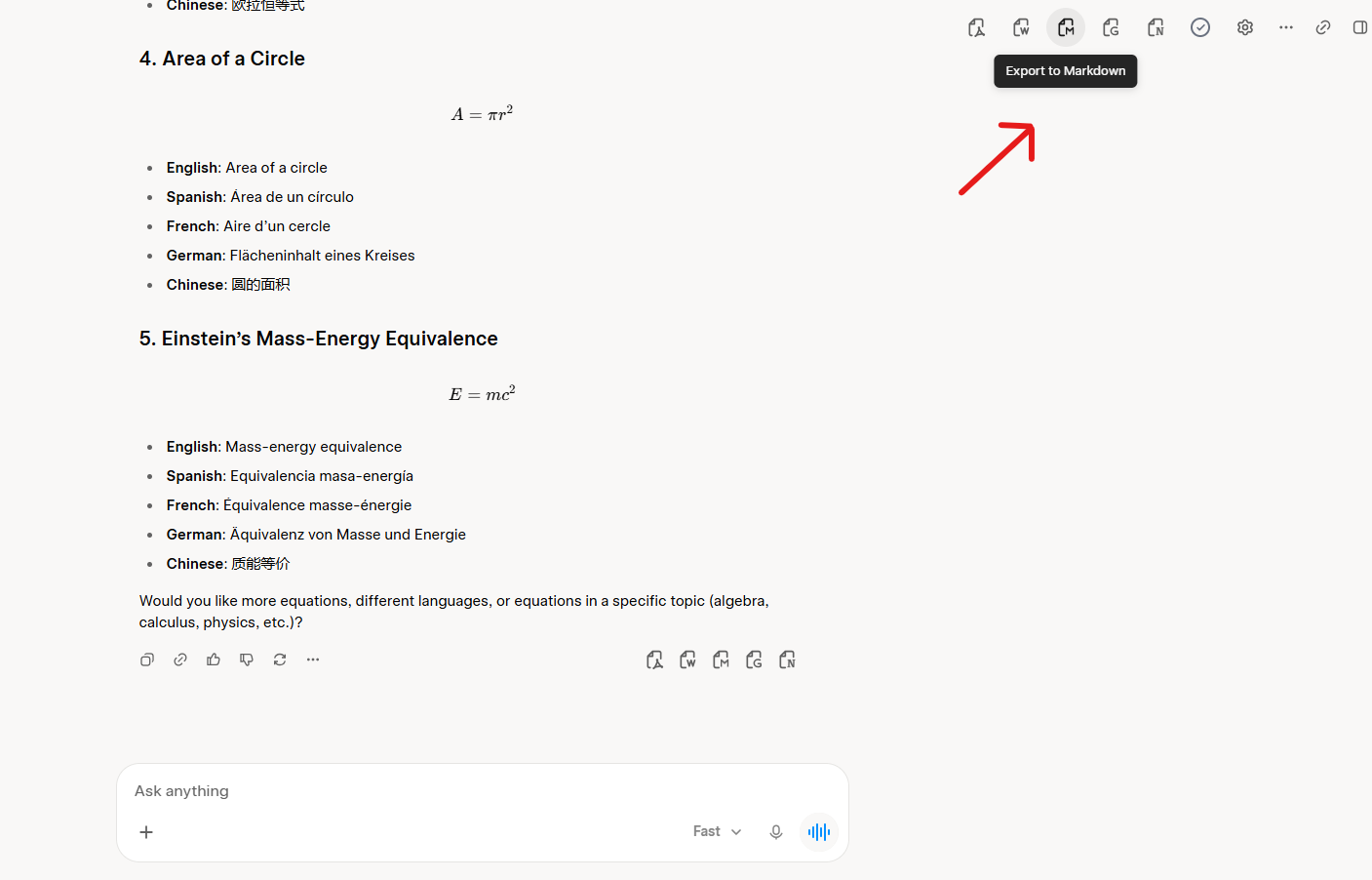
Choose a portable output format. Markdown is usually the easiest format for ChatGPT to analyze and edit. Word or PDF is useful when you want a more fixed document.
Open ChatGPT and either paste the exported Markdown or upload the document to a new chat or Project.
Give ChatGPT a specific instruction, such as: “Read this Grok conversation, summarize the current state, list unresolved questions, and continue from the last confirmed decision.”
Practical tip: exporting the whole thread is not always better. Remove repeated attempts, irrelevant searches, personal information, and outdated decisions first. A shorter, well-structured transcript reduces the chance that ChatGPT follows a discarded direction.
The main advantage is formatting: headings, lists, code blocks, tables, and message order are easier to preserve than with repeated copy and paste. The limitation is that the exported file becomes reference material inside ChatGPT; it does not recreate Grok's original conversation history as native ChatGPT messages.
2. Ask Grok to Create a ChatGPT Handoff Brief
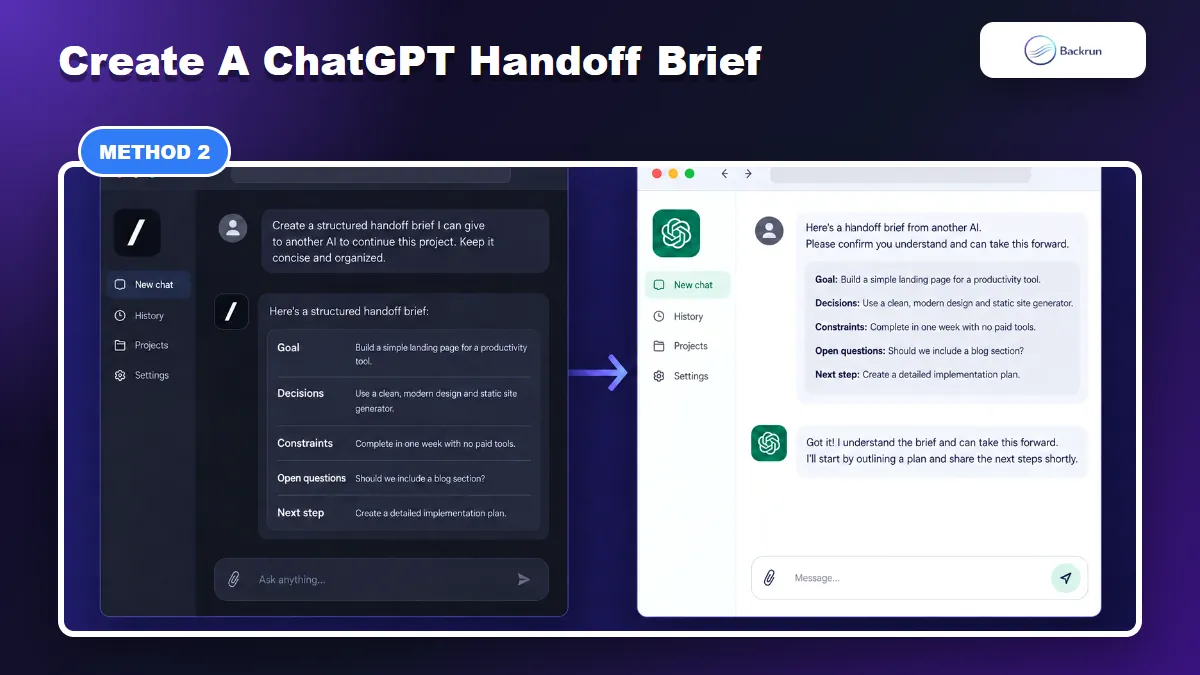
Illustrated workflow: a concise handoff brief carries the goal, decisions, constraints, open questions, and next step into a new ChatGPT conversation.
A handoff brief is often more effective than a raw transcript when you are moving one active task. Instead of making ChatGPT read every exploratory prompt, ask Grok to separate confirmed information from abandoned ideas and package the current project state.
Use the following workflow:
Open the relevant Grok conversation and ask Grok to create a concise handoff for another AI assistant.
Require a fixed structure: Goal, Background, Decisions, Constraints, Important facts, Files or links, Open questions, and Next step.
Check the brief against the original chat. Add exact names, figures, URLs, output requirements, and decisions that Grok omitted.
Paste the brief into a new ChatGPT conversation or place it in a ChatGPT Project when the work will continue over several sessions.
Ask ChatGPT to restate its understanding before it produces new work. Correct any misunderstanding at this point rather than after a long response.
A useful prompt in Grok is: “Create a handoff brief for ChatGPT. Preserve verified facts and final decisions, label assumptions, remove duplicate exploration, and finish with the exact next action.”
This method is fast, readable, and inexpensive in context length. It is especially good for writing projects, coding plans, research summaries, and operating procedures. Its weakness is compression: a summary can omit details, so keep the original Grok conversation available until ChatGPT has confirmed the handoff accurately.
3. Export One Grok Answer as PDF, Then Upload It to ChatGPT
Grok can export an individual answer as a PDF, which ChatGPT can then read as a reference file.
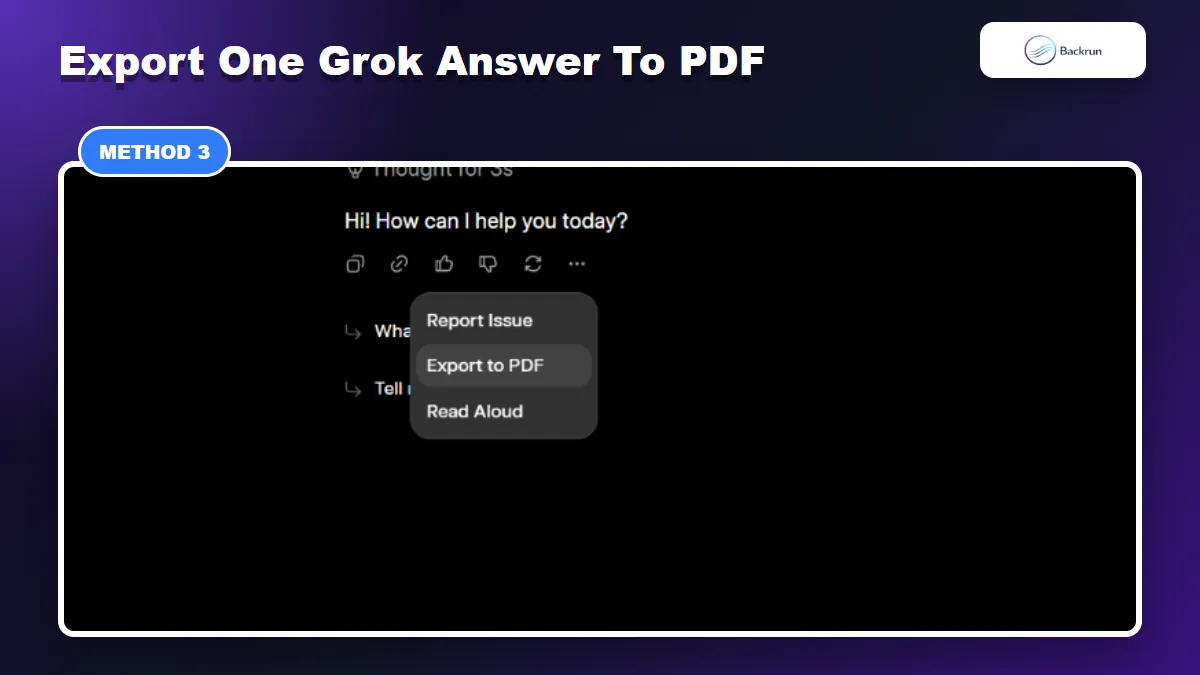
When only one Grok answer contains the information you need, the built-in PDF route is cleaner than exporting a full conversation. In the current Grok interface, the menu beneath an individual response can include an Export to PDF option.
Here is the step-by-step process:
Open the Grok conversation and locate the finished answer you want to reuse.
Click the more-options menu beneath that answer.
Select Export to PDF and save the file to a location you can review.
Open the PDF and verify that tables, formulas, code, citations, and page breaks are readable.
Upload the PDF to ChatGPT. OpenAI lists PDF among the common document types supported for file uploads.
Tell ChatGPT how to use the file, for example: summarize it, fact-check it, rewrite it, extract a plan, or continue the analysis.
This option works well for a report, long explanation, comparison, or research answer that already stands on its own. It is less suitable for a conversation in which the meaning depends on several earlier user prompts. The built-in command exports one Grok response at a time, so use AI Chat Exporter or a handoff brief when you need a complete thread.
Accuracy check: a PDF preserves appearance better than editable structure. If ChatGPT must edit code, tables, or many headings, Markdown or Word may produce a cleaner result than PDF.
4. Download Your Grok Data, Then Curate It for ChatGPT
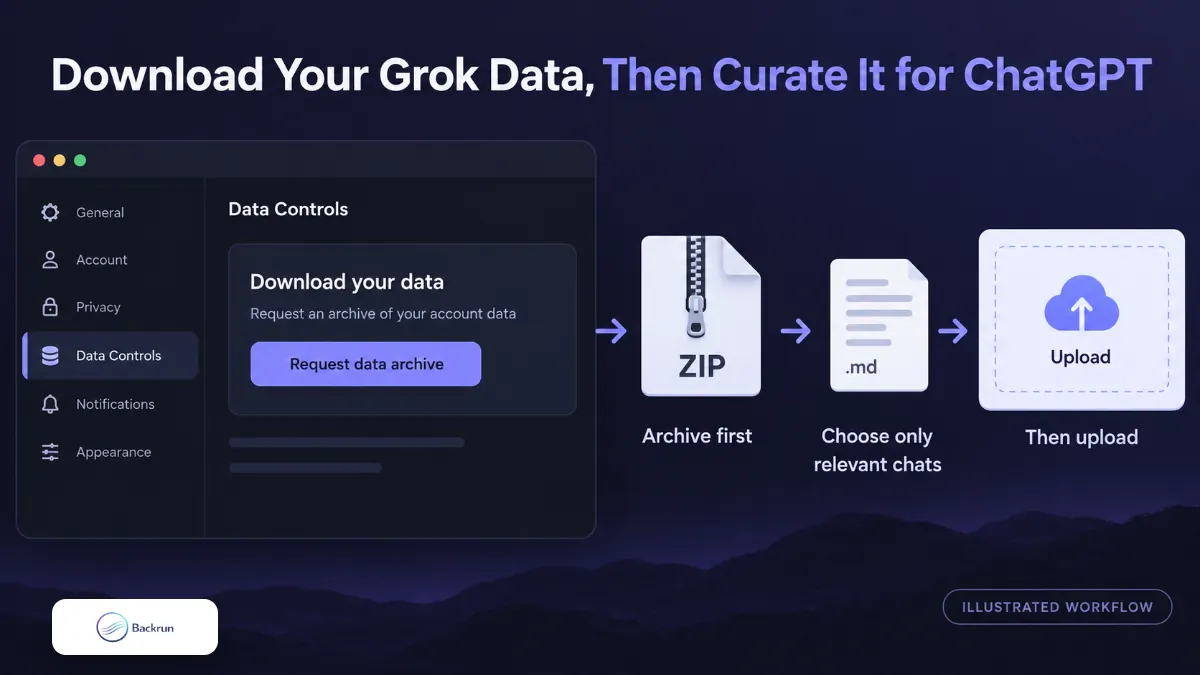
Illustrated workflow: keep the complete archive private, extract only relevant conversations, and upload a clean supported document to ChatGPT.
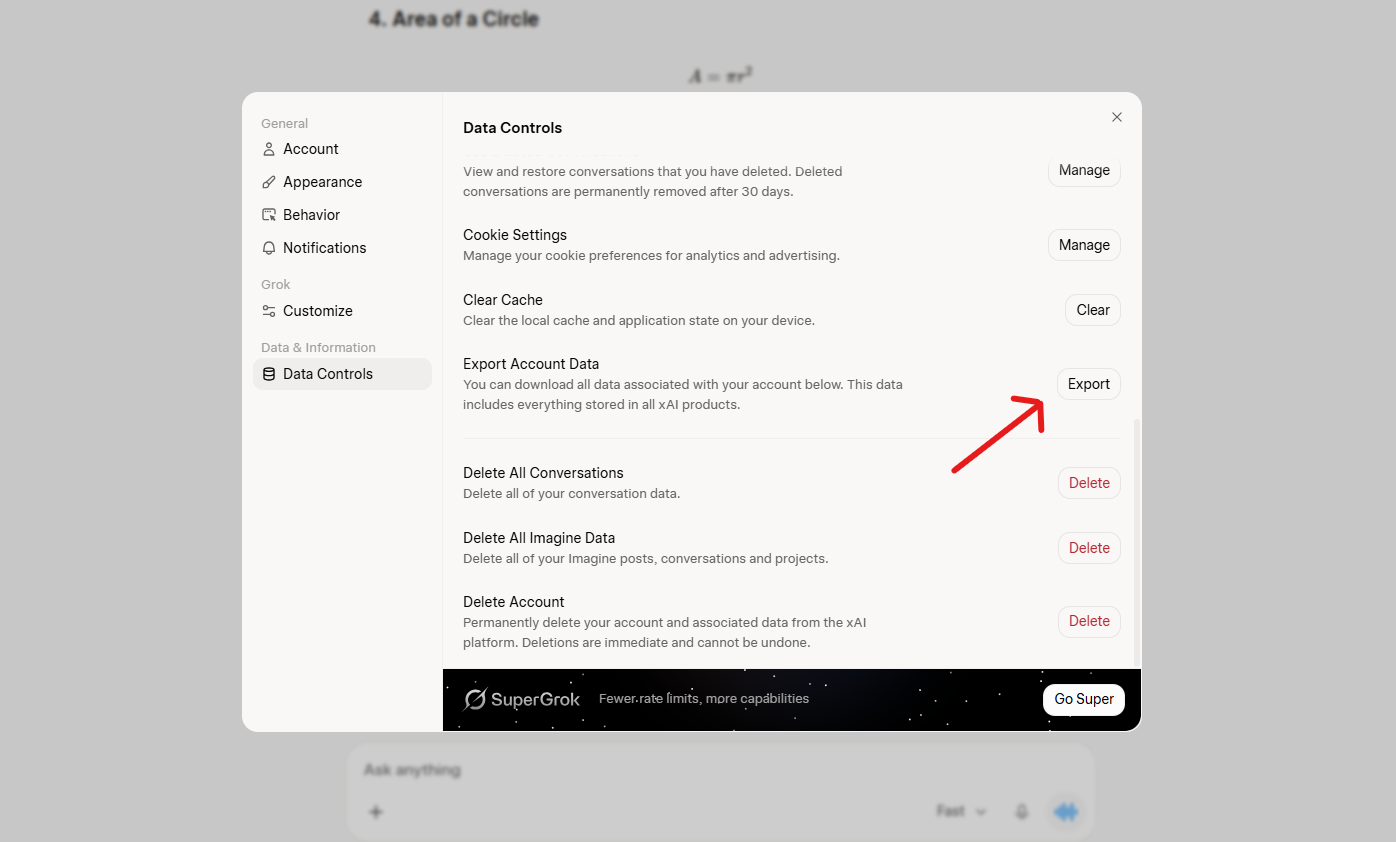
The account archive method is intended for backup and selective recovery, not for a quick one-chat move. According to xAI's consumer FAQ, users can access data download controls through Grok settings and Data Controls. Treat the downloaded archive as private account data.
Use this process when you need a broader backup:
Open Grok settings on Grok.com or the Grok mobile app.
Go to Data Controls and request a download of your data.
Wait for the archive, download it privately, and store an untouched backup copy.
Extract the archive locally and identify only the conversations relevant to the work you want to continue.
Convert selected material into a supported document such as TXT, Markdown, DOCX, or PDF. ChatGPT supports common text, document, presentation, and spreadsheet formats.
Upload the curated file to a new ChatGPT conversation or Project, then explain the desired outcome.
Do not upload the complete archive without reviewing it. It may contain personal prompts, account information, old experiments, or unrelated conversations. A safer workflow is to keep the original ZIP offline, create a small migration folder, and place only the necessary chats inside it.
The advantage is completeness: you retain a private backup before changing tools. The disadvantages are slower preparation and more cleanup. This method is appropriate for archival needs, while the first three methods are better for everyday work.
If you need the reverse direction, Backrun also has a practical guide to import ChatGPT to Grok.
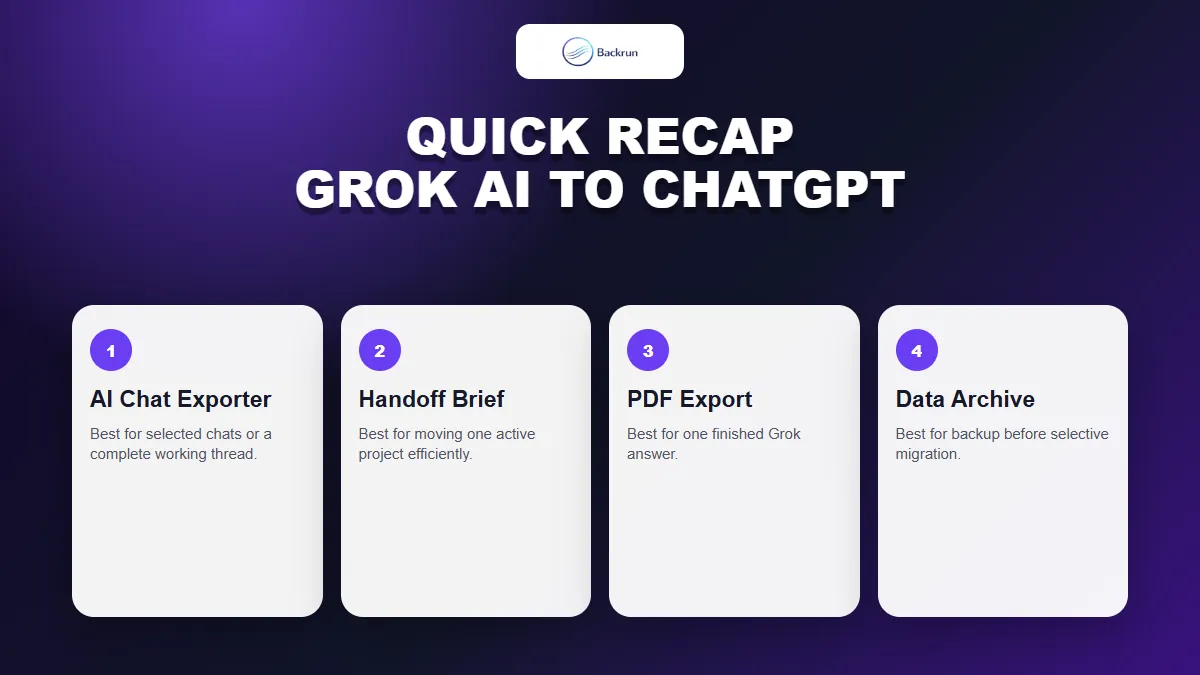
Quick Recap
Choose the method according to how much Grok content ChatGPT actually needs.
The safest way to transfer Grok AI to ChatGPT is to move only the context required for the next task. There is no benefit in carrying an entire archive into a working chat when a selected transcript or structured brief will do the job more clearly.
Method
Best for
Main limitation
AI Chat Exporter
Selected messages or a full working thread
Does not recreate native ChatGPT history
Handoff brief
One active project or workflow
A summary can omit details
Grok PDF export
One self-contained Grok answer
Exports one response at a time
Grok data archive
Private backup and selective migration
Requires careful extraction and cleanup
For most people, start with AI Chat Exporter when message order matters, use a handoff brief for a continuing project, and choose PDF only when one answer is complete enough to stand alone. Reserve the data archive for backup or large-scale review.