How to Copy a Table From Grok AI to Word: 4 Reliable Methods
September 13, 20266 min read
When a useful Grok table turns into misaligned text in Word, the problem is usually the transfer method rather than the table itself. This guide explains how to copy table from Grok AI to Word using four workflows that keep the information editable and easier to review.
1. Copy and Paste the Grok Table Directly
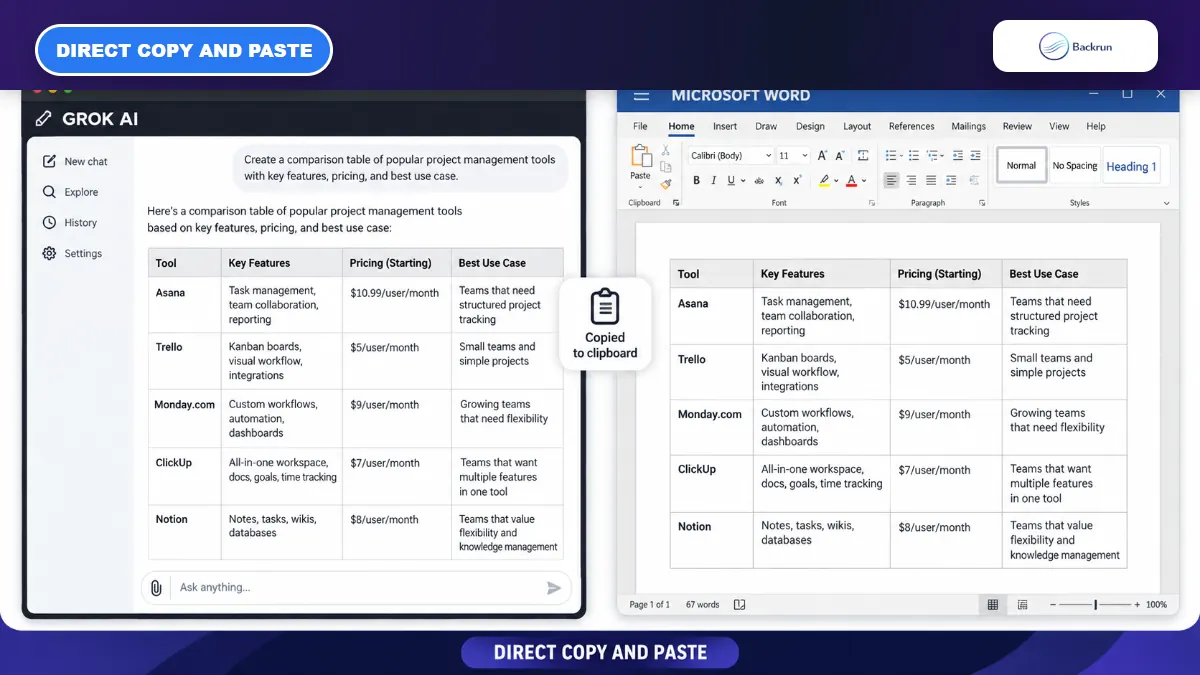
Direct paste is the quickest option when Grok presents the table as a normal rendered table and Word recognizes its structure.
Start with ordinary copy and paste because it is the fastest route and often works for short, uncomplicated tables. The key is to select the rendered table itself instead of copying Markdown symbols from a code block.
Follow these steps to move a rendered Grok table into Word.
Open the Grok conversation and confirm that the response displays rows and columns, not raw pipe characters.
Select the entire table, including the header row. Drag from the first cell to the final cell without selecting unrelated paragraphs.
Copy the selection with Ctrl + C on Windows or Command + C on macOS.
Place the cursor in Word and paste with Ctrl + V or Command + V.
Use Word's Paste Options if needed. Try Keep Source Formatting first, then Merge Formatting if the colors or fonts conflict with the document.
Inspect every row and column before continuing, especially wrapped headings, links, symbols, and long values.
Best for: small comparison tables and lists that already look correct in Grok.
Advantage: no extension or converter is required, and the result remains editable when Word detects a real table.
Limitation: browser selection can flatten a complex table into paragraphs or tab-separated text. Microsoft's guide to paste formatting in Word explains how the destination theme and paste option affect the result.
Experience tip: paste into a blank Word document first. If the table works there but breaks inside a template, the template's styles or narrow page margins are probably the cause.
2. Export the Table With AI Chat Exporter
AI Chat Exporter is useful when the table depends on headings, notes, or other messages in the same Grok conversation.
Use an exporter when you need more than an isolated table. AI Chat Exporter can move selected Grok messages or a complete conversation into Word while keeping the table with its surrounding explanation.
Use the following workflow to create a DOCX file from the relevant part of the chat.
Open grok.com and load the conversation containing the table.
Select the relevant messages with the available checkboxes, or choose the full conversation when earlier prompts are important.
Choose Word as the export format.
Download the DOCX file and open it in Microsoft Word.
Review the table for missing rows, shifted columns, wrapped text, and links before sharing the document.
Best for: research, reports, client notes, and long conversations in which the table needs its surrounding context.
Advantage: it avoids manually rebuilding headings, lists, and tables one element at a time.
Limitation: any export tool depends on the structure of the source response. Ask Grok to regenerate malformed tables before exporting them.
Trust check: test a non-sensitive conversation first and review the extension's current permissions.
3. Use Tab-Separated Text and Word's Convert Text to Table
Word can rebuild a table from tab-separated text when direct paste and Markdown conversion are not suitable.
When the clipboard collapses a table, tab-separated text is the most dependable recovery method. Each tab marks a new column, while each line break marks a new row, giving Word an unambiguous structure to convert.
Use these steps to rebuild the table inside Word.
Ask Grok to return the table as tab-separated values. A clear prompt is: Return this table as tab-separated text only. Use one line per row and do not add commentary.
Copy the complete result from Grok.
Paste it into Word as plain text. The columns may not look aligned yet; that is expected.
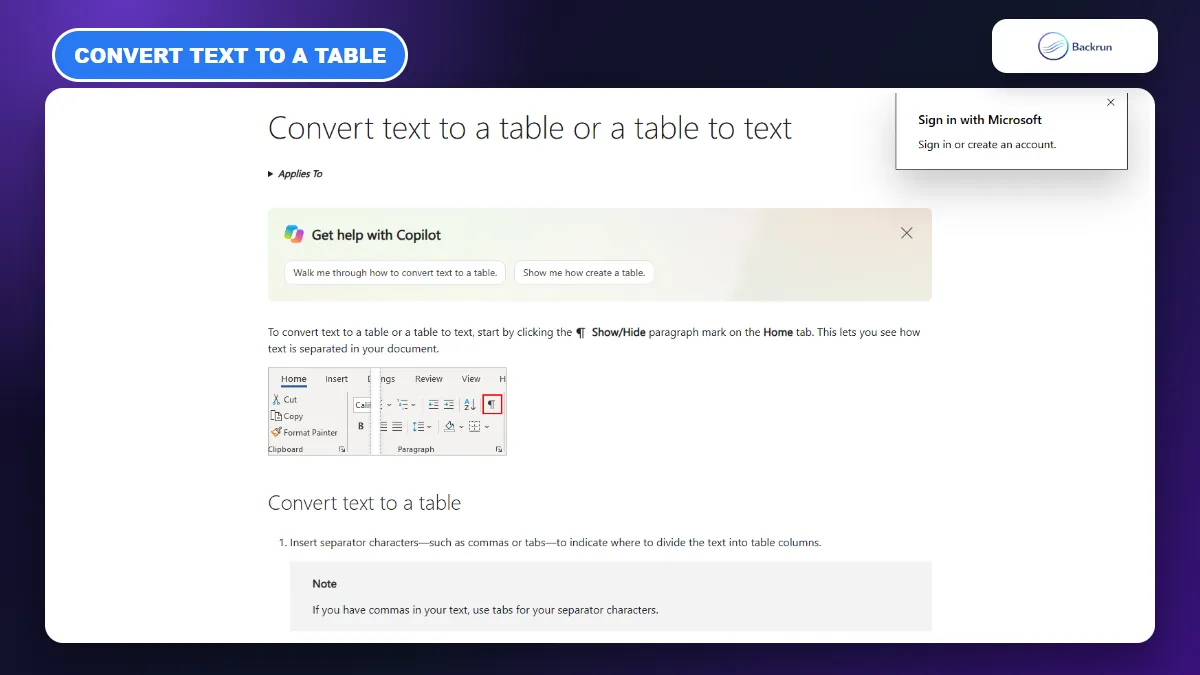
Select the pasted text, then choose Insert > Table > Convert Text to Table.
Select Tabs under Separate text at, confirm the number of columns, and choose an AutoFit option.
Click OK, then apply a Word table style and check that no cell shifted into the wrong column.
Best for: tables that flatten into text, datasets with predictable columns, and content that needs a clean native Word table.
Advantage: this uses Word's built-in table tools and does not depend on browser formatting.
Limitation: a tab inside a cell creates an extra column. Ask Grok to replace internal tabs and line breaks with spaces before producing the TSV output.
Authoritative check: Microsoft documents the same Convert Text to Table workflow and recommends tabs or commas as separators.
4. Convert the Markdown Table With MassiveMark
MassiveMark converts a correctly structured Markdown table into a downloadable Word document.
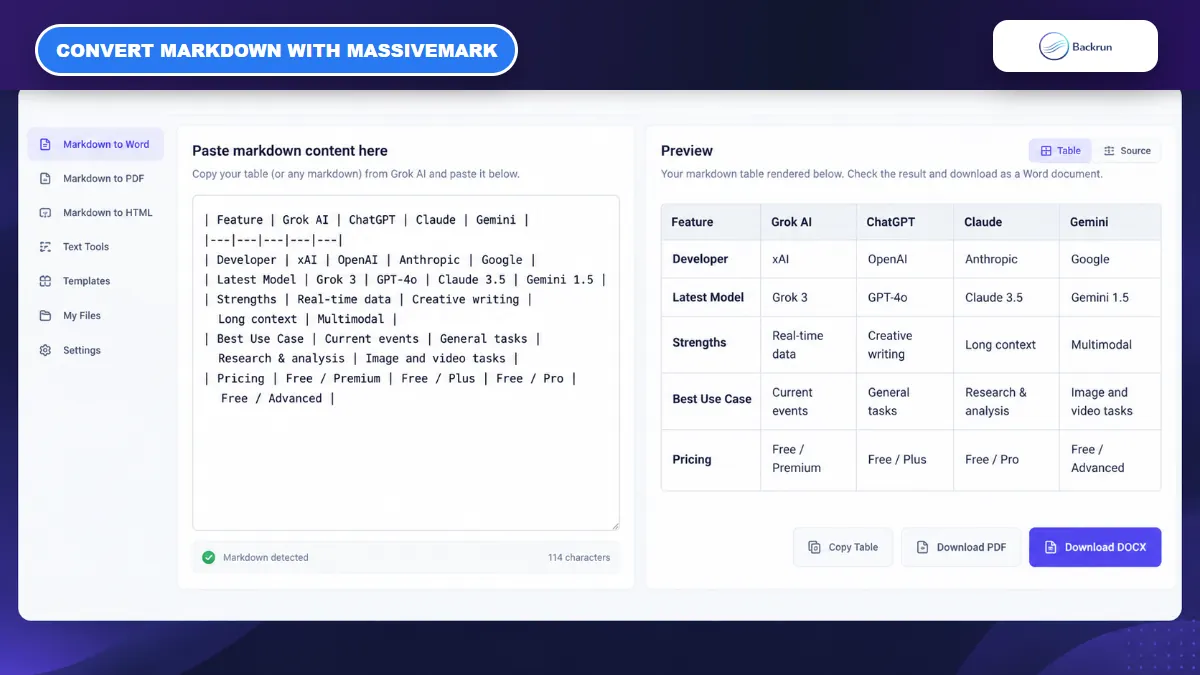
This method is useful when Grok gives you a Markdown table with pipe characters and separators instead of a rendered table. MassiveMark converts that structure into a DOCX file rather than relying on Word to interpret the browser clipboard.
Below is the practical workflow for a Markdown table.
Ask Grok for the table in standard Markdown, with one header row, one separator row, and one line for every data row.
Copy the complete Markdown table, including the first and last pipe character on each row.
Open MassiveMark and choose its Markdown input area.
Paste the Markdown, insert or render the content, and confirm that the preview shows the correct number of rows and columns.
Download the result as DOCX and open it in Word.
Compare the Word table with Grok, paying particular attention to line breaks, symbols, and cells containing multiple sentences.
Best for: wide tables, long tables, or responses where direct paste exposes Markdown syntax.
Advantage: BibCit's current MassiveMark workflow explicitly supports Markdown-to-DOCX conversion and formatted tables.
Limitation: the converter cannot repair invalid Markdown reliably. If the preview is wrong, fix the source table in Grok before downloading the document.
Experience tip: remove paragraphs that sit on the same lines as the table. Keeping the Markdown block self-contained makes row boundaries easier for the converter to detect.
Quick Recap
Choose the method according to whether Grok gives you a rendered table, a full conversation, Markdown, or tab-separated text.
The best way to copy a table from Grok AI to Word depends on the format Grok gives you and how much surrounding content you need.
Method
Best for
Main advantage
Main limitation
Direct copy and paste
Small rendered tables
Fast and requires no extra tool
Complex tables may flatten
AI Chat Exporter
Tables inside longer conversations
Exports context and structure together
Requires an extension
MassiveMark
Markdown tables
Creates a downloadable DOCX
Needs valid Markdown
Tab-separated text
Broken or flattened tables
Creates a native Word table
Requires a few manual steps
Try direct paste first. Move to AI Chat Exporter when the surrounding conversation matters, MassiveMark when Grok provides Markdown, and tab-separated text when you need the most controlled fallback.