5 Grok to Word Extensions for Exporting Chats Without Broken Formatting
July 27, 20269 min read
A grok to word extension is useful when a Grok answer becomes a report, SOP, research note, proposal, or client deliverable that needs to stay editable in Microsoft Word.
Copying from Grok into Word can work for a short paragraph, but it often breaks tables, code blocks, headings, images, and long answer structure. That is why Chrome extensions for Grok exports are useful: they can read the conversation page, let you choose what to export, and generate a DOCX or Word-friendly file with less cleanup.
This roundup focuses on Chrome Web Store extensions that clearly mention Grok and Word or DOCX-style export workflows. Some are dedicated Grok exporters; others are all-in-one AI chat exporters that include Grok alongside ChatGPT, Gemini, Claude, or DeepSeek. Before installing any extension, review its publisher, permissions, pricing, privacy disclosure, and update history. Google also provides guidance for checking and managing Chrome Web Store extensions.
The fairest way to test these tools is to use one messy sample conversation: include a heading, a numbered list, a table, a code block, a link, and one long Grok answer. Export that same chat with each extension, then open the Word file and check whether the document is still usable without rebuilding it by hand.
1. AI Chat Exporter by Backrun
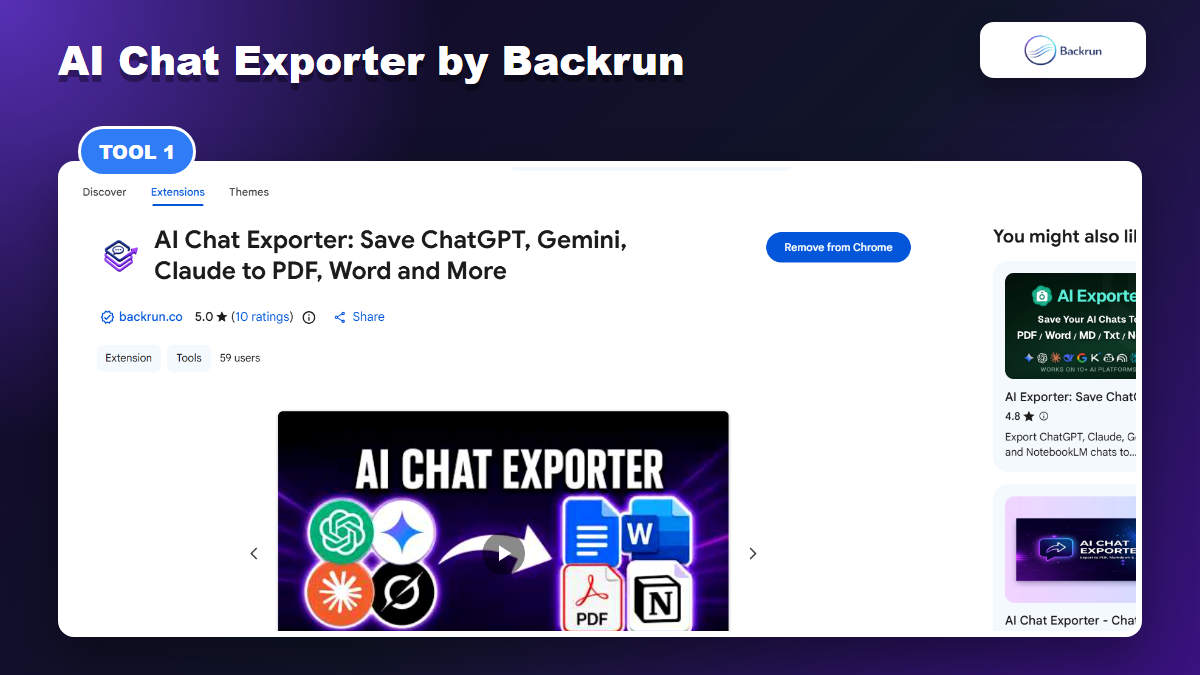
AI Chat Exporter by Backrun supports Grok plus other AI platforms, with Word-friendly export workflows.
AI Chat Exporter by Backrun is a practical first choice if Grok is only one of several AI tools in your workflow. Its Chrome Web Store listing says it supports ChatGPT, Gemini, Claude, and Grok, with exports to PDF, Word, Google Docs, and Notion. That matters if you want one export habit across multiple assistants instead of a different extension for each platform.
Best for: users who export from Grok today but also need ChatGPT, Claude, or Gemini exports tomorrow.
Word workflow: open grok.com, select the messages you want, or export the full conversation, then choose Word/DOCX-style output when you need an editable file.
Strength: selected-message export is useful when the final Word document should include only the useful answer, not every prompt.
Practical check: test one long Grok chat with a table and code block, then inspect spacing, headings, and page breaks in Word.
Watch out for: cloud destinations such as Google Docs or Notion may require signing into that service. For sensitive work, start with a local file export and review the extension permission screen before using real client content.
Real-world fit: Backrun is strongest when the same team exports across several AI assistants. For example, a marketer may draft in ChatGPT, compare in Grok, refine in Claude, and still want the final output in Word. A single exporter keeps that workflow consistent.
2. Chat Exporter for Grok by Nguyen Anh Nui
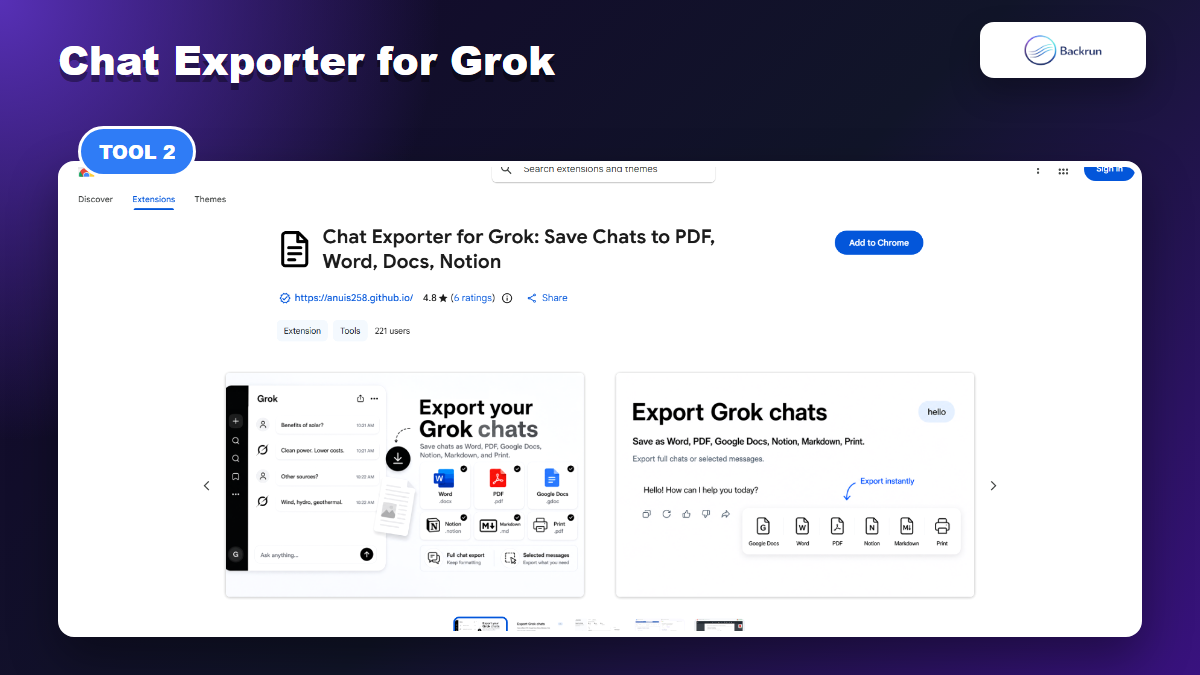
Chat Exporter for Grok is a Grok-only extension that lists Word, PDF, Google Docs, Notion, Markdown, and JSON exports.
Chat Exporter for Grok is a Grok-specific exporter that lists Word document, PDF, Google Docs, Notion, Markdown, JSON, and print exports. The listing also describes checkboxes for selecting individual messages and a top-bar option for full-chat export, which is exactly what many Grok users need when turning a chat into a document.
Best for: people who work mostly inside Grok and want a dedicated extension with several output destinations.
Word workflow: export the whole chat when context matters, or select only final answers when the Word file should read like a clean brief.
Strength: the listing emphasizes preserving headings, lists, tables, code blocks, and math equations.
Practical check: export a DeepSearch-style answer and confirm whether citations, tables, and long sections remain readable in Word.
Watch out for: the listing mentions a free quota and premium unlimited exports. Check current limits before adopting it for daily work.
Real-world fit: this tool is useful when the Grok chat itself is the center of the workflow. If most of your useful content starts and ends in Grok, a dedicated Grok exporter can feel faster than a broader multi-platform tool.
3. Grok to Word by ProductivityImprover
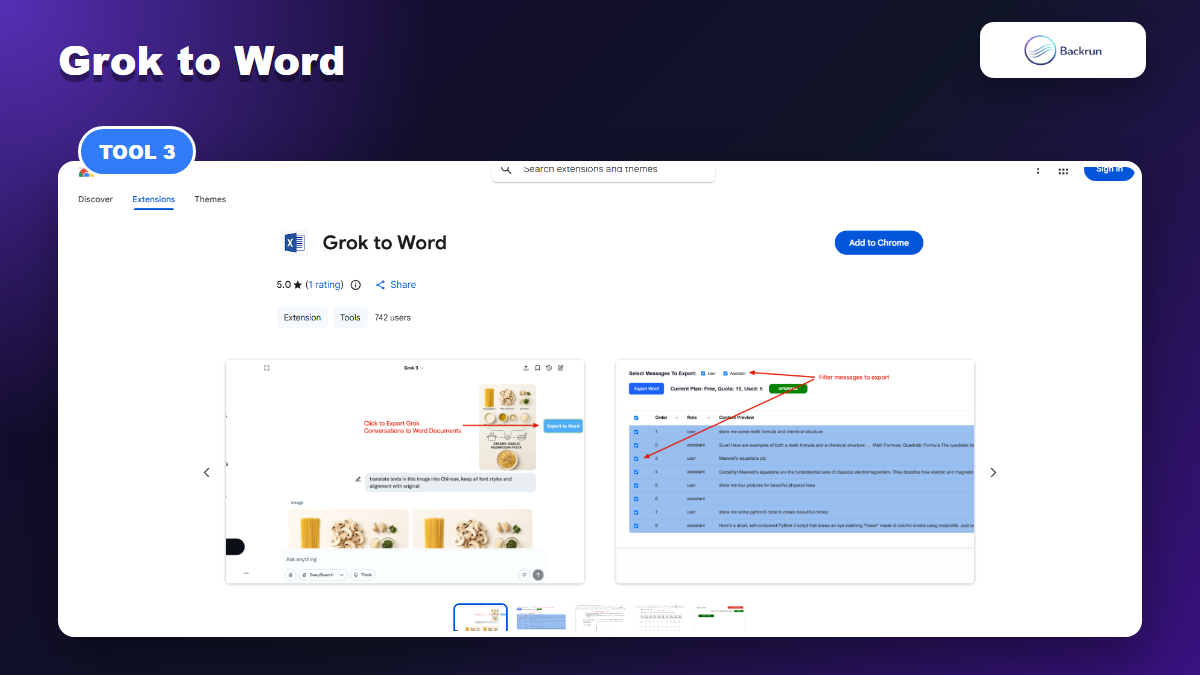
Grok to Word is a focused DOCX exporter for users who mainly want editable Word files.
Grok to Word is the most narrowly named option in this list. Its Chrome Web Store overview says it exports Grok conversations as well-formatted Word DOCX files and lets you filter which messages to include. That focus can be an advantage if you do not need PDF, Notion, Markdown, or Google Docs.
Best for: users who want a simple Grok-to-DOCX extension without a broader AI export suite.
Word workflow: use it when the target file is always Microsoft Word and the conversation needs to remain editable.
Strength: the listing claims one-click export and preservation of images, tables, code blocks, and other Grok chat content.
Practical check: compare assistant-only export versus full conversation export, then choose the cleaner default for your own documents.
Watch out for: the listing has a small rating sample. A 5-star score from one rating is useful context, but it is not enough proof by itself; test formatting before using it for important files.
Real-world fit: choose this kind of focused extension when the only question is whether the final file opens cleanly in Word. It is less interesting for multi-format knowledge management, but potentially simpler for repeat DOCX exports.
4. Grok Exporter - PDF & Word by Anh Bui Dev
Grok Exporter - PDF & Word supports Grok exports to document and archive formats, including Word-oriented workflows.
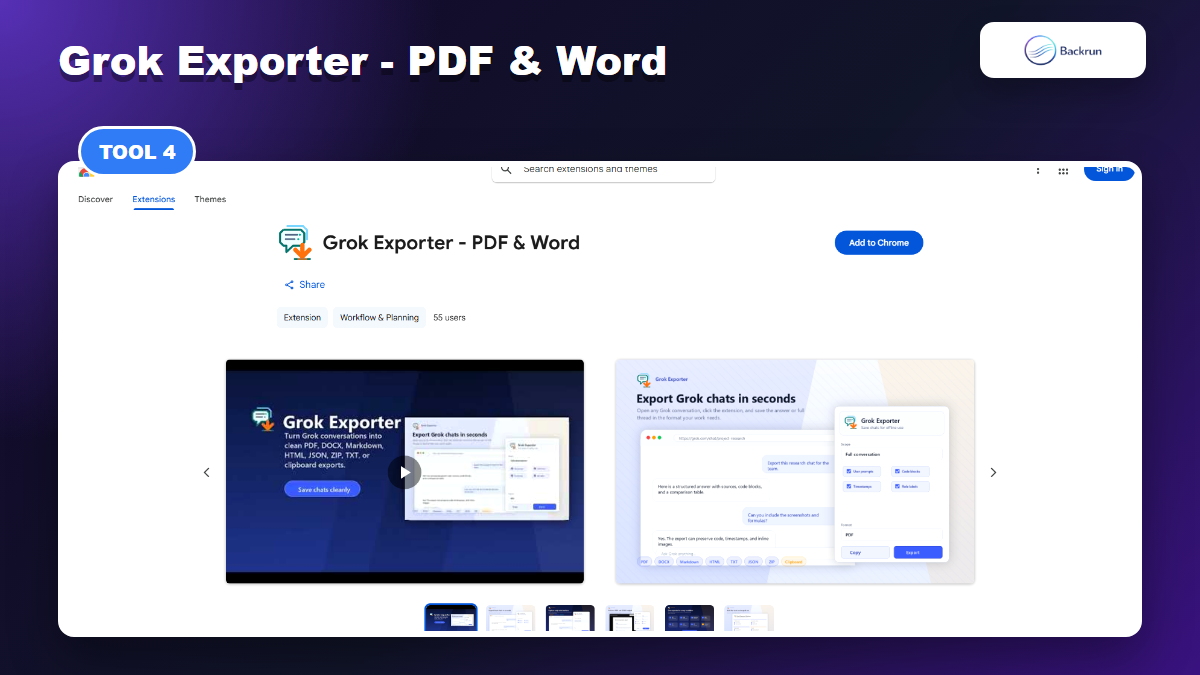
Grok Exporter - PDF & Word is built around Grok conversations on grok.com and the Grok route on x.com. Its listing mentions PDF, Word, Markdown, JSON, web archive, text, and clipboard export workflows, with options such as last response, full conversation, custom ranges, and checkbox selection.
Best for: users who need more control over exactly which part of a Grok conversation becomes the exported document.
Word workflow: use a custom range or checkbox selection when the Word document should include a middle section of a long thread, not the whole chat.
Strength: range controls are useful for research conversations where only a few turns are final enough to keep.
Practical check: try a custom range export and confirm that timestamps, role labels, and prompts appear only when you want them.
Watch out for: the listing includes in-app purchases and mentions backend services for licensing and support workflows. Read those details before using it with sensitive or regulated content.
Real-world fit: this is worth testing if you frequently need just one section of a long Grok conversation. Custom ranges are especially useful when a thread contains early brainstorming, then one polished answer near the end.
5. DeepShare by deepshare.app
DeepShare supports exporting AI chats, including Grok, to Word documents with formula-oriented features.
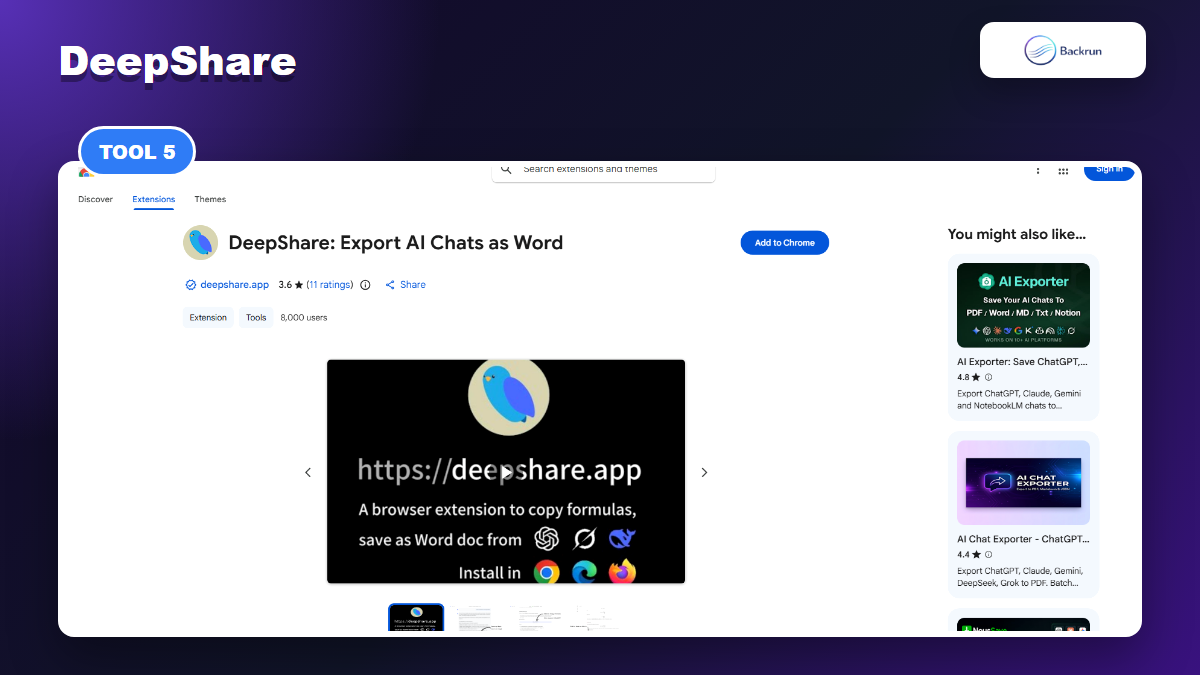
DeepShare is broader than Grok: it describes Word export for AI chats across DeepSeek, ChatGPT, Gemini, Grok, and more. Its main appeal is formula-heavy content, with the listing mentioning formulas, tables, and automatically generated table of contents for premium Word exports.
Best for: users who often export technical, academic, or formula-heavy AI answers into Word.
Word workflow: use it when mathematical formatting and table structure matter more than a lightweight one-click export.
Strength: it is one of the larger extensions in this niche by visible user count, and it focuses heavily on Word document styling.
Practical check: export a Grok answer with equations and tables, then open the DOCX in Word to verify formulas are not flattened into broken text.
Watch out for: several Word export features are described as premium. Check the current pricing and daily limits before building it into a recurring workflow.
Real-world fit: DeepShare is most relevant when plain text is not enough. If your Grok chats include math, research tables, or structured academic notes, a formula-aware Word workflow may save more cleanup time than a simpler exporter.
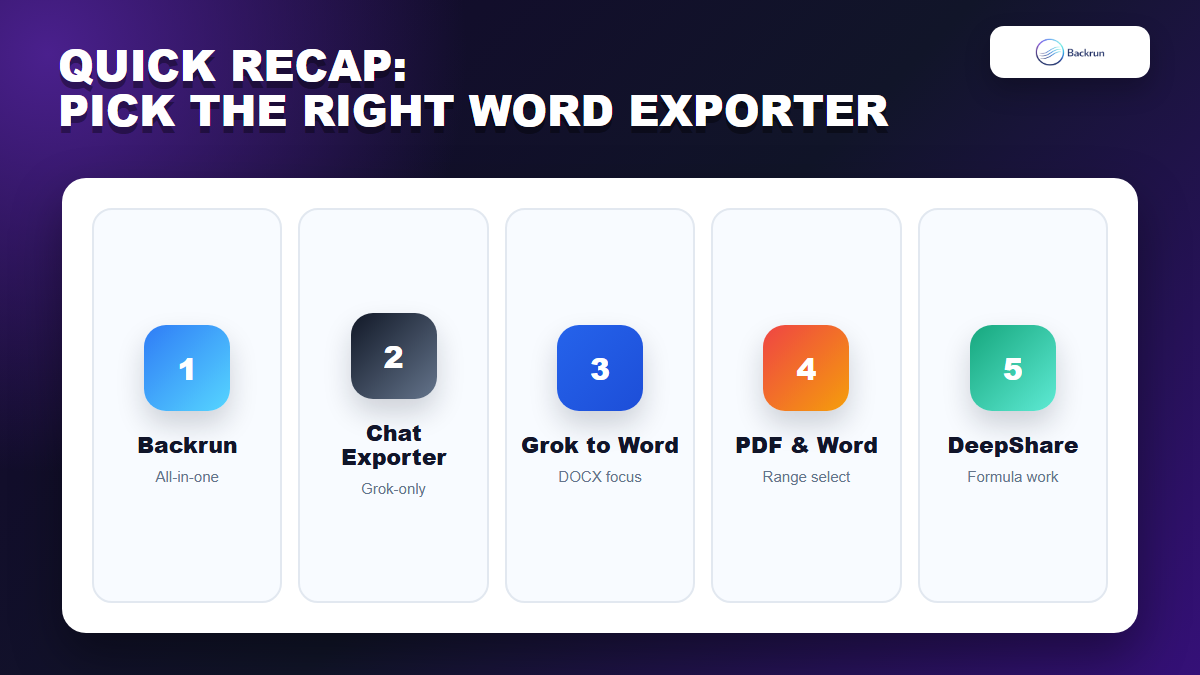
Quick Recap
Quick Recap helps match each Grok to Word extension to the export workflow it fits best.
Extension
Publisher
Best Fit
Word/DOCX Angle
AI Chat Exporter
Backrun
One exporter across Grok and other AI tools
Word-friendly export plus PDF, Google Docs, Notion, and selected messages
Chat Exporter for Grok
Nguyen Anh Nui
Dedicated Grok export with many destinations
DOCX plus Docs, PDF, Notion, Markdown, JSON
Grok to Word
ProductivityImprover
Simple Grok-to-DOCX workflow
Focused Word export with message filtering
Grok Exporter - PDF & Word
Anh Bui Dev
Custom ranges and checkbox selection
Word-oriented document controls plus PDF/Markdown/JSON
DeepShare
deepshare.app
Formula-heavy AI chat exports
Premium DOCX export with formulas, tables, and TOC focus
If you want the most flexible all-in-one option, start with AI Chat Exporter by Backrun. If you only care about Grok and Word, compare Chat Exporter for Grok and Grok to Word. If you need custom ranges, test Grok Exporter - PDF & Word. If equations and technical formatting are the main concern, DeepShare is worth testing with a formula-heavy sample.
For a PDF-focused version of this workflow, Backrun also has a guide to exporting Grok to PDF. The decision rule is simple: use Word when the file needs editing, comments, tracked changes, or client formatting; use PDF when the file is final and should not be modified.
One more check is worth doing before you commit to any extension: uninstall or disable the exporters you do not use after testing. Keeping five chat exporters installed at the same time creates unnecessary permission overlap. For daily work, keep one primary exporter and one backup option only if they solve genuinely different jobs.
For team workflows, document the chosen exporter and export settings. Small differences such as answer-only export, full-chat export, font size, and whether prompts are included can change the meaning of the final Word document. A short internal note prevents messy files later.
Do not pick a Grok to Word extension only by rating or feature count. Export the same messy Grok conversation with two or three tools, open each DOCX in Word, and keep the extension that preserves the structure you actually care about.