5 Gemini Exporter Chrome Extensions for Saving Chats Cleanly
July 28, 20268 min read
A gemini exporter chrome extension is useful when a Gemini answer needs to become a clean document, not another messy copy-paste job.
The right tool depends on your final format: Word for editing, PDF for sharing, Google Docs for collaboration, Markdown for documentation, or Notion for a searchable workspace. A good gemini chat exporter chrome extension should keep headings, lists, tables, code blocks, links, and images readable after export.
This roundup compares Chrome Web Store extensions that clearly support Gemini export workflows. Before installing any exporter, review Chrome's guidance for installing and managing extensions, then test with a non-sensitive Gemini chat that includes a table, a code block, and a long answer.
1. Gemini Exporter
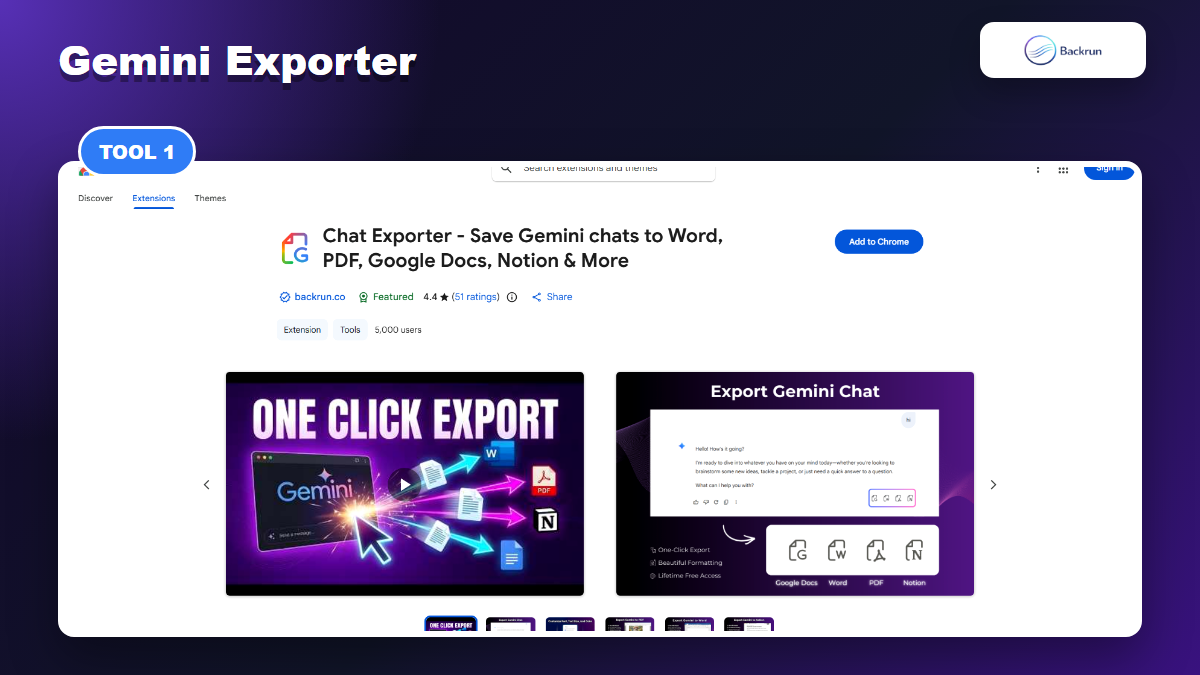
Gemini Exporter supports Gemini exports to Word, PDF, Google Docs, and Notion with selected or full-thread export.
Gemini Exporter is the most natural first pick if you want a Gemini-focused exporter that still covers real document workflows. The Backrun product page says it can export complete Gemini conversations to PDF, Word, Google Docs, or Notion while keeping headings, lists, tables, code blocks, and images organized. The Chrome Web Store listing also describes selected-message export, full-conversation export, and style settings for font, size, and color.
Best for: people who want Gemini chats to become editable work documents, client-ready PDFs, collaborative Google Docs, or searchable Notion pages.
Useful formats: Word, PDF, Google Docs, and Notion.
Good workflow: export only selected messages when the final document should exclude exploratory prompts, or export the full thread when context matters.
Practical check: test a Gemini response with a table and code block, then open the Word or Google Docs output to confirm the structure is still readable.
Watch out for: Google Docs and Notion exports may require authorization with those services. For sensitive work, begin with a local Word or PDF export and review extension permissions first.
In day-to-day use, this is the strongest fit when the conversation already contains the final material you want to keep. For example, if Gemini produced a research brief, a comparison table, and a draft outline, selected export lets you skip the messy planning prompts while keeping the polished answers. That saves cleanup time and makes the exported file feel like a document, not a raw chat transcript.
2. AI Exporter by saveai.net
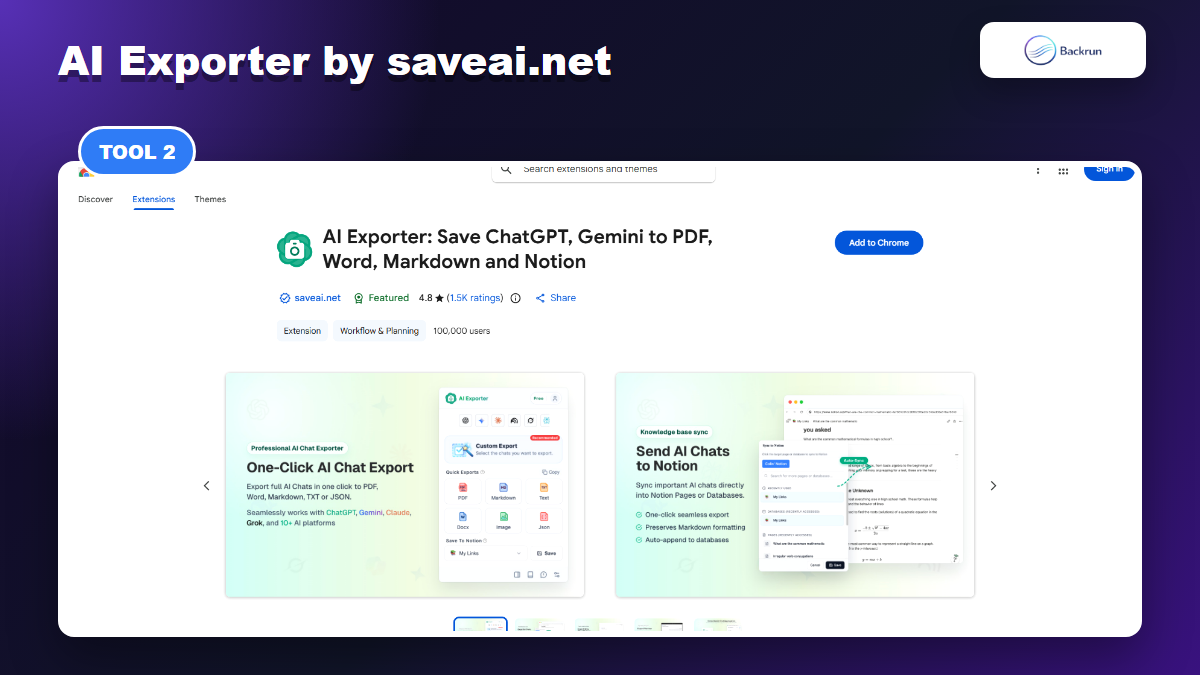
AI Exporter by saveai.net is a broader AI export suite with Gemini support and a large visible user base.
AI Exporter by saveai.net is a broad AI chat export suite, not just a Gemini-only tool. Its listing says it supports ChatGPT, Claude, Gemini, NotebookLM, and other platforms, with exports to PDF, Word, Markdown, TXT, JSON, image, or Notion depending on the workflow. It also has a large visible user base, which makes it worth considering for multi-platform teams.
Best for: users who move between several AI tools and want one exporter interface rather than one extension per assistant.
Useful formats: PDF, Word, Markdown, TXT, JSON, image, and Notion-oriented workflows.
Good workflow: use it when your research starts in Gemini but later moves through ChatGPT, Claude, NotebookLM, or another AI app.
Practical check: compare output quality across Gemini and another platform; multi-platform tools are only valuable if formatting stays consistent.
Watch out for: broad tools often request wider page access than a single-site exporter. That can be reasonable, but it makes permission review more important.
This category is useful for teams that do not want to train everyone on separate exporters. The tradeoff is that a broad tool must keep up with several fast-changing AI interfaces at once. If one platform updates its layout, a feature may break there while still working elsewhere, so keep a small backup workflow such as browser print to PDF or manual Markdown copy for deadline-sensitive exports.
3. Export Gemini Chats by gptsexporter
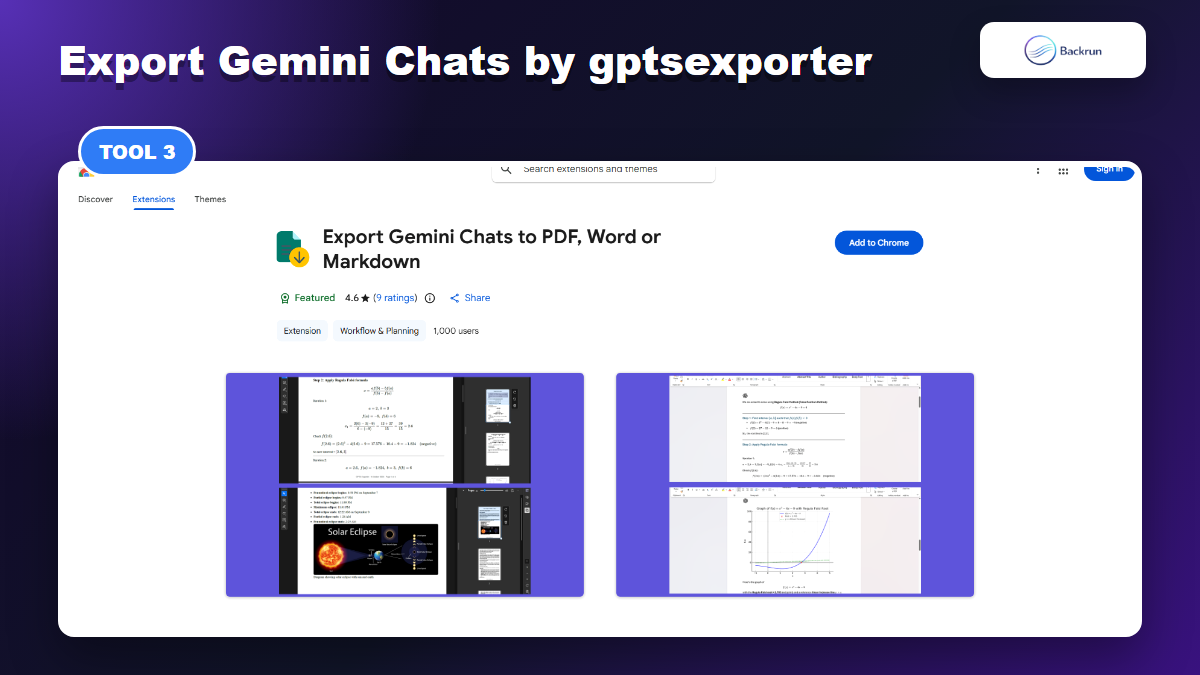
Export Gemini Chats by gptsexporter focuses on PDF, Word DOCX, and Markdown exports for Gemini conversations.
Export Gemini Chats by gptsexporter focuses on a compact set of practical formats: PDF, Word DOCX, and Markdown. The listing says it preserves formatting, code blocks, tables, math equations, and images, which are the exact elements that often break when you copy Gemini into a document manually.
Best for: students, researchers, developers, and writers who mostly need a document or Markdown archive from Gemini.
Useful formats: PDF, Word DOCX, and Markdown.
Good workflow: use Word when the file needs editing, PDF when the result is final, and Markdown when the content will move into developer notes.
Practical check: export a chat with formulas and code fences; verify that equations and code blocks are not flattened into messy plain text.
Watch out for: the listing shows in-app purchases, so check the current free limits and paid features before adopting it for recurring export work.
The cleanest use case here is repeatable document export rather than knowledge-base publishing. If you mainly need a PDF for sharing, a DOCX for editing, or Markdown for a README, the smaller format set can be an advantage because there are fewer settings to inspect. Still, run one export with a long Gemini answer because shorter chats can look perfect while longer conversations reveal spacing, page-break, or table-width issues.
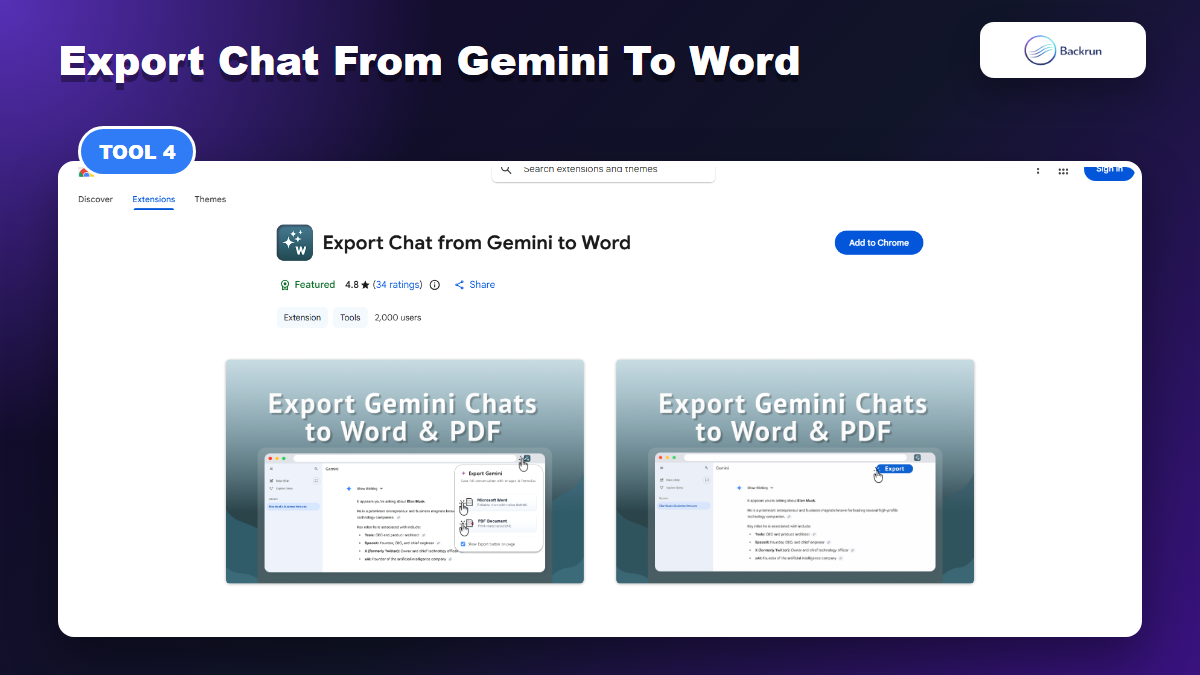
4. Export Chat from Gemini to Word by Purple Parrottt
Export Chat from Gemini to Word is a DOCX-focused option for editable Gemini documents.
Export Chat from Gemini to Word is a more narrowly positioned extension. Its listing focuses heavily on exporting Gemini conversations into editable Word documents, with PDF and Markdown also mentioned. That makes it useful if your team mainly wants DOCX files for editing, comments, tracked changes, and internal formatting.
Best for: users whose final destination is Microsoft Word, Google Docs import, LibreOffice, or a client document template.
Useful formats: Word DOCX first, with PDF and Markdown as secondary options.
Good workflow: export Gemini brainstorming or research answers into Word, then add your own introduction, notes, and final formatting.
Practical check: open the DOCX in Word and inspect lists, heading levels, and code blocks before using it for a deliverable.
Watch out for: Word-focused extensions can over-optimize copy for DOCX and be less useful for Notion or Markdown workflows. If collaboration is the goal, compare it with Backrun's Google Docs export path. For a broader Word workflow, Backrun also has a guide to exporting Gemini to Word.
This is worth testing when your company still lives in Word templates. A DOCX-first extension should preserve the basic hierarchy well enough that you can apply your own brand styles afterward. The important detail is whether it produces editable text instead of screenshot-like blocks. If headings, tables, and code snippets remain selectable, the export will usually be much easier to polish.
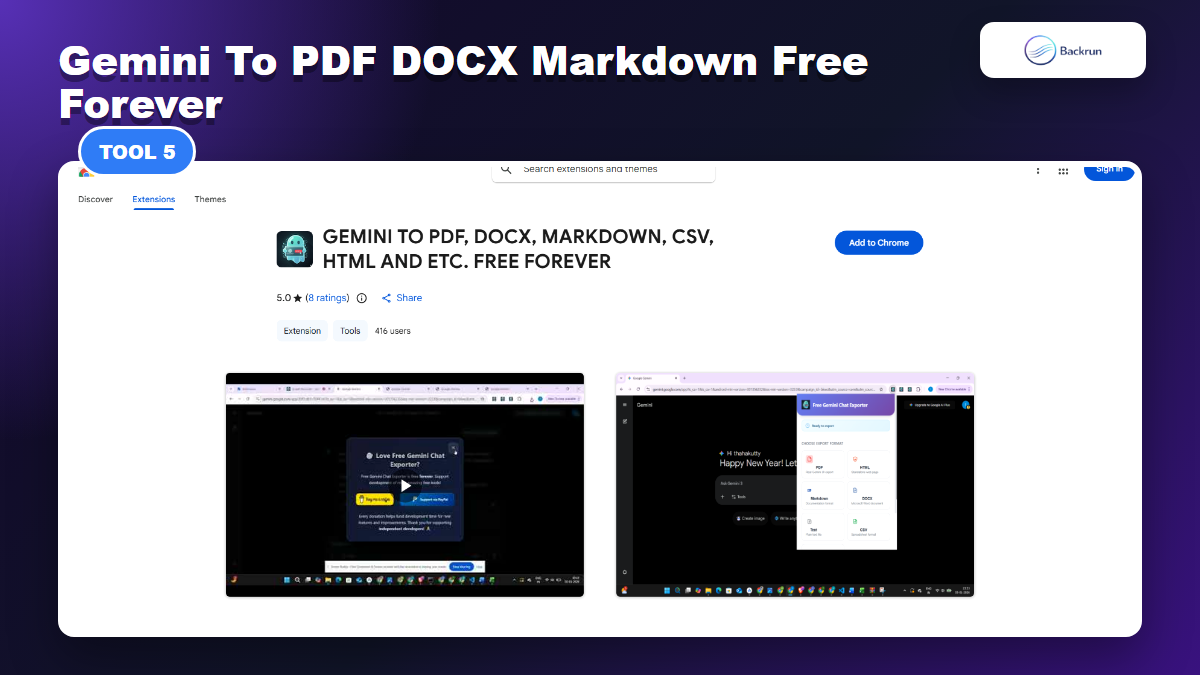
5. Gemini to PDF DOCX Markdown Free Forever by useme
The useme extension emphasizes local export formats such as PDF, DOCX, Markdown, CSV, HTML, text, and JSON.
Gemini to PDF DOCX Markdown Free Forever emphasizes local, multi-format export. Its listing mentions PDF, HTML, Markdown, DOCX, text, CSV, and JSON, plus local processing and no data collection claims. The name is awkward, but the format range is useful if you want one local archive tool for Gemini.
Best for: people who want offline-style exports and several file formats without committing to a cloud workspace.
Useful formats: PDF, HTML, Markdown, DOCX, text, CSV, and JSON.
Good workflow: use DOCX for editing, HTML for offline viewing, Markdown for notes, and JSON or CSV for structured archives.
Practical check: test both light and dark Gemini themes, because the listing specifically warns that the system theme may cause issues.
Watch out for: small extensions can be useful, but small rating samples are not enough proof. Test long conversations, images, and tables before relying on it for work files.
The local-processing claim is attractive for users who prefer saving files without sending chat content to an external service. Treat that as a reason to investigate, not as a reason to skip verification. Export a sample, disable network if practical for your test environment, and confirm the generated files still open cleanly. For archive work, JSON and CSV can be valuable, but they are usually less comfortable for non-technical readers than DOCX or PDF.
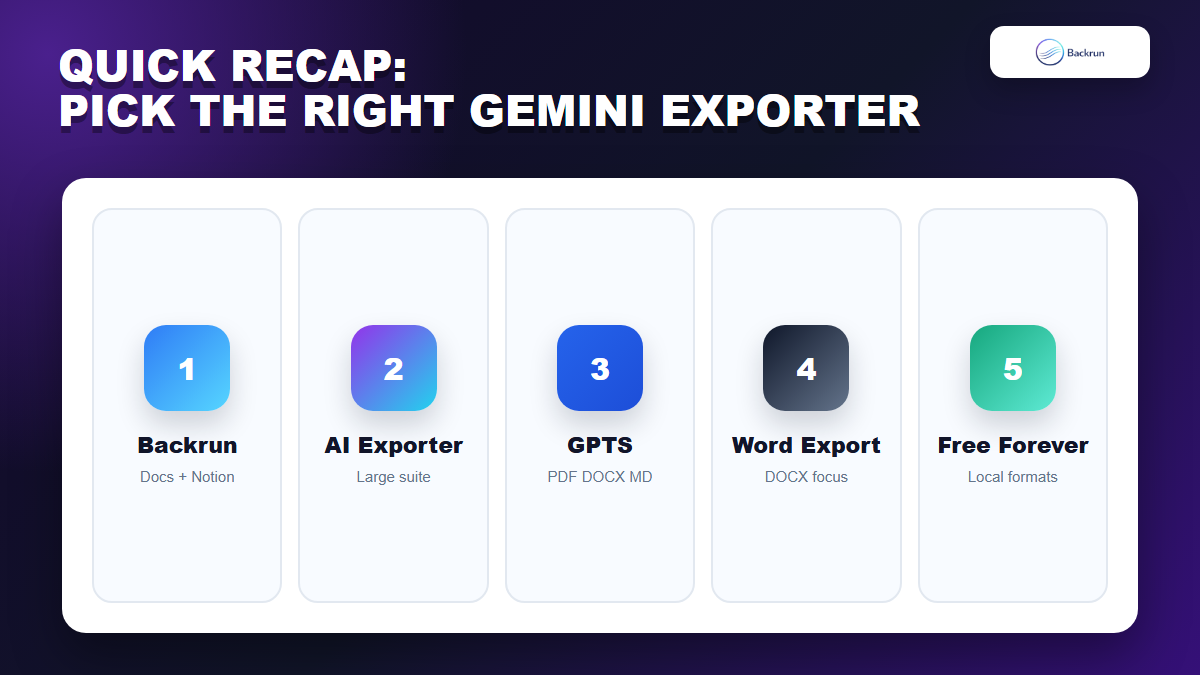
Quick Recap
Quick Recap helps match each Gemini exporter Chrome extension to the workflow it fits best.
Extension
Publisher
Best Fit
Main Formats
Gemini Exporter
Backrun
Gemini document workflows with Word, PDF, Docs, and Notion
Word, PDF, Google Docs, Notion
AI Exporter
saveai.net
Multi-platform AI export across Gemini and other assistants
PDF, Word, Markdown, TXT, JSON, image, Notion
Export Gemini Chats
gptsexporter
PDF, Word, and Markdown exports with formatting preservation
PDF, DOCX, Markdown
Export Chat from Gemini to Word
Purple Parrottt
Editable Word-first documents
DOCX, PDF, Markdown
Gemini to PDF DOCX Markdown Free Forever
useme
Local multi-format archives
PDF, HTML, Markdown, DOCX, text, CSV, JSON
If you need a dependable starting point, choose Backrun when Gemini exports need to become Word, PDF, Google Docs, or Notion files with selected-message control. Choose AI Exporter when Gemini is only one of several AI platforms you export from. Choose a Word-focused extension when your final file always needs editing in DOCX. If collaboration is more important than local download, see Backrun's guide to moving Gemini to Google Docs.
The best extension is the one that preserves your real Gemini content, not the one with the longest feature list. Export the same messy chat, inspect the file, and keep only the tool that saves you more cleanup time than it adds in permissions, limits, or formatting fixes.