5 Ways to Export Grok to PDF Without Losing Useful Context
July 27, 20269 min read
If you need to turn a useful Grok thread into a shareable document, grok to pdf can mean a few different workflows: a polished full-chat export, a quick browser print, or a cleaned-up document you edit before saving.
Grok is designed for active conversation, not long-term document storage. xAI's own docs describe Grok as an assistant available on grok.com, iOS, and Android, with conversations synced across platforms. That is convenient while you are working, but it does not automatically give you a clean PDF for reporting, archiving, or sending to a client.
The best method depends on what you need to preserve. A short answer can be copied into a document. A long research thread with code blocks, tables, and images needs a more careful export path. Below are five practical ways to save Grok content as a PDF, with the limitations spelled out so you can choose the right one.
1. Use AI Chat Exporter by Backrun
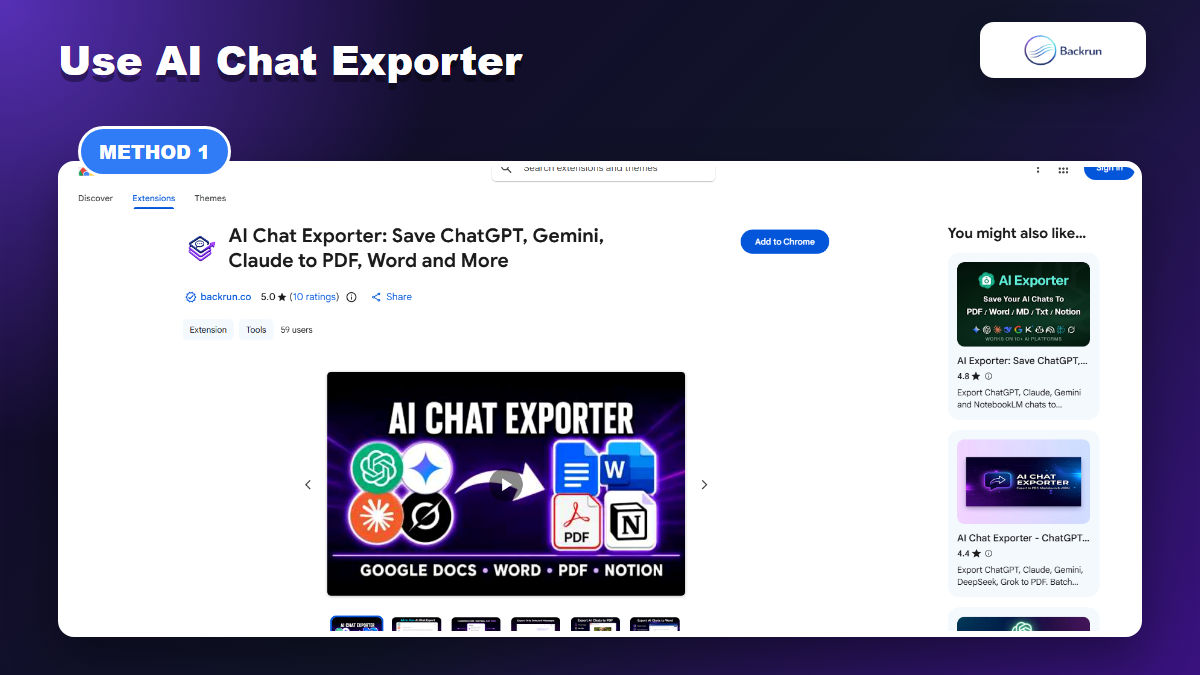
AI Chat Exporter by Backrun is the cleanest route when you need a full Grok conversation saved as a polished PDF.
The most direct method is to use a browser extension that is built for AI conversation export. There are several Grok-related extensions on the Chrome Web Store, but for this workflow we suggest starting with AI Chat Exporter by Backrun because it supports Grok alongside ChatGPT, Gemini, and Claude.
Install AI Chat Exporter from the Chrome Web Store.
Open grok.com and load the conversation you want to save.
Select the messages you want to export with the checkbox controls, or use the full-conversation export option in the top-right corner.
Click Export to PDF and wait for the file to be generated.
Open the PDF and review tables, code blocks, links, and page breaks before sharing it.
This is the best option when you need a full conversation with structure intact. The listing says the extension can export selected messages or an entire conversation, customize font settings, and preserve headings, lists, code blocks, tables, links, images, and mathematical formulas where supported.
Best for: full Grok conversations, research threads, technical explanations, and reusable business documents. If you want to compare more Grok-specific options, Backrun also has a roundup of Grok exporter Chrome extensions.
Limit: any browser extension can only work with the content it can access on the page. For private or sensitive chats, test with a harmless conversation first and review the Chrome permissions before installing.
Practical tip: export a short sample first, then open the PDF and scan the sections that usually break: tables, numbered steps, formulas, long URLs, and code blocks. If those survive the sample export, the full conversation is much more likely to be usable without manual cleanup.
2. Print the Grok Page to PDF
Browser print is quick, but it only captures what the page layout can render cleanly.
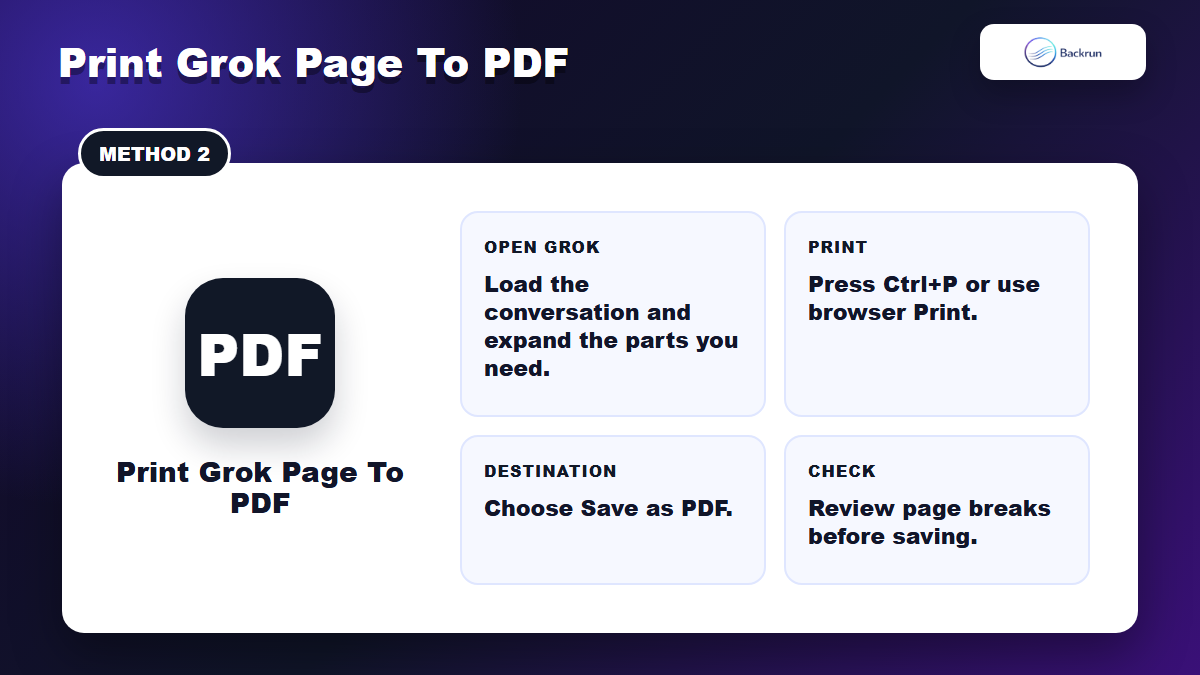
The fastest no-install method is the browser print dialog. This works when the conversation is short, already visible, and does not need perfect formatting.
Open the Grok conversation in Chrome or Edge.
Expand the parts you need so the page includes the answer, code, or table you want.
Press Ctrl+P on Windows or use the browser's print menu.
Select Save as PDF as the destination.
Check the preview for cut-off content, hidden sidebars, page breaks, and dark-mode readability.
This method is simple because it uses the browser rather than a third-party tool. It is also easy to explain to a teammate who only needs a quick copy of a visible answer.
Best for: one visible answer, a short thread, or a quick reference copy.
Limit: browser printing can capture navigation elements, truncate long chats, break code blocks across pages, or miss messages that are not loaded. It is not ideal for polished reports.
Experience note: print works best after switching to a light theme and zooming the browser to a readable size. If the preview looks crowded, cancel the print, hide side panels where possible, reload the page, and try again. Do not assume the saved PDF will match the screen; the print preview is the real source of truth.
3. Copy Grok into Google Docs or Word, Then Export PDF
Docs or Word gives you an editing checkpoint before the final PDF is created.
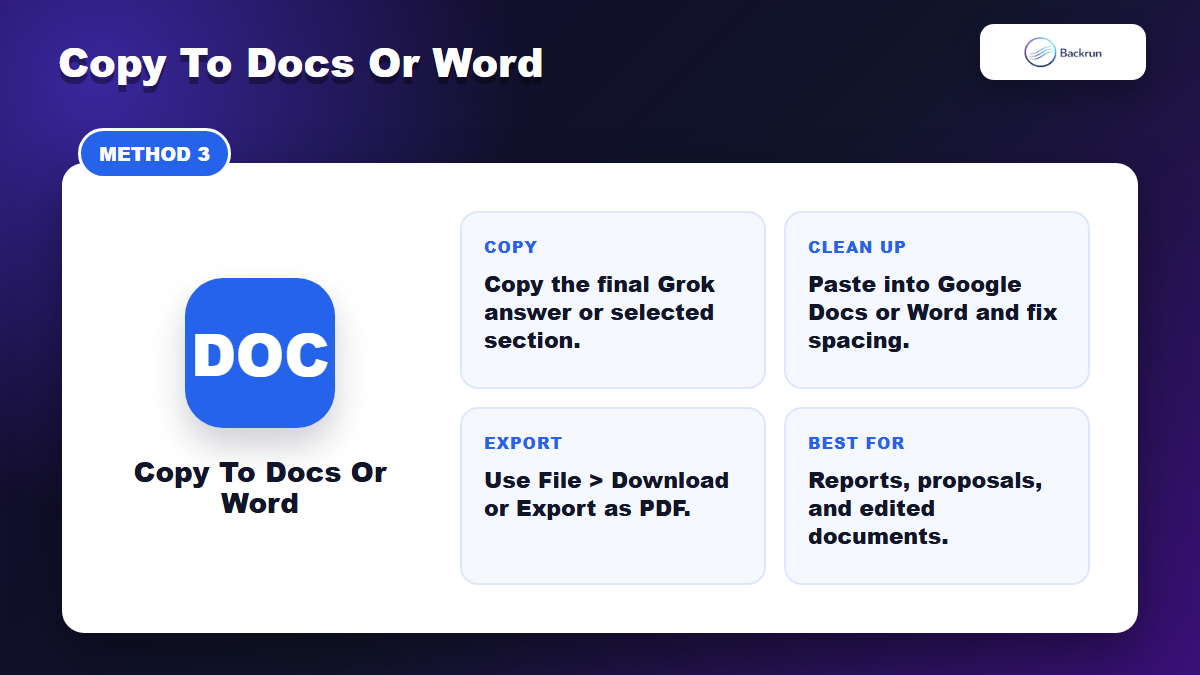
If the PDF needs to look clean, edit the content before exporting. Google Docs and Microsoft Word are useful checkpoints because you can fix headings, rewrite the intro, adjust tables, and remove exploratory prompts.
Copy the final Grok answer or the selected part of the conversation.
Remove unnecessary prompts or repeated follow-up messages.
Export as PDF from the document editor.
This approach is slower than a direct export, but it gives you the most editorial control. It is especially useful when the Grok thread is raw research and the final PDF needs to read like a report.
Best for: client deliverables, proposals, edited summaries, classroom notes, and internal documents.
Limit: manual copy-paste can lose formatting, especially tables and code. Always compare the PDF with the original Grok answer before sending it out.
Practical tip: paste into a blank document first, not into an existing branded template. Once the content is clean, move it into your final template. This keeps hidden formatting from Grok or the browser from creating inconsistent fonts, spacing, and table widths across the document.
This method is also useful when you want to turn a conversation into a document that has a human point of view. Grok may give you a strong answer, but a PDF often needs context, a short introduction, a clear conclusion, and removed trial-and-error prompts.
4. Use Grok's Built-In Export to PDF Button
Grok has a built-in Export to PDF option, but it exports one answer at a time.
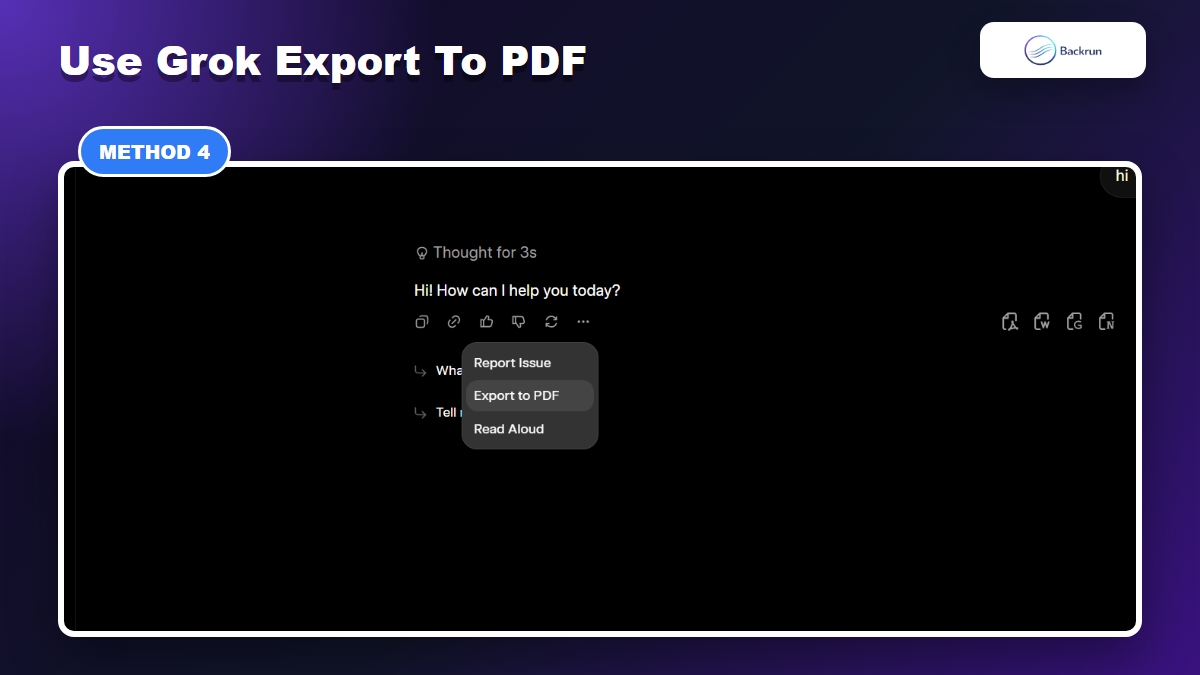
Grok also has its own Export to PDF action inside the message menu. This is useful when you only need one answer, not the whole conversation. The important limitation is that the built-in button exports a single Grok response at a time, so it is not a full-thread export workflow.
Open the Grok answer you want to save.
Click the three-dot menu or action menu near that answer.
Choose Export to PDF from the menu.
Save the generated file to your computer.
Repeat the process for each additional answer if you need more than one response.
This method is the cleanest no-extension option when the exact answer you want is already final. It avoids browser sidebars and print-dialog clutter because Grok is generating the PDF from the answer action itself.
Best for: saving one polished answer, a single explanation, or a quick reference that does not need the surrounding prompts.
Limit: it does not export the full chat in one pass. If your PDF needs multiple turns, follow-up context, or selected messages from different parts of the conversation, use AI Chat Exporter by Backrun or copy the content into Docs/Word first.
Practical tip: before clicking Export to PDF, ask Grok to consolidate the final answer into one complete response. That gives the built-in export button a cleaner source and reduces the need to stitch several PDFs together later.
5. Use Account Data Export for Backup, Then Rebuild a PDF
Account archive export is best treated as a backup source, not as a ready-to-share PDF.
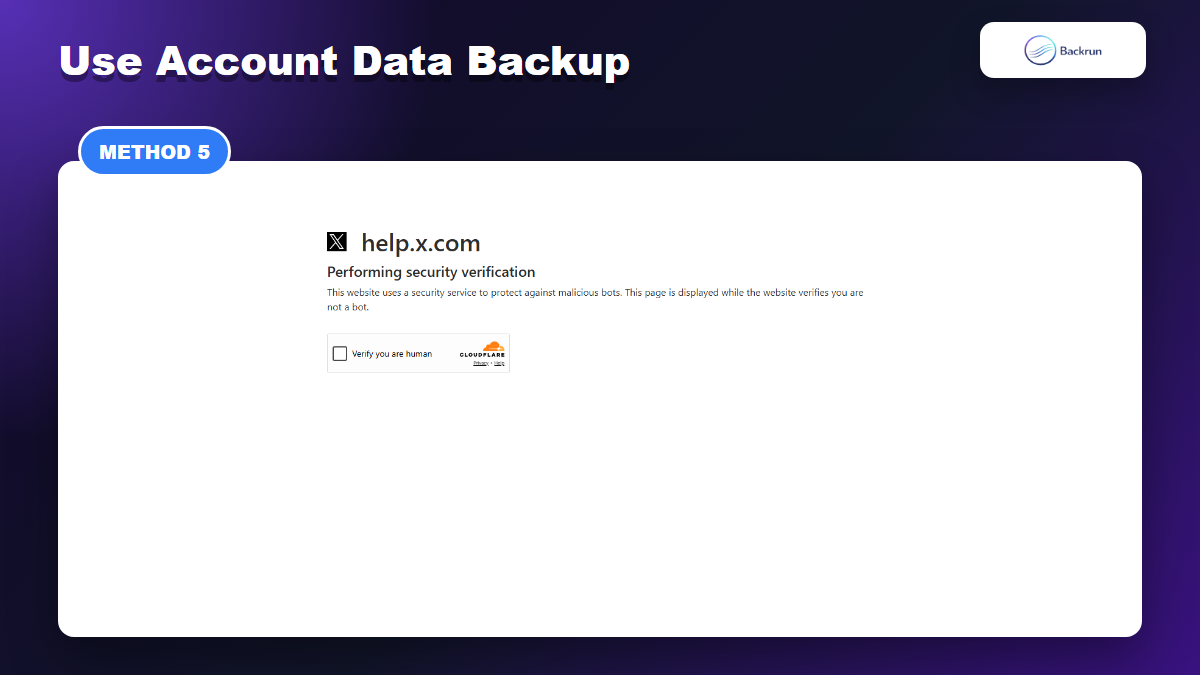
For full-history backup, use account data export rather than a one-chat PDF workflow. X Help documents a process for requesting and downloading an archive of account data; third-party Grok backup guides also describe xAI/Grok account exports as ZIP or JSON-style archives. Treat this method as a backup source first, not as a finished PDF.
Request your account data from the relevant X/xAI account data area.
Wait for the archive to be prepared and downloaded.
Open the exported files and locate the conversation you need.
Copy the relevant text into Docs, Word, Markdown, or a conversion script.
Create the PDF from the cleaned-up document.
This path is useful when you need to preserve everything, recover older context, or keep a monthly archive of AI work. It is not the fastest way to create a readable PDF from a single chat.
Best for: full-history backups, compliance archives, or rebuilding a PDF from data you exported earlier.
Limit: machine-readable exports are not designed as polished documents. You may need to search, filter, and reformat before the content becomes a useful PDF.
Important distinction: an archive is not the same thing as a presentation-ready export. It is valuable because it can preserve more raw history, but the output may include metadata, IDs, timestamps, and technical files that do not belong in a client-facing PDF. Use it when completeness matters more than speed.
For recurring work, keep both formats: an archive for backup and a cleaned PDF for reading. The archive helps you recover old context later, while the PDF gives teammates a focused version they can actually review without digging through raw files.
Quick Recap
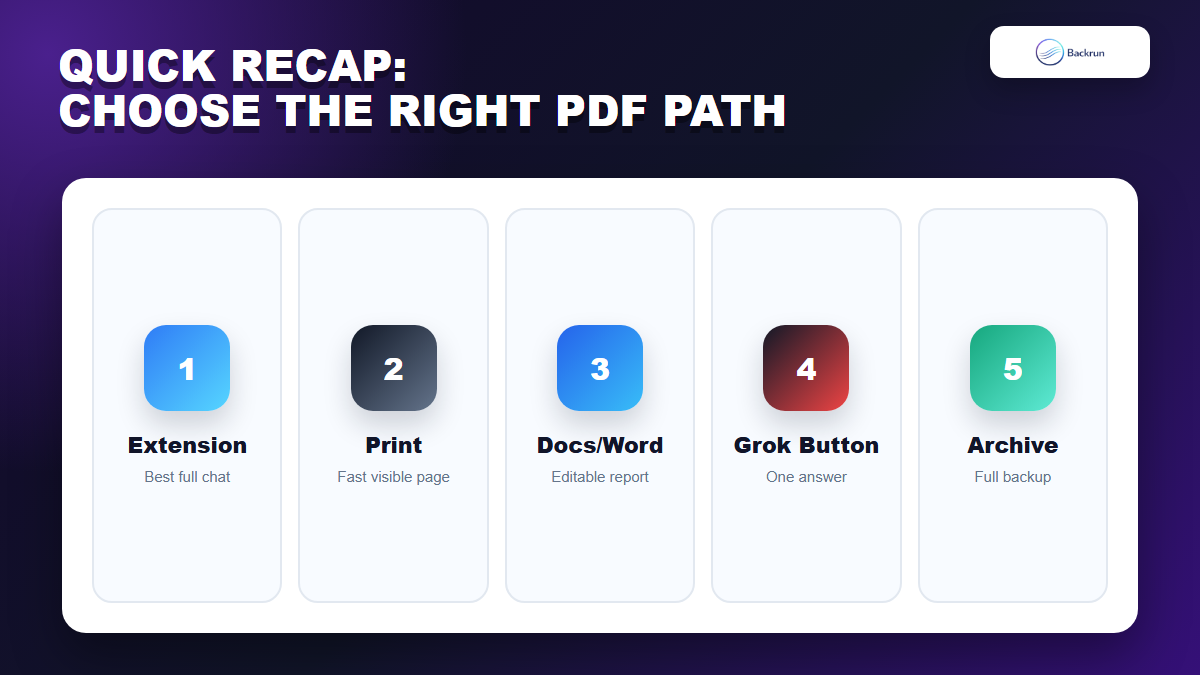
Quick Recap maps each Grok-to-PDF method to the workflow it fits best.
Method
Best Fit
Strength
Limitation
AI Chat Exporter by Backrun
Full Grok conversation export
PDF output with selected-message and full-chat support
Requires installing a Chrome extension
Browser print
Quick visible-page PDF
No extra tool needed
Weak formatting for long chats
Docs or Word
Edited reports
Maximum cleanup control
Manual copy-paste work
Grok built-in Export to PDF
One answer at a time
Native PDF action inside Grok
Does not export a full conversation in one pass
Account data export
Full-history backup
Preserves more raw history
Not a ready-made PDF
For most people, the best grok to pdf workflow is: use AI Chat Exporter when you need the complete chat, use Grok's built-in PDF button for one finished answer, use browser print for quick captures, and use Docs or Word when the final PDF needs editing first.
Choose the method by the value of the conversation. A temporary answer does not need a perfect document. A research thread, contract note, technical explanation, or team-facing SOP deserves a cleaner export path because the PDF may be reused, forwarded, searched, or stored for months.
Before sharing any exported PDF, check message order, missing content, code formatting, table layout, links, and private prompts. A one-minute review catches most export mistakes before the file reaches a client, teammate, or public archive.