Which Grok to Markdown Extension Should You Use? 5 Options Compared
October 22, 20268 min read
A useful Grok to Markdown extension should turn a conversation into an editable .md file without flattening code blocks, tables, lists, citations, links, or formulas. It should also make it clear whether it exports one response, selected messages, or the complete thread.
We checked current Chrome Web Store listings and narrowed the field to five extensions that explicitly support both Grok and Markdown. The best choice depends on whether you need selective export, full-thread capture, YAML front matter, bulk backups, or one exporter that also works with other AI platforms.
1. AI Chat Exporter
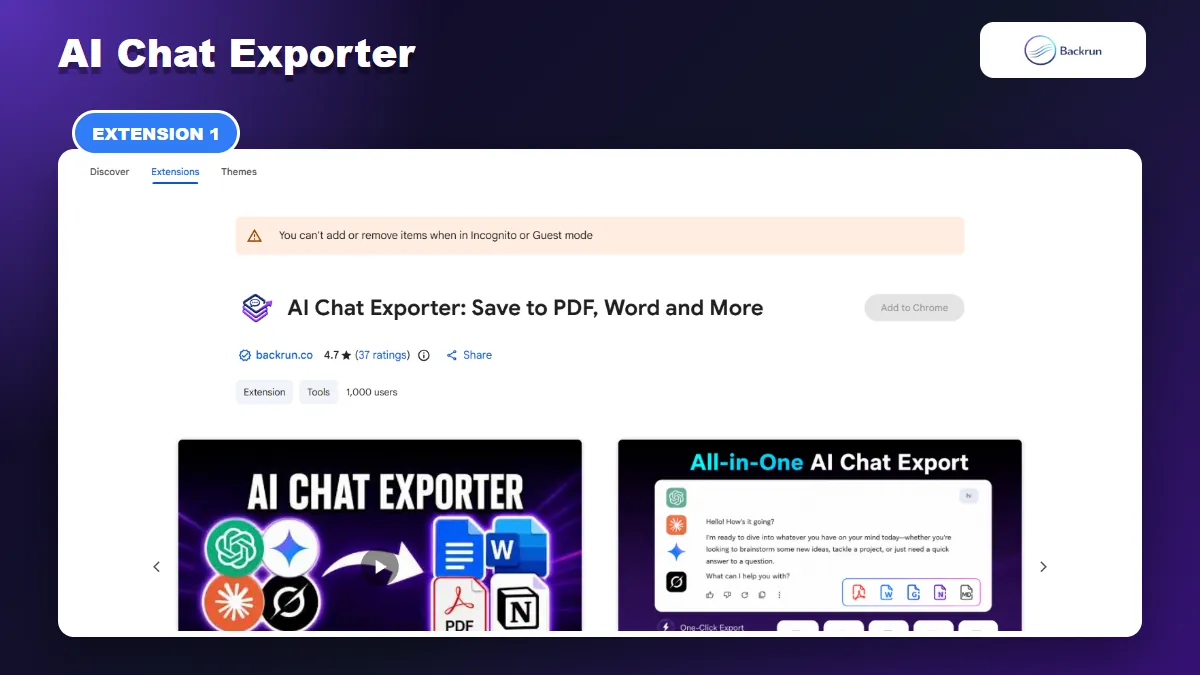
AI Chat Exporter can save selected Grok messages or the complete conversation as Markdown.
AI Chat Exporter is the most flexible starting point when Grok is only one part of your AI workflow. Its current Chrome Web Store listing supports Grok, ChatGPT, Gemini, and Claude, with exports to Markdown, PDF, Word, Google Docs, and Notion.
Best for: users who want one familiar export workflow across several AI assistants and need to remove irrelevant turns before creating the Markdown file.
The normal Grok-to-Markdown workflow is straightforward:
Install AI Chat Exporter from the Chrome Web Store.
Open grok.com and load the conversation you want to keep.
Select the useful messages, or choose the complete thread when the prompts provide necessary context.
Choose whether to include Grok responses, your prompts, or both.
Select Markdown and export the file.
Open the result in a Markdown editor and verify headings, code fences, tables, formulas, links, and image references.
The message-selection step is the main advantage. Research sessions often contain repeated prompts, failed directions, and partial answers that do not belong in permanent notes. Removing those turns produces a cleaner file for Obsidian, GitHub, Notion, a documentation repository, or another AI assistant.
Formatting and privacy: the listing describes support for headings, lists, code blocks, tables, equations, links, images, and structured responses. Local file exports are described as device-processed, but you should still inspect the extension permissions and test a non-sensitive conversation before using it with private work.
2. AI Grok Exporter
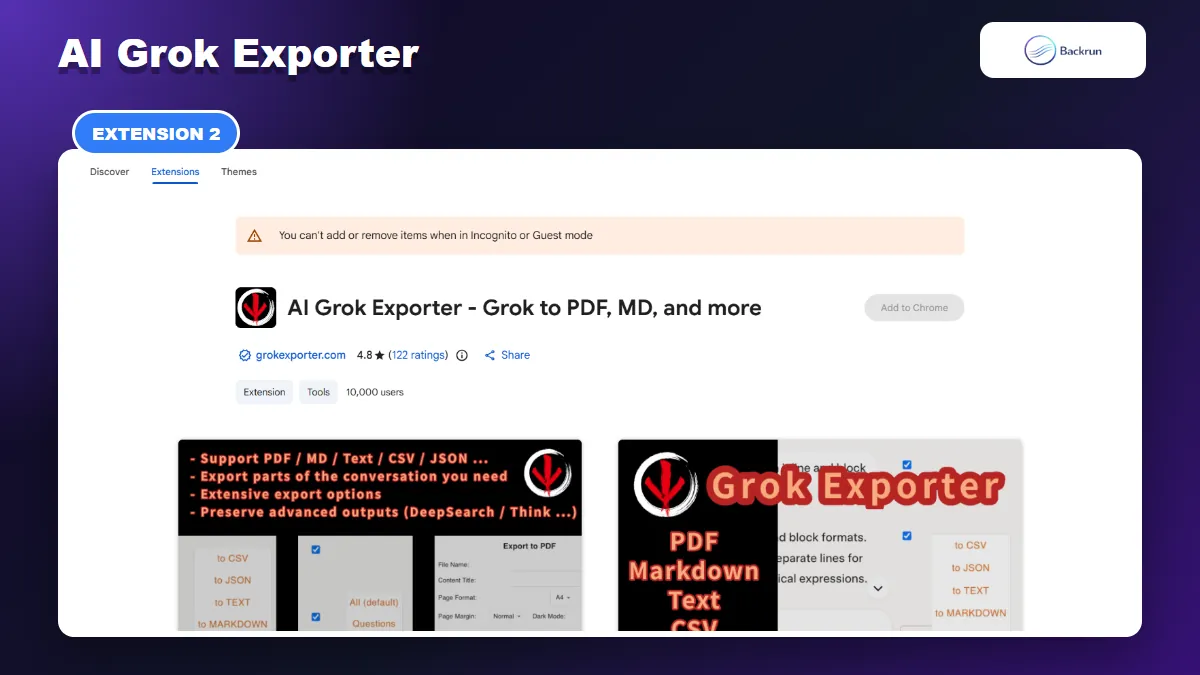
AI Grok Exporter combines selective Markdown export with advanced Grok content controls.
AI Grok Exporter is a Grok-specific tool with a much larger public usage sample than the other focused options here. At the time of our check, its listing showed a 4.8 rating from 122 reviews and 10,000 users.
Best for: power users who need precise control over which Grok turns, sources, reasoning blocks, images, and metadata enter the Markdown file.
Its Markdown workflow includes several useful controls:
Selective messages: tick individual turns, use Shift-click for a range, or select the full conversation.
Advanced Grok content: include Deep Research references, web sources, inline citations, generated images, code, tables, and mathematical formulas.
Optional reasoning details: decide whether thought-process and tool-activity sections belong in the export.
Clipboard output: copy Markdown directly when downloading a file would interrupt the workflow.
Smart filenames: build consistent names from the conversation title, timestamp, and a custom text segment.
This level of control is useful for technical notes and research archives. For example, a developer can keep code blocks and source citations while excluding long reasoning sections. A writer can export only the final outline and draft instead of preserving every revision prompt.
Practical limitation: the long settings list creates more setup than a one-click exporter. Review the default toggles before the first download, especially if you do not want private prompts, timestamps, reasoning details, or user information stored in the file.
3. Chat Exporter
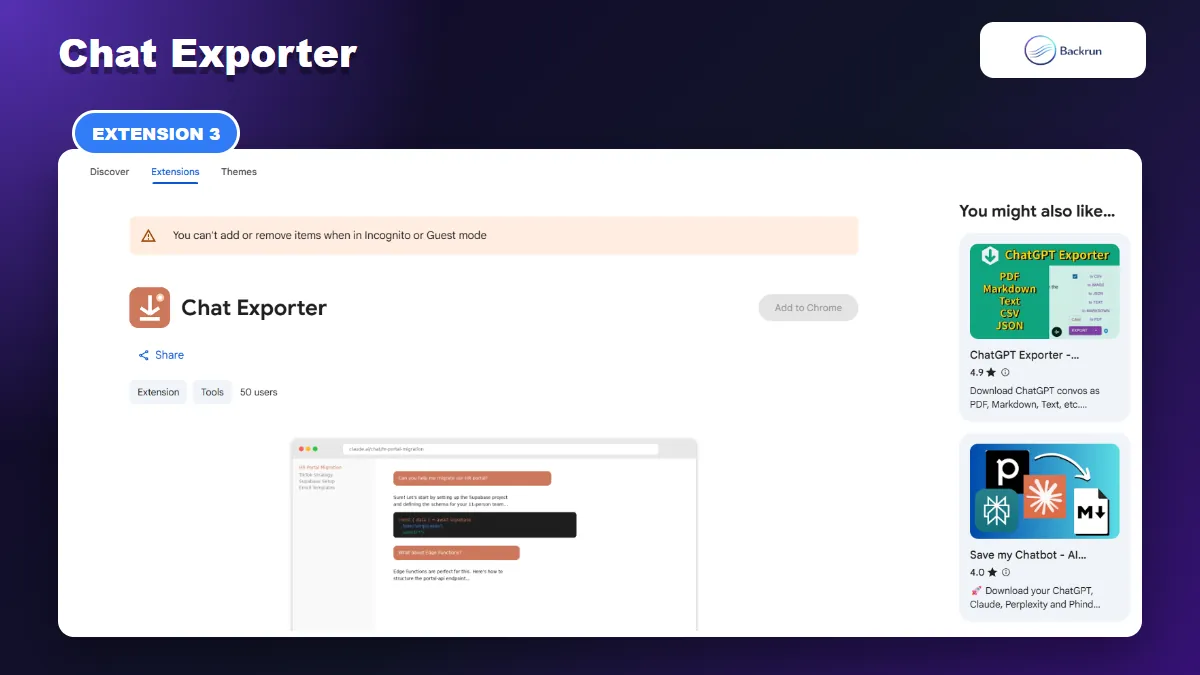
Chat Exporter is a lightweight Markdown-only option with front matter and offline processing.
Chat Exporter takes the opposite approach: it focuses on one-click Markdown instead of offering many destination formats. It works with Grok, Claude, ChatGPT, Gemini, and Perplexity.
Best for: users who want the complete conversation as a predictable Markdown file with minimal setup.
The extension adds a floating export button to supported AI pages. When used on Grok, it automatically scrolls through the conversation, captures the available messages, and creates a file with front matter containing the title, date, source URL, and message count. The filename follows a platform-title-date pattern, which is useful when many chats enter the same notes folder.
The listing also says it handles Grok-specific Think mode output, cited X posts, and real-time sources. Code blocks, citations, and other platform details can be controlled with per-platform toggles. Processing is described as fully offline, with no network calls, tracking, advertising, or remote storage.
Practical limitation: this extension is designed around full-conversation export, not careful message selection. That is convenient for archiving but less efficient when a long thread contains many discarded drafts. Its public track record is also limited: the listing showed 50 users and no public rating when checked.
Use it when completeness matters more than curation. For a reusable knowledge note, open the exported file afterward and remove repeated prompts, temporary instructions, or reasoning sections that do not improve the final document.
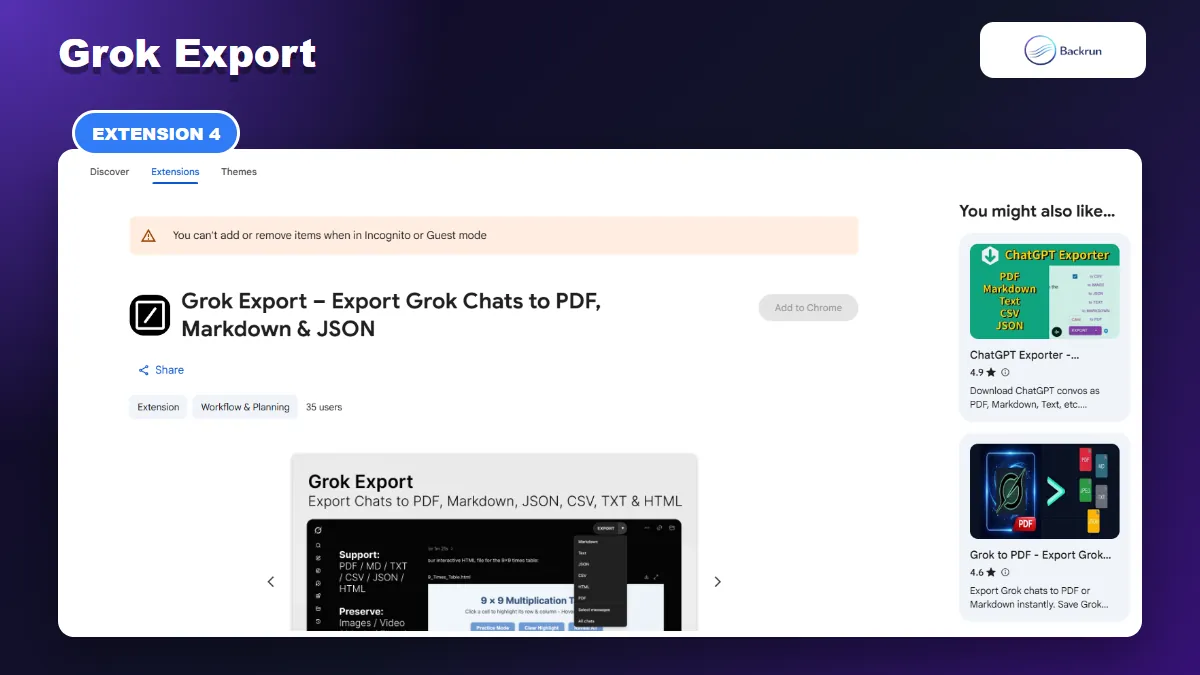
Grok Export adds an export toolbar directly to grok.com and supports Markdown, JSON, CSV, HTML, and PDF. Its free tier currently includes unlimited Markdown exports, message selection, and bulk conversation backups.
Best for: people who need to archive several Grok chats or package media and attachments with the exported notes.
A typical workflow looks like this:
Open a Grok conversation and click Export in the on-page toolbar or extension popup.
Choose Markdown, or open the selector first to keep only specific turns.
Decide whether to include thought-process content, web search sources, timestamps, images, and attachments.
Download one conversation, or create a ZIP when several chats belong to the same backup.
Check relative assets and links before moving the files into a vault or repository.
The bulk workflow is the key difference. A single-thread extension may be faster for occasional exports, but it becomes repetitive when you are archiving a project made of several Grok conversations. Packaging related discussions into one ZIP keeps the Markdown and supporting files together.
Practical limitation: this is still a newer listing with 35 users and no public rating at the time of review. The developer states that the extension runs in the browser and does not store or share chat history, but verify the latest permissions and privacy disclosure before exporting confidential work.
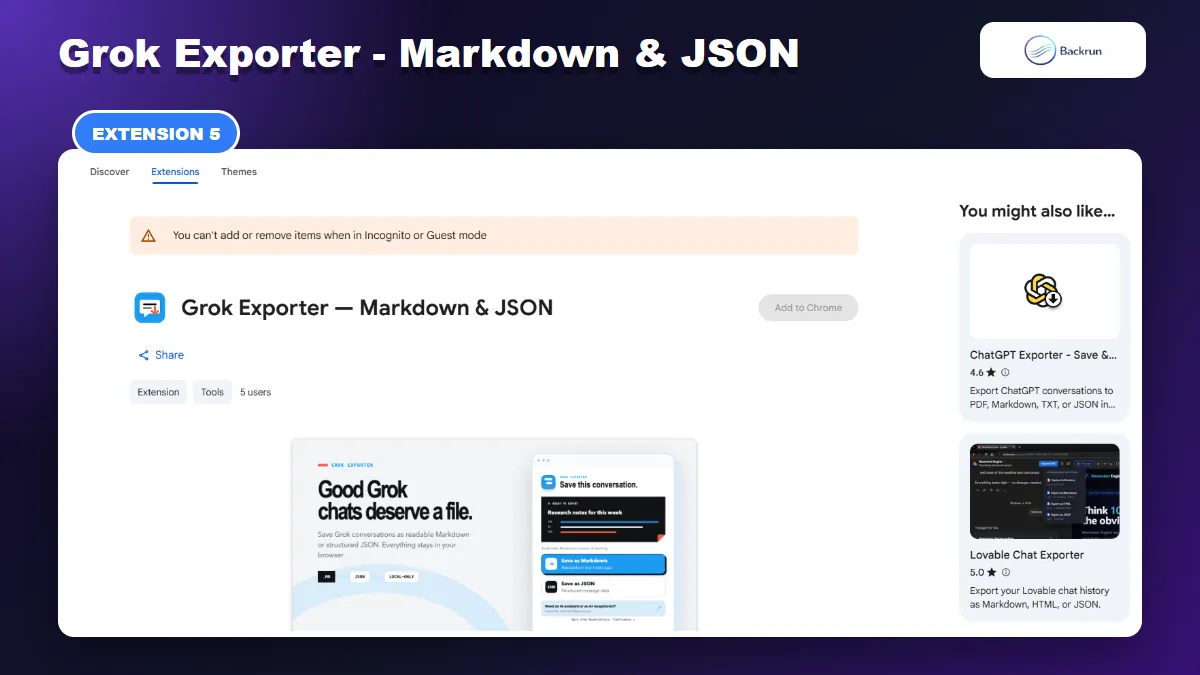
5. Grok Exporter - Markdown & JSON
Grok Exporter is a minimal local tool for the conversation currently open in the tab.
Grok Exporter - Markdown & JSON is the smallest and most focused option in this comparison. It exports the conversation currently open in your Grok tab as either a readable Markdown file or structured JSON.
Best for: users who want a basic local export without accounts, cloud integrations, subscriptions, or complex settings.
The listing says it preserves user and assistant messages in order, along with the conversation title, source URL, code blocks, lists, links, and basic rendered attachment names or links. Extraction begins only after you choose an output format, and processing stays inside Chrome.
That narrow scope can be an advantage. There are fewer decisions to make, and Markdown remains the obvious choice for notes or documentation while JSON provides a structured backup for scripts and data workflows.
Practical limitation: the tool does not advertise selected-message export, bulk backup, YAML front matter, advanced Grok reasoning controls, or local asset packaging. Its public sample is also extremely small: five users and no rating when checked. Treat it as a lightweight utility and verify a complex conversation before relying on it.
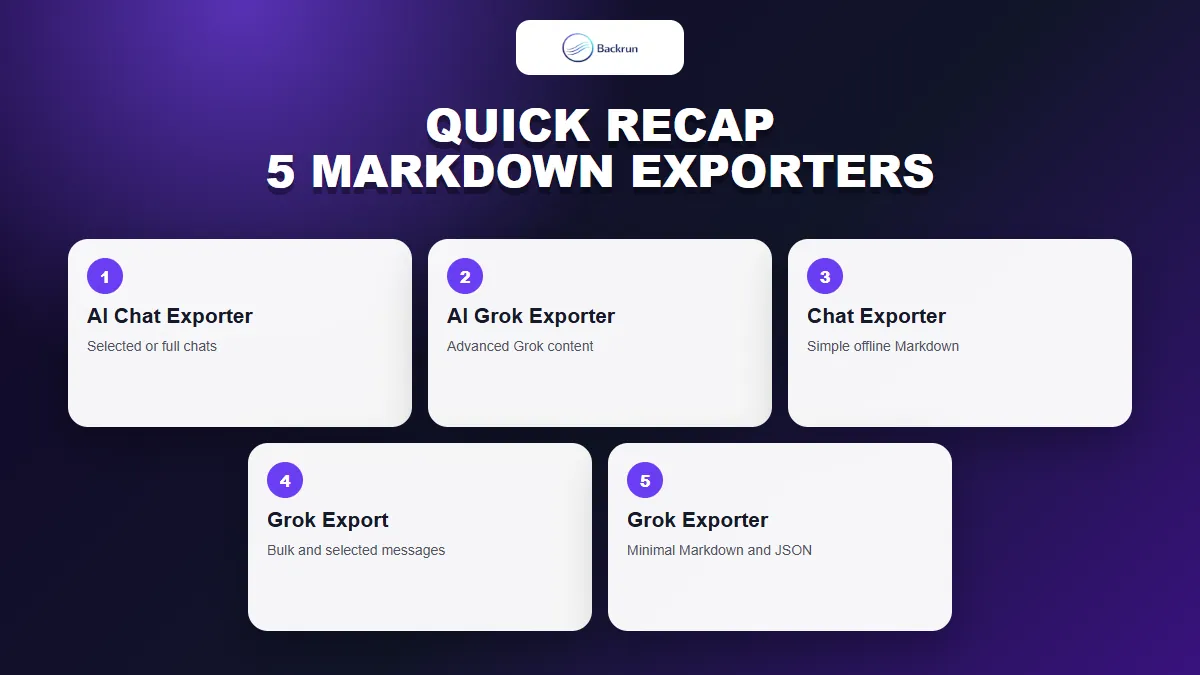
Quick Recap
Choose a Grok Markdown exporter by message selection, full-thread handling, metadata, bulk backup, and privacy model.
Extension
Best fit
Standout feature
Main caution
AI Chat Exporter
One exporter across several AI platforms
Selected messages or full conversations
Verify complex Markdown formatting
AI Grok Exporter
Detailed Grok research and technical notes
Fine control over sources, reasoning, formulas, and content
More setup than a simple exporter
Chat Exporter
Fast full-thread Markdown files
Front matter, auto-scroll, and offline processing
No advertised message selector
Grok Export
Project backups and several conversations
Bulk ZIP export with media and attachments
Newer listing with limited public feedback
Grok Exporter - Markdown & JSON
Minimal local export
Simple Markdown or JSON output
Very small public usage sample
For most mixed-AI workflows, AI Chat Exporter is the easiest Grok to Markdown extension to start with. AI Grok Exporter is stronger when advanced Grok content matters, Chat Exporter suits complete one-click archives, Grok Export handles bulk backups, and the final option keeps the workflow deliberately minimal.
Before choosing one, test a Grok conversation containing headings, nested lists, a code block with a language tag, a table, inline and block LaTeX, citations, links, and an image. Open the result in the Markdown editor you actually use and confirm that the file remains readable. Review Google's guidance for managing Chrome extensions, and see our broader guide to exporting Grok to Markdown when you also want non-extension methods.