5 Grok to Notion Extensions for Saving AI Conversations
October 24, 20269 min read
A useful Grok answer can disappear inside a long chat before it ever becomes reusable knowledge. A Grok to Notion extension fixes that gap by turning selected messages, complete conversations, or larger chat libraries into structured Notion pages.
We reviewed current Chrome Web Store listings and official product documentation on October 24, 2026. The five extensions below explicitly support both Grok and Notion, but they differ substantially in message selection, history backup, Project support, formatting, attachments, privacy, and pricing.
1. AI Chat Exporter
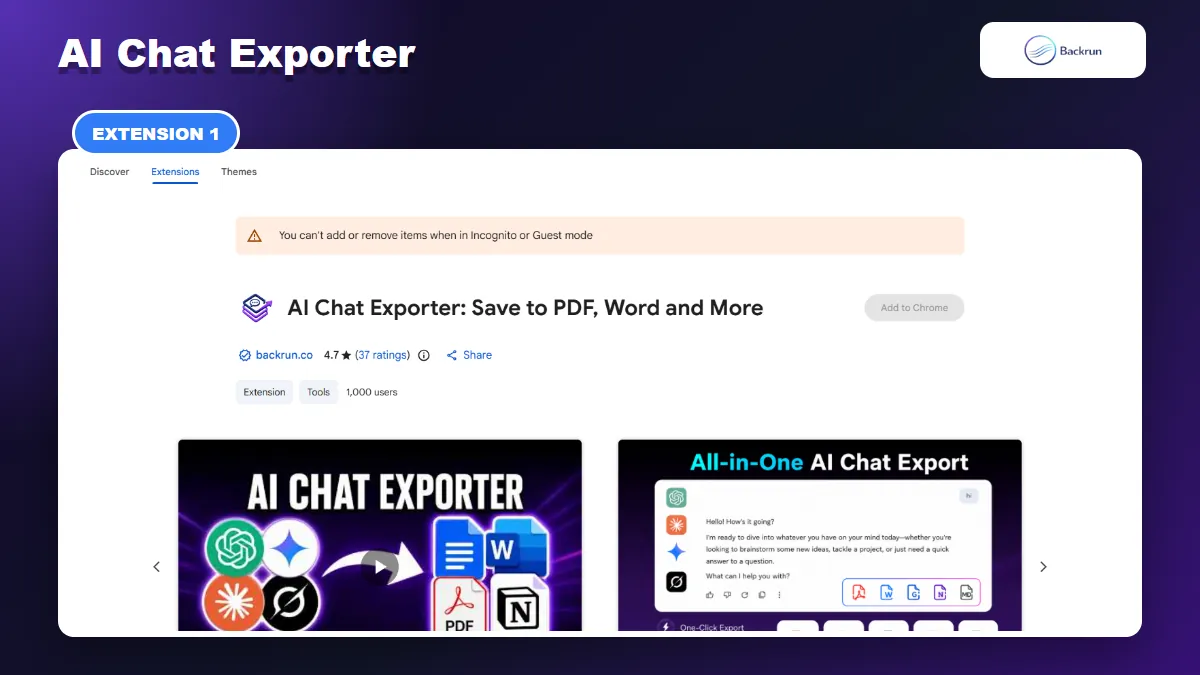
AI Chat Exporter sends selected Grok messages or a complete conversation to Notion.
AI Chat Exporter is the most balanced option if Grok is only one of several AI assistants you use. The current Chrome Web Store listing supports Grok, ChatGPT, Gemini, and Claude, with Notion alongside PDF, Word, Google Docs, and Markdown.
Best for: people who want one consistent extension across several AI platforms and need to remove irrelevant turns before a conversation reaches Notion.
To save a Grok conversation with this extension:
Install AI Chat Exporter from the Chrome Web Store.
Open grok.com and load the conversation you want to keep.
Select individual messages when only part of the thread is useful, or choose the complete conversation when the prompts provide essential context.
Choose Notion as the export destination and authorize your workspace when prompted.
Review the new page for its title, headings, tables, code, equations, images, and source links.
The selective export is the practical advantage. A research thread often contains repeated prompts, failed directions, and temporary drafts. Keeping only the final evidence and explanation makes the Notion page shorter, easier to search, and easier for teammates to understand.
The listing also describes font, size, and text-color controls. Those settings matter more for documents than for native Notion blocks, so prioritize structure over typography when your destination is a knowledge base.
Limitations and privacy: local file formats are processed on the device, while a Notion export necessarily sends the chosen content to the workspace you authorize. The listing showed a 4.7 rating from 37 reviews and 1,000 users during our check, but ratings are not a substitute for testing. Start with a non-sensitive chat, verify the target page, and inspect the extension permissions before using confidential material.
2. Chat Exporter for Grok
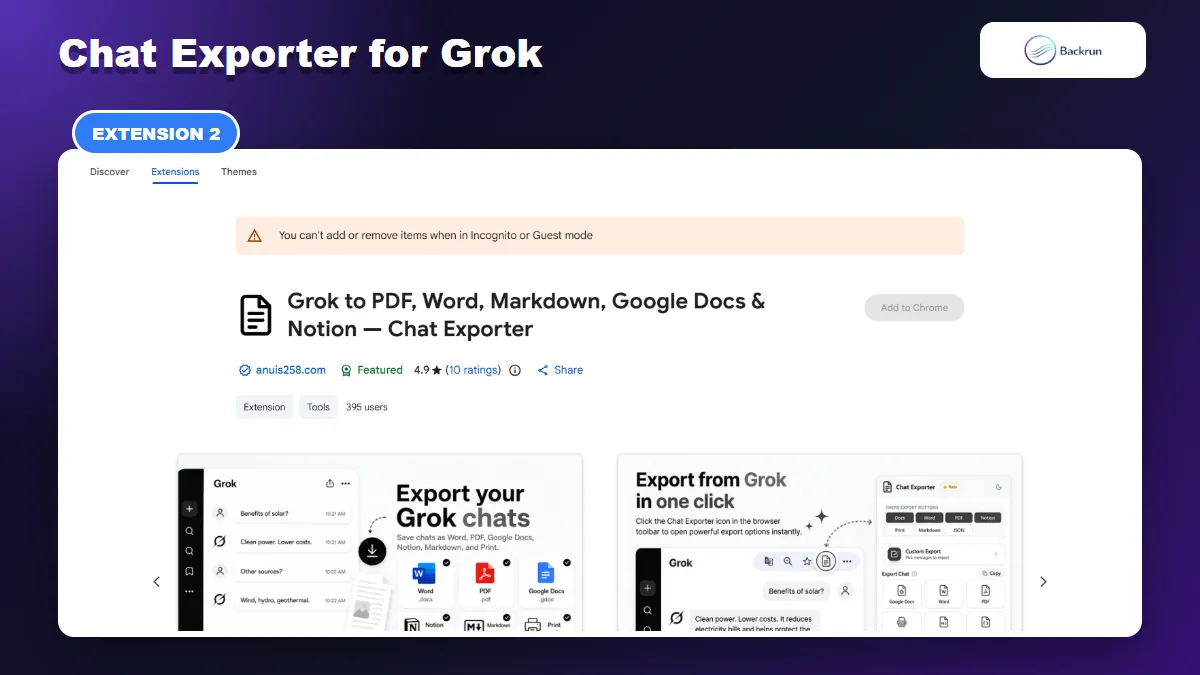
Chat Exporter for Grok can create a Notion page or database entry from one answer, a selection, or the full chat.
Chat Exporter for Grok is a focused Grok utility rather than a multi-platform exporter. Its current listing carries a Featured badge, a 4.9 rating from 10 reviews, and 395 users. It can save a conversation into a Notion database or beneath an existing Notion page.
Best for: users who want Grok-specific buttons and several export scopes without installing features for other AI services.
The extension provides three practical workflows:
One answer: use the control beneath an individual Grok response when that answer can stand alone.
Selected messages: open Custom Export, search the loaded thread, and tick only the prompts and answers you need.
Full conversation: export every loaded turn when the reasoning depends on the original prompt sequence.
According to the listing, headings, lists, tables, code, and equations become native Notion blocks. Images are embedded, DeepSearch citations remain links, and interface elements such as the “Thought for” block and copy buttons are removed. That is preferable to pasting a screenshot because the result remains searchable and editable.
The setup is straightforward: install the extension, open a Grok conversation, choose the relevant scope, select a Notion page or database, authorize the connection, and save. Always open the resulting page before closing Grok. Check table columns, code indentation, formulas, image placement, and citation URLs.
Important data-flow note: the listing distinguishes local Markdown and JSON generation from formats that use a conversion service, including Notion. That does not automatically make the extension unsuitable, but it means sensitive conversations deserve an explicit privacy-policy review rather than an assumption that every export remains local.
3. Grok to Notion
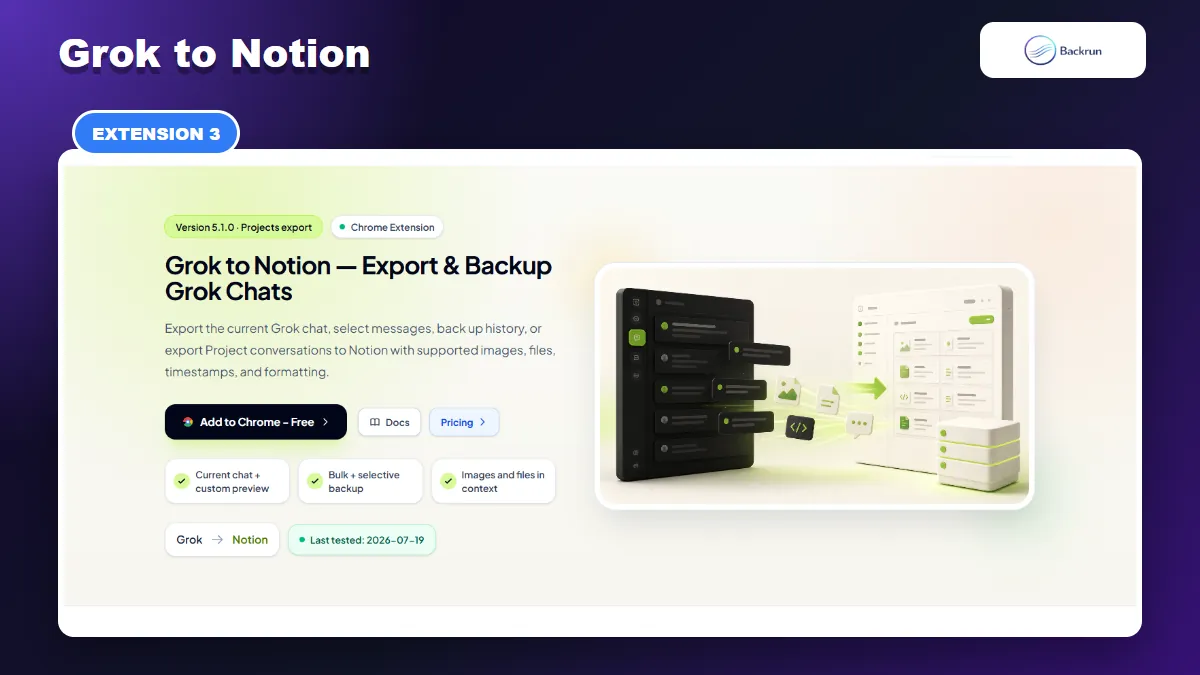
Grok to Notion is designed for current-chat, selective, bulk-history, and Project exports.
Grok to Notion is the most specialized knowledge-base tool in this comparison. Its official product documentation covers the active chat, exact-message selection, selective history, full paginated history, and Grok Project conversations.
Best for: users who want to back up a larger Grok library into a structured Notion database rather than export one conversation occasionally.
The recommended first-run workflow is:
Install the extension and connect the Notion workspace you control.
Select a destination database and let the extension prepare the fields it needs.
Keep a Grok tab open and export one representative conversation first.
Verify titles, source URLs, message order, timestamps, tables, code, images, and files in Notion.
Use Bulk, Selective, or Projects mode only after the sample result is correct.
The extension converts Markdown, lists, tables, and code into native Notion blocks. It can place supported images and files beside the messages that produced them, and it offers duplicate controls: skip an existing page, overwrite it, or always create a new copy. Export history and progress tracking are useful when a backup contains many conversations.
Its current documentation also explains important boundaries. Protected Grok images are disabled by default and require explicit permission for a brief debugger attachment to the open Grok tab. Notion's direct-upload limit applies to large attachments, and the Grok tab must remain open during a long run. The free plan allows a limited number of conversations per sync.
Why this matters: bulk backup is not simply “one-click export” at a larger scale. Test conflict rules, attachment behavior, and database properties before moving an entire research archive, or you may create duplicates and inconsistent pages that take longer to clean than the original chats.
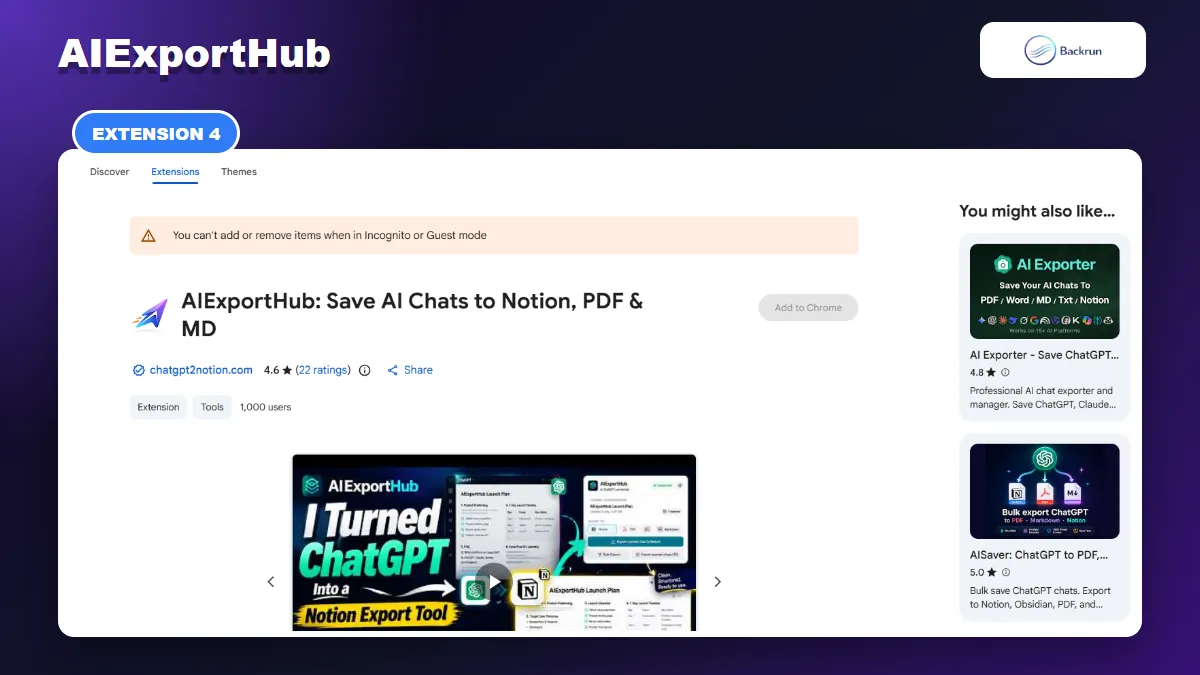
4. AIExportHub
AIExportHub focuses on larger libraries, incremental backups, metadata, media, and selected Notion databases.
AIExportHub is another library-oriented option. The Chrome Web Store listing explicitly includes Grok conversations and Projects, while its Notion workflow can sync into a selected database with timestamps, platform metadata, source URLs, tags, images, attachments, and deduplication controls.
Best for: power users who manage conversations across multiple AI platforms and want incremental backups rather than isolated page exports.
A sensible workflow is to connect a test database, export one Grok conversation, inspect the mapped properties, then move to selective or bulk mode. The extension can search and filter a large conversation list, skip unchanged chats, overwrite updated ones, and resume interrupted jobs. These controls are more useful for ongoing archival than a simple Notion button under one response.
The listing also advertises Markdown, Obsidian, and PDF destinations. That gives you a portable local copy alongside the Notion database, which reduces lock-in and makes recovery easier if a workspace structure changes later.
Privacy and operational caution: the listing describes a local-first design for local formats, but Notion cloud sync still requires workspace authorization. It also discloses handling personally identifiable information. Check which pages and databases are exposed by the integration, use the narrowest destination possible, and remove the connection when it is no longer needed.
At the time of review, AIExportHub showed a 4.6 rating from 22 reviews and 1,000 users. It is a stronger candidate for a recurring backup system than for someone who only wants to save one useful answer every few weeks.
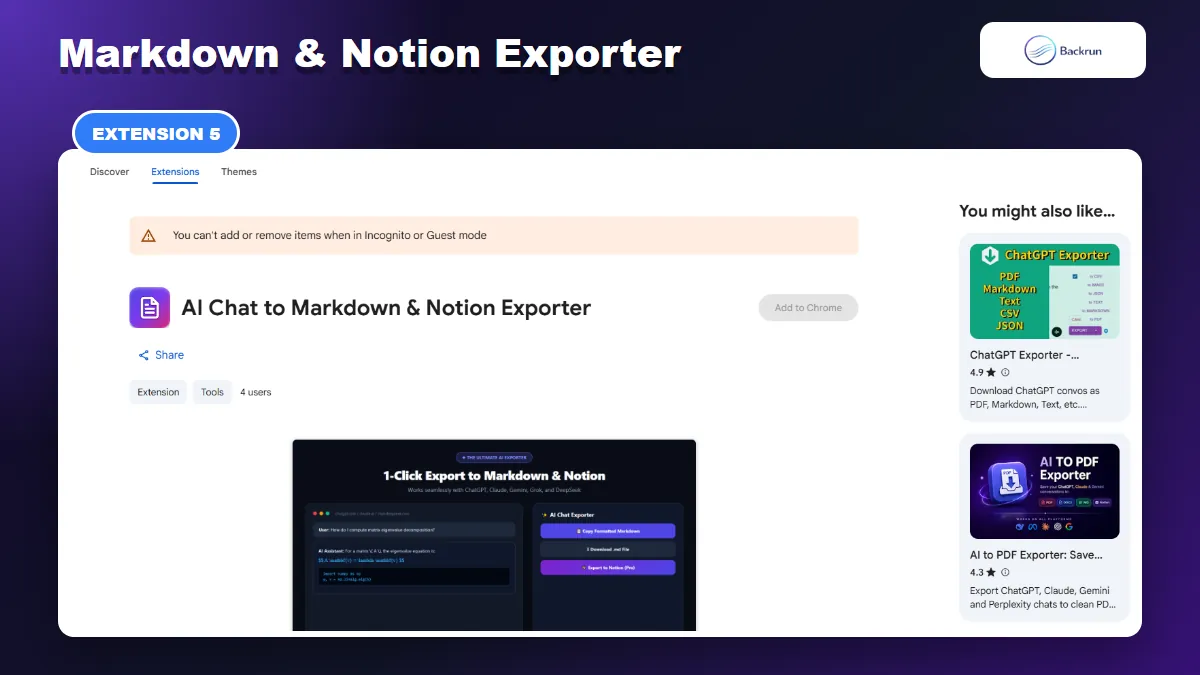
5. AI Chat to Markdown & Notion Exporter
AI Chat to Markdown & Notion Exporter is a compact option for direct Notion pages and portable Markdown copies.
AI Chat to Markdown & Notion Exporter is a compact extension that supports Grok, ChatGPT, Claude, Gemini, and DeepSeek. Its workflow is deliberately narrow: copy formatted Markdown, download an MD file, or send the complete chat to Notion.
Best for: developers, researchers, and students who want a Notion page but also value a clean Markdown copy with code fences, formulas, and metadata.
After installation, open a Grok conversation, use the floating action button or extension popup, and choose the Notion action. The listing says it preserves syntax-highlighted code blocks, formatted headings, and formulas. For Markdown, it can add Obsidian-compatible YAML front matter with the title, date, platform, and model.
The Markdown fallback is useful. If the direct Notion result does not match your database structure, you still have a plain-text file that can be edited, versioned, or imported elsewhere. That makes this extension less dependent on one cloud destination.
Main limitation: this is a very new listing with four users and no public rating when checked. Its listing describes full-chat export, not the mature history, Project, selective-conversation, and duplicate-management workflows offered by the larger backup tools above. Test equations, nested lists, tables, long code blocks, and a long conversation before treating it as a production workflow.
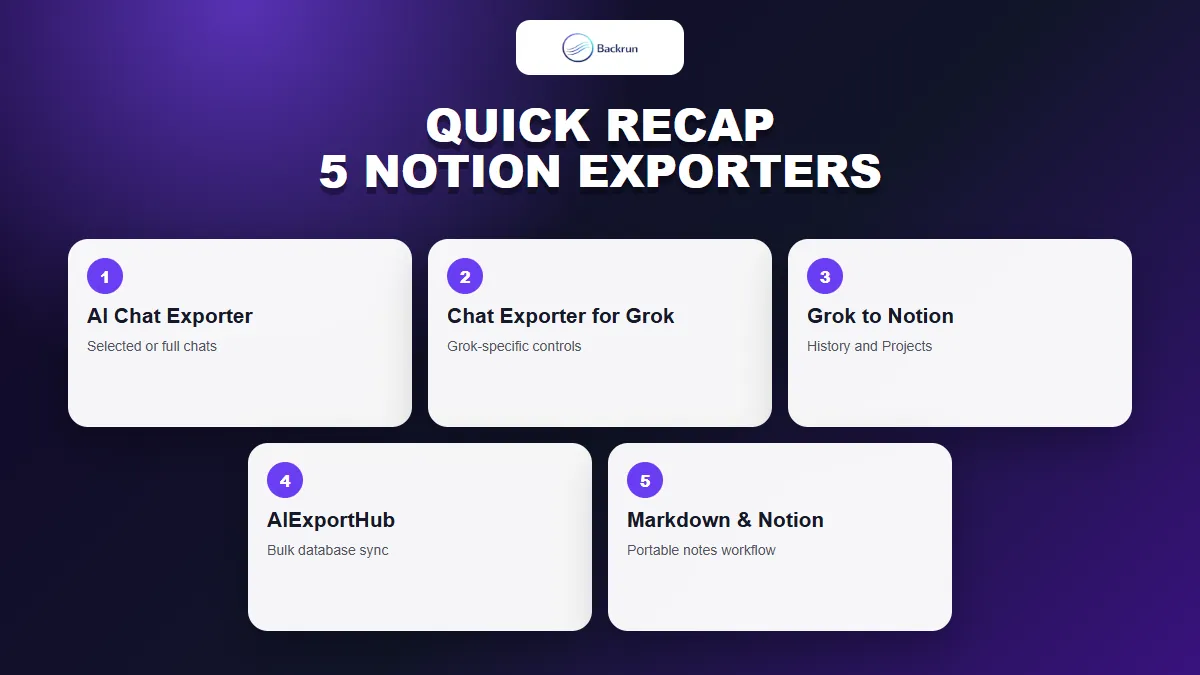
Quick Recap
Choose a Grok to Notion exporter by scope, block quality, attachment support, privacy model, and database workflow.
Extension
Best fit
Notion workflow
Main caution
AI Chat Exporter
One tool across several AI assistants
Selected messages or a full chat
Verify complex formatting and workspace permissions
Chat Exporter for Grok
Grok-specific controls
One answer, selected messages, or full chat
Notion export uses a conversion service
Grok to Notion
Structured Grok knowledge-base backup
Current chat, history, selective, and Projects
Protected media and bulk runs need careful setup
AIExportHub
Large multi-platform libraries
Incremental database sync with metadata
Review integration scope and personal-data handling
Markdown & Notion Exporter
Portable Markdown plus direct Notion
One-click full-chat export
Very small public usage sample
The right Grok to Notion extension depends on scope. AI Chat Exporter suits everyday selective exports, Chat Exporter for Grok adds focused Grok controls, Grok to Notion and AIExportHub handle larger libraries, and Markdown & Notion Exporter provides a simple portable fallback.
Before installing any option, follow Google's guidance for managing Chrome extensions, test with non-sensitive content, and compare the Notion page with the original chat. If a direct Notion connection is unnecessary, a Grok to Markdown extension provides a more portable local archive.