4 Grok to Google Docs Extensions That Actually Work in 2026
October 19, 20267 min read
A reliable Grok to Google Docs extension should create an editable document without flattening headings, tables, code blocks, equations, images, or links into messy plain text. It should also let you decide whether to export one answer, selected messages, or the complete conversation.
Grok does not currently provide a native full-chat Google Docs export workflow. The four extensions below explicitly support both Grok and Google Docs in their current Chrome Web Store descriptions, so they are a better fit than tools that only download PDF, Word, or Markdown files.
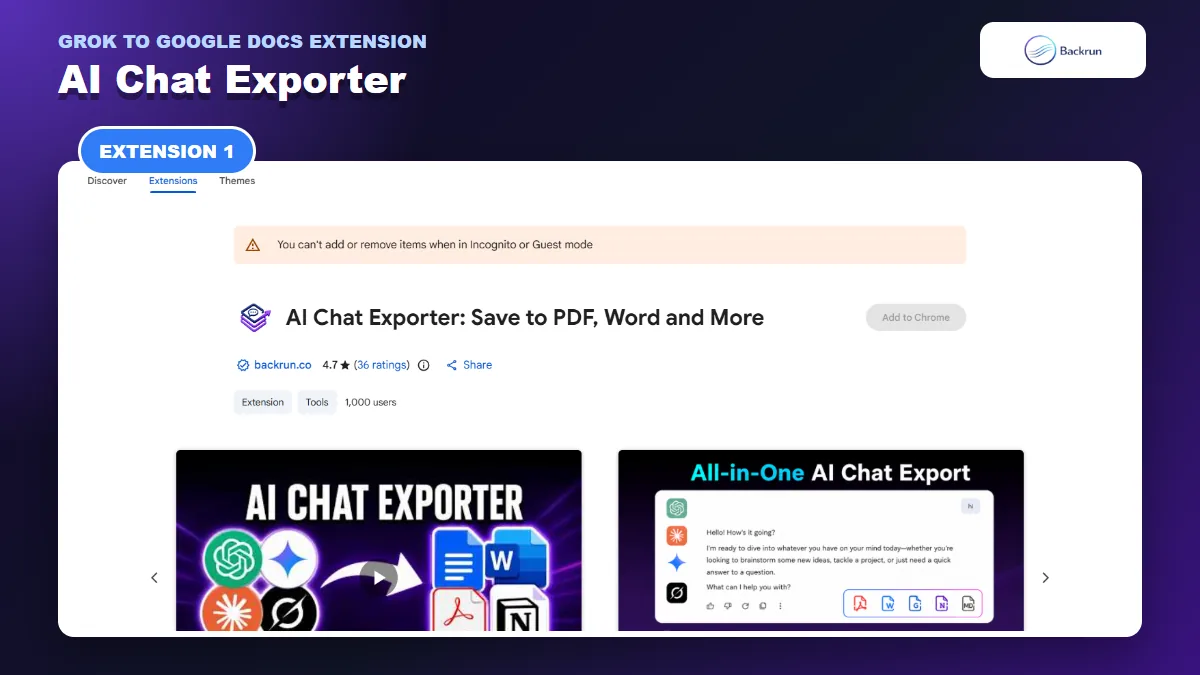
1. AI Chat Exporter
AI Chat Exporter sends selected Grok messages or a complete conversation to Google Docs and other document formats.
AI Chat Exporter is the most flexible starting point when Grok is only one part of your AI workflow. Its current Chrome Web Store listing supports Grok, ChatGPT, Gemini, and Claude, with direct exports to Google Docs, Word, PDF, Markdown, and Notion.
Best for: people who want one consistent export interface across several AI assistants and need control over which messages enter the final document.
The normal Grok-to-Docs workflow is straightforward:
Install AI Chat Exporter from the Chrome Web Store.
Open grok.com and load the conversation you want to reuse.
Select individual messages, or choose the full conversation when the prompt history matters.
Choose whether to include prompts, Grok responses, or both.
Adjust the font family, size, and text color when the document needs a cleaner presentation.
Select Google Docs, authorize the destination when prompted, and open the new document.
The selection step is especially useful for DeepSearch and long research threads. You can remove failed drafts, repeated follow-up questions, or private instructions before the content reaches Google Docs. That usually produces a shorter document that teammates can scan without reconstructing the entire conversation.
Formatting support: the listing describes headings, lists, code blocks, tables, mathematical formulas, links, images, and structured responses. Support can vary by Grok conversation type and destination, so compare the exported Doc with the source before sharing it.
Important limitation: local file exports are described as device-processed, while a Google Docs export necessarily sends the selected content to Google. Review both the website permission and Google authorization screen, and use a non-sensitive test conversation before exporting client or company information.
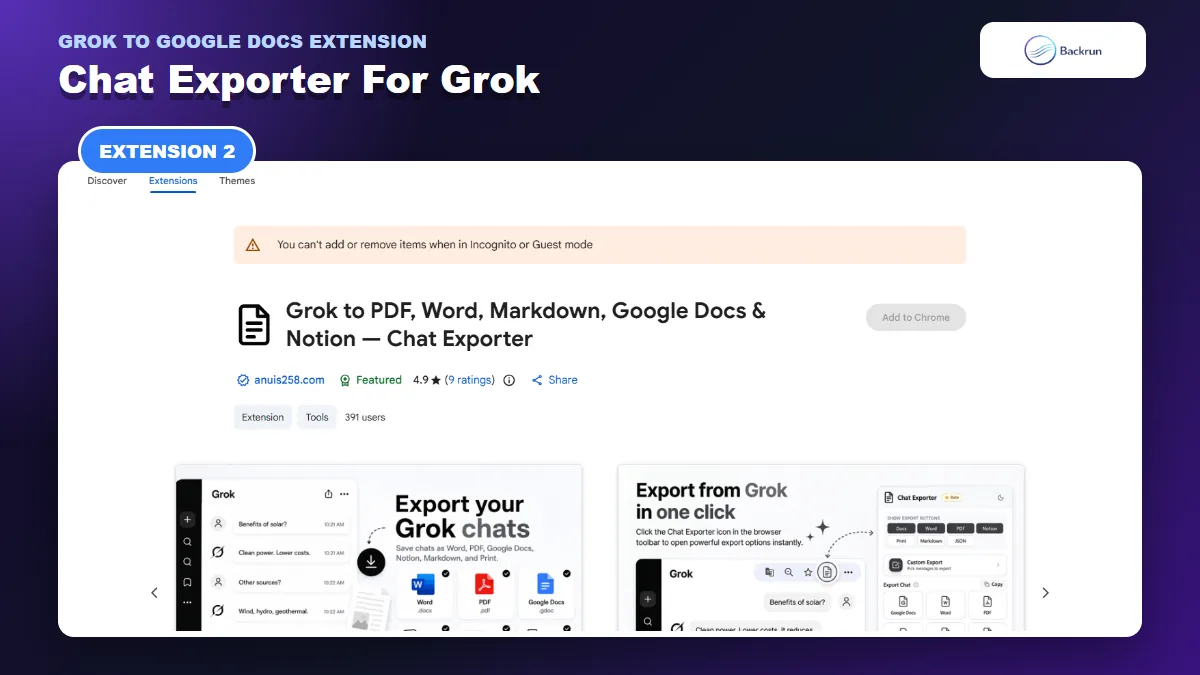
2. Chat Exporter for Grok
Chat Exporter for Grok provides Grok-specific message controls and direct Google Docs export.
Chat Exporter for Grok is a dedicated Grok extension rather than a multi-platform tool. Its listing supports direct Google Docs and Notion exports plus Word, PDF, Markdown, JSON, and print workflows.
Best for: users who work mainly on grok.com and want Grok-specific message buttons, DeepSearch handling, and document controls.
You can use the extension in several ways:
Single answer: use the export control shown beneath an individual Grok response.
Selected messages: open Custom Export, search the loaded conversation, and tick only the exchanges you need.
Complete thread: use the global control for the full conversation.
Content filter: choose the complete conversation, Grok responses only, or user prompts only.
Document styling: adjust fonts, text size, heading size, color, alignment, and prompt presentation before export.
The listing says images are embedded, DeepSearch citations remain as links, and code, tables, and equations are preserved. It also removes interface elements such as the “Thought for” block and Copy or Share buttons, which helps the resulting Google Doc look more like a document than a browser capture.
Important limitation: the listing explains that Markdown and JSON are created locally, while PDF, Word, Google Docs, Notion, and print workflows use a conversion service. That is a meaningful privacy difference. Review the current policy, test the free allowance, and avoid sending confidential conversations until the output and data path meet your requirements.
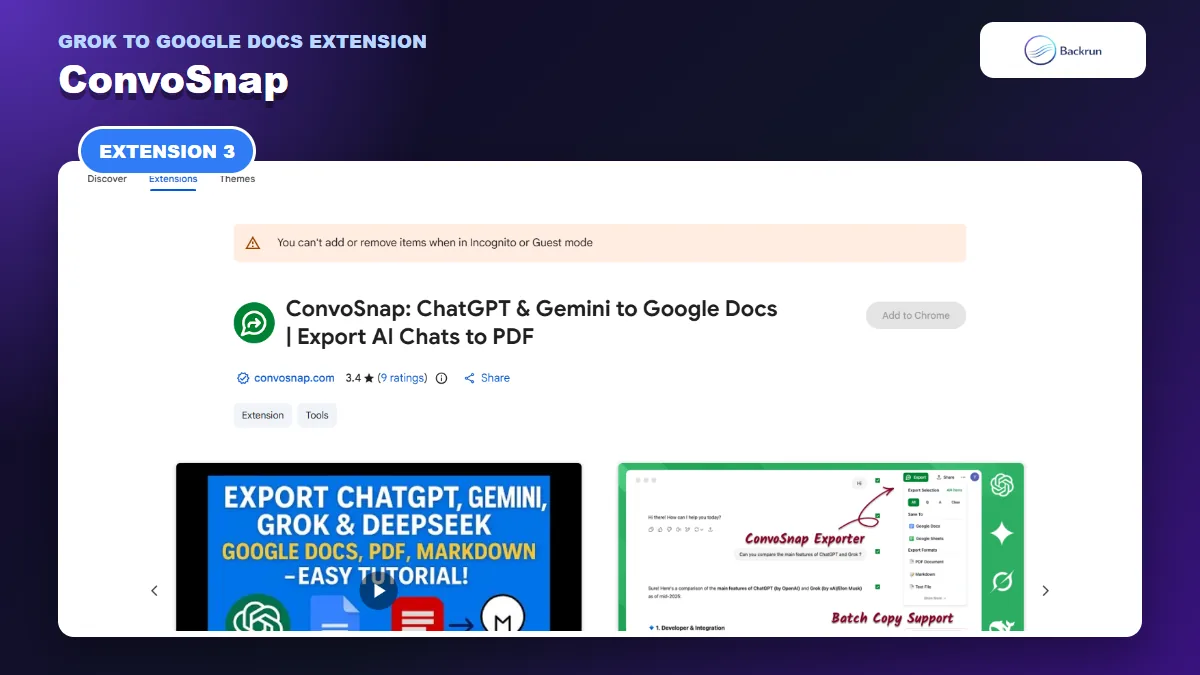
3. ConvoSnap
ConvoSnap supports selected-message exports from Grok to Google Docs or Google Sheets.
ConvoSnap is an established multi-platform exporter that supports Grok alongside ChatGPT, Claude, Gemini, and DeepSeek. It can send conversation content to Google Docs or Google Sheets and also offers PDF, Markdown, and other portable formats.
Best for: users who sometimes need a normal document and sometimes need tabular Grok output in Google Sheets.
Its most useful features for this search intent are:
Selective export: check the messages you want instead of moving the entire chat.
Google destinations: choose Docs for narrative content or Sheets for data that should remain tabular.
Equation workflow: copy mathematical expressions as LaTeX when a native equation conversion is not available.
Cross-platform support: keep the same export workflow when a project moves between Grok and another assistant.
Choose Google Docs for reports, briefs, research notes, and mixed text. Use Google Sheets only when Grok has produced rows, columns, classifications, or a dataset you expect to analyze further. Sending a prose-heavy conversation to Sheets normally creates more cleanup work.
Important limitation: the listing has a larger installed base than the other alternatives here, but its rating is mixed. Public adoption does not guarantee reliable conversion for every Grok interface update. Test selected messages, a long conversation, and a table before enabling it for regular work. The privacy disclosure also covers personally identifiable information, so review its permissions and policy carefully.
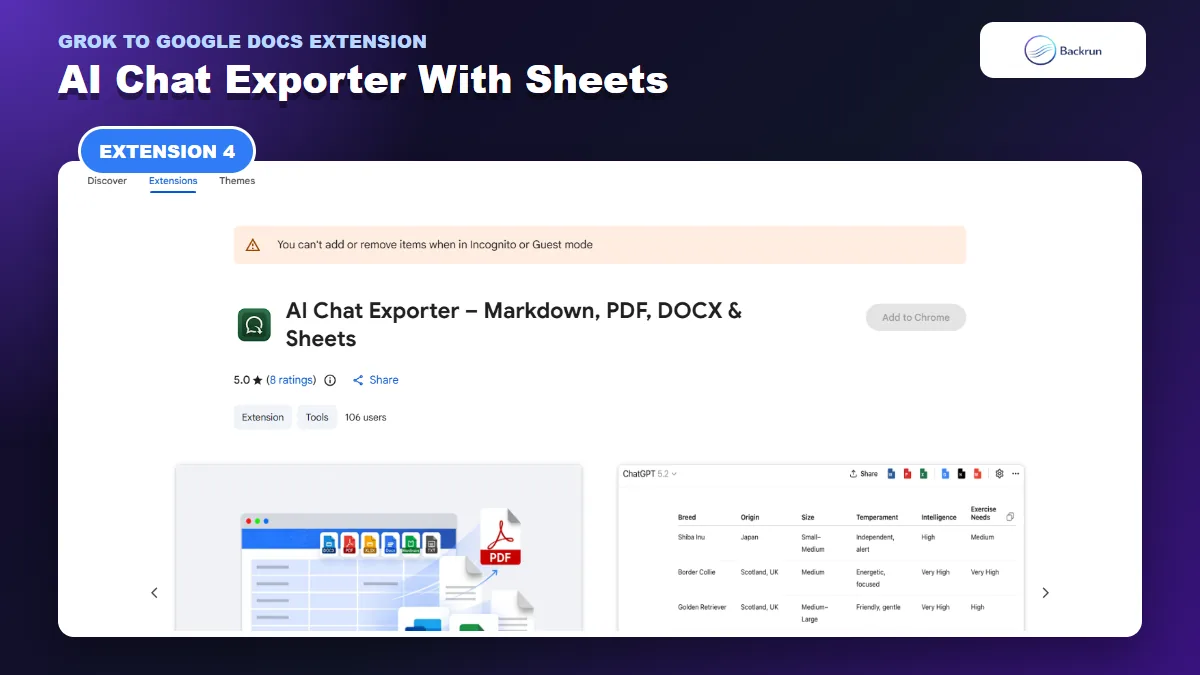
4. AI Chat Exporter – Markdown, PDF, DOCX and Sheets
This AI Chat Exporter combines local document formats with optional Google Docs, Notion, Gmail, and Sheets integrations.
AI Chat Exporter – Markdown, PDF, DOCX and Sheets works with Grok, ChatGPT, Claude, Gemini, and DeepSeek. Its main local formats are Markdown, PDF, DOCX, XLSX, and HTML, while optional integrations can send content to Google Docs, Notion, Gmail, and supported productivity services.
Best for: users who want both a local document copy and optional cloud destinations from one extension.
A sensible workflow is to export the same Grok thread twice:
Create a local DOCX or Markdown copy as a portable backup.
Send the useful content to Google Docs for collaborative editing.
Compare both results for missing images, links, code indentation, tables, and multilingual text.
Keep the local version until the Google Doc has been reviewed and shared successfully.
The listing emphasizes document structure such as headings, paragraphs, lists, tables, code blocks, links, images, and multilingual text. Its spreadsheet formats are useful for extracted data, but they are not a substitute for Google Docs when the source is a narrative conversation.
Important limitation: this is a newer listing with a relatively small public user and rating sample. Verify that the Grok page is recognized before purchasing any upgrade or connecting a work account. Also distinguish between local export formats and optional online integrations, because their data handling and permissions may differ.
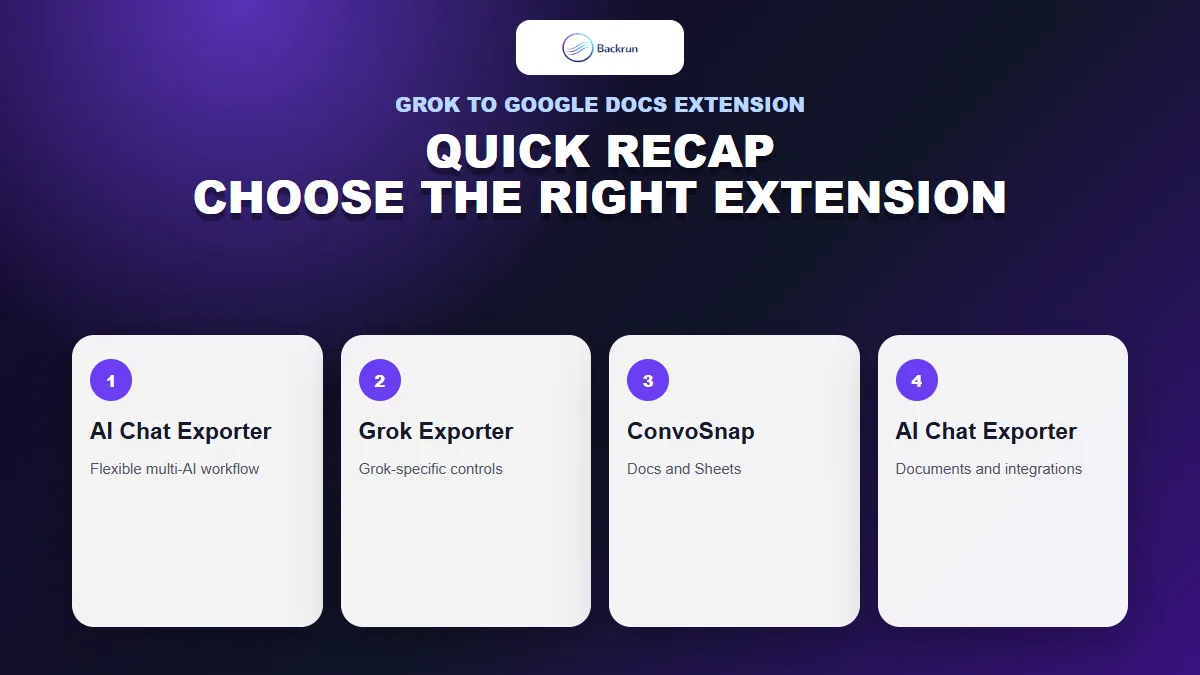
Quick Recap
Choose by message-selection controls, platform coverage, formatting needs, and the way each extension creates a Google Doc.
Extension
Best fit
Google workflow
Main caution
AI Chat Exporter
One exporter across Grok and other AI tools
Direct Google Docs export for selected messages or full chats
Review website and Google authorization
Chat Exporter for Grok
Grok-specific controls and document styling
Direct Docs export for one response, a selection, or full thread
Some formats use a conversion service
ConvoSnap
Docs and Sheets workflows
Selected-message export to Google Docs or Sheets
Mixed rating history; verify complex formatting
AI Chat Exporter – Markdown, PDF, DOCX and Sheets
Local backup plus optional cloud integrations
Google Docs integration alongside local formats
Newer listing with a smaller public track record
Before keeping any extension, test it with one Grok conversation containing a heading, numbered steps, a three-column table, an equation, a code block, an image, and two source links. Confirm that the Google Doc remains editable, message order is correct, table columns stay aligned, code keeps line breaks, and every link opens the expected source.
Start with AI Chat Exporter for a consistent multi-AI workflow, or choose Chat Exporter for Grok when Grok-specific controls matter more. ConvoSnap is useful when Google Sheets is also part of the job, while the fourth option is better suited to users who want a local backup beside the cloud copy. Review Google's guidance for managing Chrome extensions before granting access. If Word is your primary destination instead, see our comparison of Grok to Word extensions.