4 Ways to Export Claude to Google Docs Without Losing Structure
September 24, 20266 min read
Moving a Claude response into Google Docs is easy until the chat contains tables, code blocks, long lists, or several useful messages. The best way to export Claude to Google Docs depends on whether you need one answer, selected messages, or the complete conversation.
Below are four workflows that actually work. Start with the method that matches the amount of content you need and how much formatting you want to preserve.
1. Use Claude Exporter for Selected Messages or the Full Chat
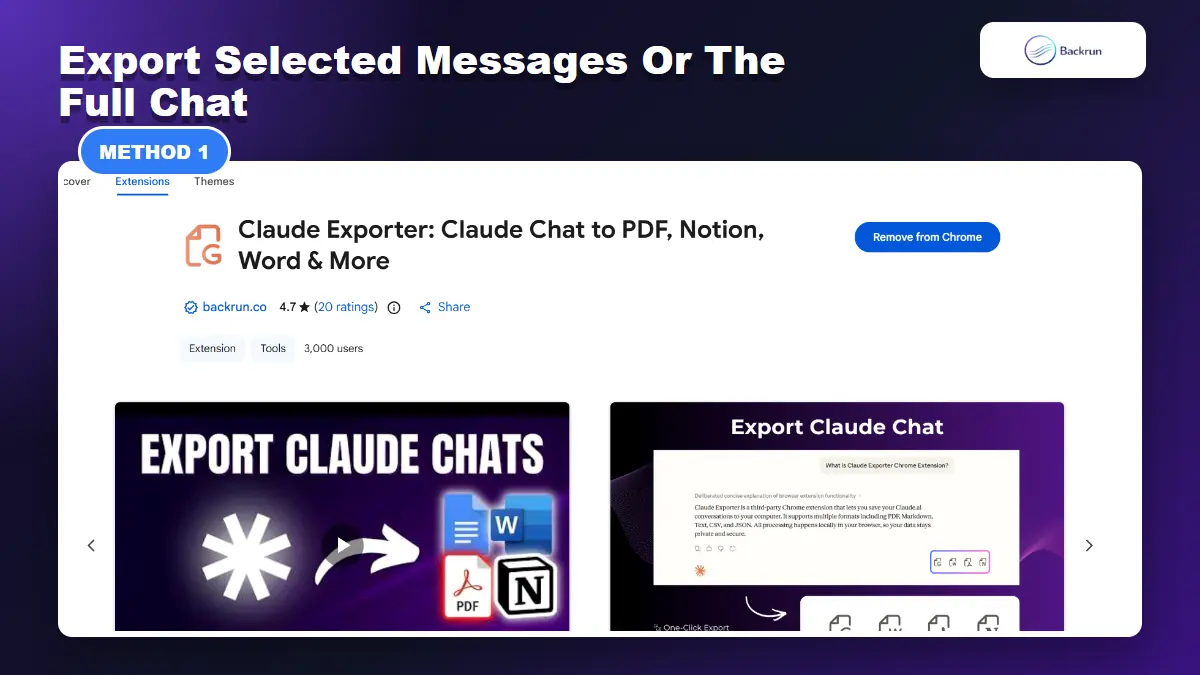
Claude Exporter is the cleanest option when the whole conversation needs to become an editable Google Doc.
This is the most practical method when you want an editable Google Doc without manually rebuilding a long Claude conversation. Claude Exporter can export selected messages or the complete thread directly to Google Docs.
Open Claude and load the conversation you want to export.
Select the messages you need with the checkboxes, or choose the full-conversation option in the upper-right export controls.
Adjust the font, size, or text color if you want to customize the document before export.
Choose Google Docs as the destination and start the export.
Review the created document for message order, tables, headings, code blocks, artifacts, and links.
Best for: research sessions, client notes, project planning, lesson drafts, and conversations where the earlier prompts still matter.
Advantage: it preserves the useful structure while letting you exclude messages that do not belong in the final document.
Limitation: it is a browser extension, so review its permissions and only export conversations you are allowed to move into Google Drive.
Practical check: export one short test conversation first. Confirm that tables, code blocks, and special characters appear correctly before moving an important thread.
2. Ask Claude to Create a Document and Send It to Google Drive
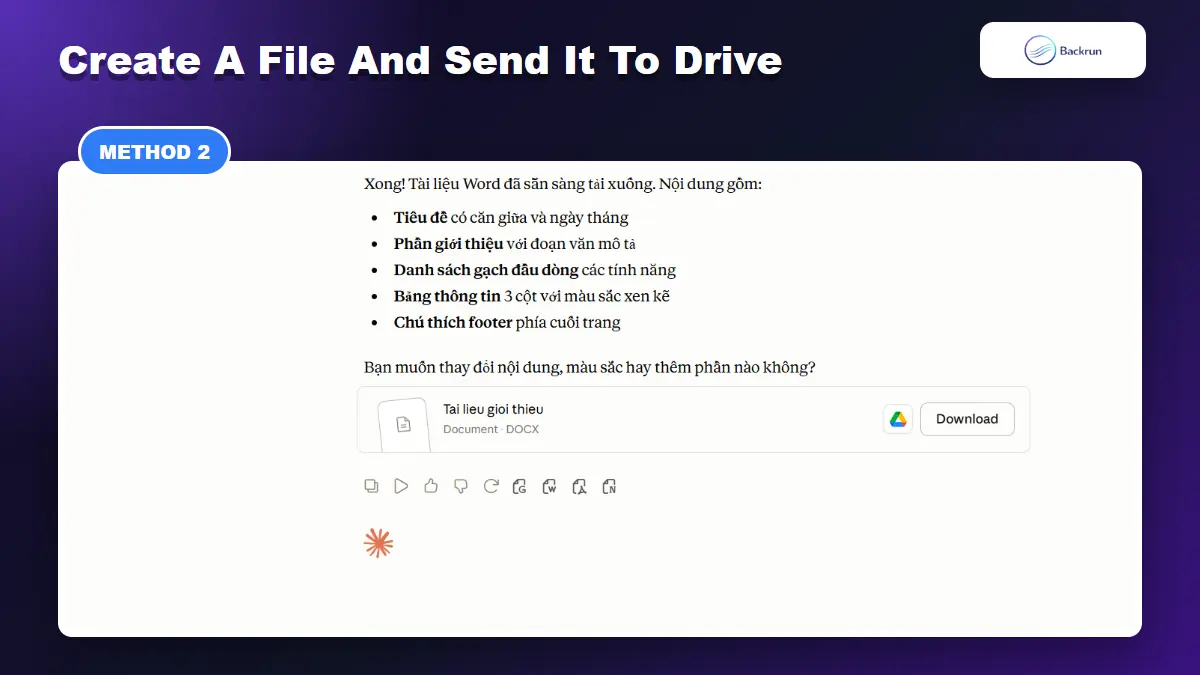
When Claude creates a document file, the Google Drive icon can move it into a Docs-ready workflow.
Use this route when you want a polished document rather than a transcript. Claude can turn the useful parts of a conversation into a report, SOP, proposal, checklist, or lesson plan before you move the file into Google Docs.
Ask Claude to create a document with the title, headings, lists, tables, and final structure you need.
Review the generated file and request any corrections before exporting it.
Click the Google Drive icon on the file card or export toolbar when the option is available.
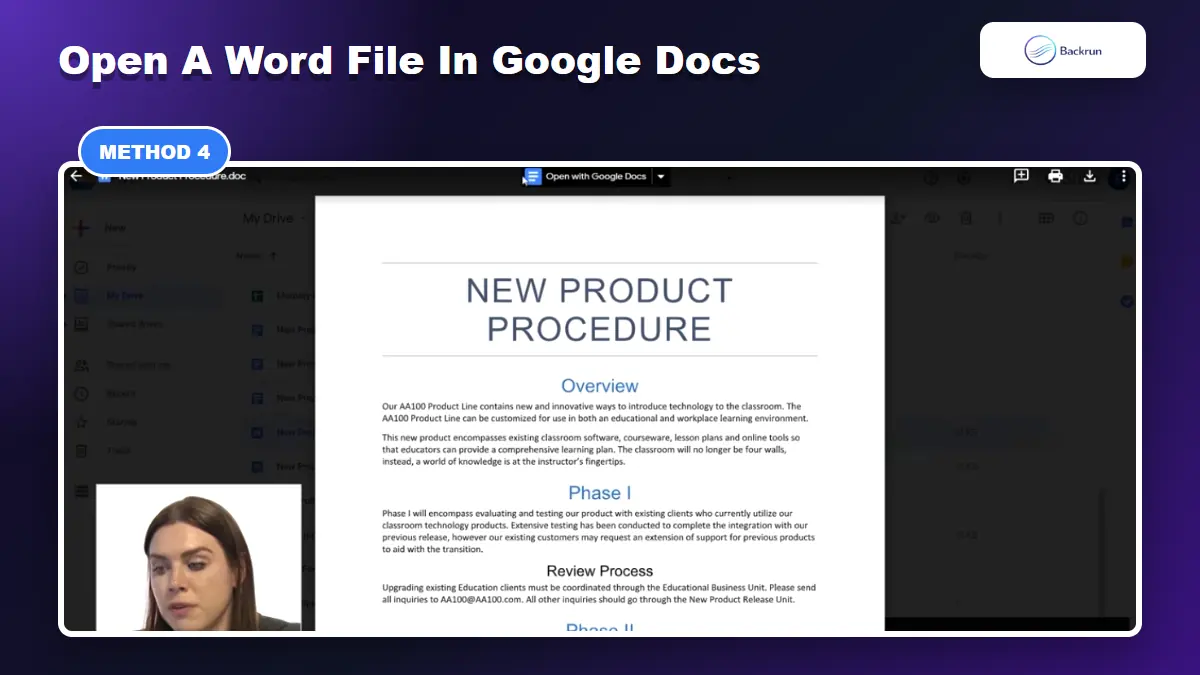
Open the uploaded file in Drive. If it opens as a DOCX preview, select Open with Google Docs.
Check the converted document for spacing, table width, headings, links, and special characters.
Best for: reports and documents that should contain only the finished answer, not every prompt and follow-up message.
Advantage: the result is usually cleaner because Claude prepares the final structure before the file reaches Google Docs.
Limitation: the file card and Drive button can vary by account, model, workspace, and feature availability. If the icon is missing, download a DOCX and use Method 4.
Prompt tip: ask for a “Google Docs-ready document” with short paragraphs, standard heading levels, and simple tables. Complex layouts are more likely to change during conversion.
3. Copy a Short Claude Response into Google Docs
Manual paste works best for short Claude answers that you can clean directly in Google Docs.
Manual copy-paste remains the fastest option for a single answer, outline, or short section. It needs no extension and gives you direct control over what enters the document.
Select only the Claude response you want to keep.
Copy and paste it into Google Docs.
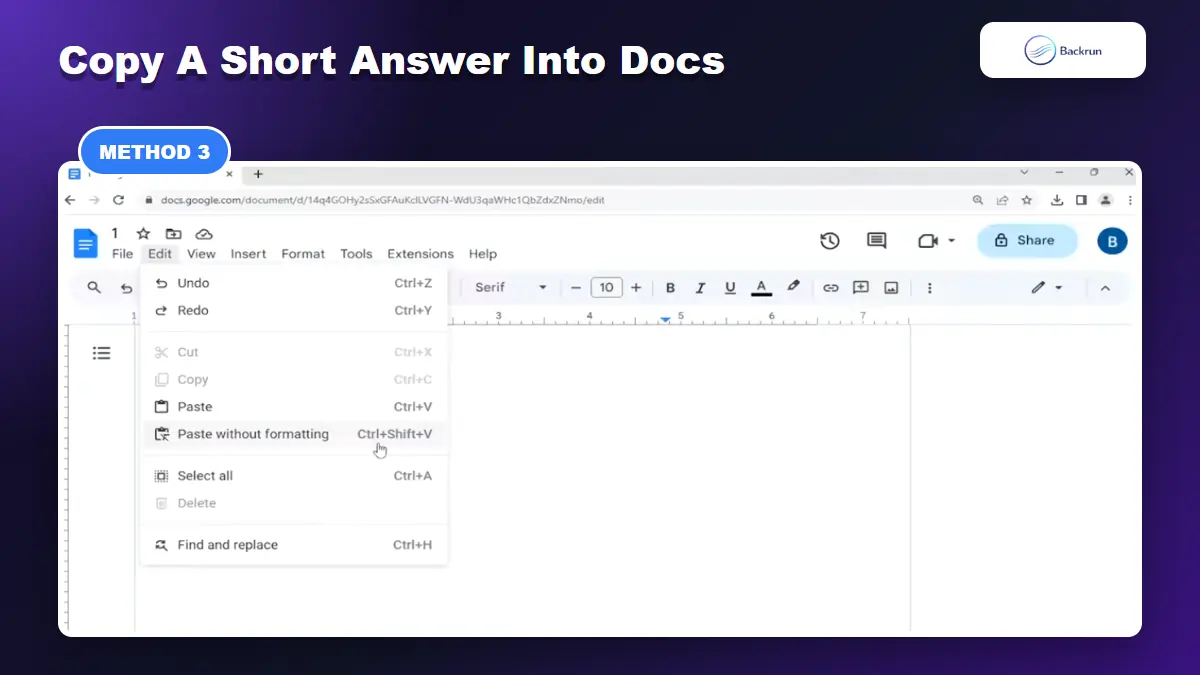
Use Paste without formatting if unwanted fonts, colors, spacing, or backgrounds appear.
Apply real Google Docs styles to headings, bullets, and numbered steps.
Add the original prompt or a short note when the answer needs context to remain understandable.
Best for: one answer, a short summary, an outline, or content you will merge into an existing document.
Advantage: it is quick, transparent, and does not require another tool.
Limitation: long chats, wide tables, images, code blocks, and nested lists can require substantial cleanup.
Formatting tip: Google Docs can convert Markdown when the option is enabled under Tools → Preferences. This can help when Claude returns clear Markdown headings and lists.
4. Export to Word First, Then Open the DOCX in Google Docs
A Word file checkpoint is useful when you want a backup before converting the content into Google Docs.
A DOCX file is a useful checkpoint when the document matters enough to review or archive before it becomes collaborative. It also provides a local backup if the Google Docs conversion changes the layout.
Ask Claude to create a Word document or export the required content as DOCX.
Open the Word file locally and verify that headings, tables, page breaks, and links are present.
Upload the DOCX file to Google Drive.
Double-click the file, then choose Open with Google Docs.
Save or convert the document and perform a final formatting check before sharing it.
Best for: reports, SOPs, class notes, formatted drafts, and team handoffs where a recoverable source file is valuable.
Advantage: you keep a backup outside Google Docs and can compare the converted document with the original.
Limitation: Word-to-Google-Docs conversion is not perfect. Google recommends reviewing Office files after opening them in Docs, especially when they contain complex layouts. See Google's guide to opening Word files in Google Docs.
If your final destination is a fixed document rather than an editable Google Doc, see Backrun's guide on how to export Claude chat to PDF.
Quick Recap
Choose the workflow based on conversation length, formatting control, and whether you need a backup file.
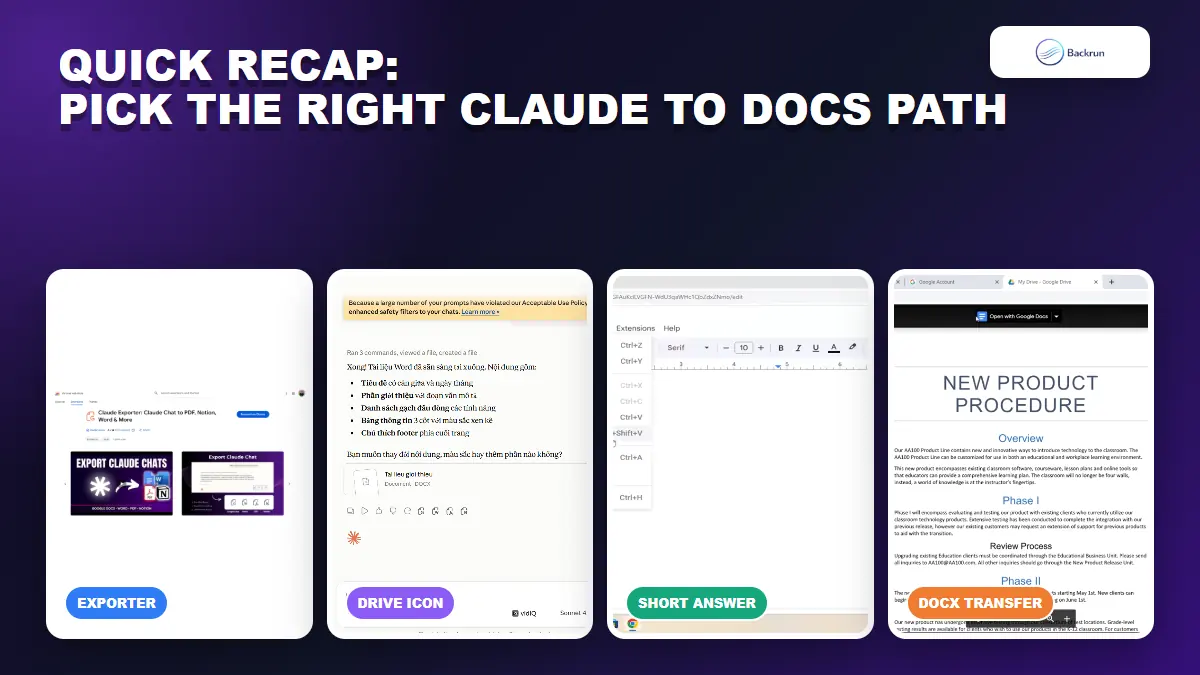
Choose the method by the amount of content you need and the format you want to preserve.
Method
Choose it when
Main trade-off
Claude Exporter
You need selected messages or the complete chat
Requires a Chrome extension
Claude document + Drive
You want a polished final document
The Drive option may not appear for every account
Manual copy-paste
You only need one short response
Long or complex content needs cleanup
DOCX to Google Docs
You want a backup file before collaboration
Conversion can change complex formatting
Use Claude Exporter for a full or selective conversation, ask Claude to create a document when you only want the final result, paste manually for short text, and use DOCX when you need a reliable file checkpoint.