Copy Equation from Claude to Word: 5 Reliable Methods
June 17, 20268 min read
Copy equation from Claude to Word sounds simple until the formula loses its fractions, symbols, or alignment after pasting. This guide walks through the practical ways to move Claude equations into Word, from Claude Exporter for full answers to Word Equation with LaTeX for editable formulas.
How to Copy Equation from Claude to Word Safely
Claude can display equations cleanly, but Word needs a format it can edit
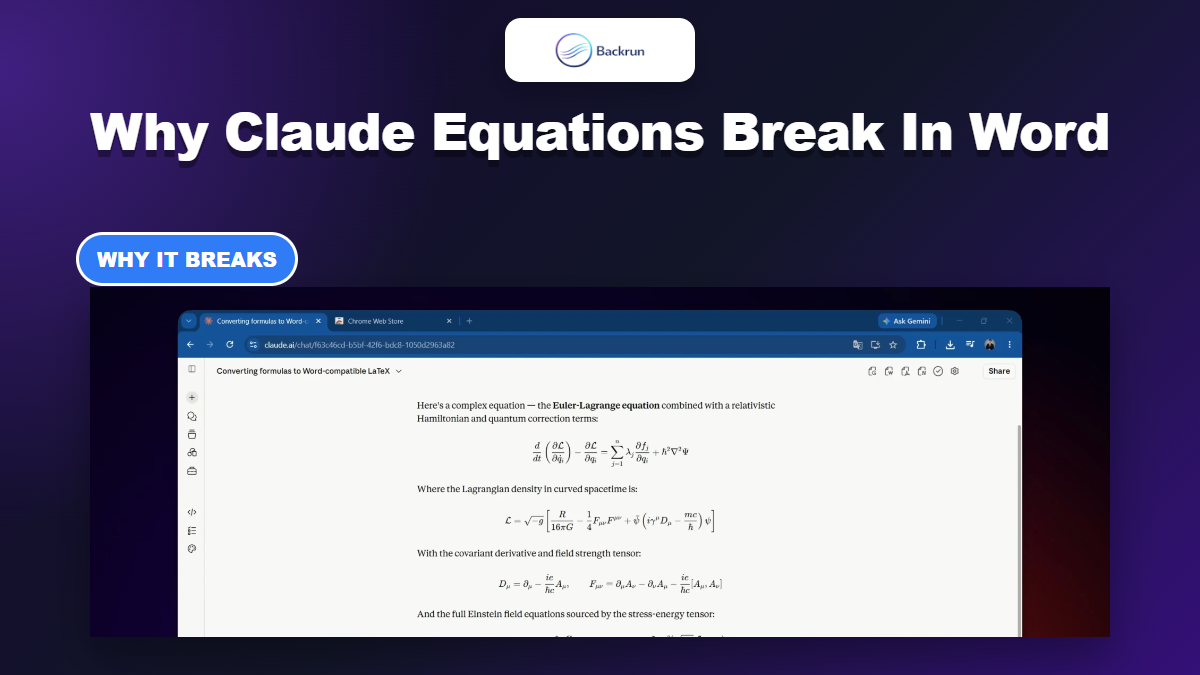
Copy equation from Claude to Word safely means choosing the right destination format before copying anything. Claude can show fractions, summations, matrices, and Greek symbols in the browser, but Word needs a native equation object, Word-compatible LaTeX, MathML, or a clean image.
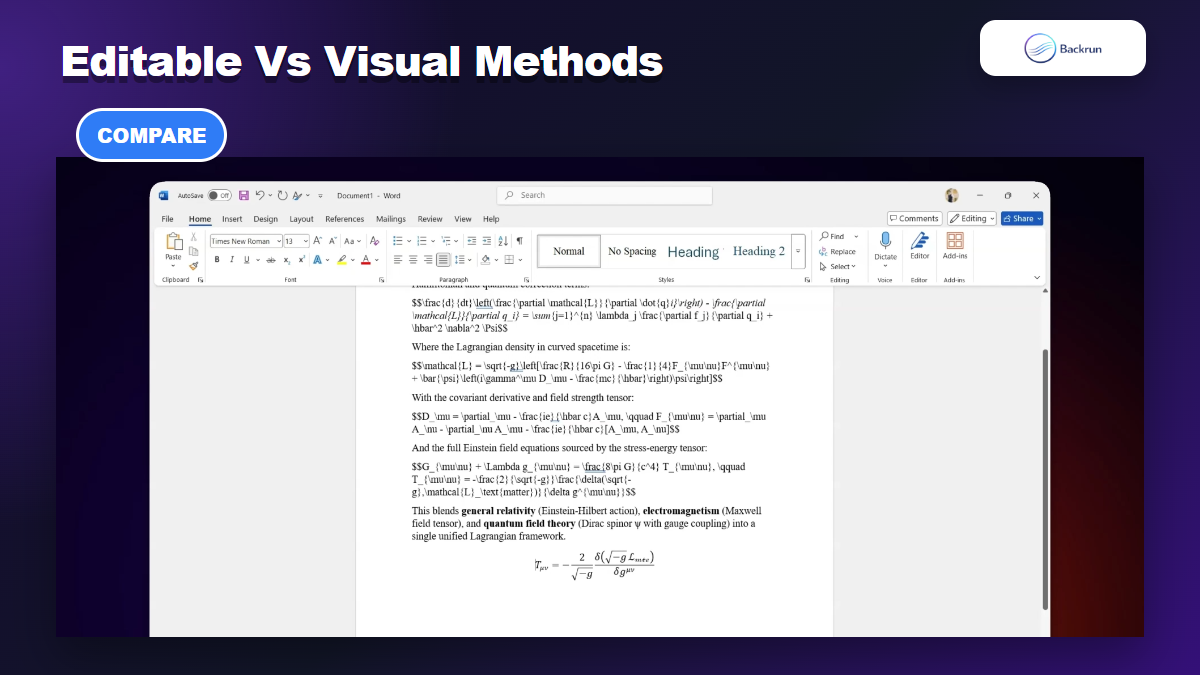
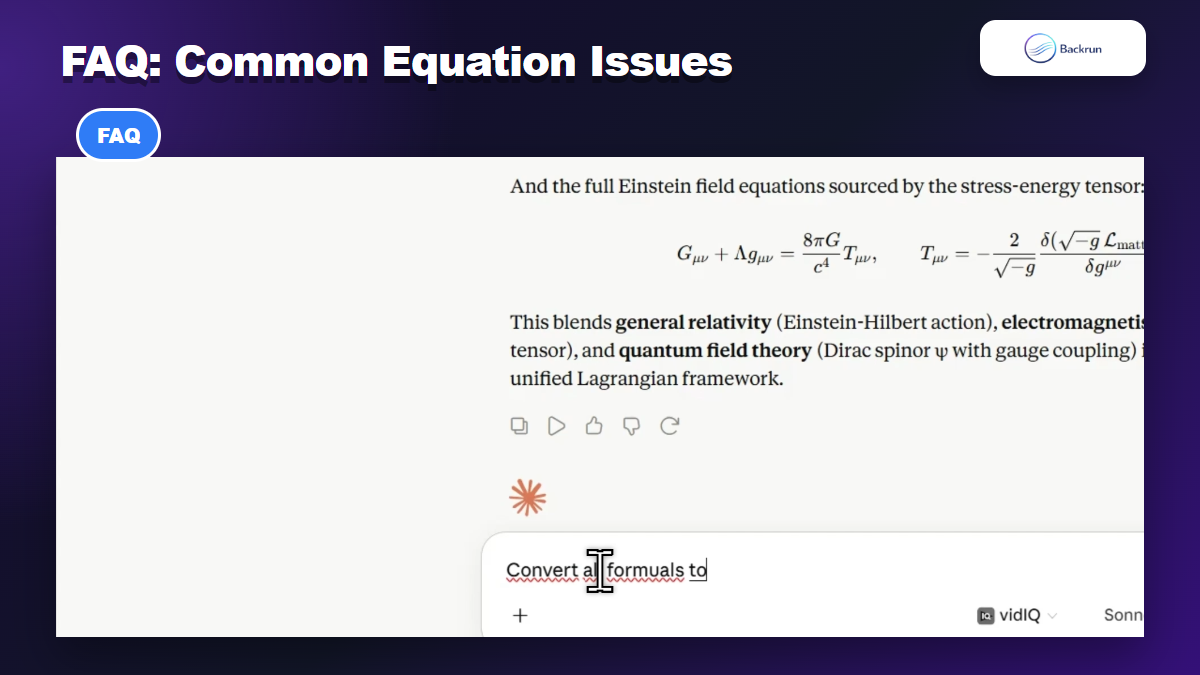
The common mistake is treating every Claude answer as normal text. Equations are structured content. If the structure is lost, Word may paste the formula as plain text, browser HTML, or a visual fragment. That is why a formula can look correct in Claude but turn into a flat line after pasting into Word.
A reliable workflow has two practical paths. The first path uses the Claude Exporter extension when the full Claude conversation needs to become a Word document. The second path asks Claude for Word-compatible LaTeX, opens Word Equation with Alt + =, pastes the equation, and switches to Professional view.
Practical accuracy note: full-document export and single-formula editing behave differently in Word. Microsoft Support confirms the Word Equation entry points, including Insert > Equation and Alt + =, while exported DOCX files still need a quick editability check after opening.
Use this rule before choosing a method: if the equation will be edited, reviewed, numbered, or reused in a technical document, keep it as a Word Equation whenever possible. If the equation only needs to look correct in a note or slide, a screenshot can be acceptable.
Use Claude Exporter for full Claude answers
Copy equation from Claude to Word is easiest at document level when the equation is part of a longer Claude answer. In that case, the correct first method is not a generic export workflow. It is the Claude Exporter extension for full-conversation export.
Claude Exporter is the right method when the whole Claude answer needs to become a Word file
Claude Exporter is useful because the answer around the formula often matters as much as the formula itself. A research note, homework explanation, technical draft, or client document usually includes headings, paragraphs, code blocks, lists, and several equations. Copying only one equation can remove the context that explains it.
Use Claude Exporter when you need to preserve the structure of a Claude conversation:
Open the Claude conversation that contains the equation and supporting explanation.
Use Claude Exporter to export the conversation to Word or DOCX, depending on the available export option.
Open the exported file in Microsoft Word before making layout changes.
Check the equation objects first. Click an equation and confirm whether Word treats it as editable math or as a visual element.
Repair important equations with Method 2 if the exported file looks correct but the formula cannot be edited.
This method is the best starting point for full conversations because it reduces manual cleanup. The limitation matters: an export tool can preserve document structure, but it cannot guarantee that every formula becomes a native Word Equation. Best practice is to check editability before sharing the file.
Use Word Equation with LaTeX for editable formulas
Copy equation from Claude to Word is most reliable for one formula when you make Word create the equation itself. The workflow is simple: ask Claude for Word-compatible LaTeX, open a Word Equation field, paste the LaTeX, and convert it to a professional equation view.
Microsoft documents that Word can insert an equation through Insert > Equation or the Alt + = keyboard shortcut. Microsoft also explains that Professional view displays the formatted equation, while Linear view shows editable source text. That is the safest Word-native workflow for equations that need later editing.
Ask Claude for Word-compatible LaTeX. A practical prompt is: Convert this formula to Word-compatible LaTeX. Return only the equation.
Place the cursor in Word exactly where the formula should appear.
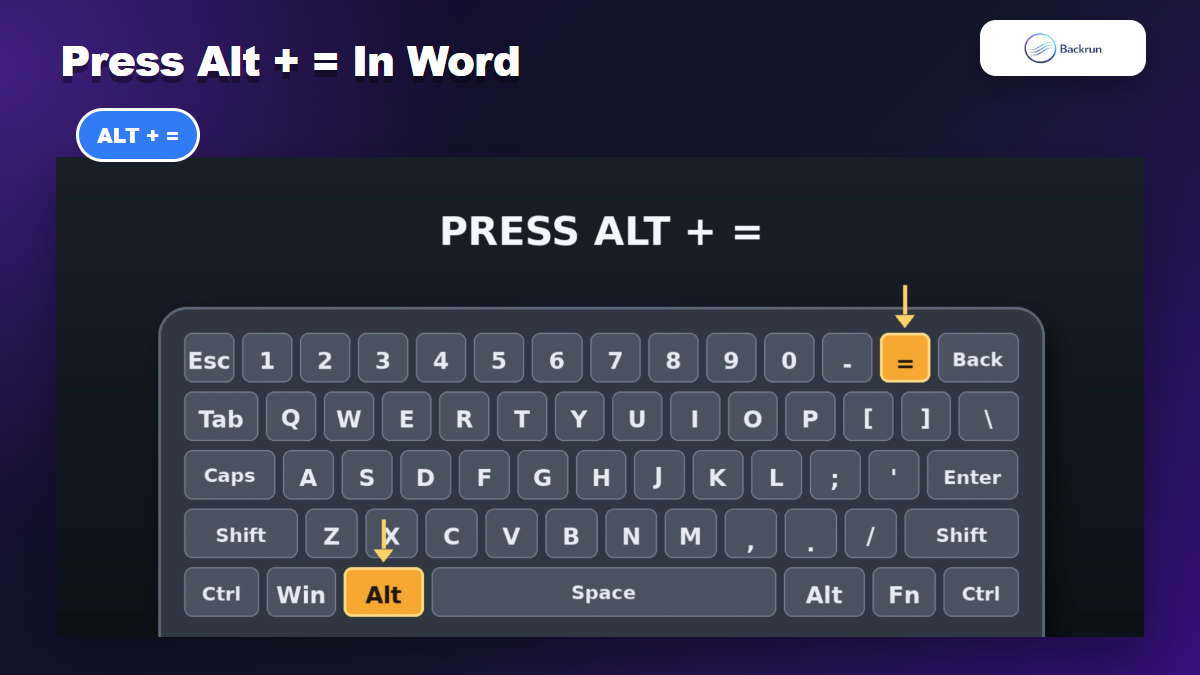
Press Alt + = to open the Word Equation field.
Press Alt + = when the article tells the reader to open Word Equation
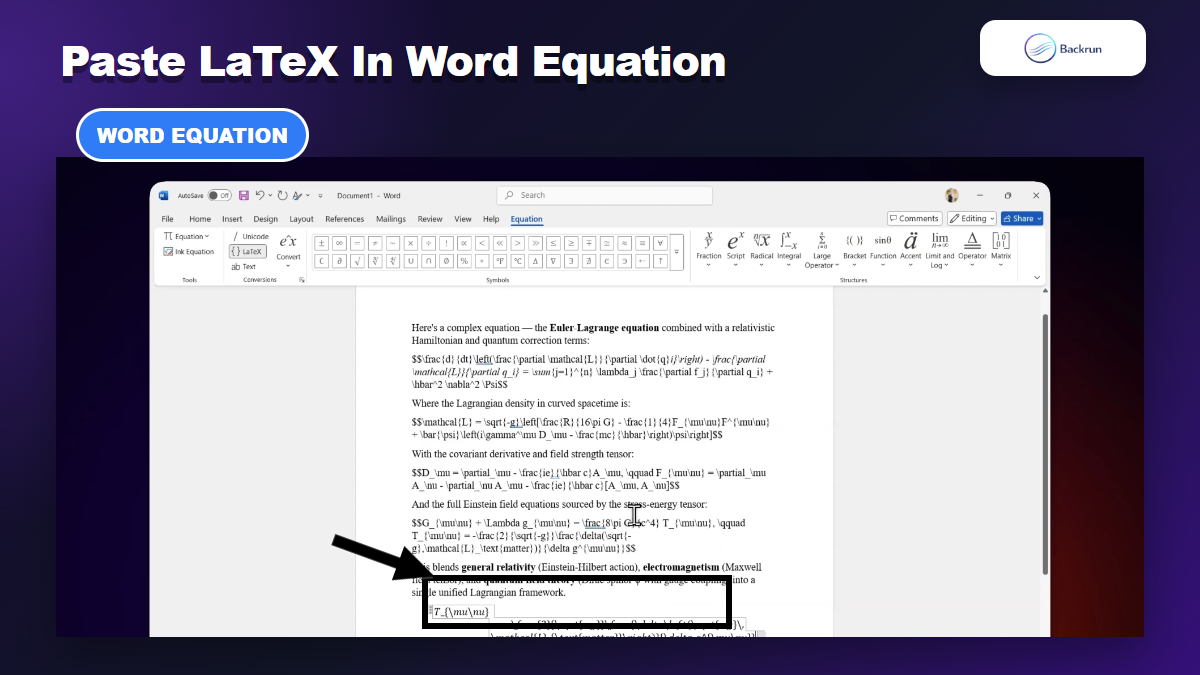
Paste the LaTeX into the equation field, not into a normal paragraph.
Switch to Professional view if Word still shows the raw equation source.
Proofread symbols and spacing before applying document styles.
Paste the Claude LaTeX into Word Equation so the formula stays editable
This method takes a little more effort than direct paste, but it gives the most control over fractions, exponents, subscripts, Greek letters, integrals, matrices, and equation numbering. If one symbol is wrong, ask Claude to simplify the LaTeX for Microsoft Word instead of using package-specific commands.
Choose plain text or screenshot when formatting fails
Copy equation from Claude to Word sometimes fails even when the formula is short. The fallback method depends on whether the final Word file needs editable math or only a visual reference.
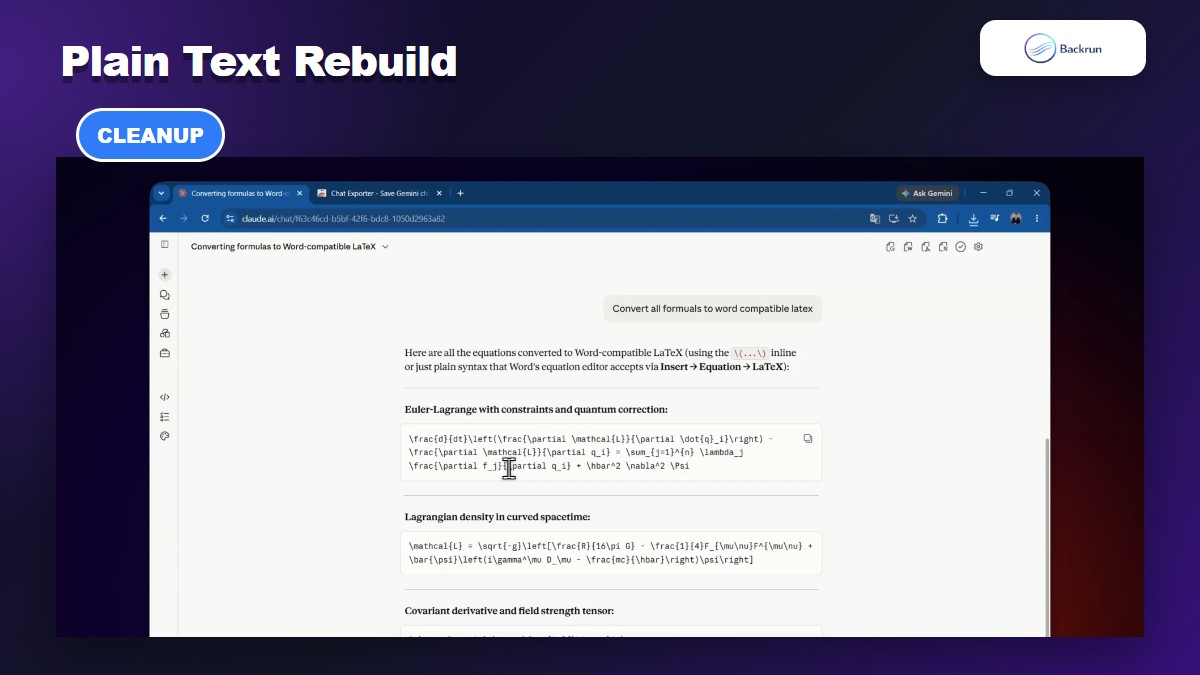
Plain text cleanup is useful when direct paste carries unwanted browser formatting
Use plain text cleanup when direct paste brings hidden browser styling into Word. This method is slower, but it makes the transfer easier to inspect.
Paste into a plain text area first so browser styles do not follow the equation.
Move only the formula source into Word Equation.
Ask Claude for Unicode and LaTeX side by side if a symbol is hard to verify.
Rebuild short formulas manually when one exponent or subscript changes the meaning.
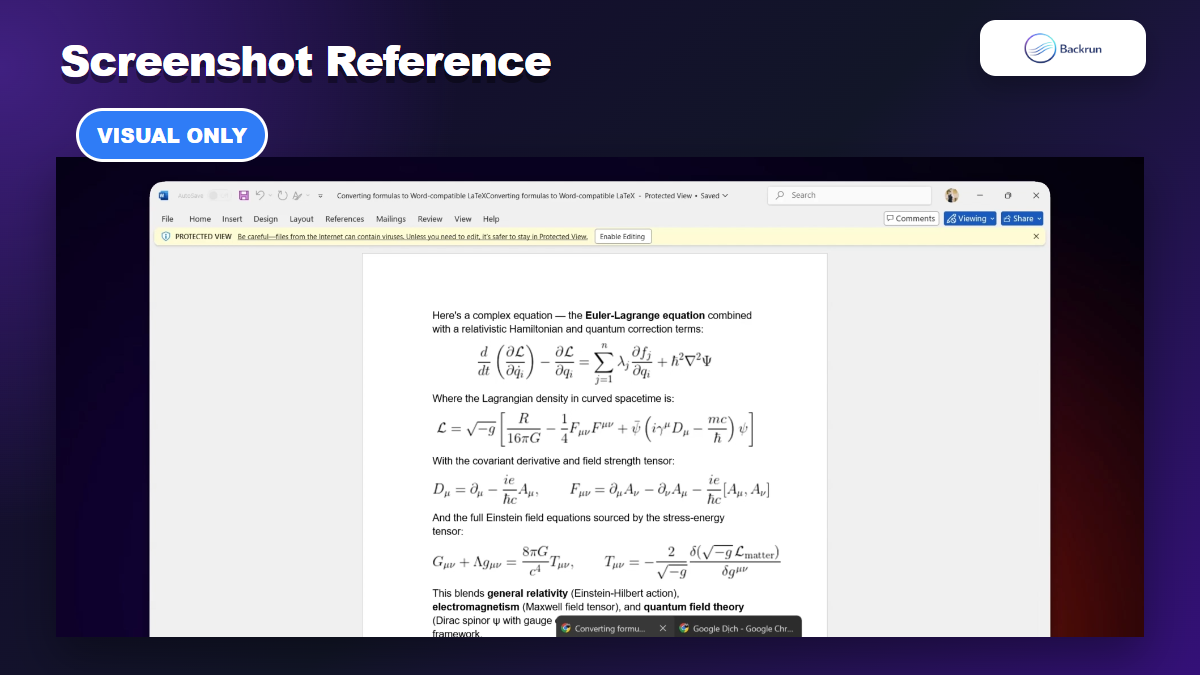
A screenshot preserves appearance, but it does not create editable math
Use a screenshot only when the equation will not change. A screenshot is useful in a quick note, tutorial, slide, or visual reference. It is weak for academic work, technical reports, and files that need equation numbering.
A practical habit is to keep the LaTeX source near the screenshot if there is any chance the formula will be revised later. That small step prevents a visual shortcut from becoming a future rewrite problem.
Compare the reliable methods before choosing
Copy equation from Claude to Word should be decided by the job the Word file needs to do. A method that is fast for a visual note can be wrong for a document that will be reviewed, edited, or reused.
Choose the method based on editability, speed, and cleanup effort
Method
Best use case
Editability in Word
Main risk
Claude Exporter
Full Claude answers with equations and explanation
Check after export
Some formulas may export visually instead of as native equations
Word Equation with LaTeX
One important formula that must remain editable
Strong
Some LaTeX commands may need simplification
Plain text rebuild
Short formulas with messy browser paste
Strong after cleanup
Slower manual review
Screenshot
Slides, quick notes, visual references
None
Cannot edit or number the equation
Manual retyping
Very short formulas where accuracy can be checked line by line
Strong
Typing errors
Recommended workflow: use Claude Exporter for full answers, use Word Equation with LaTeX for important editable formulas, and use screenshots only when the equation is purely visual.
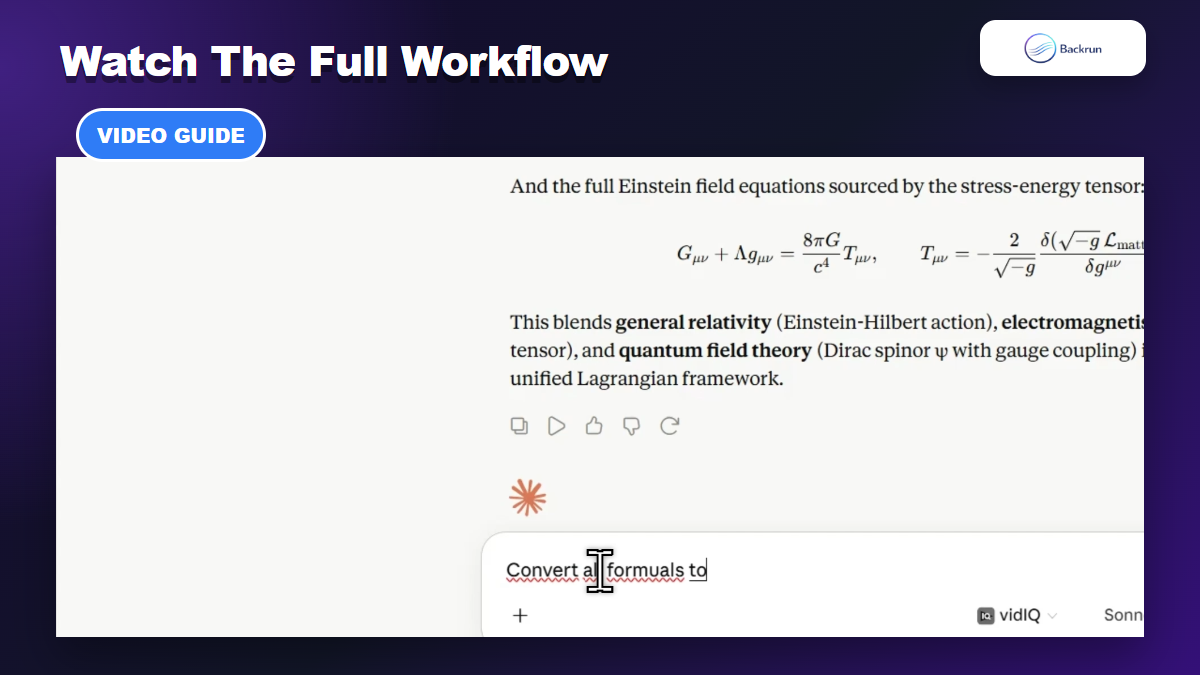
Video walkthrough
A short walkthrough makes the Claude Exporter path and the Word Equation path easier to compare
Frequently asked questions
Copy equation from Claude to Word works best when you decide first whether the final equation must be editable. Use these checks before sending a technical Word document.
Most issues come from format conversion, not from the equation itselfWhat is the best way to copy equation from Claude to word?
For one editable formula, use Word Equation with LaTeX. For a full Claude answer, use Claude Exporter and then check whether the exported equations remain editable in Word.
Does Claude Exporter make every equation editable in Word?
No method should be treated as automatic proof of editability. Claude Exporter is the right workflow for full-document export, but you should click the exported equation in Word and confirm whether it behaves like a native equation.
Why does Alt plus equals matter in Word?
Alt + = opens the Word Equation field. That is the correct place to paste Word-compatible LaTeX when the formula needs to remain editable.
When should I use a screenshot instead?
Use a screenshot only when the equation is a visual reference. If the document needs editing, numbering, alignment, or review, keep the formula as Word Equation or preserve the LaTeX source.
Copy equation from Claude to Word is reliable when the method matches the document. Use Claude Exporter for full answers, Word Equation for editable formulas, and screenshots only for visual references.