How to Copy Equations from ChatGPT to Word in 5 Easy Ways
June 15, 20269 min read
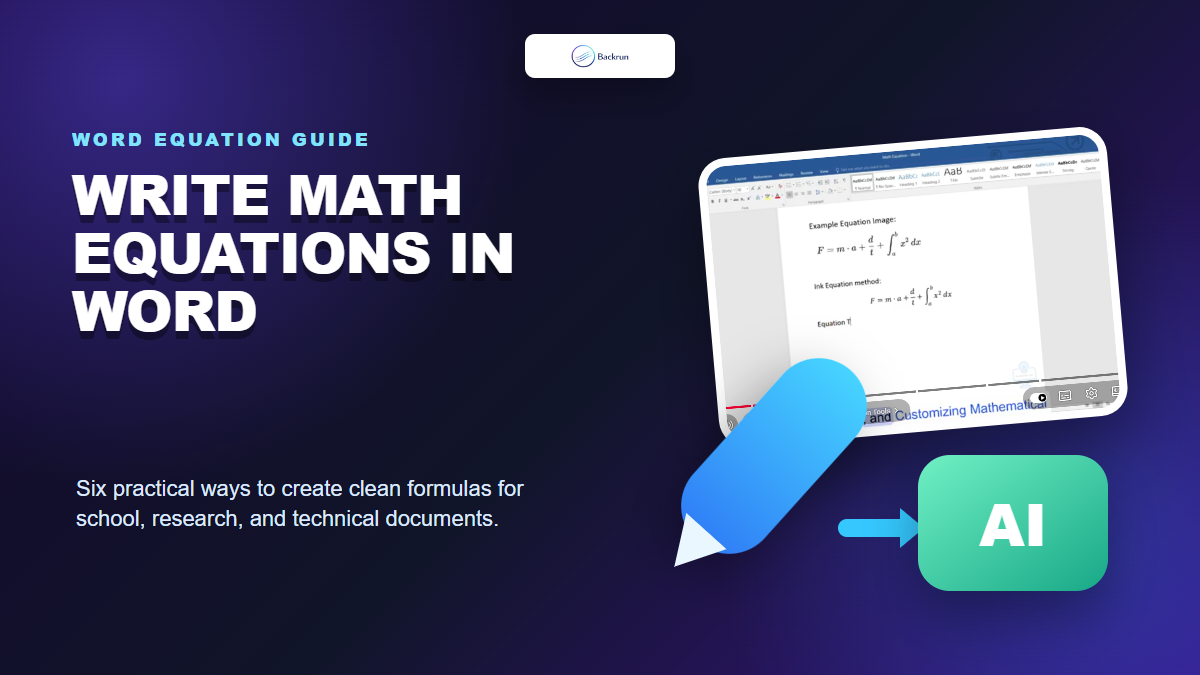
How to copy equations from ChatGPT to Word is a common problem when formulas look correct in ChatGPT but break after pasting into Microsoft Word. In many cases, symbols change, fractions lose their structure, or the equation turns into plain text.
The good news is that this problem is usually easy to fix once you use the right method. Some methods are better for short equations, while others work better for long responses with multiple formulas and explanations.
In this guide, you will learn the most practical ways to move equations from ChatGPT into Word more accurately. We will start with the fastest option, then move to more reliable methods for cleaner and editable equations.
Quick Comparison of Methods
Before going into each method, here is a quick comparison to help you choose the most suitable option.
Method
Best for
Main limitation
Method 1. Direct paste
Short and simple equations, quick copy and paste
Easy to lose formatting, symbols, or editability
Method 2. Browser extension
Exporting a full ChatGPT answer with both text and equations
Formulas may still need cleanup in Word
Method 3. Word Equation Editor
Clean and editable equations in Word
Takes more steps than direct paste
Method 4. Ask ChatGPT to create a Word file
Exporting a longer response into a Word-ready file
Not guaranteed to preserve every equation perfectly
Method 5. Third-party tools
Converting formulas when Word still breaks the equation
Conversion quality depends on the tool
Method 1. Copy Equations by Direct Paste
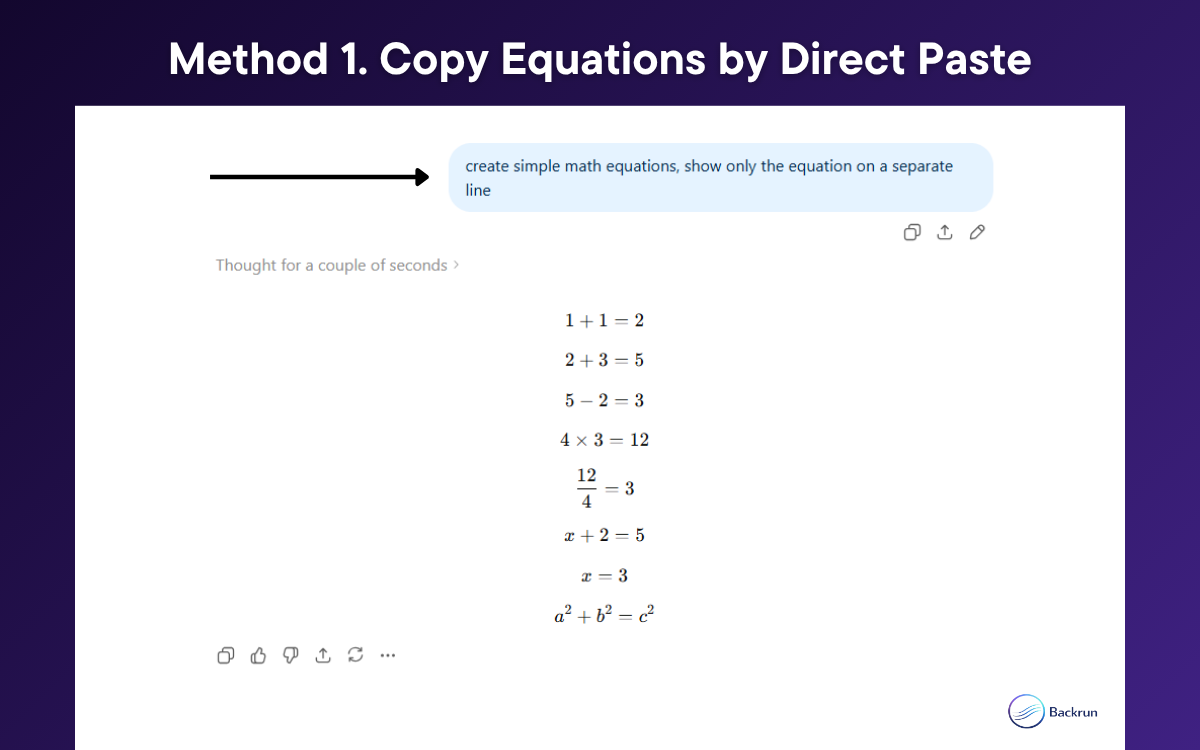
For short formulas, direct paste is usually the fastest option. We find this method works well when the equation is simple, only one line long, and does not rely on advanced formatting.
Steps to Copy Equations from ChatGPT to Word
1. Ask ChatGPT to show only the equation on a separate line. This helps reduce extra text and makes the formula easier to copy into Word.
2. Highlight only the equation in ChatGPT and copy it carefully. Avoid selecting surrounding explanations, labels, or punctuation because they can affect formatting after you paste.
3. Open Microsoft Word and paste the equation into the right position in your document.
4. Review the pasted result right away.
Notes Before Using Direct Paste in Word
This method is best for short equations, basic algebra formulas, and simple one line expressions.
After pasting the equation into Word, check these points carefully:
superscripts and subscripts display correctly
symbols such as π, √, ≤, and ≥ appear properly
fractions still keep their intended structure
the equation is clear and readable inside the document
the pasted content can still be edited if needed
From a practical point of view, direct paste is a good starting option, but it is not always reliable for more complex math. If the equation turns into plain text, loses spacing, or breaks its structure, you should move to a more stable method in later sections of this article.
Method 2. Use a Browser Extension
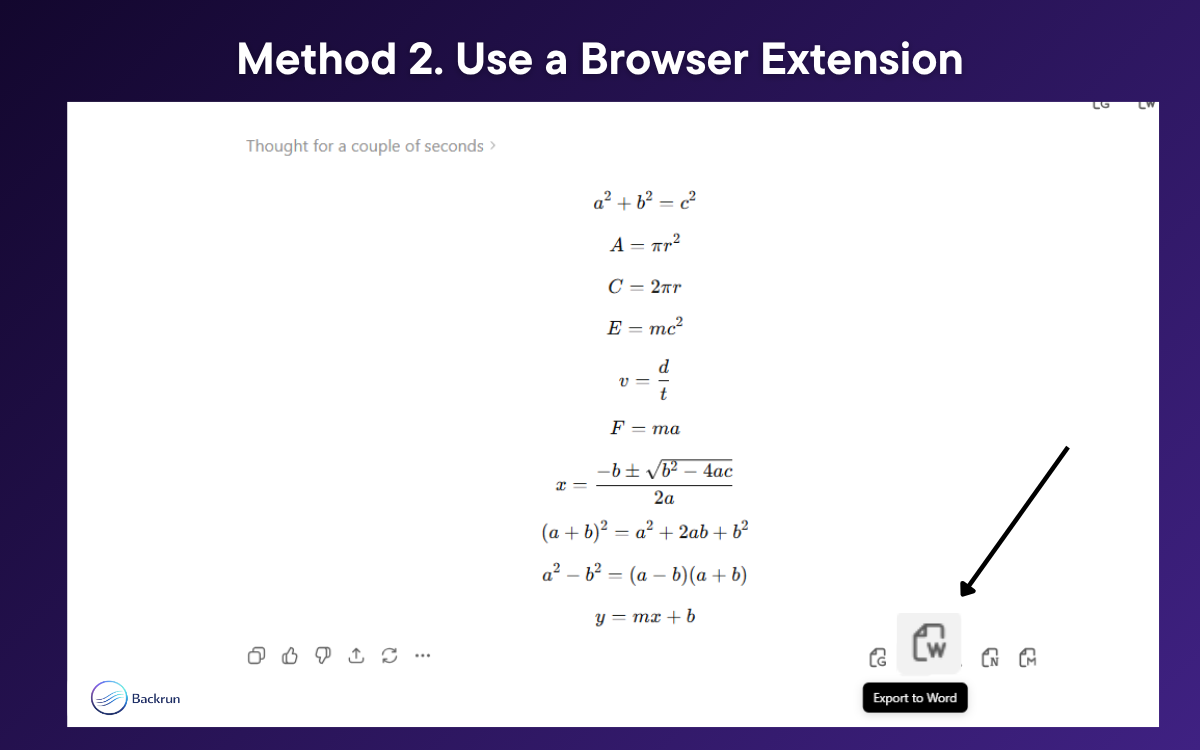
If you need to move a full ChatGPT answer with equations into Word, using a browser extension is often more convenient than copying everything manually. In our experience, this method is useful when the response contains multiple formulas, explanations, or step by step solutions. Among available browser extensions, we suggest using ChatGPT Exporter because it gives you a faster workflow when you want to export content from ChatGPT and review it before editing in Word.
2. Open the ChatGPT conversation that contains the equations you want to use.
3. Click the option to export the conversation to Word.
4. Open the exported file and review the content carefully before using it in your document.
Finally, check the equations, symbols, and line breaks to make sure the formatting still looks correct in Word.
You can watch the detailed tutorial video here
Notes Before Using ChatGPT Exporter
This method works best when you need to export longer responses with both text and equations.
Before finalizing the file, check these points:
equations are separated clearly from normal text
symbols and math signs still display correctly
line breaks are clean and easy to follow
the Word file keeps the original response structure as much as possible
From our practical experience, ChatGPT Exporter is a good tool for reducing manual copy and paste. However, some formulas may still need adjustment in Word, especially if you want them to become fully editable equations. In those cases, Word Equation Editor is still the better option for final cleanup.
Method 3. Use Word Equation Editor
If you want a cleaner and editable result, Word Equation Editor is one of the most reliable ways to handle how to copy equations from ChatGPT to Word.
Steps to Use Word Equation Editor
1. Copy the equation from ChatGPT. For better results, ask ChatGPT to return the formula in LaTeX or in a clean math format before copying. You can use this prompt: "Convert this formula to Word-compatible LaTeX. Return only the equation."
2. Open your Word document and place the cursor where you want the equation to appear.
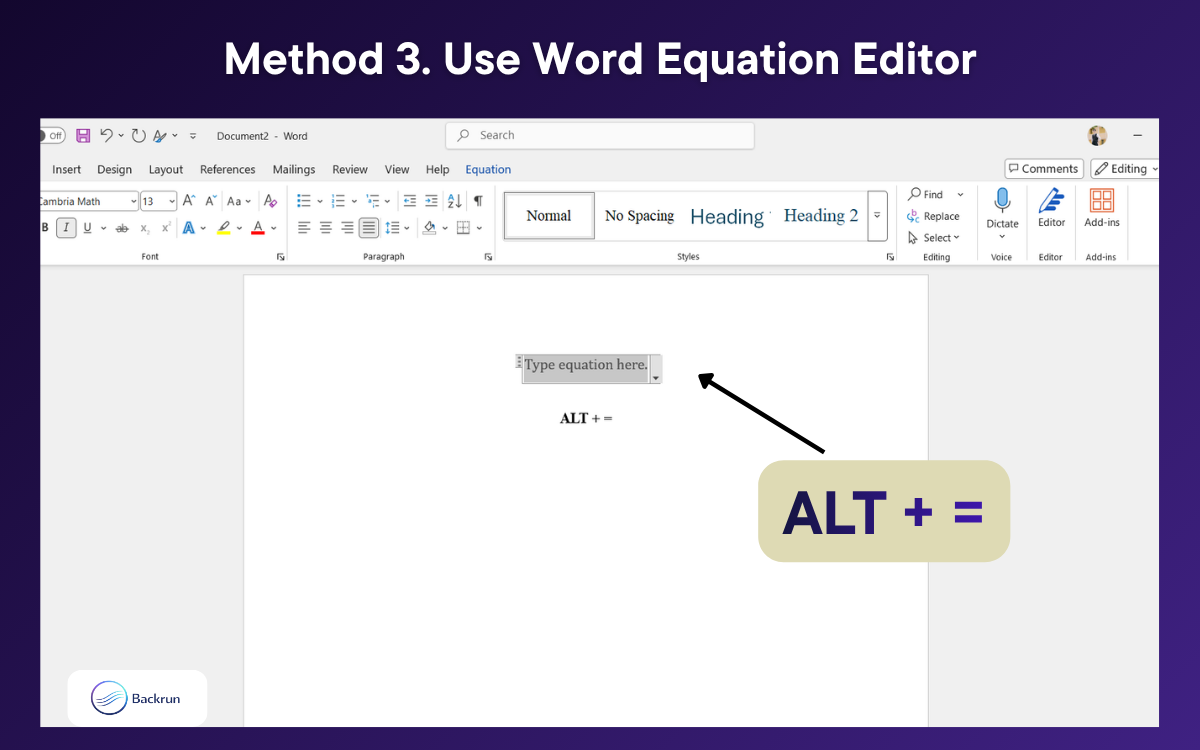
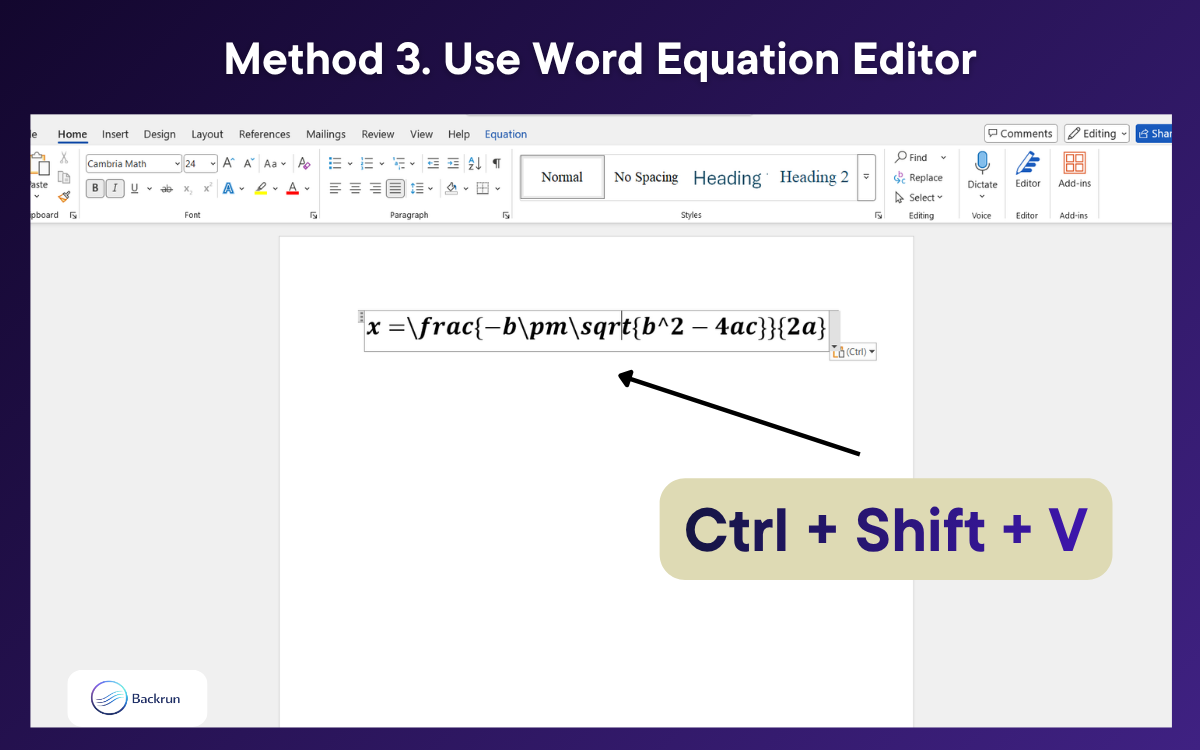
3. Then, open Equation Editor in Word by going to Insert > Equation or using the shortcut Alt + =.
4. Paste the equation into the equation field and press Enter.
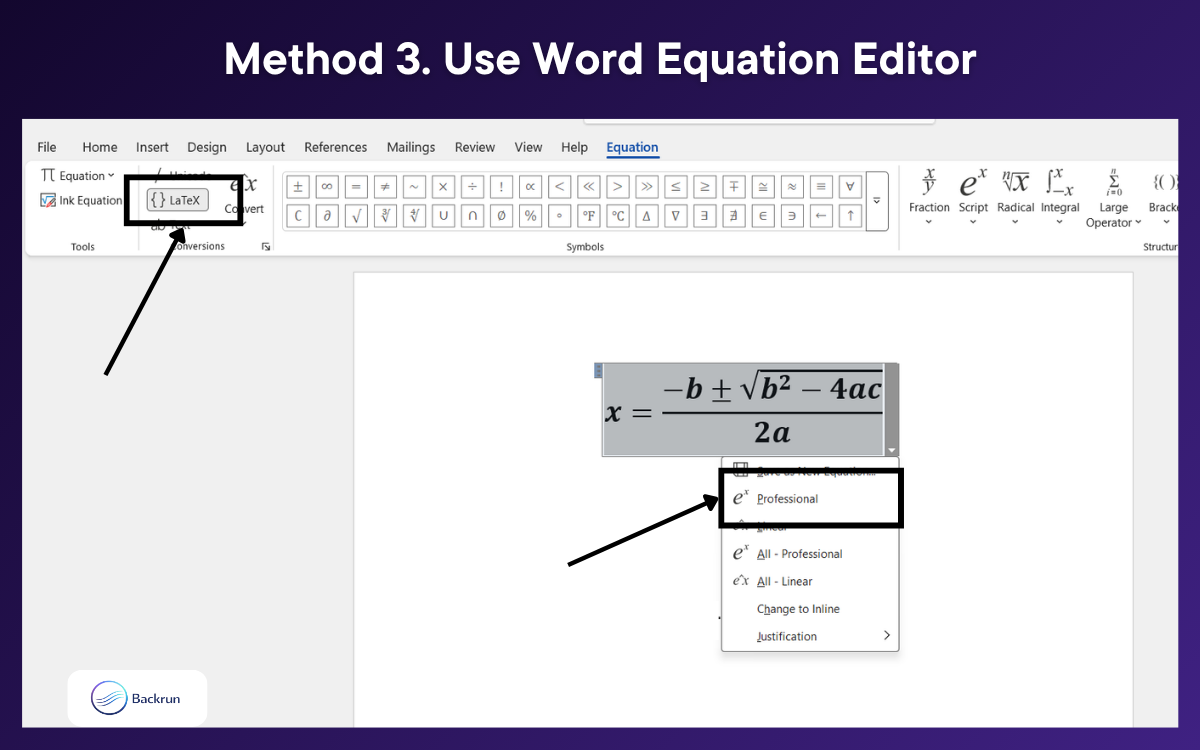
If the equation does not display correctly in Word, right click the equation and choose Professional. If needed, make sure LaTeX is selected in the Equation tab before pasting the formula again.
Notes Before Using Word Equation Editor
This method works best when the equation needs to stay editable in Word or when direct paste breaks the formatting.
Before finalizing the equation, check these points:
the formula is pasted inside the equation field
fractions, powers, and symbols display correctly
the equation can still be edited in Word
no extra text or punctuation is included
From our practical experience, Word Equation Editor is usually the better choice for assignments, reports, and technical documents because the result is cleaner and easier to edit later.
Method 4. Ask ChatGPT to Create a Word File with Equations
Another option is to ask ChatGPT to generate a Word ready file instead of copying equations manually. ChatGPT supports common document formats such as DOCX, and OpenAI’s Help Center says files created in ChatGPT are saved to your Library when that feature is available.
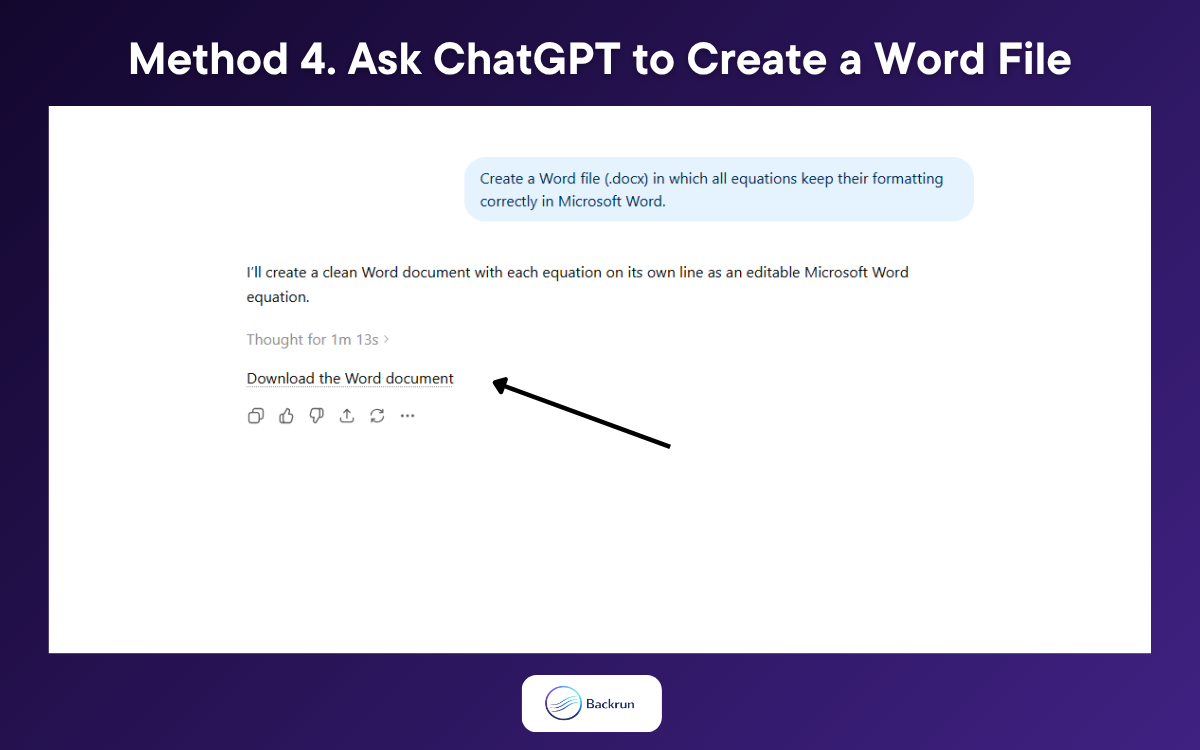
Ask ChatGPT to format the content as a Word document with equations preserved as clearly as possible. Use this prompt:
Create a Word file (.docx) in which all equations keep their formatting correctly in Microsoft Word.
Download the file created by ChatGPT.
Open the Word file and review all formulas carefully. Finally, fix any equations that still need cleanup in Word Equation Editor.
From our practical experience, this method can save time for longer documents. However, it should be treated as a convenience workflow, not a guaranteed perfect export. ChatGPT can create files and work with document formats, but you should still review the final Word file carefully before using it in assignments, reports, or technical documents.
Method 5: Use Third-Party Tools
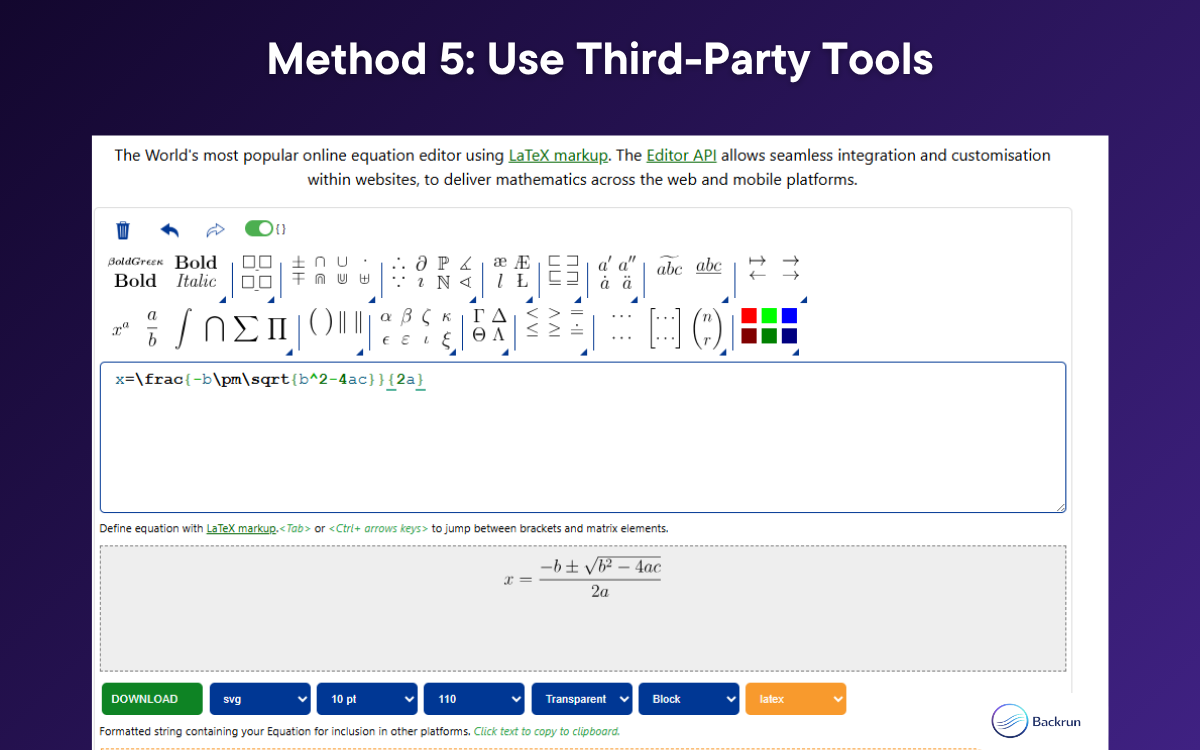
Ask ChatGPT to return the formula in LaTeX only.
Copy the LaTeX equation from ChatGPT.
Paste the formula into a web tool that converts LaTeX into a format that works better with Word, such as Massive Mark or CodeCogs.
Copy the converted result and paste it into Word, preferably inside Equation Editor.
From our practical experience, a web tool can be a useful fallback when Word does not handle the original equation well. However, it is still important to review the final result in Word because not every conversion tool preserves formatting perfectly.
Common Problems When Copying Equations from ChatGPT to Word
Even after trying several methods, many users still run into formatting issues. That is why understanding the common problems is just as important as learning how to copy equations from ChatGPT to Word. In practice, the biggest challenge is not copying the equation itself. The real challenge is keeping the formula readable, editable, and consistent once it is inside Word.
The good news is that most of these problems are predictable. Once you know what causes them, you can usually fix them quickly without starting over from scratch.
Equations paste as plain text: This usually happens when Word treats the formula as normal text instead of a math object. The fastest fix is to paste the formula into Word Equation Editor instead of the body text.
Symbols break or disappear: Greek letters, square roots, arrows, or inequality signs may change after pasting. To fix this, copy only the equation, ask ChatGPT to return it in LaTeX, and paste it into Equation Editor.
Word does not recognize LaTeX properly: If raw LaTeX stays visible in Word, the formula was likely pasted into normal text instead of the equation field. Open Insert > Equation or press Alt + = first, then paste the LaTeX.
The equation loses spacing or alignment: This often happens with long or multi line formulas. A better approach is to split the equation into smaller parts and paste it line by line.
The equation cannot be edited after pasting: If the formula looks correct but cannot be changed later, Word may not be treating it as a real equation object. Use Equation Editor when editability matters.
Question marks appear instead of math symbols: This usually points to font, encoding, or formatting issues. In practice, asking ChatGPT for LaTeX only and pasting into Equation Editor is one of the safest fixes.
How to avoid these problems: Ask ChatGPT for a cleaner equation format, copy only the formula, use Equation Editor for important equations, paste long formulas in smaller parts, and review the result right away.
Conclusion
How to copy equations from ChatGPT to Word becomes much easier when you choose the right method for the type of formula you are working with. For short equations, direct paste may be enough. For longer responses, a browser extension or a middle format can help reduce formatting issues. For the cleanest and most editable result, asking ChatGPT for LaTeX and pasting it into Word Equation Editor is usually the most reliable workflow.
In our experience, the biggest mistake is treating equations like normal text. A better approach is to review the formula first, use the right transfer method, and check the result immediately after pasting. This simple habit helps you keep equations clear, editable, and easier to manage in Word.