When you need to export Claude chat to PDF, the hard part is not finding a download button. The hard part is choosing the workflow that keeps the conversation readable, private, and easy to reuse later. A short answer can be printed in seconds, but a long research thread usually needs a cleaner method.
Method 1: Print the Claude Page to PDF
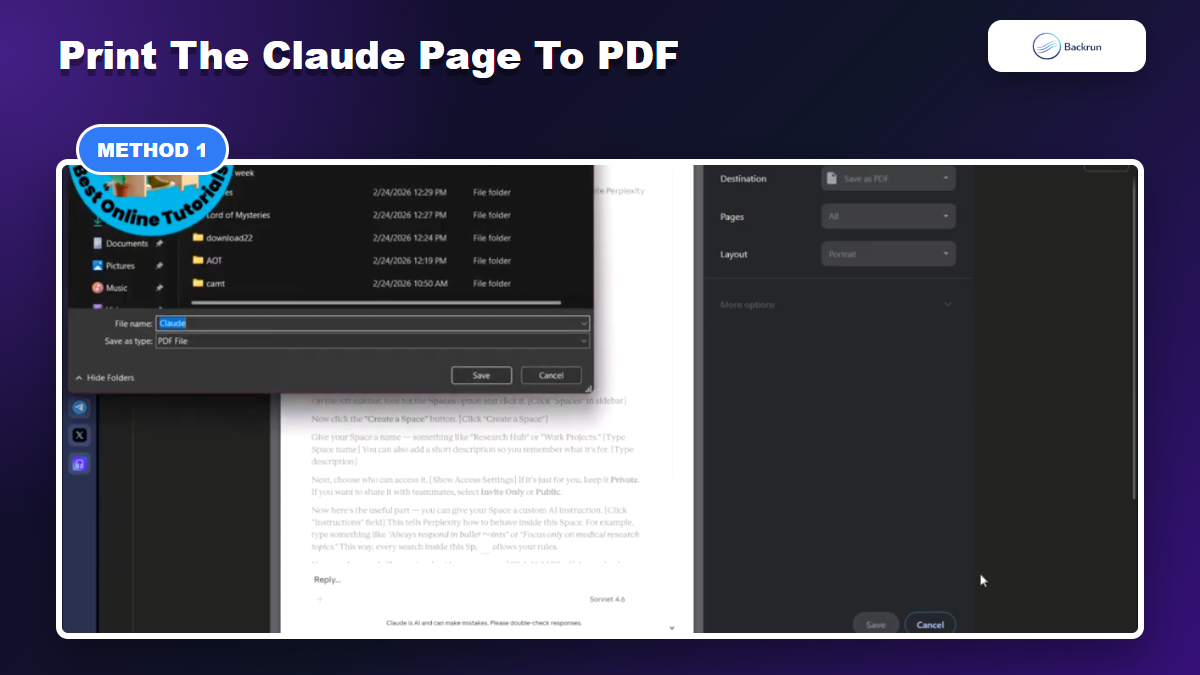
Browser print is the fastest way to save a visible Claude chat as a PDF.
This is the fastest no-install method. It uses your browser's print feature to turn the current Claude page into a PDF file. It works best when the conversation is short, already loaded, and mostly text.
Open the Claude conversation you want to save.
Scroll through the chat so the messages you need are loaded on the page.
Press Ctrl + P on Windows or Command + P on Mac.
Choose Save as PDF as the print destination.
Check the preview before saving, especially around tables, code blocks, and long answers.
Best for: quick personal copies, simple text chats, and short research notes.
Advantage: no extension, no public link, no new account connection, and no extra setup.
Limitation: print output depends on the browser. Wide tables may shrink, code blocks may wrap badly, and long conversations can create awkward page breaks.
Reader check: if the print preview already looks cramped, do not save it and hope the PDF will improve. Switch to Word, Google Docs, or an exporter workflow instead.
Method 2: Copy the Useful Claude Answer into Word or Google Docs
Use Word or Google Docs first when the final PDF needs cleanup or editing.
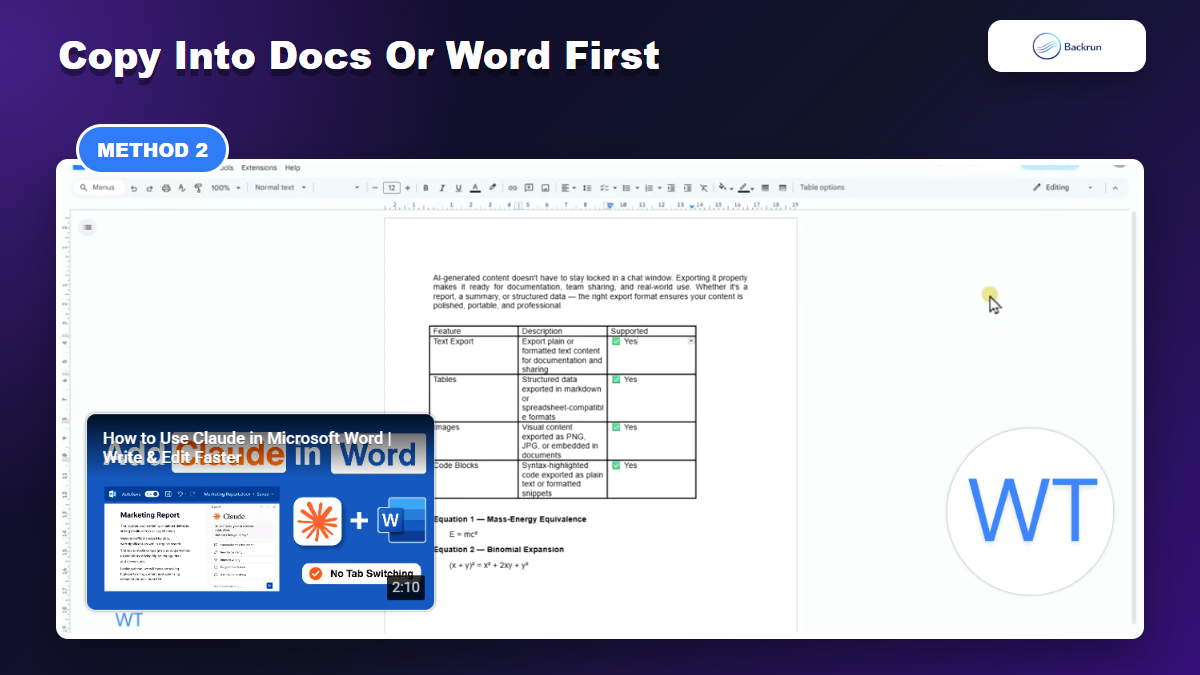
If the final document needs to look professional, treat Claude as the drafting layer and Word or Google Docs as the formatting layer. This method is slower than browser print, but it gives you control over headings, spacing, links, citations, and page breaks before the PDF is created.
Select the answer or section you actually want to keep from Claude.
Copy it into Word or Google Docs instead of printing the whole chat page.
Rebuild the structure with clean headings, bullets, tables, and page spacing.
Add context if the copied answer depends on an earlier prompt.
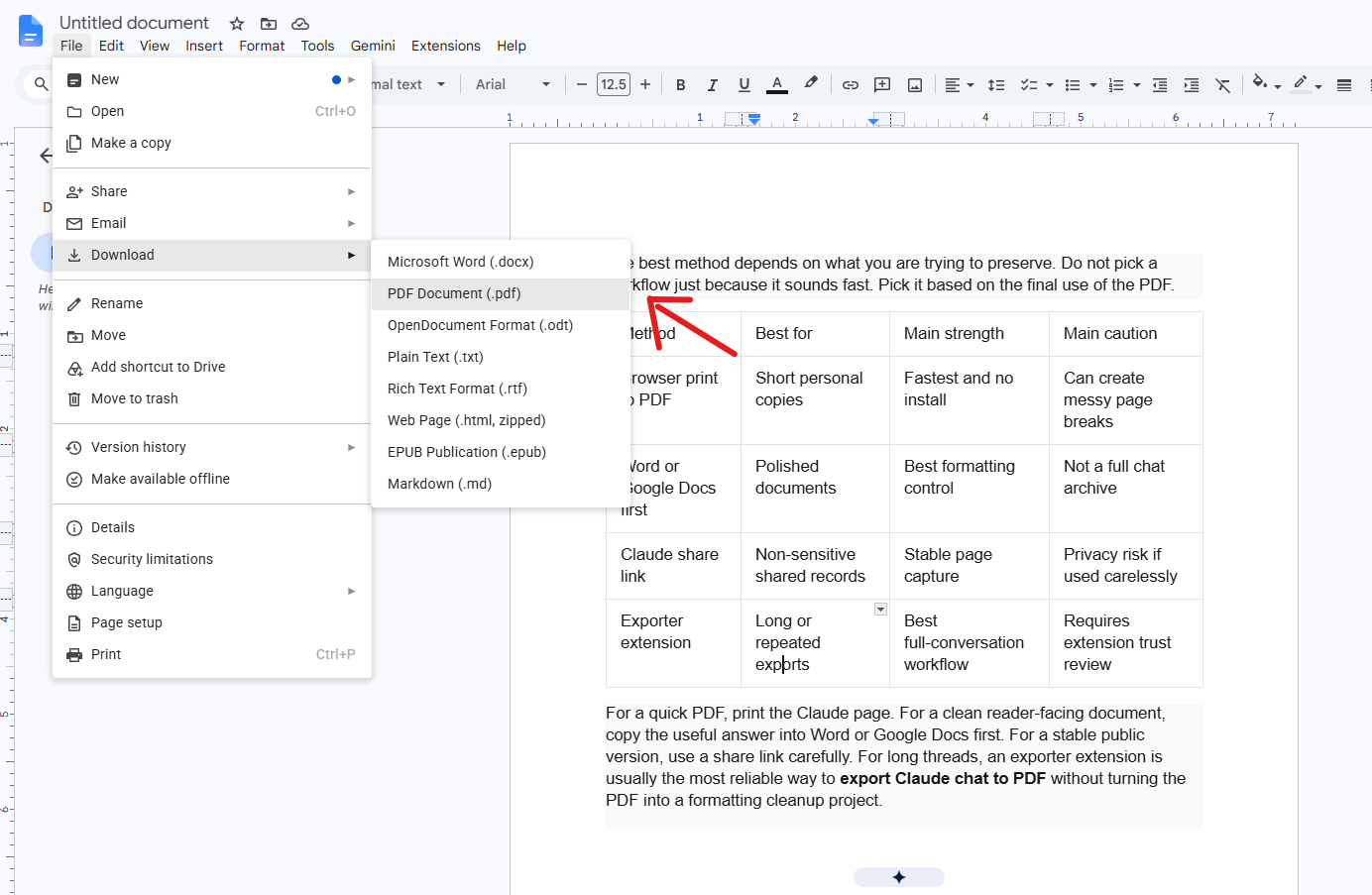
Export the document as PDF using Word's Save as PDF or Google Docs' File > Download > PDF Document.
Best for: client notes, standard operating procedures, internal documentation, study summaries, and anything that should read like a finished document rather than a chat transcript.
Advantage: the PDF is easier to polish. You can fix formatting before export instead of trying to repair a PDF after the fact.
Limitation: this is not a perfect archive of the whole conversation. It is better for saving the useful answer, not every prompt and reply.
Experience note: this is the method to use when Claude gives you a good answer but the conversation around it is messy. The PDF should serve the reader, not preserve every step of your prompt process.
Method 3: Use Claude Exporter for Full-Conversation PDF Export
Exporter extensions are best for long conversations and repeat PDF exports.
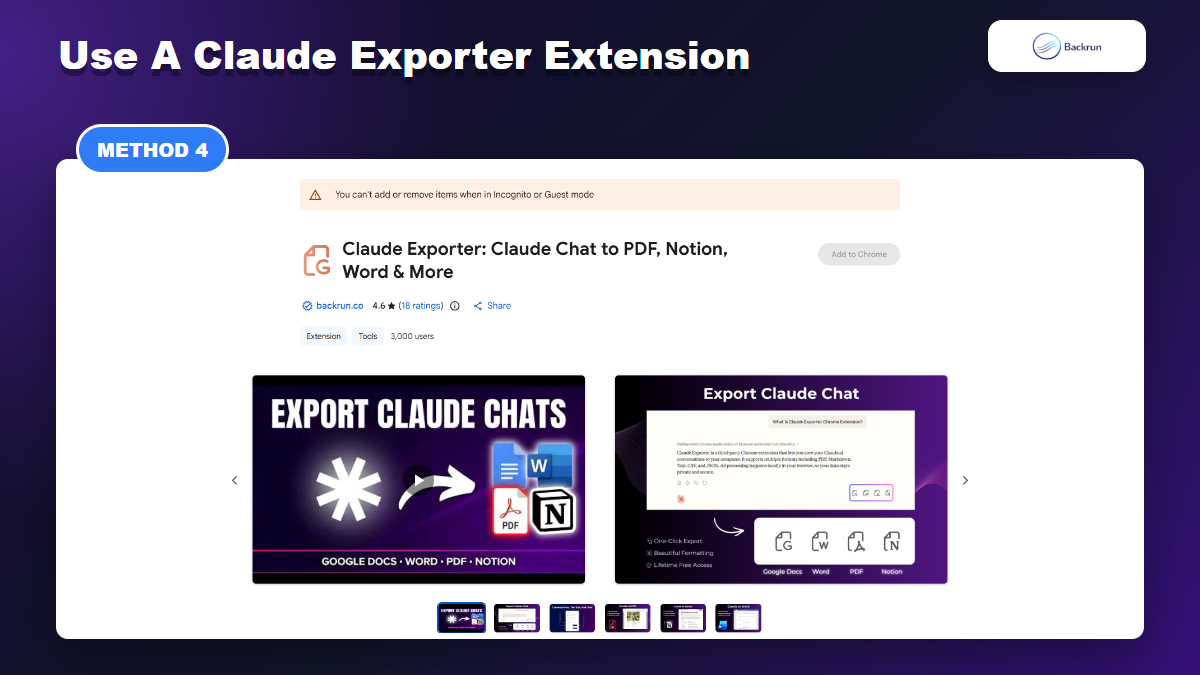
Claude Exporter is the strongest option when you need to export a long Claude conversation, preserve more of the thread, or repeat the workflow often. Instead of manually copying pieces of the chat, the extension is designed to export Claude conversations to PDF and other work formats such as Word, Google Docs, and Notion.
Install Claude Exporter from the Chrome Web Store.
Review the permissions before installing it, especially access to Claude pages.
Open the Claude conversation you want to export.
Select PDF as the output format, or choose Word/Google Docs if you still need editing.
Download and inspect the PDF before sending or archiving it.
Best for: long chats, research sessions, repeated exports, and workflows where you may also need Markdown, Word, JSON, or text later.
Advantage: this is usually the most complete way to export Claude chat to PDF because Claude Exporter is built for conversation export instead of page printing.
Limitation: an extension is still an extra trust decision. Use a separate browser profile for sensitive work, review permissions, and uninstall tools you no longer need.
Backrun note: if your work also involves other AI chat exports, this is the same practical category covered in Backrun's guide on how to export Claude chat.
Method 4: Use a Claude Share Link, Then Save the Shared Page
Share links can help capture a stable Claude page, but they are not ideal for private content.
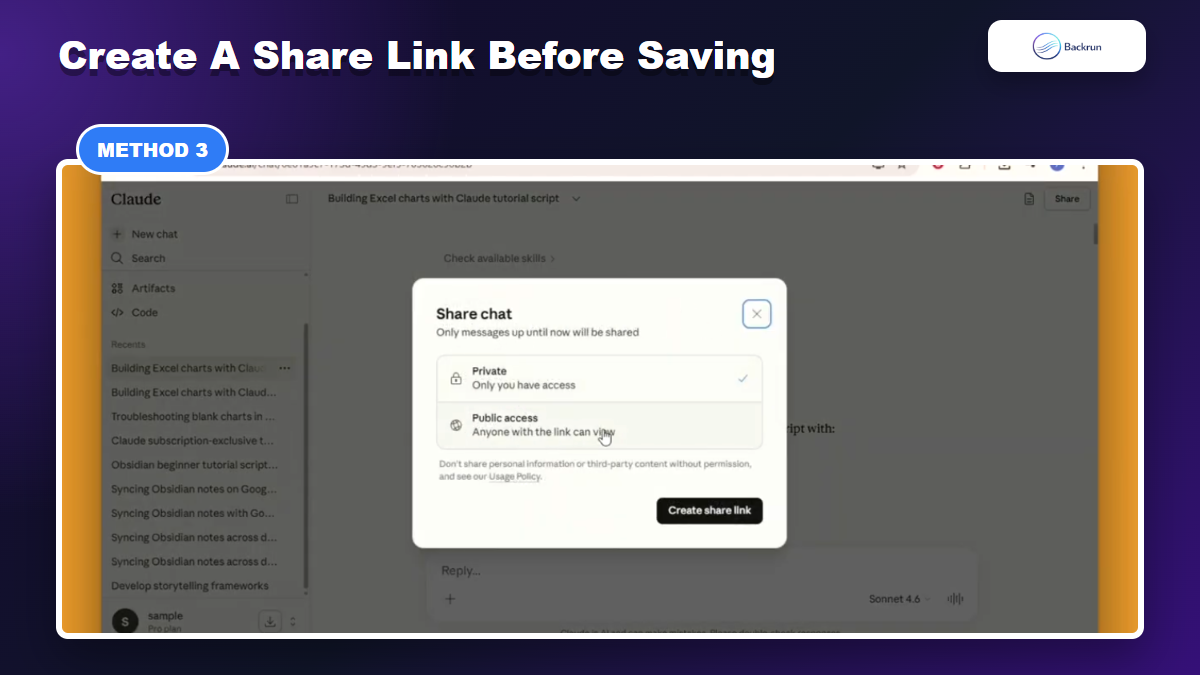
A share link can be useful when you want a stable page version of a Claude conversation before saving it. The important word is share. This method is convenient, but it changes how the conversation can be accessed.
Open the Claude chat you want to preserve.
Use Claude's share controls to create a shareable conversation link if your account has that option.
Open the shared link in a fresh browser tab.
Print the shared page to PDF or use your preferred PDF capture tool.
Remove or disable the link later if the conversation should not stay accessible.
Best for: non-sensitive chats where a readable shared page is more useful than a raw copy.
Advantage: a shared page can be cleaner than your active logged-in chat view and may be easier to print consistently.
Limitation: do not use this for private client data, internal company information, unpublished work, or anything you would not be comfortable sharing by link. Anthropic's privacy policy is worth reviewing before you create public or semi-public copies of sensitive conversations.
Practical rule: if your goal is a private archive, use browser print, Word/Docs, or an exporter extension. Use share links only when sharing is actually part of the job.
Quick Recap
Choose the method based on speed, formatting control, privacy, and conversation length.
The best method depends on what you are trying to preserve. Do not pick a workflow just because it sounds fast. Pick it based on the final use of the PDF.
Method
Best for
Main strength
Main caution
Browser print to PDF
Short personal copies
Fastest and no install
Can create messy page breaks
Word or Google Docs first
Polished documents
Best formatting control
Not a full chat archive
Claude share link
Non-sensitive shared records
Stable page capture
Privacy risk if used carelessly
Exporter extension
Long or repeated exports
Best full-conversation workflow
Requires extension trust review
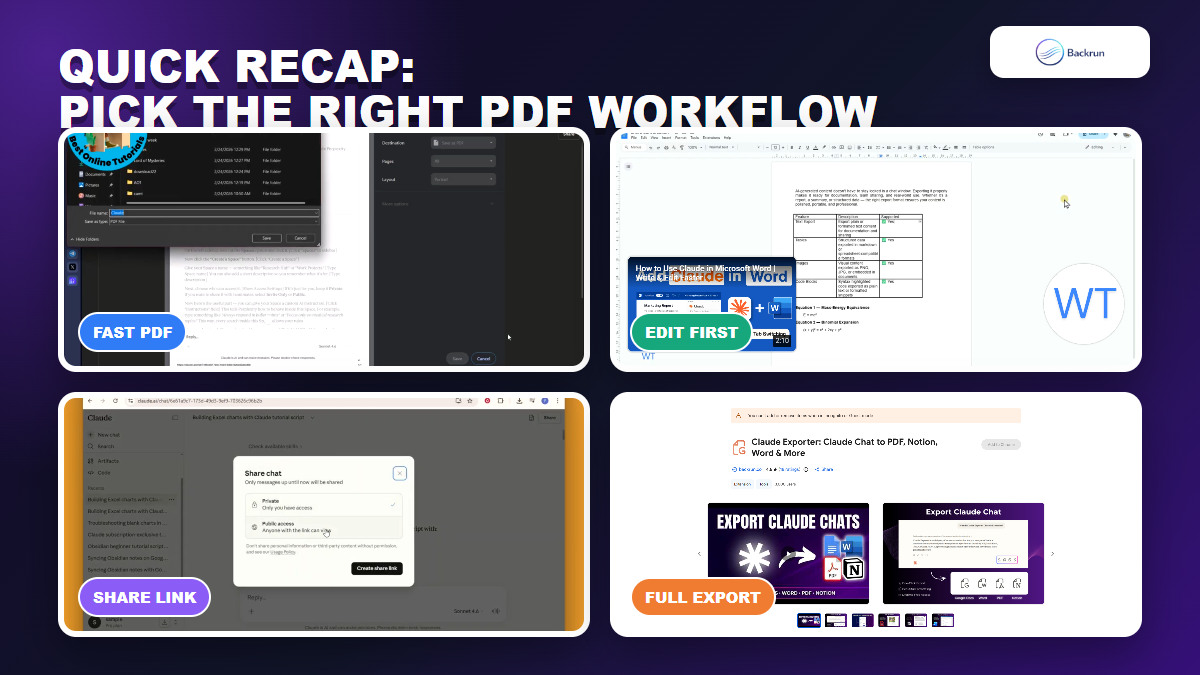
For a quick PDF, print the Claude page. For a clean reader-facing document, copy the useful answer into Word or Google Docs first. For a stable public version, use a share link carefully. For long threads, an exporter extension is usually the most reliable way to export Claude chat to PDF without turning the PDF into a formatting cleanup project.