If you want to export Gemini chat to PDF, do not treat every export button as the same thing. A browser print, a Google Docs export, a public link, a native file download, and a browser extension solve different problems. The right choice depends on whether you need speed, editability, privacy, or a clean full-conversation archive.
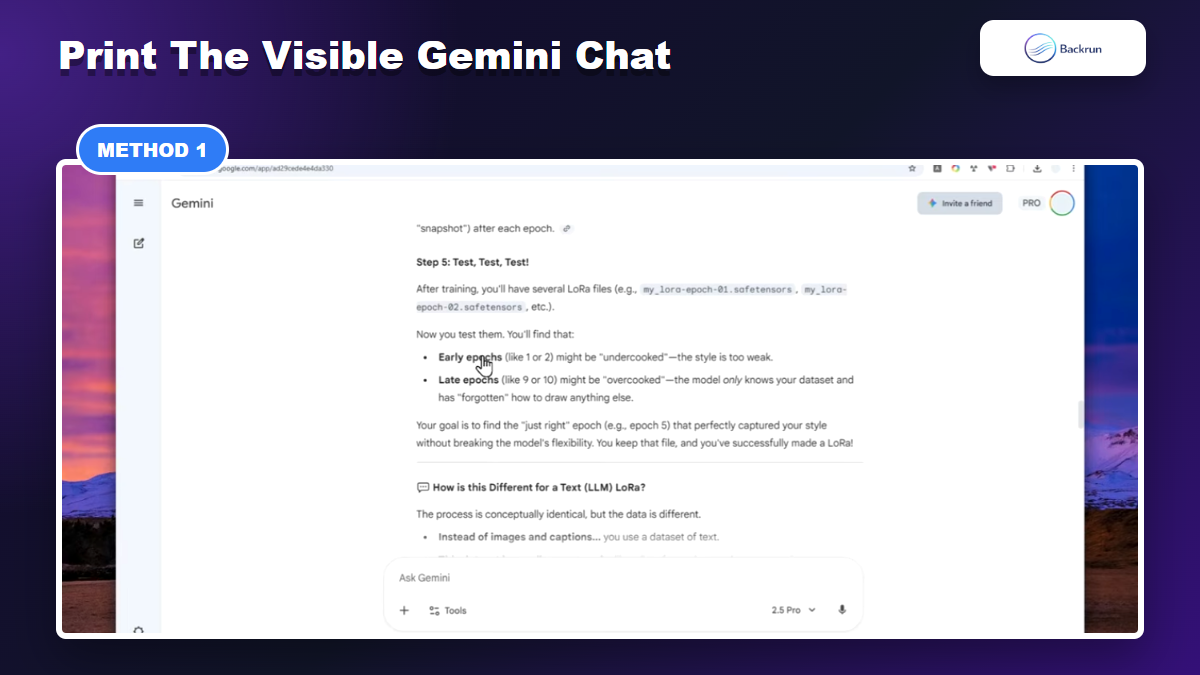
Method 1: Print the Visible Gemini Chat to PDF
Browser print works for a quick PDF of the visible Gemini conversation.
This is the basic no-install method. It simply prints the Gemini page you can see in the browser and saves that print output as a PDF. It is not the prettiest option, but it is useful when you need a quick personal copy.
Open the Gemini conversation you want to save.
Scroll through the answer so the content is loaded before printing.
Press Ctrl + P on Windows or Command + P on Mac.
Choose Save as PDF as the print destination.
Preview the pages before saving, especially if the chat contains tables or code blocks.
Best for: short, text-heavy conversations you only need for your own records.
Advantage: no extension, no public link, no extra account connection.
Disadvantage: page breaks can be awkward, browser UI may leak into the PDF, and wide content may be clipped.
Practical tip: if the print preview already looks messy, stop there. A bad preview usually becomes a bad PDF.
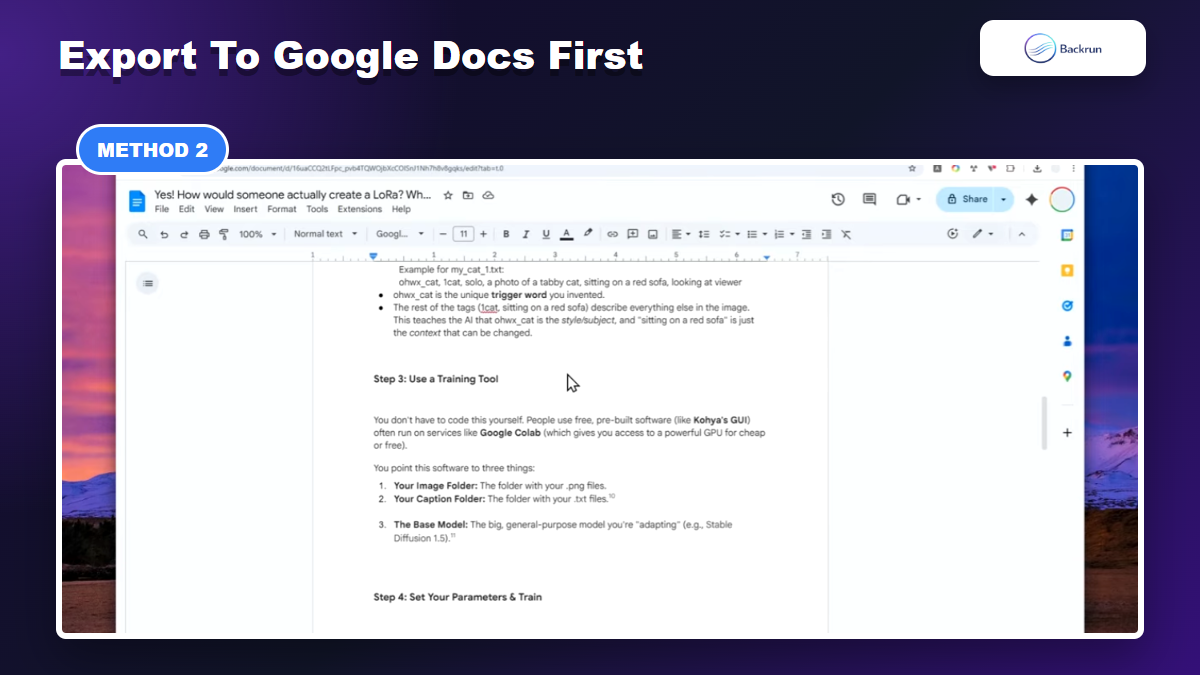
Method 2: Export to Google Docs, Then Download as PDF
Exporting to Google Docs first gives you an editable document before PDF download.
This method is better when you want to clean up the Gemini answer before turning it into a final PDF. Instead of saving the chat directly, you move the useful response into Google Docs first, edit it, then download the document as PDF.
Open the Gemini response you want to keep.
Use Gemini's share or export option to send the response to Google Docs when available.
Open the new Google Doc in Drive.
Clean up headings, spacing, tables, and links before exporting.
Go to File > Download > PDF Document.
Best for: polished notes, study material, SOPs, client drafts, and any response that needs editing before sharing.
Advantage: you get an editable middle step. This is much better than discovering formatting mistakes after the PDF is already created.
Disadvantage: this usually exports a selected response, not necessarily the entire back-and-forth conversation.
Experience note: if your Gemini answer includes tables, export to Docs first. It is much easier to fix a table in Docs than inside a PDF.
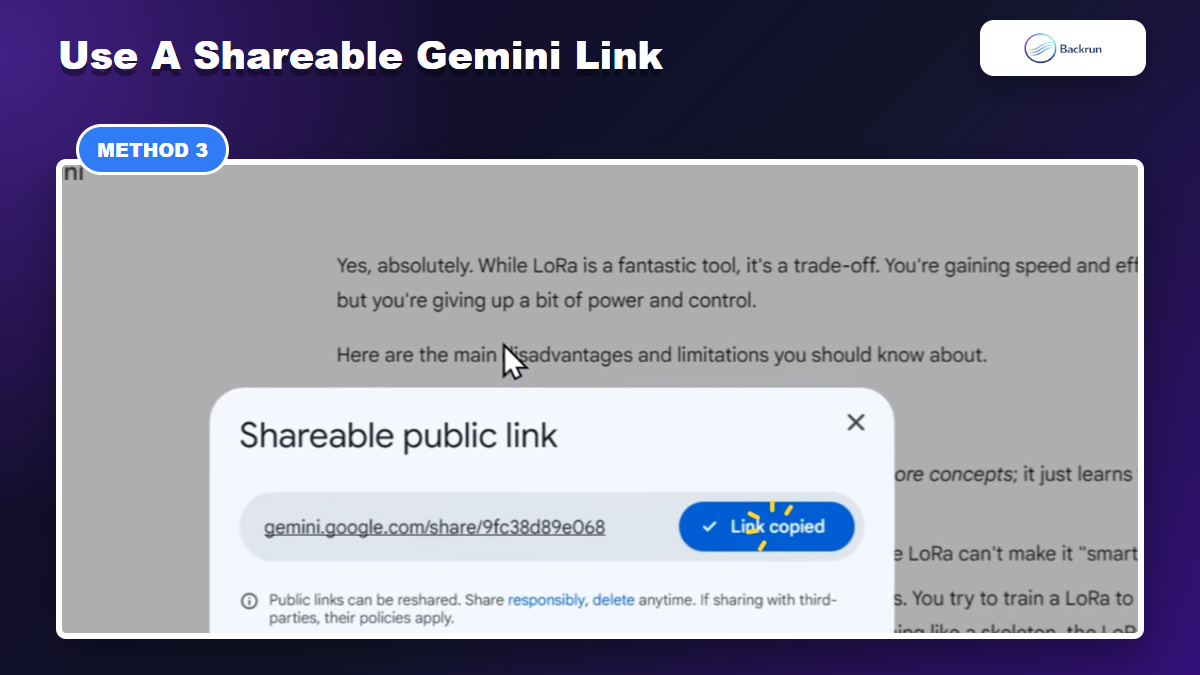
Method 3: Use a Shareable Gemini Link, Then Save It as PDF
A shareable link can help capture a full conversation, but only use it for non-sensitive chats.
A shareable link is useful when you want to preserve or pass around a full Gemini conversation page. It is a real method, but it should not be your default for private work because it changes the privacy posture of the chat.
Open the Gemini chat you want to preserve.
Create a shareable public link from Gemini's sharing controls.
Open the shared link in a clean browser tab.
Use browser print or a PDF capture tool to save the shared page.
Delete or disable the link later if Gemini gives you that option.
Best for: non-sensitive conversations that need a shareable full-page record.
Advantage: it can capture a conversation from a stable URL instead of relying on your current logged-in Gemini tab.
Disadvantage: privacy. Google's Gemini Apps privacy guidance is worth checking before creating public links for client data, internal documents, or private research.
Experience note: if you would not email the link to someone else, do not use this method just to create a PDF.
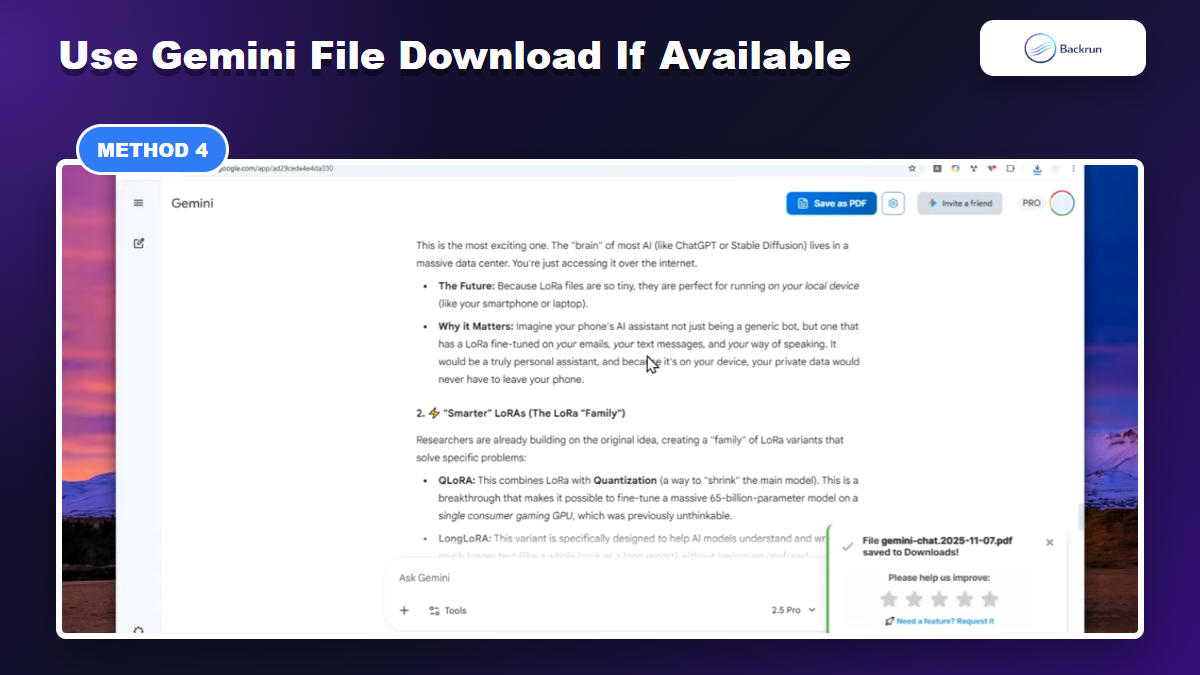
Method 4: Ask Gemini to Create a PDF File Directly
Some Gemini setups can create or download a PDF directly, but availability can vary by account.
Some Gemini accounts and regions can generate downloadable files directly from a prompt. If your interface supports it, this is the cleanest no-extension workflow because you ask Gemini to turn the useful content into a PDF-style file instead of printing the chat page itself.
Copy or summarize the part of the conversation you want in the final document.
Ask Gemini to format it as a PDF-ready document with headings, sections, and clean spacing.
Request a downloadable PDF if your Gemini interface supports file output.
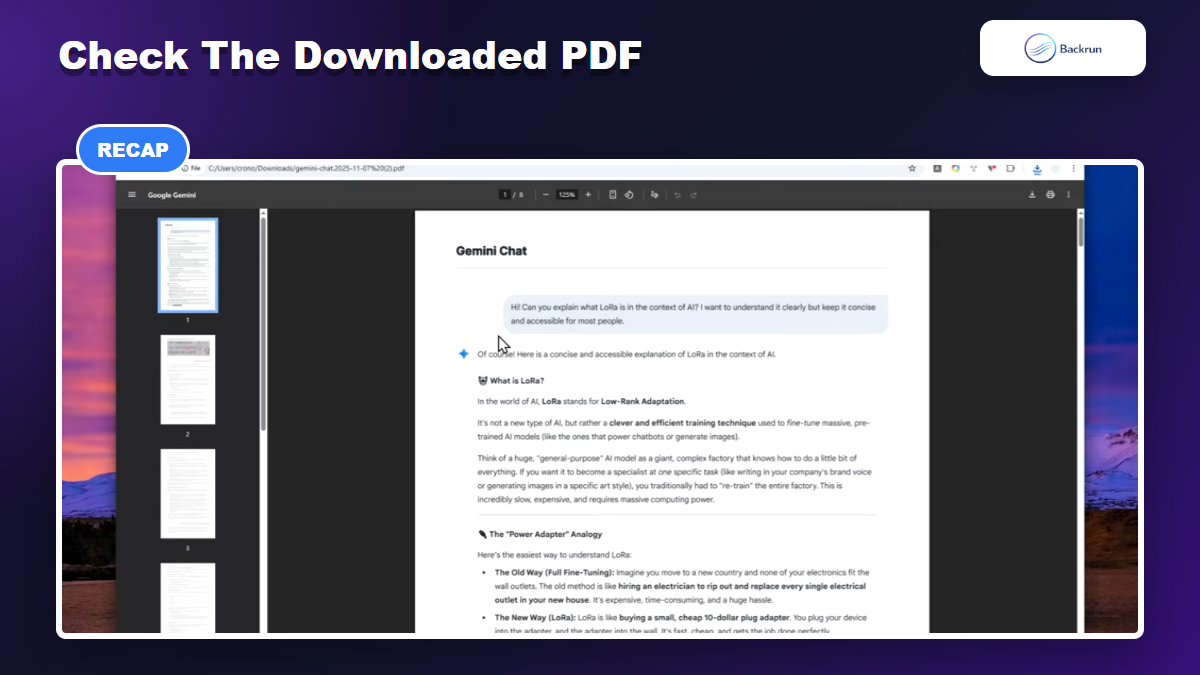
Download the file and open it before sharing.
Regenerate with clearer instructions if the layout, title, or structure is wrong.
Best for: turning a useful answer into a clean standalone PDF, rather than preserving every prompt in the original conversation.
Advantage: cleaner output because Gemini can restructure the content before generating the file.
Disadvantage: availability varies. If you do not see file-generation or download options in your account, use Google Docs or Chat Exporter instead.
Important distinction: this is not the best method for archiving an exact conversation history. It is better for converting the useful result of a conversation into a polished PDF.
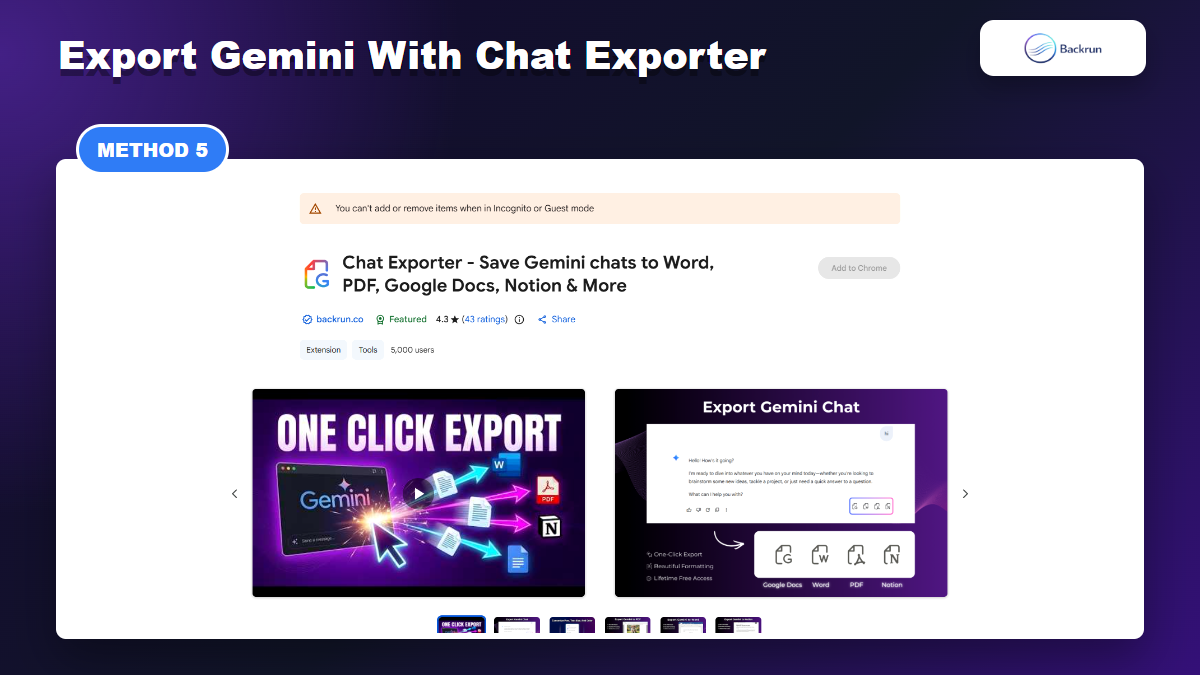
Method 5: Use Chat Exporter for Full-Conversation PDF Export
Chat Exporter keeps the export workflow in one place and supports multiple formats.
The extension method should be one method, not two. For this article, the recommended extension workflow is Chat Exporter, because it can export Gemini conversations to PDF and also gives you other formats such as Word, Google Docs, Notion, and more.
Install Chat Exporter from the Chrome Web Store.
Open the Gemini conversation you want to export.
Load the whole conversation so the exporter can read the content.
Open the Chat Exporter controls in the Gemini page.
Select PDF for a fixed archive, or choose Word/Google Docs if you still need editing.
Download and inspect the output before sending it anywhere.
Best for: long conversations, repeated exports, and cases where you may need both PDF and editable formats.
Advantage: this is the most complete workflow for people who export Gemini chats often.
Disadvantage: it requires a browser extension, so check permissions and use a trusted browser profile.
Experience note: this is the option I would use for real work, because the same Gemini conversation can become a PDF archive today and a Word or Google Docs draft later. You can also learn more from Backrun's Gemini chat exporter page.
Quick Recap
Always open the final PDF before sharing it to catch clipped text, broken links, or missing pages.
There are several ways to export a Gemini conversation, but they are not interchangeable. The best method depends on what you want to preserve.
Method
What it exports
Best for
Main caution
Browser print to PDF
The visible Gemini page
Quick personal copies
Messy layout and page breaks
Google Docs then PDF
A cleaned-up response
Editable drafts before PDF
Usually not full conversation history
Shareable link then PDF
A shared Gemini conversation page
Non-sensitive full-page sharing
Public-link privacy risk
Gemini direct PDF file
A polished document generated from the content
PDF-ready summaries or reports
Not available in every account
Chat Exporter
Full conversation in PDF and other formats
Repeated exports and reusable work
Requires a trusted extension
The honest takeaway: if you only need a quick copy, browser print can work. If you need a polished document, use Google Docs or Gemini's direct file option if available. If you need to export Gemini chat to PDF as a repeatable workflow, Chat Exporter is the strongest option because it handles full conversations and keeps editable formats available too.