How to Copy and Paste a Table From ChatGPT to Google Sheets
September 25, 20266 min read
A table can look perfectly aligned in ChatGPT and still collapse into one column when pasted into Google Sheets. The problem usually comes from the clipboard format, hidden line breaks, or commas inside the cell values.
This guide explains how to copy paste table from ChatGPT to Google Sheets with three workflows that actually work: direct paste, tab-separated text, and a CSV or XLSX file.
1. Copy the Rendered ChatGPT Table Directly
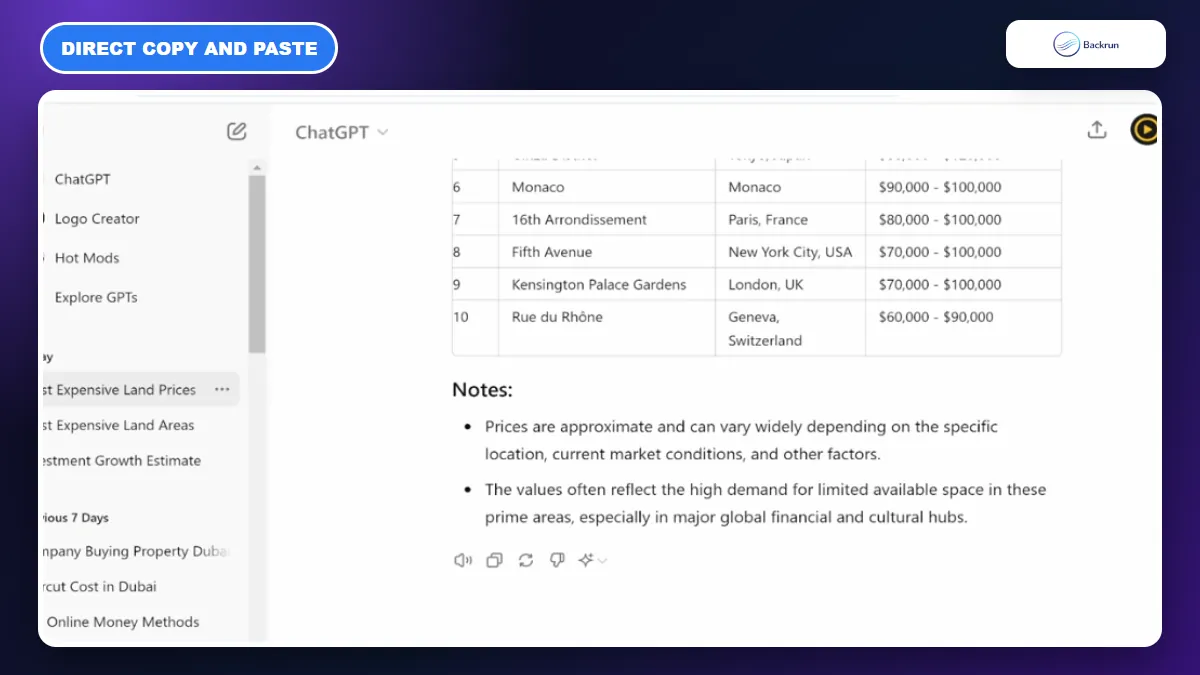
Direct copy and paste is the fastest option when ChatGPT already displays the answer as a proper table.
Start with a normal copy when the answer appears as a rendered grid rather than Markdown pipes. For a small, clean table, Chrome and Google Sheets often preserve the cell boundaries without any conversion.
Follow these steps for a direct transfer.
Ask ChatGPT to return a table with a single header row and consistent columns. Avoid merged cells or multiple values separated by line breaks.
Wait for the entire table to finish rendering. Expanding or scrolling the result before copying helps prevent missing rows.
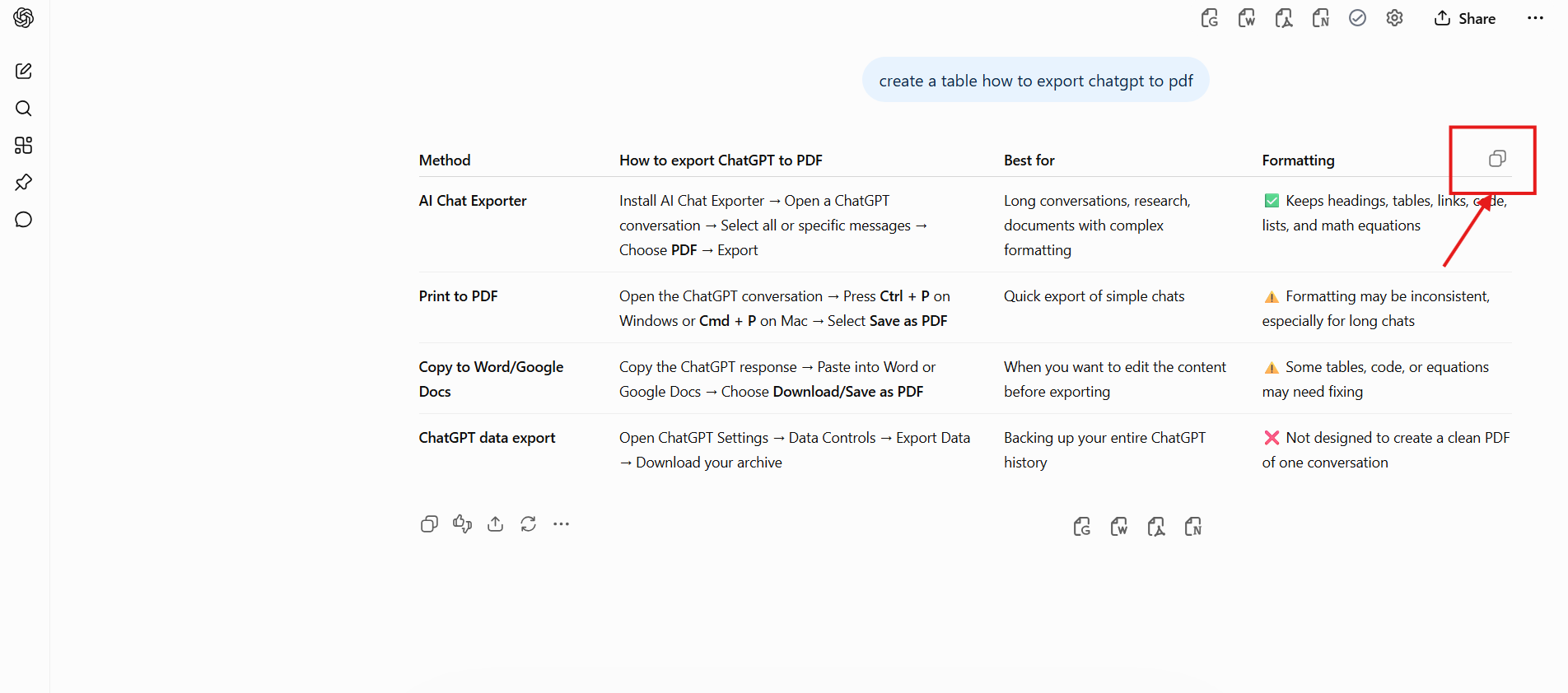
Use the table's Copy control when it appears. If there is no table-specific button, select the full rendered grid from the first header to the last data cell.
Open a blank Google Sheet and click the cell where the top-left value should go, usually A1.
Paste normally with Ctrl + V on Windows or Command + V on macOS.
Check the first and last rows, then scan each column for shifted values, missing decimals, or text that wrapped onto a second row.
Best for: short comparison tables, schedules, inventories, and lists with simple text or numbers.
Advantage: this is the fastest method and does not require a file, extension, or additional conversion step.
Limitation: copied styling is inconsistent. Rich formatting, code blocks, multiline cells, and nested lists can cause a row to split or several values to land in one cell.
Experience tip: if the data lands in the correct cells but brings unwanted colors or fonts, undo the paste and use Edit > Paste special > Values only. Google's data-ingestion guidance recommends ordinary copy and paste for relatively small amounts of data and values-only paste when source formatting is unnecessary.
Verification tip: add a temporary row-number column before requesting the table. After pasting, confirm that the sequence is complete and remove the helper column. This quickly exposes skipped, duplicated, or merged rows.
2. Ask ChatGPT for TSV Before Pasting
TSV uses tabs between fields, making it more dependable than a visual table when cell values contain commas.
Tab-separated values, or TSV, are the most reliable clipboard format when direct paste fails. A tab marks the next column and a line break marks the next row, so Google Sheets can reconstruct the grid without depending on browser table formatting.
Use this prompt and workflow for predictable columns.
Ask ChatGPT for raw TSV. For example: Return this table as raw tab-separated values. Use one record per line, one real tab between fields, one header row, and no commentary.
Copy only the data block. Do not include the sentence before it or the closing explanation.
Click A1 in Google Sheets and paste the block.
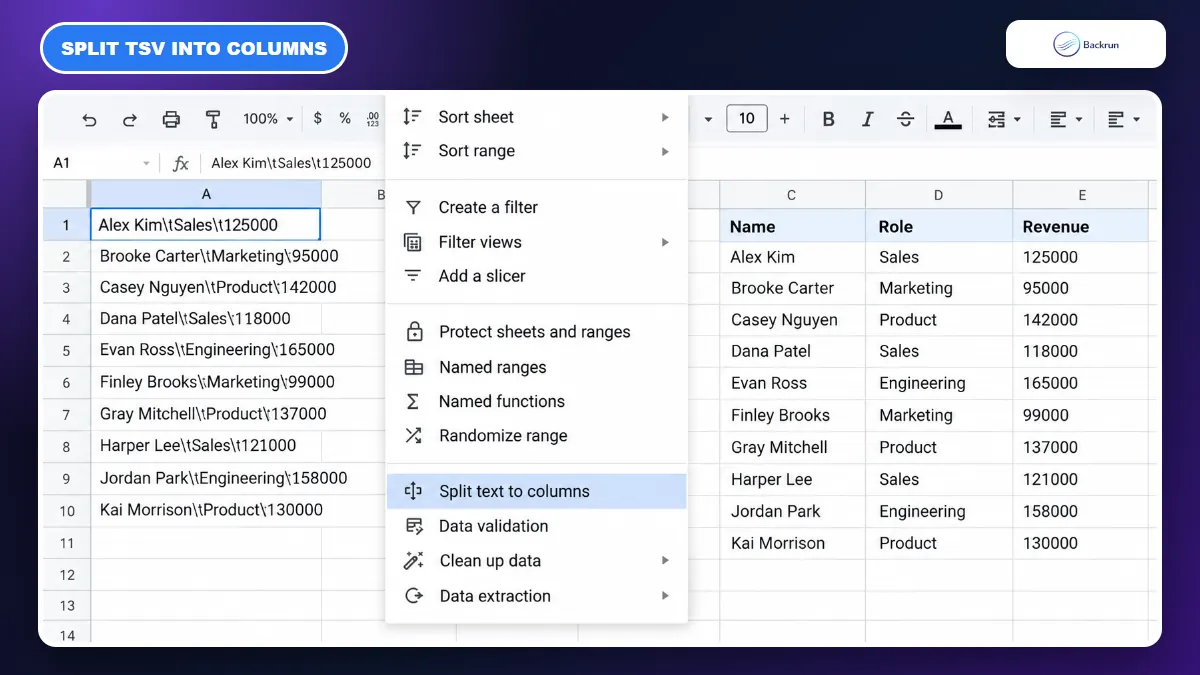
Confirm that each field occupies its own cell. If all content lands in one column, select that column and choose Data > Split text to columns.
Select Tab as the separator, or use a custom separator if ChatGPT returned a visible character such as |.
Format dates, currency, and percentages after the split. Sheets may interpret these values according to the spreadsheet locale.
Convert the range to a Sheets table with Format > Convert to table when you want column types, filters, and table styling.
Best for: tables containing commas, long text, several columns, or data that collapsed during normal paste.
Advantage: tabs are less likely than commas to appear inside ordinary cell values, so the separator is more dependable.
Limitation: embedded tabs and line breaks inside a cell can still damage the structure. Ask ChatGPT to replace internal line breaks with spaces before producing the TSV.
Google's official Split text to columns instructions confirm that pasted data can be separated inside Sheets and that the delimiter can be selected manually.
Practical check: count the number of headers before pasting, then verify that every populated row has the same number of columns. An extra value in one row usually means a delimiter appeared inside the original content.
3. Create a CSV or XLSX File and Import It
File import is more reliable than the clipboard for large tables or data that will be reused later.
For a large dataset, ask ChatGPT to create a spreadsheet file instead of placing hundreds of rows in the chat. CSV is simple and portable; XLSX is better when you need multiple sheets, formulas, or richer spreadsheet structure.
Here is the file-based workflow.
Tell ChatGPT exactly what the file must contain, including the header names, column order, data types, and whether formulas should be included.
Request a downloadable CSV or XLSX file. File creation depends on the ChatGPT plan, workspace settings, and product surface.
Download the file and keep the original until the imported Sheet has been checked.
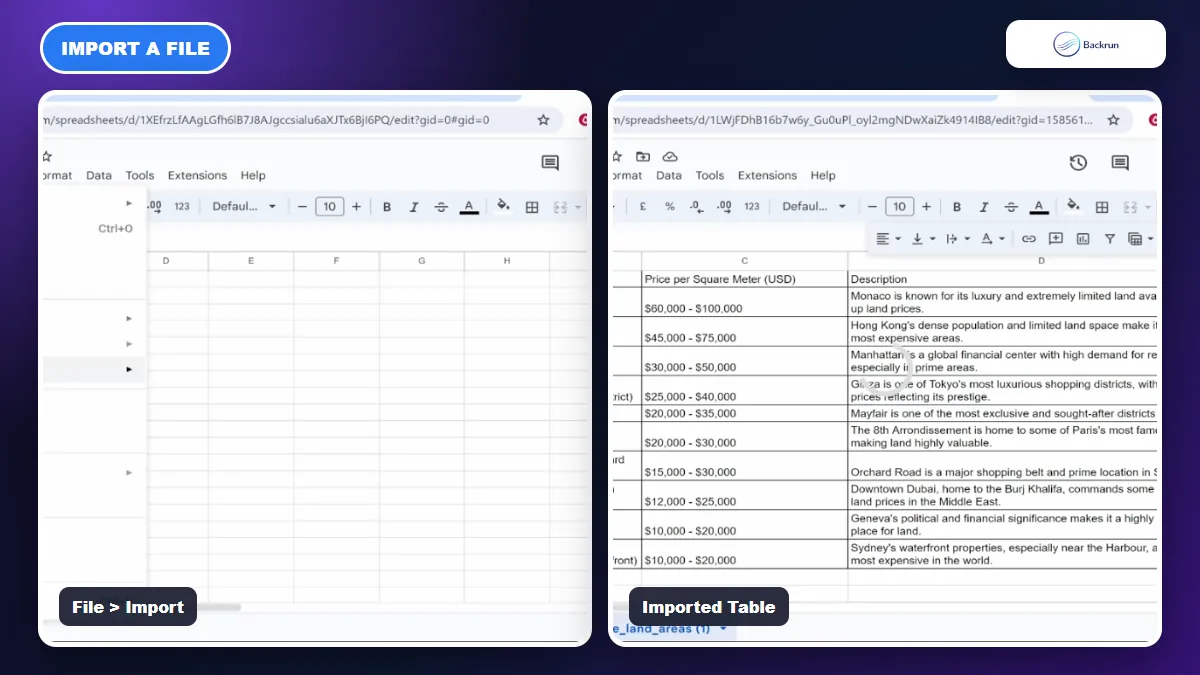
Open Google Sheets and choose File > Import > Upload.
Select the downloaded file, choose the import location, and confirm the separator for CSV when Sheets does not detect it correctly.
For XLSX, choose an import option such as creating a new spreadsheet or inserting new sheets into the current file.
Review the imported result for dates, leading zeros, currency symbols, formulas, and text encoding before sharing it.
Best for: large tables, recurring datasets, multiple sheets, or results that need to be stored and reused.
Advantage: Google's official guidance recommends File > Import instead of clipboard paste for larger supported files because it is more reliable and preserves more structure.
Limitation: CSV cannot preserve multiple sheets, styling, or spreadsheet formulas as formulas. Use XLSX when those features matter, and use CSV when clean tabular values are enough.
OpenAI documents support for common spreadsheet formats including XLSX, CSV, and TSV, while its current file-creation workflow notes that availability can vary by plan and workspace. Do not upload confidential datasets until you have reviewed the account's data controls.
Experience tip: identifiers such as ZIP codes, product codes, and invoice numbers may lose leading zeros. Format the destination column as plain text before import or ask ChatGPT to prefix those values appropriately.
Quick Recap
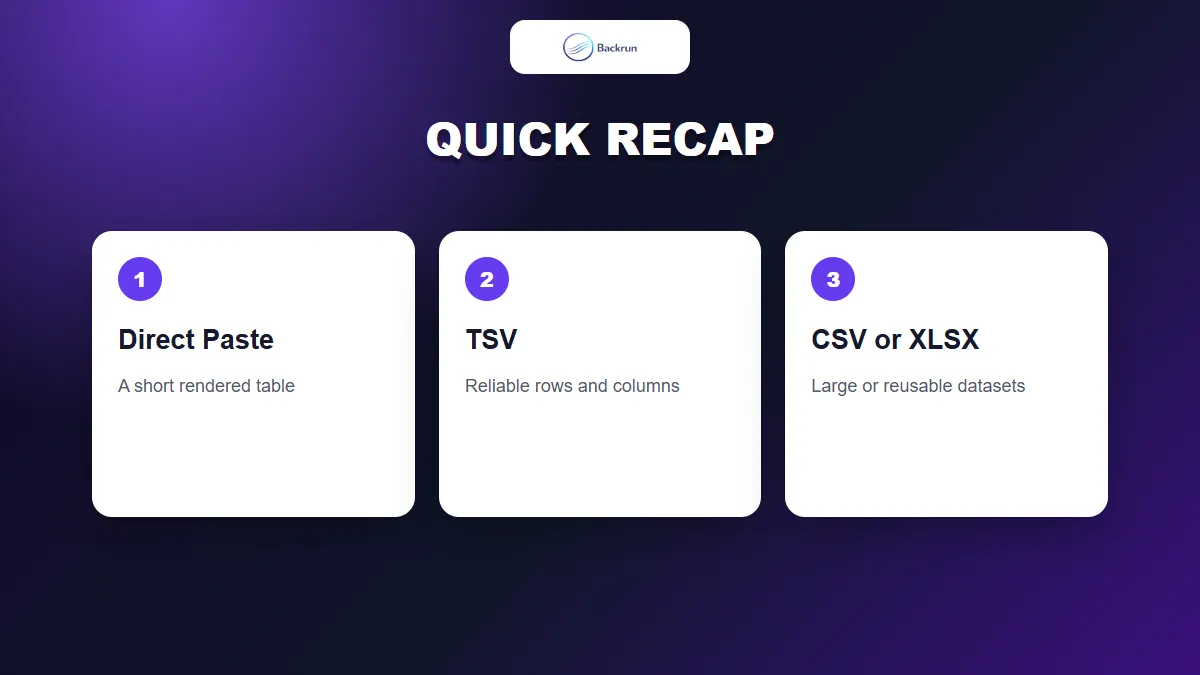
Choose direct paste for a short table, TSV for reliable clipboard structure, and file import for large datasets.
Method
Best for
Main strength
Main caution
Direct paste
A short rendered table
Fastest workflow
Complex cells can shift
TSV
Reliable clipboard transfer
Clear row and column delimiters
Internal tabs or line breaks can interfere
CSV or XLSX import
Large or reusable datasets
More reliable than the clipboard
Data types still need review
Try direct paste first for a small rendered table. Switch to TSV when values collapse into one column, and use CSV or XLSX import when the dataset is large or needs to be reused. If your final destination is a document rather than a spreadsheet, use Backrun's separate guide to copying a ChatGPT table into Google Docs.