How to Create an AI Agent: A Practical Guide for Four Major Platforms
September 23, 20268 min read
If you are searching for how to create an AI agent, start with the job rather than the model. A useful agent needs a clear outcome, trustworthy context, tools it is allowed to use, limits on what it may change, and tests that prove the workflow works.
This guide explains one practical creation path for Microsoft Copilot, Claude, ChatGPT, and Gemini. It also separates configurable assistants from agents that can plan, call tools, retain state, and complete several steps with limited supervision.
What You Need Before You Create an AI Agent
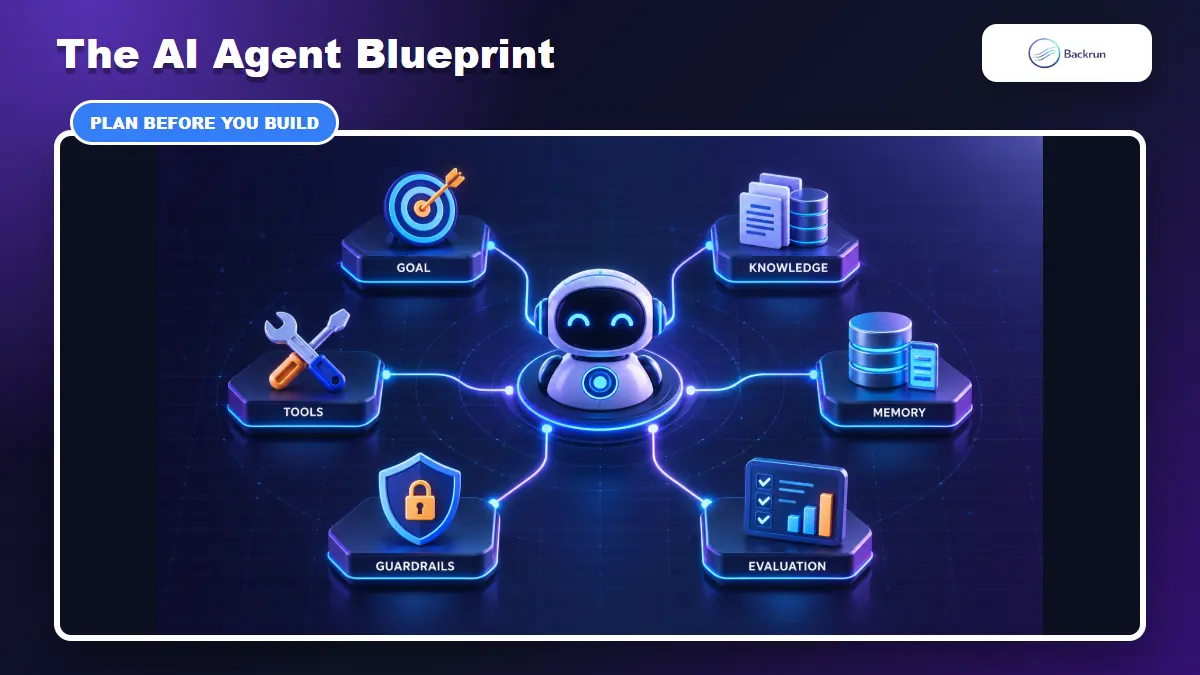
Define the outcome, context, actions, memory, safety limits, and evaluation plan before choosing a platform.
An agent is not simply a prompt saved under a custom name. The model needs enough structure to decide what to do next, use the right capability, recognize when it should stop, and ask for approval before a risky action.
1. Write one measurable outcome
Replace a broad goal such as “help with sales” with a testable result: “read a new inbound lead, enrich the company, draft a response, and create a CRM task after a person approves it.” A narrow outcome makes tool selection and evaluation much easier.
2. Separate knowledge from tools
Knowledge is information the agent can read, such as product documentation or policies. Tools let it perform actions, such as searching a database, creating a ticket, sending an approved message, or running code. Give the agent the least access required for its job.
3. Define memory and guardrails
Decide which facts should persist between runs and which data should remain temporary. Add approval gates for payments, publishing, deleting data, sending external messages, or changing production systems. Store credentials outside prompts and logs.
4. Build an evaluation set first
Create at least ten representative tasks, including incomplete input, conflicting instructions, unavailable tools, and requests the agent must refuse. Measure task completion, factual accuracy, tool choice, latency, cost, and whether human approval was requested at the right moment.
How to Create AI Agents in Copilot
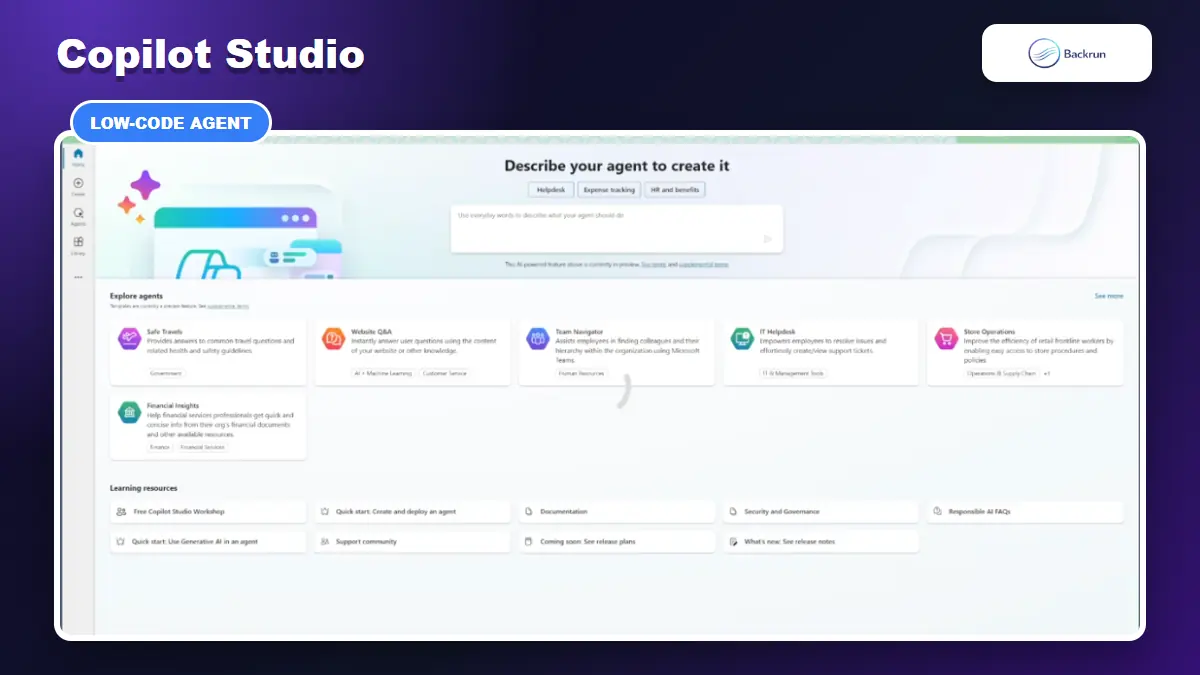
Copilot Studio provides a low-code designer for instructions, knowledge, tools, testing, and publishing.
Microsoft Copilot Studio is the most direct route when your agent must work with Microsoft 365, Teams, SharePoint, Dataverse, Power Platform connectors, or internal business processes.
Create the first version in Copilot Studio
Sign in to Copilot Studio and select the correct environment.
Create a new agent from a description, a blank agent, or an appropriate template.
Write the instructions: role, objective, allowed behavior, response rules, escalation conditions, and actions that require confirmation.
Add knowledge sources such as approved SharePoint sites, files, Dataverse tables, or public websites.
Add tools and triggers for the actions the agent must perform. Keep read and write permissions separate where possible.
Test in the built-in panel, inspect the activity trace, and correct weak instructions or tool descriptions.
Publish to the intended channel, then monitor conversation history, failures, cost, and tool usage.
At the end of this process, the same test request should produce a consistent answer or action, with every connector call visible in the activity trace.
Where Copilot agents work best
Copilot Studio fits employee support, knowledge lookup, service workflows, approval routing, and Microsoft-centric automation. Its main advantage is governance and connector depth. Its main limitation is that licensing, environment permissions, identity setup, and connector policies can shape what the finished agent is allowed to do.
How to Create AI Agents With Claude
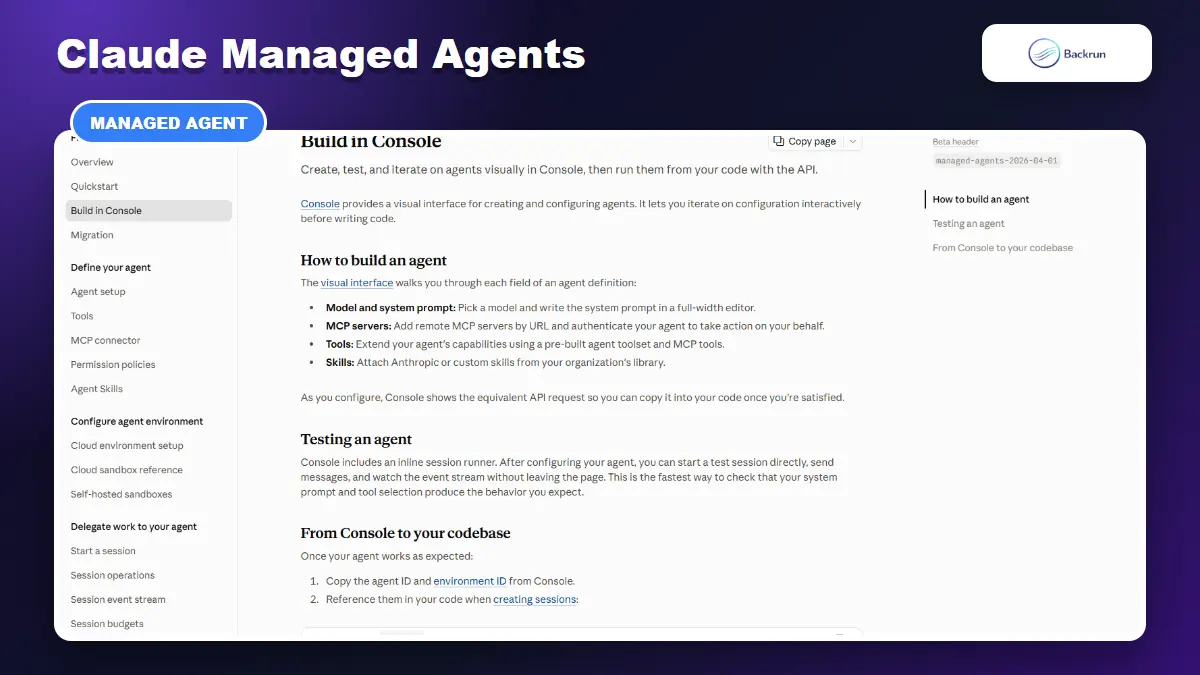
Claude Managed Agents package a model, system instructions, tools, skills, and MCP servers into a reusable agent configuration.
For developer-built agents, Anthropic currently provides Claude Managed Agents. An agent is a reusable configuration; an environment defines where work runs; and each session is a live execution of that agent.
Build a reusable Claude agent
Create a Claude Console account and API key, then install the supported CLI or SDK.
Define the agent once with a name, model, system instructions, tools, MCP servers, and any reusable skills.
Choose an environment, such as an Anthropic-managed cloud sandbox or your controlled infrastructure.
Create a session for each task instead of rebuilding the agent configuration every time.
Stream and record session events so tool calls, approvals, errors, and outputs remain observable.
Add permission policies that pause or deny sensitive tools rather than granting unrestricted execution.
Run the evaluation set and version the agent when instructions or tools change.
The finished setup should leave you with one versioned agent definition and repeatable sessions whose tool calls, approvals, and failures can be reviewed.
A simpler Claude Code option
If your goal is software development rather than a customer-facing service, create a specialized Claude Code subagent or skill for one bounded responsibility, such as test review, database migration checks, or documentation. This is faster than deploying a general-purpose cloud agent, but it remains tied to the development workspace and its permissions.
Important limitation: a Claude Project with custom instructions is useful for repeatable context, but it should not be described as a production agent unless it has an execution loop, tools, state handling, and safety controls.
How to Create an AI Agent in ChatGPT
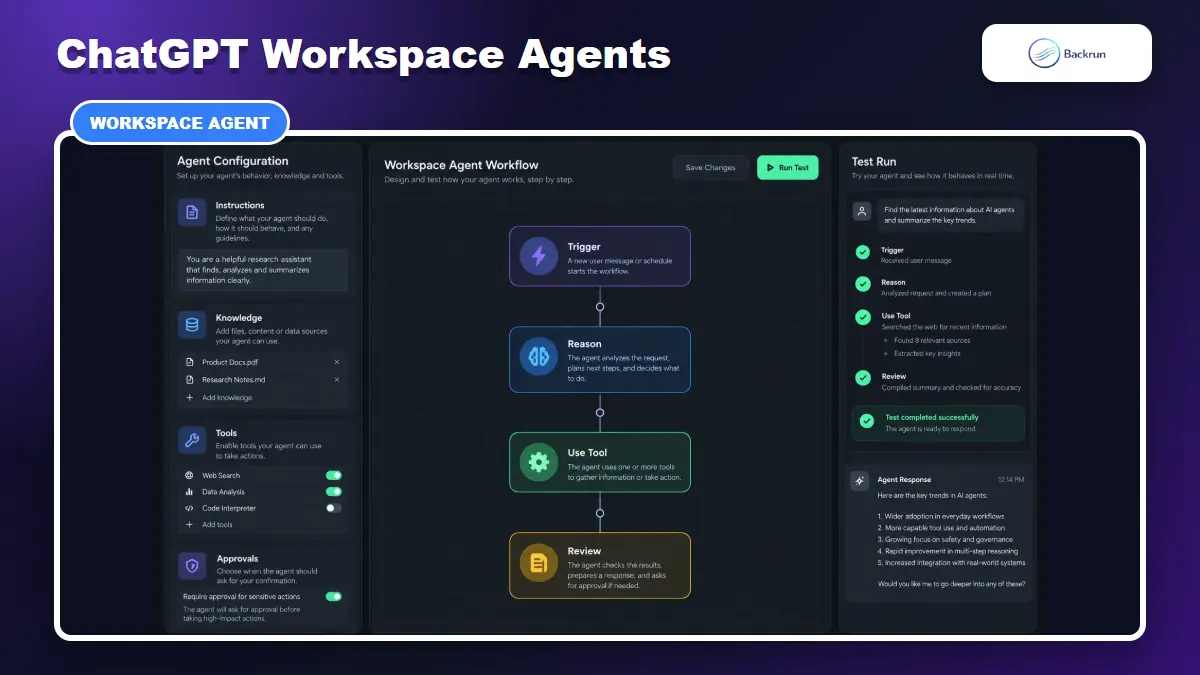
ChatGPT Workspace Agents support repeatable team workflows with tools, apps, files, schedules, and publishing controls.
The current no-code path inside ChatGPT is Workspace Agents for eligible Business and Enterprise workspaces. These agents can use models, tools, apps, custom MCP servers, skills, files, schedules, and workspace sharing controls.
Create a ChatGPT workspace agent
Confirm that Workspace Agents are enabled by your administrator and that you have permission to create one.
Start a new agent and give it one clearly defined workflow.
Choose the model and reasoning effort appropriate for the task rather than always selecting the most expensive option.
Add instructions, files, skills, apps, tools, or custom MCP connections needed to complete the workflow.
Require approval for external side effects, especially messages, records, purchases, deployment, and deletion.
Test with realistic inputs, review its runs, then publish only to the people or workspace that need it.
Add a schedule or API trigger only after the on-demand workflow passes your evaluation set.
You should now have a workspace agent that teammates can run repeatedly, with access limited to the files, apps, and actions required by that workflow.
Use the Agents API for a product
Developers building outside ChatGPT can use OpenAI's Agents API or Agents SDK. The API provides managed agent sessions and sandbox options; the SDK provides tools, handoffs, guardrails, sessions, tracing, and multi-agent orchestration. This is the better route when you need your own interface, deployment lifecycle, or integration tests.
Do not start a new project around Custom GPTs or the visual Agent Builder without checking the current migration timeline. OpenAI is moving new reusable ChatGPT workflows toward plugins and Workspace Agents, while Agent Builder is scheduled to shut down on November 30, 2026. A new implementation should use the supported destination rather than a surface already being retired.
How to Create an AI Agent in Gemini
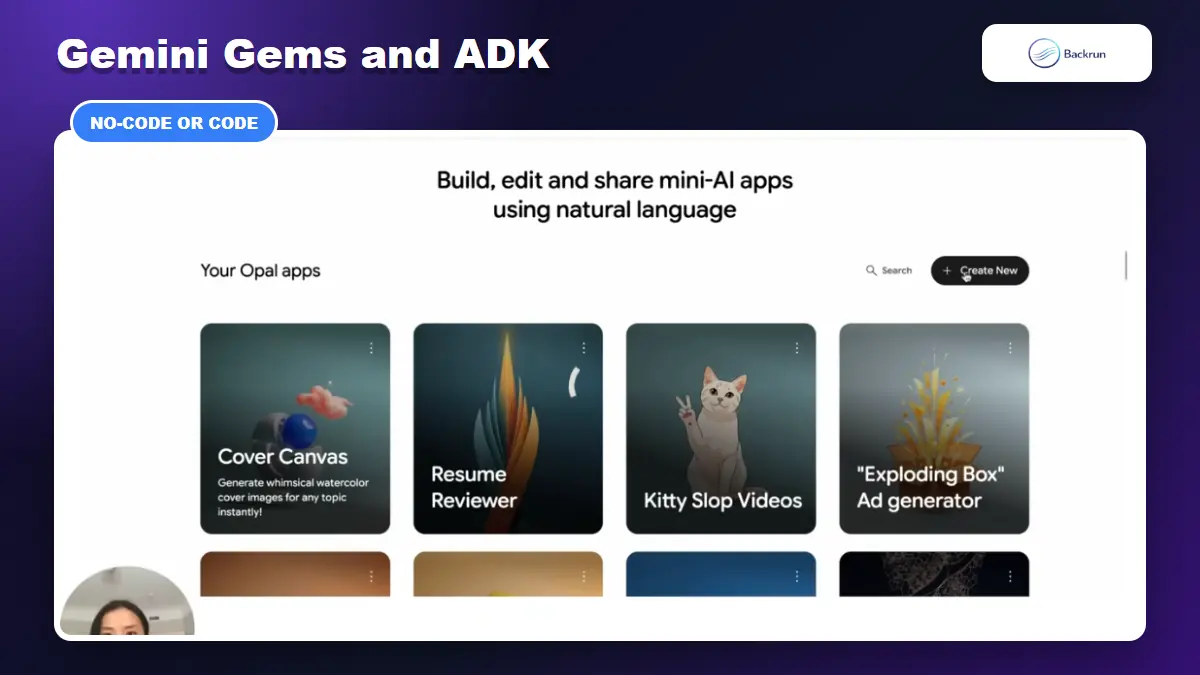
Gemini offers lightweight workflow creation through Gems from Labs and code-first agents through Google ADK.
Gemini has two useful creation paths. Gems from Google Labs can turn a natural-language description into a lightweight AI mini-app, while Google's Agent Development Kit is intended for developer-controlled agents with tools and orchestration.
Create a no-code workflow with Gems from Labs
Open Gemini on a computer, go to Gems, and create a new Gem from Labs where the feature is available.
Describe the complete workflow, including input, transformation steps, required output, and conditions that should stop the run.
Review the generated steps rather than accepting the first workflow automatically.
Run the mini-app with real examples and describe any step you want to add or change.
Use the advanced editor when the generated workflow needs more control.
Share only after reviewing data access and the general access setting.
The result should be a reusable mini-app whose workflow steps are visible, editable, and tested with examples that resemble the real task.
Build a production agent with Google ADK
Use ADK when the agent needs code-defined tools, callbacks, multi-agent coordination, evaluations, tracing, or deployment on Google Cloud. Define a focused root agent, attach only the required tools, run it in the ADK playground, inspect traces, and add evaluations before deployment. A classic Gem is best treated as a customized assistant; ADK is the stronger foundation for a production agent.
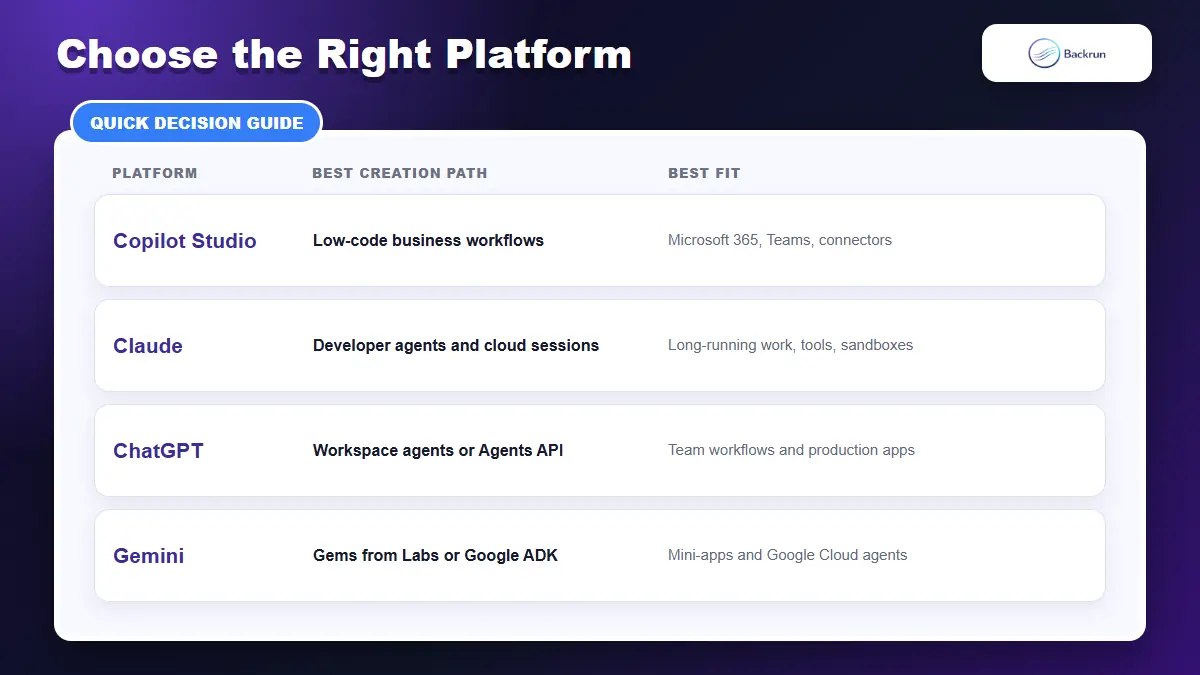
Which AI Agent Platform Should You Choose?
Choose the platform that already owns your data, tools, identity, and deployment environment.
Platform
Best starting point
Choose it when
Watch for
Microsoft Copilot
Copilot Studio
Your process lives in Microsoft 365 or Power Platform
You need tool-rich developer workflows or managed sessions
Beta surfaces, permission policies, session cost
ChatGPT
Workspace Agents or Agents API
You need team workflows in ChatGPT or a production agent service
Workspace availability and product migration timelines
Gemini
Gems from Labs or Google ADK
You want a quick mini-app or a Google Cloud agent
Experimental feature availability and deployment complexity
The best platform is usually the one that already controls the data and actions your workflow needs. Build one narrow task first, keep risky actions behind approval, and evaluate real failures before adding more tools or subagents. If you are exploring a specialist use case, Backrun's comparison of the best AI agents for stock trading shows why the right agent depends more on workflow boundaries than on a generic model ranking.
A reliable first agent should complete one job consistently, explain what it changed, stop when information is missing, and leave a trace a person can review. Add autonomy only after those basics are measurable.