AI Exporter Review: Features, Pricing, Privacy, and Limitations
November 09, 20267 min read
AI Exporter is a Chrome extension for saving conversations from ChatGPT, Claude, Gemini, Grok, NotebookLM, DeepSeek, and other AI platforms as reusable files. Its unusually broad platform support, selective export controls, and multiple output formats make it attractive to researchers and power users, but its pricing limits and privacy disclosures still deserve attention before installation.
This review evaluates the extension's current Chrome Web Store listing, official screenshots, feature description, changelog, and privacy declaration as of November 9, 2026. It does not assume that every format will behave identically across every AI platform, so the practical recommendation is to test your own complex conversation before relying on it for important work.
1. AI Exporter at a Glance
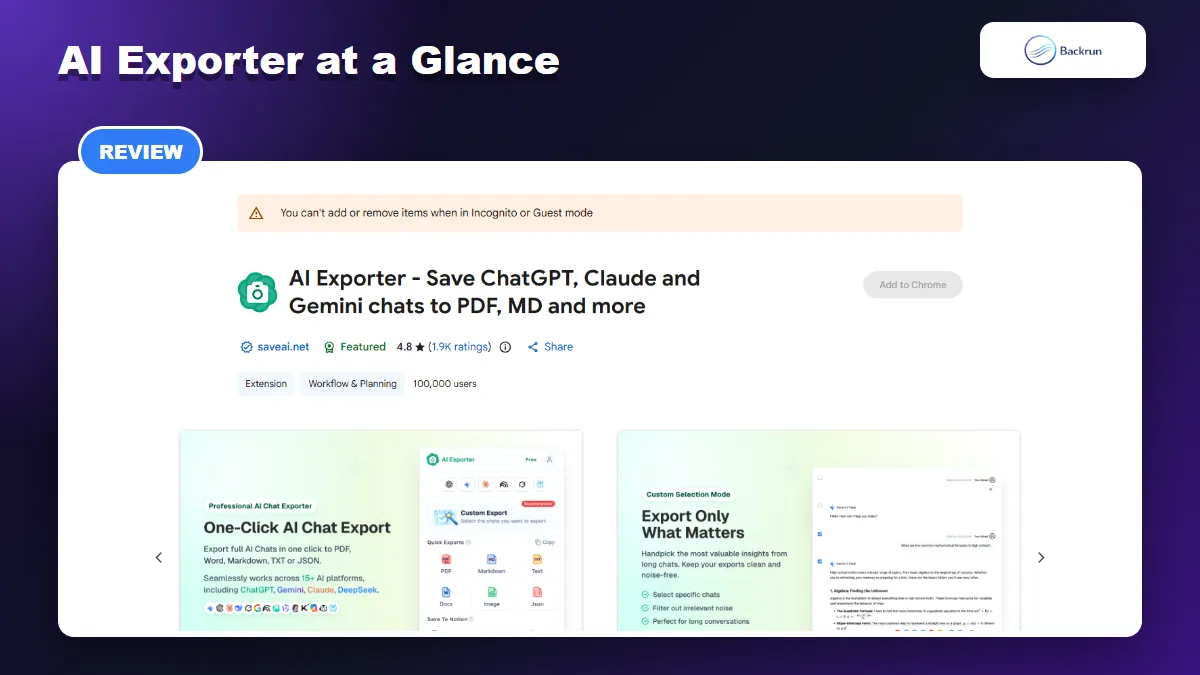
The current Chrome Web Store listing shows AI Exporter as a Featured extension with broad multi-platform support.
AI Exporter is published by saveai.net and positioned as a cross-platform AI conversation archiver. The current listing marks it as Featured, shows a 4.8 rating from approximately 1,900 ratings, and reports 100,000 users. Those figures provide useful adoption signals, although ratings alone do not prove that every export type will work perfectly with your own chats.
Publisher
saveai.net
Version reviewed
4.6.2
Last updated
November 8, 2026
Extension size
6.12 MiB
Chrome Web Store category
Workflow & Planning
Main use
Exporting and organizing AI conversations across multiple platforms
The main reason to consider AI Exporter is breadth. Instead of installing one exporter for ChatGPT, another for Claude, and another for Gemini, a single extension can cover a mixed AI workflow. This is especially relevant when a project moves between assistants or when you need to compare outputs from several models.
Who it suits: researchers, developers, students, consultants, and knowledge-management users who regularly archive long conversations. Someone who only saves an occasional ChatGPT answer may find the interface and feature set more extensive than necessary.
2. Supported Platforms and Export Formats
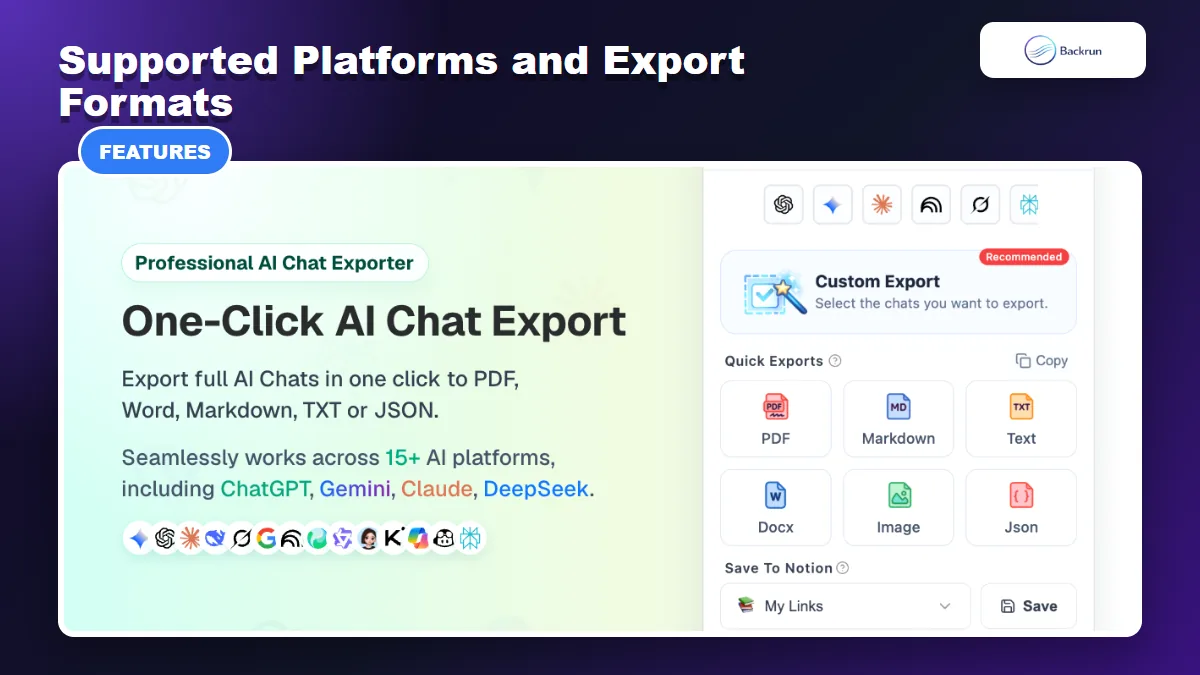
AI Exporter combines local file exports with a direct Notion destination.
The listing says AI Exporter works across more than 16 AI websites. ChatGPT, Claude, Gemini, Grok, NotebookLM, DeepSeek, Google Search AI Mode, and other services are specifically mentioned. The official gallery also shows controls for switching among supported platforms from the same extension panel.
The available destinations are broader than a basic PDF tool:
PDF for sharing, printing, and fixed-layout archives.
Word DOCX for editing and continuing work in Microsoft Word.
Markdown for Obsidian, documentation repositories, and developer workflows.
TXT and JSON for lightweight or structured backups.
Long image for visual sharing.
Notion for sending selected content into a page or database.
The format mix is one of the extension's strongest points. PDF and Word serve business workflows, while Markdown and JSON are more useful for local knowledge bases or development tools. Direct Notion sync removes an extra download-and-upload step, but it also introduces an external destination that requires authorization and its own privacy review.
Important limitation: “supported” does not mean every content type will render identically in every format. A conversation containing LaTeX equations, nested tables, code blocks, generated files, and images should be tested separately in PDF, Word, and Markdown before you standardize a team workflow.
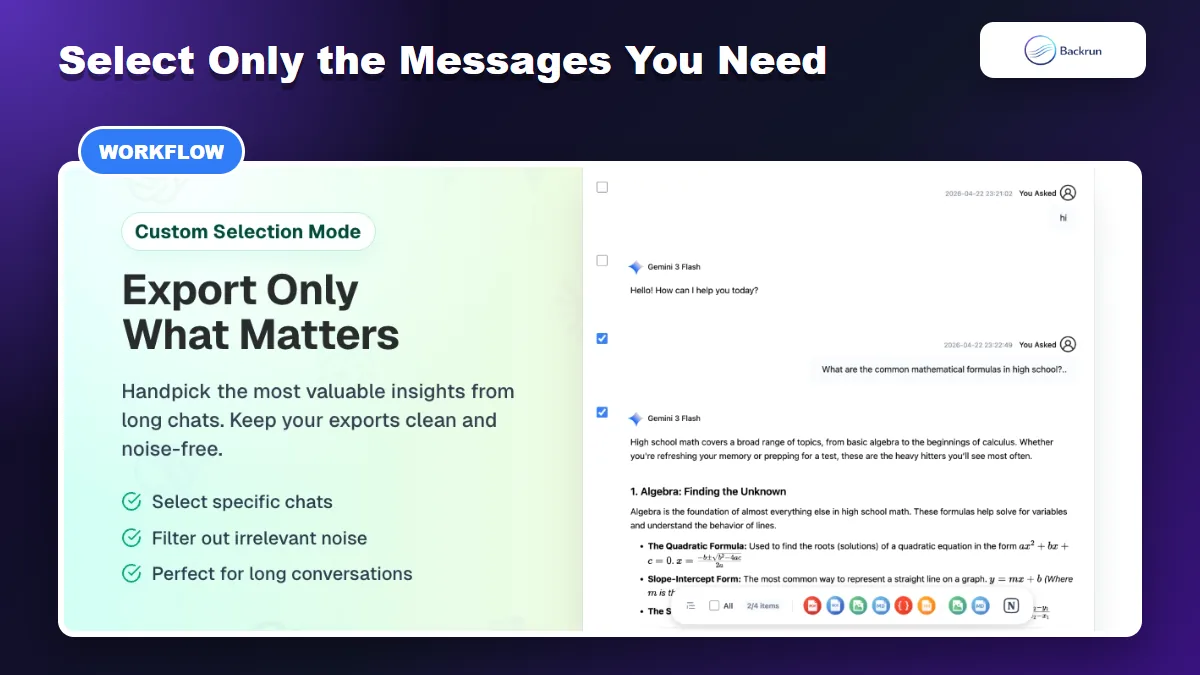
The extension offers two practical workflows: export the complete conversation or select only the messages worth keeping. Selective export is valuable because long AI chats often contain failed prompts, repeated answers, and exploratory turns that do not belong in the final archive.
Install AI Exporter from the Chrome Web Store and review the requested site access.
Open a supported AI conversation and make sure the messages you need are fully loaded.
Open the extension panel and choose a quick export or Custom Export.
Select individual prompts and responses when you only want the useful part of the conversation.
Choose the destination format, preview the result when available, and export.
Compare the output with the source chat before deleting the original or sharing the document.
The official screenshots show checkboxes next to individual messages and a count of selected items. That is better than an all-or-nothing workflow for research or client work because it reduces cleanup after export.
The listing also describes a sidebar for temporarily collecting conversations from different AI platforms and merging them into one export. This cross-model aggregation is useful for comparing answers, but merged archives need clear model labels and timestamps so readers can see where each section originated.
Workflow caution: scroll through very long conversations before exporting. Many AI interfaces load older messages on demand, and an exporter cannot reliably capture content that the page has not loaded yet.
4. Formatting Quality and Advanced Features
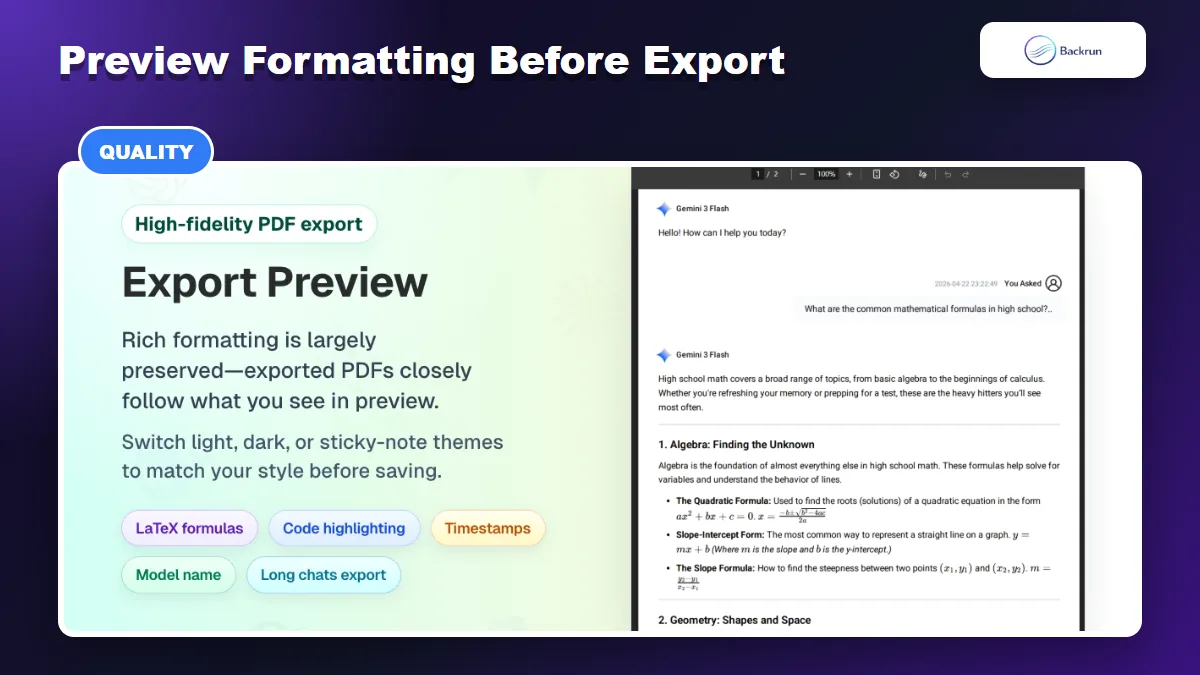
The official gallery highlights PDF preview, formulas, code highlighting, timestamps, and long-chat support.
AI Exporter's listing emphasizes high-fidelity parsing for headings, tables, code, images, LaTeX formulas, timestamps, and model names. The official PDF preview demonstrates equations and structured content rather than only plain paragraphs, which is a meaningful sign for technical and academic users.
Other notable features include:
Preview before saving, helping users catch obvious omissions or layout problems.
Light, dark, and sticky-note themes for presentation-oriented PDF exports.
Cross-model aggregation for combining conversations from several AI services.
Deep Research compatibility for ChatGPT and Gemini research sessions, according to the listing.
Image bundling with Markdown in recent versions, useful when a note should keep local image assets.
The claim that long conversations export without truncation is valuable, but it should still be treated as a product claim rather than a universal guarantee. Browser memory, chat length, image count, and changes to an AI platform's interface can all affect the result.
Recommended test: create a non-sensitive conversation containing a heading, nested list, table, code block, formula, image, link, and long answer. Export that same chat to your two preferred formats and compare the results. A five-minute test reveals more about compatibility than the headline feature list.
5. Pricing, Privacy, and Main Limitations
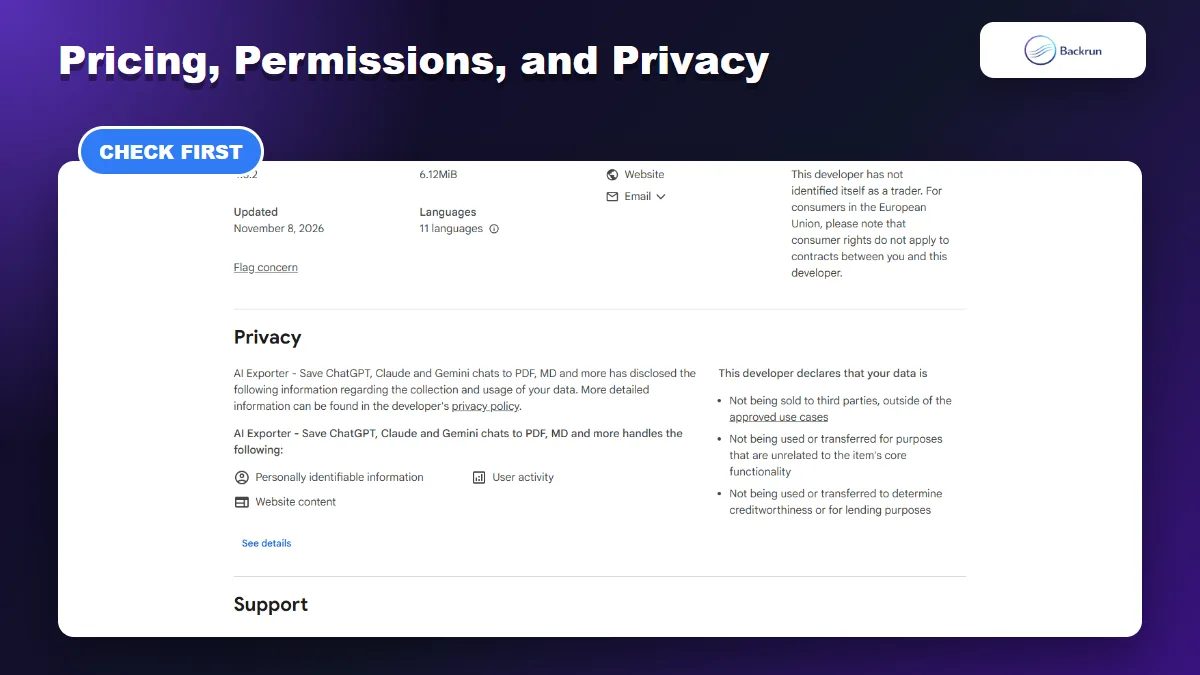
The listing discloses handling of personally identifiable information, user activity, and website content.
The listing says Markdown, TXT, JSON, and long-image exports are permanently free, while PDF export includes three free uses per day. Because pricing and quotas can change, confirm the current limits inside the extension before planning a recurring workflow.
The privacy section deserves equal attention. AI Exporter discloses that it handles personally identifiable information, user activity, and website content. The developer also declares that data is not sold to third parties outside approved use cases, is not used for unrelated purposes, and is not used to determine creditworthiness.
These declarations do not automatically make the extension unsafe, but they mean you should understand what content it can access. Chrome recommends approving only extensions you trust and allows users to restrict site access. Review Chrome's extension management guidance, the publisher's privacy policy, and your organization's rules before exporting confidential conversations.
Strengths
Broad support across many AI platforms
Strong choice of local and cloud destinations
Selective-message export
Useful handling of formulas, code, tables, and images
Large user base and frequent updates
Limitations
Some formats have daily quotas or paid limits
Broad site coverage requires careful permission review
Direct Notion sync adds another authorized service
Output quality can vary by platform and content type
The publisher is identified as a non-trader on the listing
Best practice: use a non-sensitive test chat first, restrict extension site access where practical, and verify every important export before removing the source conversation.
6. Final Verdict: Is AI Exporter Worth Installing?
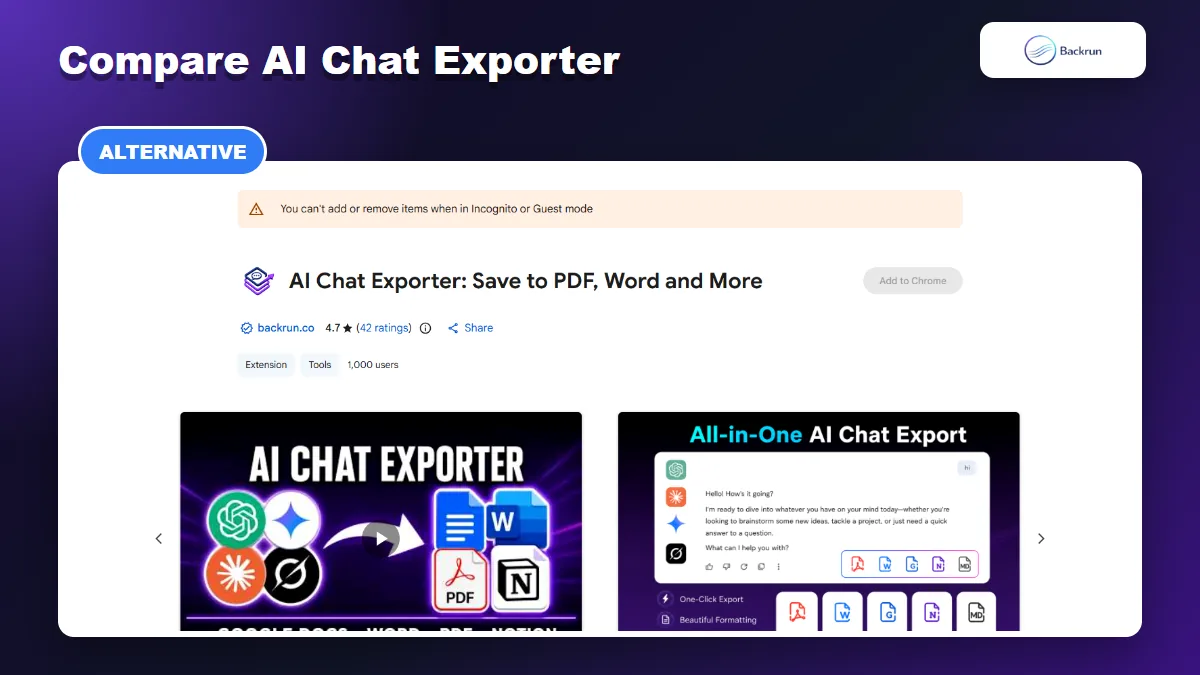
AI Chat Exporter is a smaller alternative focused on ChatGPT, Gemini, Claude, and Grok with common document destinations.
AI Exporter is a strong option for users who work across many AI platforms and want more than a basic PDF button. Its selective export, multiple file formats, Notion sync, cross-model aggregation, and support for structured content make it especially appealing to researchers and power users.
It is less compelling when you only use a few assistants, need a very small extension, or prefer a simpler permission surface. The extension's broad scope is both its main advantage and the reason to review access, quotas, and privacy details carefully.
If your workflow is centered on ChatGPT, Gemini, Claude, and Grok, compare it with AI Chat Exporter. Backrun's extension focuses on those four platforms and exports selected messages or full conversations to PDF, Word, Google Docs, Markdown, and Notion, with font customization before export.
Review both Chrome Web Store listings, test them with the same non-sensitive conversation, and choose the tool whose formats, permissions, pricing, and output quality fit your workflow.