📚 Export Features Guide
Export Gemini Conversation to PDF, Notion, Word, and Google Docs Extension
Introduction
This extension provides flexible export options for your Gemini conversations. You can export entire conversations or individual responses to multiple formats including Word (.docx), PDF, Google Docs and Notion with customizable options to filter content based on your needs.
✨ Key Features

Export Gemini conversations to multiple formats
Multiple Export Formats
Export your Gemini conversations to various formats:
- Microsoft Word (.docx): Professional document format, perfect for editing and sharing
- PDF: Universal format for viewing and printing, maintains formatting across devices
- Google Docs: Cloud-based document that syncs automatically to your Google Drive
- Notion: Export directly to Notion workspace with beautiful formatting
Flexible Content Filtering
Choose what content to include in your exports:
- Export only Gemini responses (remove user prompts)
- Export only user prompts (remove Gemini responses)
- Export complete conversations (both prompts and responses)
Selective Export
Export individual responses or entire conversations with a single click. Select specific messages or export everything at once.
Persistent Settings
Your export preferences are automatically saved and applied to all future exports until you change them.
⚙️ Export Settings

Configure your export settings
Entire conversation downloads
Function: When enabled, exporting an entire conversation (Word, PDF, Google Docs, or Notion) will include only Gemini's responses and exclude all user prompts/questions.
- Applies to: Full conversation exports
- Supported formats: Word (.docx), PDF, Google Docs, Notion
- Result: File contains only Gemini responses
Single response downloads
Function: When enabled, exporting a single Gemini response will include only that response and exclude the user's prompt/question that preceded it.
- Applies to: Individual response exports
- Supported formats: Word (.docx), PDF, Google Docs, Notion
- Result: File contains only the Gemini response, no questions
Export only user prompts
Function: When enabled, exporting an entire conversation will include only user prompts/questions and exclude all Gemini responses.
- Applies to: Full conversation exports
- Supported formats: Word (.docx), PDF, Google Docs, Notion
- Result: File contains only user questions
📄 Supported Export Formats
Microsoft Word (.docx)

Export Gemini conversations to Word format
Export your conversations as editable Word documents. Perfect for:
- Further editing and formatting
- Sharing with colleagues
- Professional documentation
- Compatibility with Microsoft Office and Google Docs

Export Gemini conversations to PDF format
Create PDF documents that maintain formatting across all devices. Ideal for:
- Printing and archiving
- Universal compatibility
- Preserving document layout
- Sharing with anyone, anywhere
Google Docs
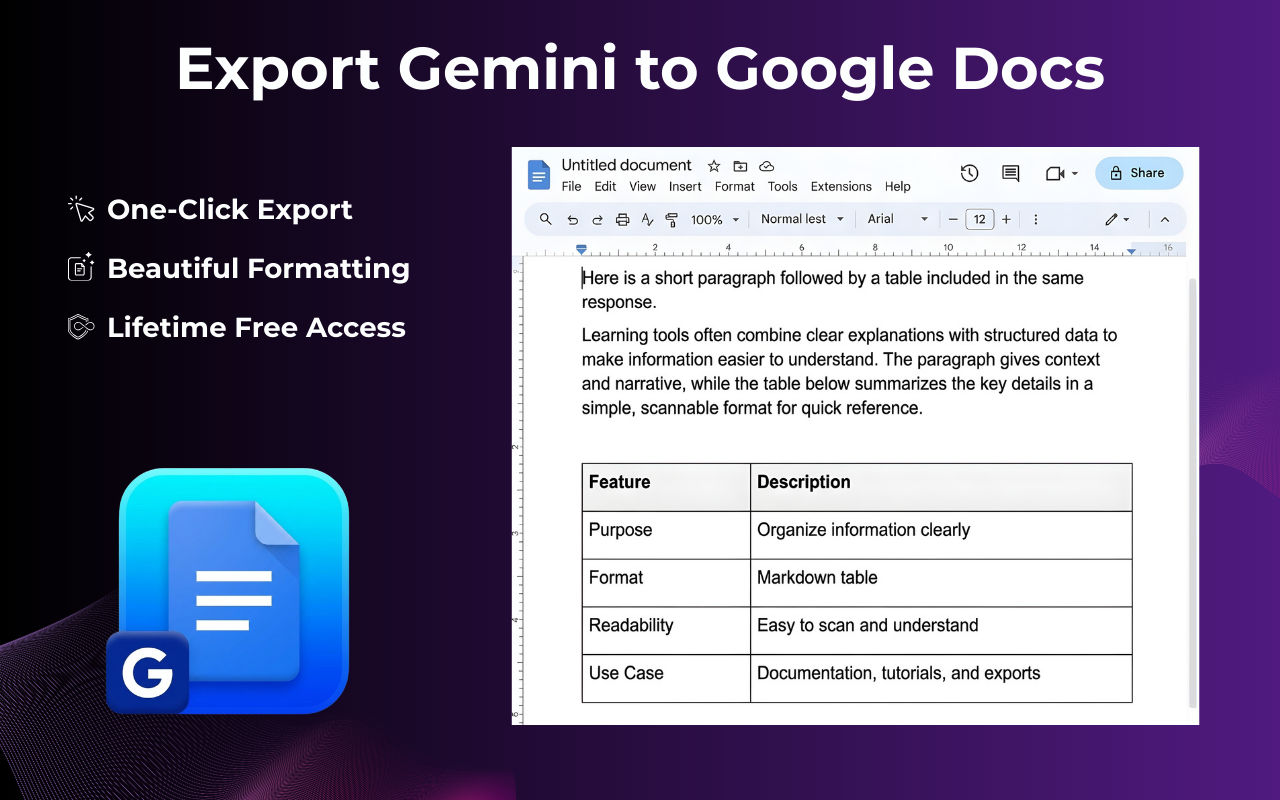
Export Gemini conversations to Google Docs
Save directly to your Google Drive as editable Google Docs. Great for:
- Cloud storage and backup
- Collaborative editing
- Access from any device
- Automatic synchronization
📝 Notion Integration
Direct Export to Notion
Export your Gemini conversations directly to Notion workspace with beautiful formatting and clear structure.
- Connect Notion: Connect your Notion account through secure OAuth
- Select Database: Choose a Notion database to store your conversations
- Beautiful Formatting: Automatically converts markdown, code blocks, tables, and other formats to Notion blocks
- Code Support: Syntax highlighting for code blocks with multiple programming languages
- Tables: Converts HTML/Markdown tables to Notion table blocks
- Rich Text: Supports bold, italic, underline, and other rich text formatting
How to Use Notion Export
Step 1: Connect Notion
- Click the Notion icon on the extension toolbar
- Select "Connect Notion"
- Log in to your Notion account
- Allow the extension to access your workspace
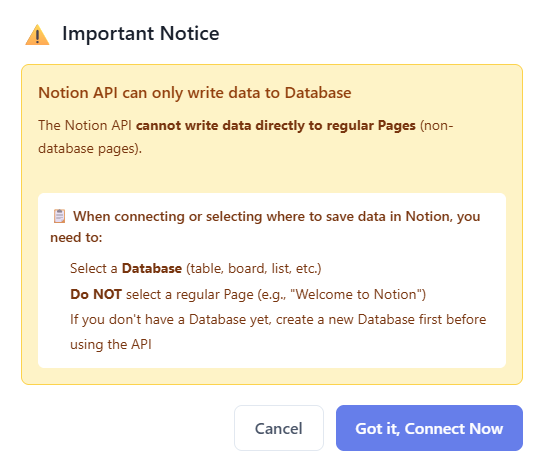
Connect your Notion account
Step 2: Select Database
- After connecting, select a Notion database to store conversations
- The database must have a "Name" or "Title" field to store the title
- You can change the database at any time
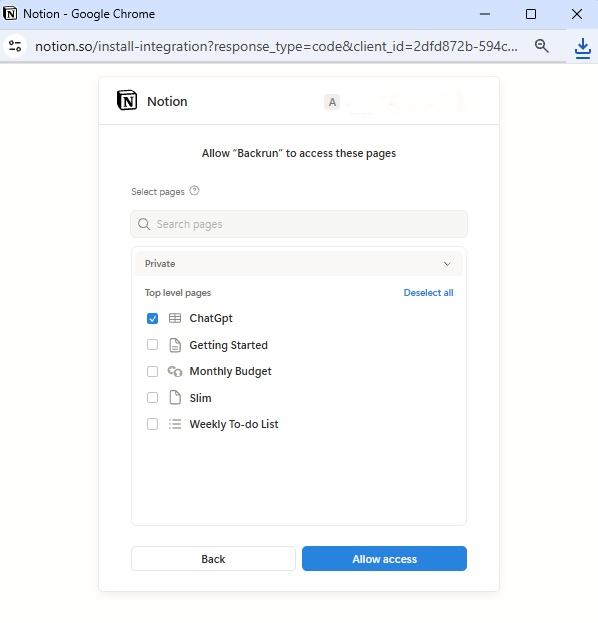
Select a Notion database to store conversations
Step 3: Export Conversation
- Open the Gemini conversation you want to export
- Click the Notion icon on the extension toolbar
- The conversation will be created as a new page in the selected database
- You will receive a link to open the page in Notion

Result when exporting conversation to Notion
Notion Formatting Features
The extension automatically converts and formats Gemini content to Notion with the following features:
- Headings: H1, H2, H3 are converted to Notion heading blocks
- Code Blocks: Supports syntax highlighting for over 50 programming languages
- Inline Code: Code within sentences is formatted with code annotation
- Tables: HTML/Markdown tables are converted to Notion table blocks (max 5 columns)
- Lists: Bulleted and numbered lists are preserved
- Blockquotes: Quotes are converted to callout blocks
- Links: Links are preserved and clickable
- Text Formatting: Bold, italic, strikethrough are fully supported
🚀 Advanced Features
License Key System
Manage and activate license keys to use premium features:
- Activate License: Enter license key to unlock all premium features
- Device Management: Use extension on multiple devices with the same license
- Usage Tracking: View export history and your usage quota
Quota Management
Smart quota system to manage export limits:
- Free Plan: Monthly quota (calendar monthly) with separate counters for full-conversation exports and single-response exports
- Premium Plan: Unlimited exports
- Reset: Free quota resets at the start of each new month
- Tracking: View remaining exports in your account
- Notifications: Alerts when approaching limit
Export Tracking
Track all your exports:
- Detailed export history
- Statistics by format (Word, PDF, Google Docs, Notion)
- Time-based statistics
Smart Content Processing
Advanced content processing features:
- Markdown Support: Automatic markdown recognition and conversion
- HTML Parsing: Handles complex HTML from Gemini
- Code Detection: Automatically detects and formats code blocks
- Table Conversion: Converts HTML/Markdown tables to document format
🔑 License Activation Guide
How to Activate Your License Key
Follow these simple steps to activate your license key and unlock all premium features:
Step 1: Locate the License Icon
- Open Gemini in your browser
- Look for the license icon (🔑) on the extension toolbar
- Click on the license icon to open the license activation panel
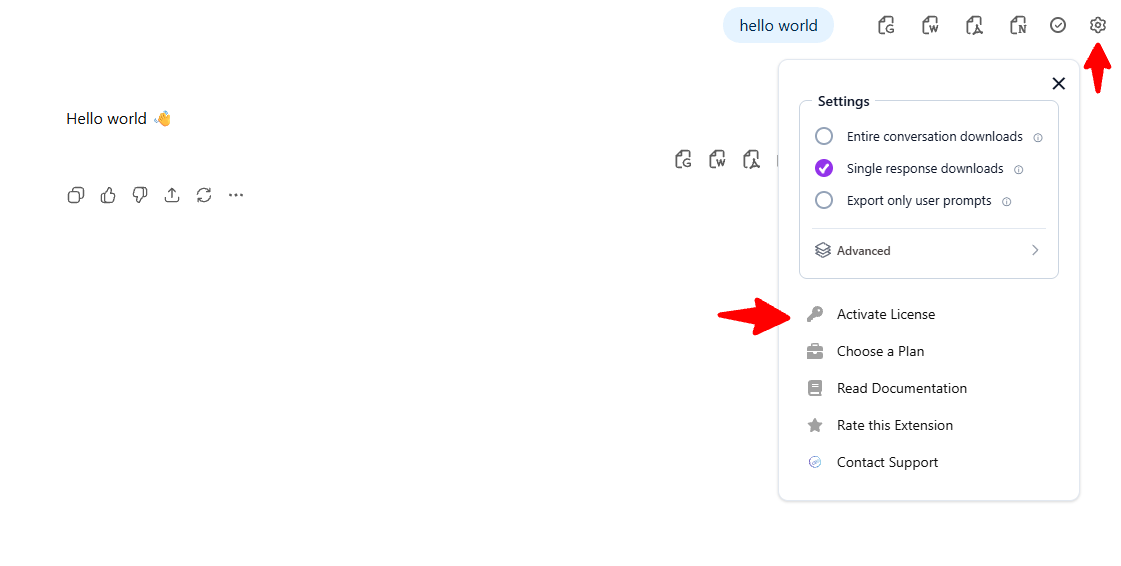
Click on the license icon to open the activation panel
Step 2: Enter Your License Key
- In the license activation panel, you will see an input field
- Enter your license key (received via email after purchase)
- Make sure to copy the entire license key without any extra spaces
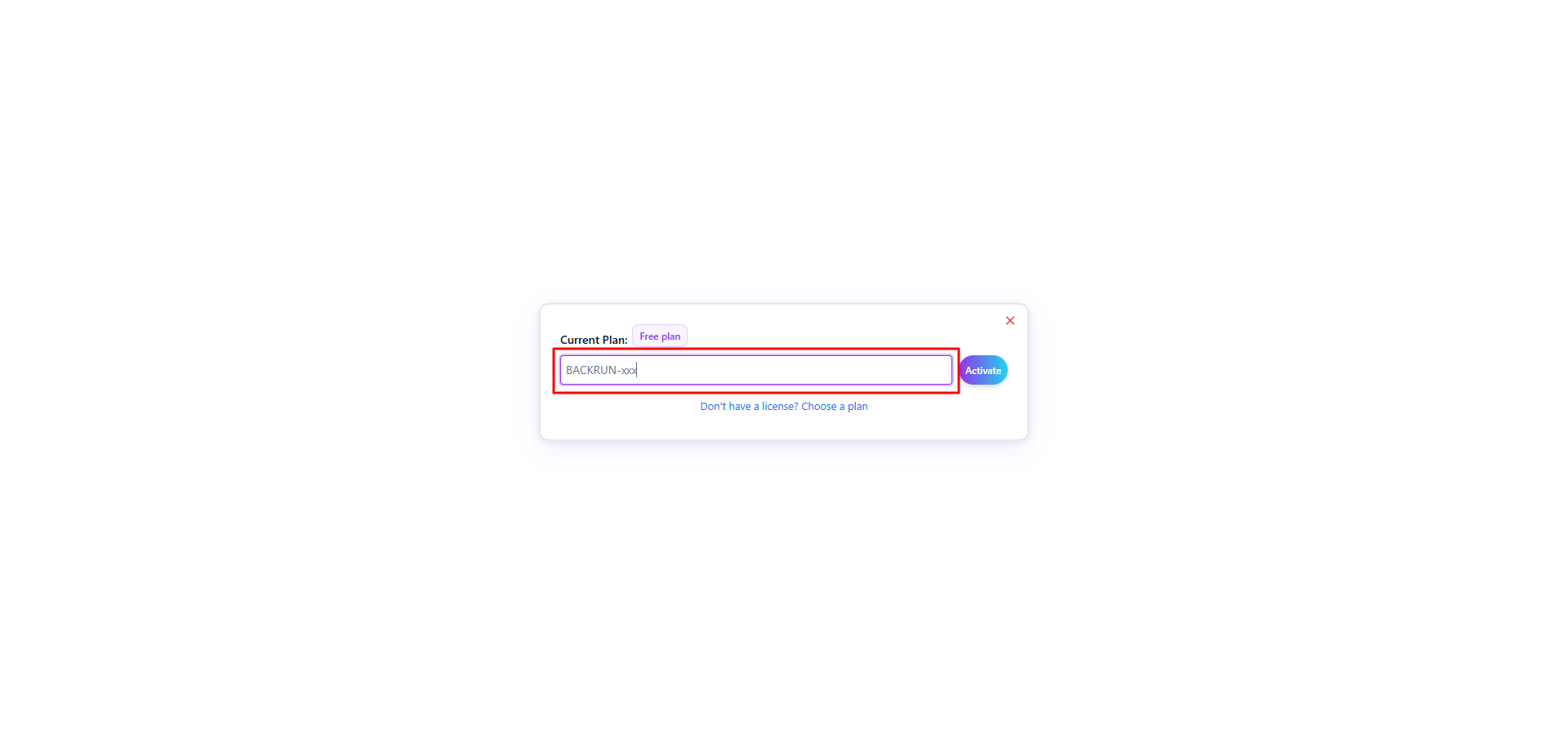
Enter your license key in the input field
Step 3: Activate License
- Click the "Activate" or "Submit" button
- Wait for the activation process to complete
- You will see a success message confirming your license is activated
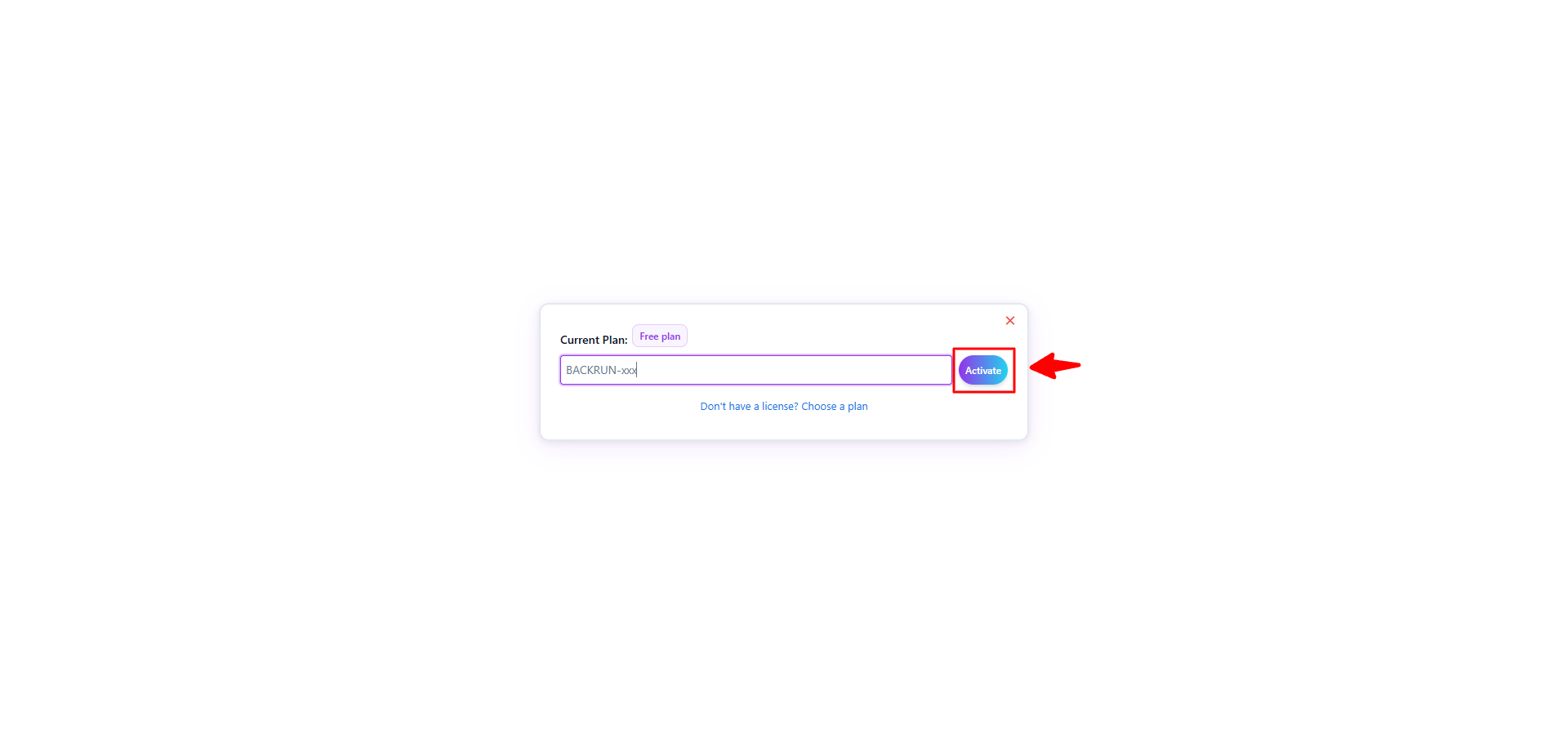
License successfully activated - you now have access to all premium features
- Your license key is sent to the email address you provided during purchase
- Make sure you have an active internet connection during activation
- If you encounter any issues, contact support at hi@backrun.co or visit Contact Support
- You can use the same license key on multiple devices (1 license = 1 device). You can remove the license from one device to use it on another.
- If your license expires, you will need to renew it to continue using premium features
Troubleshooting License Activation
If you're having trouble activating your license, try these solutions:
- Invalid License Key: Double-check that you copied the entire license key correctly, including any hyphens or special characters
- License Already Used: If you see a message that the license is already in use, you may have reached the maximum number of devices. You can remove the license from your old device to activate it on a new one. Contact support if you need further assistance.
- Activation Failed: Ensure you have a stable internet connection and try again. If the problem persists, contact support
- License Expired: If your license has expired, you'll need to renew your subscription. Contact hi@backrun.co for renewal options
🔒 Usage Rules
- When you select one option, the other two will automatically be disabled
- This ensures clear settings and prevents conflicts
- You can change your selection at any time
- You can also disable all options to export complete conversations (both prompts and responses)
📖 User Guide
How to Access Settings:
- Open Gemini in your browser
- Click on the Settings icon (⚙️) on the extension toolbar
- The Settings panel will open with export options
How to Use:
- Select one of the three options that best fits your needs (or leave all unchecked for complete conversations)
- Click the checkbox to enable/disable an option
- When you select one option, other options will automatically turn off
- Perform export as usual (Word, PDF, Google Docs, or Notion)
- The exported file will follow your selected settings
Exporting Conversations:
- Navigate to any Gemini conversation
- Click the export button (Word, PDF, Google Docs, or Notion icon) on the extension toolbar
- For individual responses, click the export button next to a specific message
- Your file will be generated according to your settings
💼 Use Cases
Scenario 1: Create a document with only answers
You want to create a Word file containing all Gemini responses without your questions.
Solution: Enable "Entire conversation downloads" → Export the full conversation
Scenario 2: Save a specific response
You want to save an important response without the accompanying question.
Solution: Enable "Single response downloads" → Click export on that specific response
Scenario 3: Collect a list of questions
You want to export all the questions you've asked Gemini for future reference.
Solution: Enable "Export only user prompts" → Export the full conversation
Scenario 4: Create training materials
Export Gemini responses to create training documents, guides, or reference materials for your team.
Solution: Use "Entire conversation downloads" to get clean response-only documents
Scenario 5: Archive conversations
Save important conversations as PDFs for long-term storage and easy access.
Solution: Export to PDF format with your preferred content filtering
Scenario 6: Organize in Notion
Export Gemini conversations to Notion workspace to organize, search, and share with your team.
Solution: Connect Notion → Select database → Export conversation
Pricing & payment
Choose a plan
Free tier has monthly limits. Paid plans add unlimited exports and Notion. See current prices.
Free
- Limited exports per month (resets each month)
- All formats + Notion
Month
- Unlimited exports
- All formats + Notion
Year
- Same as month
- Better value vs paying month
Deals and exact prices: pricing page.
Email: hi@backrun.co
❓ Frequently Asked Questions (FAQ)
Are settings saved automatically?
Yes, your settings are automatically saved and will apply to all future exports until you change them.
Can I disable all options?
Yes, you can uncheck all options. In this case, the exported file will contain both questions and answers as default.
Do these options apply to all conversations?
Yes, settings will apply to all conversations until you change them.
How do I activate a license key?
After purchasing a plan, you will receive a license key via email. Click on the license icon in the extension, enter your license key, and click activate. For assistance, contact hi@backrun.co or visit Contact Support.
What happens if I exceed my free plan limit?
The free plan uses a monthly quota. If you hit the limit this month, you can wait for next month’s reset or upgrade to a paid plan for unlimited exports. See Pricing Plans or contact hi@backrun.co.
Can I use the extension on multiple devices?
Yes, with a paid license, you can activate the extension on multiple devices (1 license = 1 device). You can remove the license from one device to use it on another.
How do I connect Notion?
Click the Notion icon on the extension toolbar, select "Connect Notion", log in to your Notion account and allow access. Then select a database to store conversations.
Does export to Notion support code formatting?
Yes, the extension automatically detects and formats code blocks with syntax highlighting for over 50 programming languages.
What payment methods are accepted?
For payment information and available payment methods, please contact hi@backrun.co or visit Contact Support for support.
Where can I get technical support?
For technical support, visit our support portal at Contact Support or email us at hi@backrun.co. Our support team is available 24/7 to assist you.