Claude chat export guide
Export Claude conversations to PDF, Word, Google Docs, and Notion — one reference for the extension.
Introduction
This extension lets you export Claude chats flexibly: full threads or single messages, to Word (.docx), PDF, Google Docs, and Notion. You can filter what goes into the file (answers only, prompts only, or both) to match your workflow.
Key features
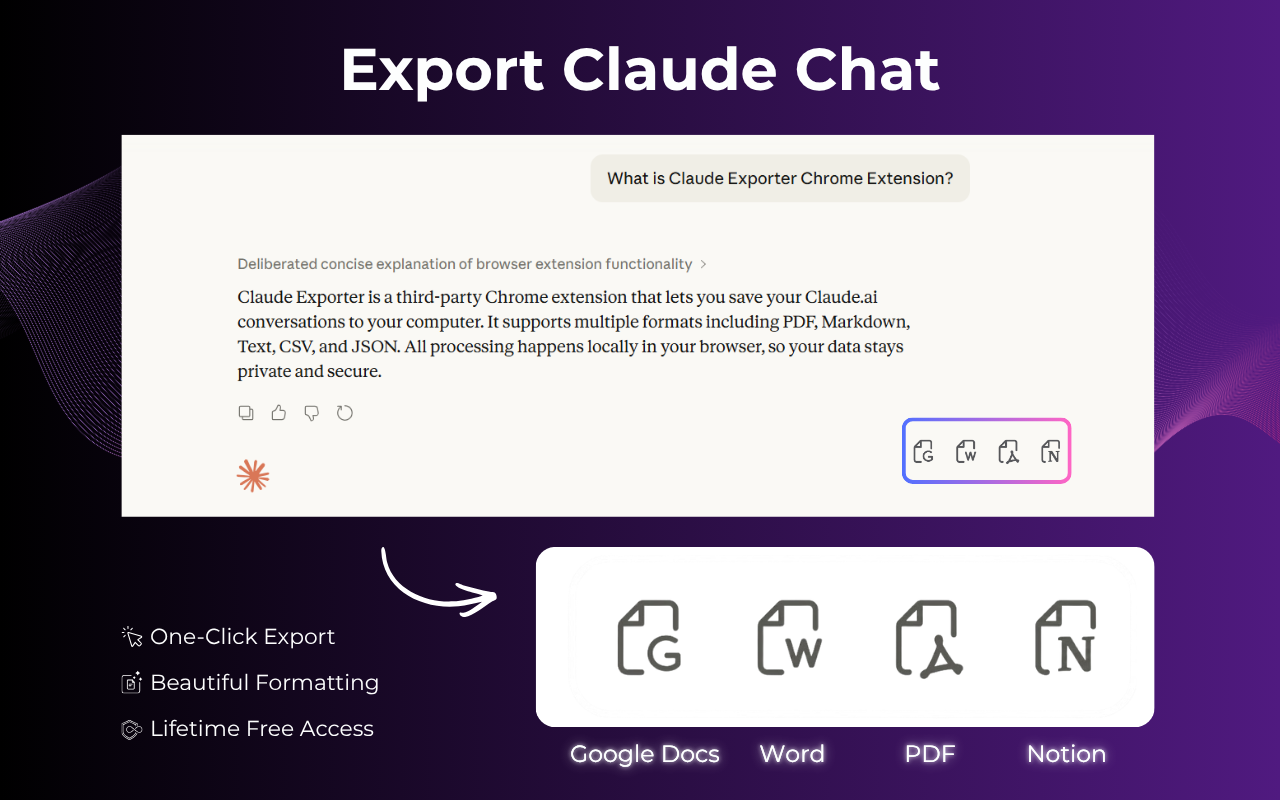
Export Claude chats to multiple formats
Multiple export formats
You can choose:
- Microsoft Word (.docx): easy to edit and share
- PDF: consistent viewing and printing on any device
- Google Docs: saved to Drive with cloud sync
- Notion: send content into your Notion workspace with rich formatting
Flexible content filtering
Control what is included in the export:
- Claude answers only (hide your prompts)
- Your prompts only (hide Claude’s answers)
- Full thread — both prompts and answers (default when no filter option is enabled)
Selective export
Export one message or an entire conversation from the extension toolbar.
Persistent settings
Your choices are stored in the browser and apply to later exports until you change them.
Export settings
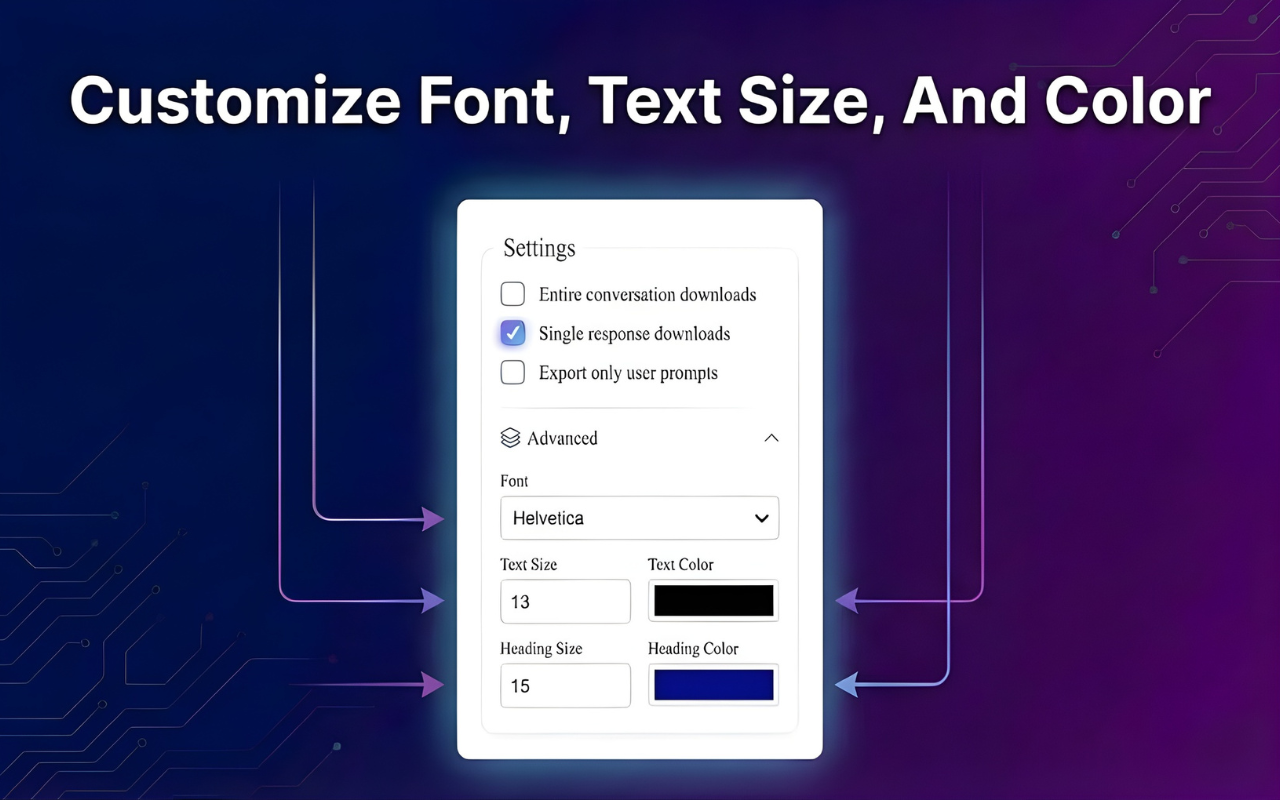
Configure export options
Full conversation — answers only
When enabled: for a full-thread export (Word, PDF, Google Docs, Notion), the file contains only Claude’s responses, not your prompts.
- Scope: whole conversation
- Formats: Word, PDF, Google Docs, Notion
- Result: document with assistant replies only
Single response export
When enabled: when exporting one reply, the file contains only that reply, not the user message above it.
- Scope: per-message export
- Formats: Word, PDF, Google Docs, Notion
- Result: only the selected assistant message
User prompts only
When enabled: for a full-thread export, the file contains only your prompts, not Claude’s answers.
- Scope: whole conversation
- Formats: Word, PDF, Google Docs, Notion
- Result: list of questions you sent
Supported formats
Microsoft Word (.docx)
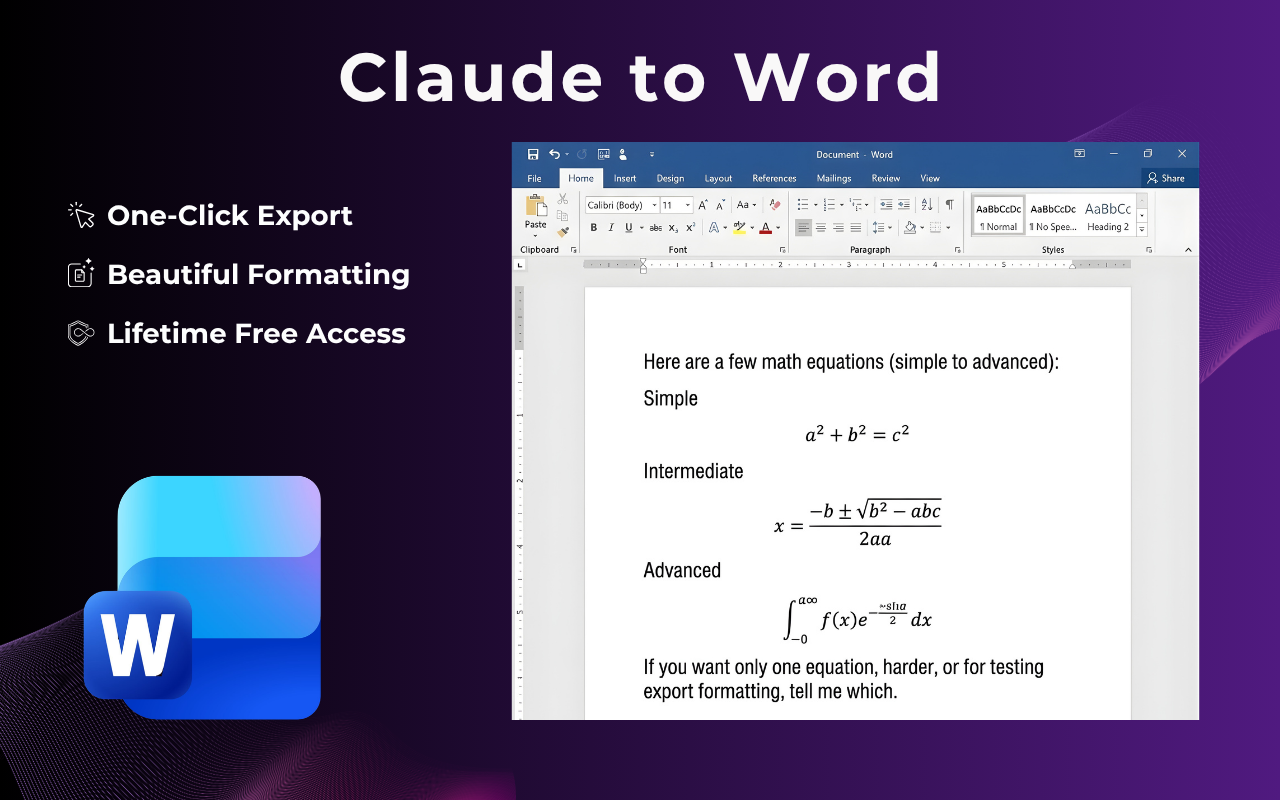
Export to Word
Best for deep editing, internal docs, and sharing with colleagues.
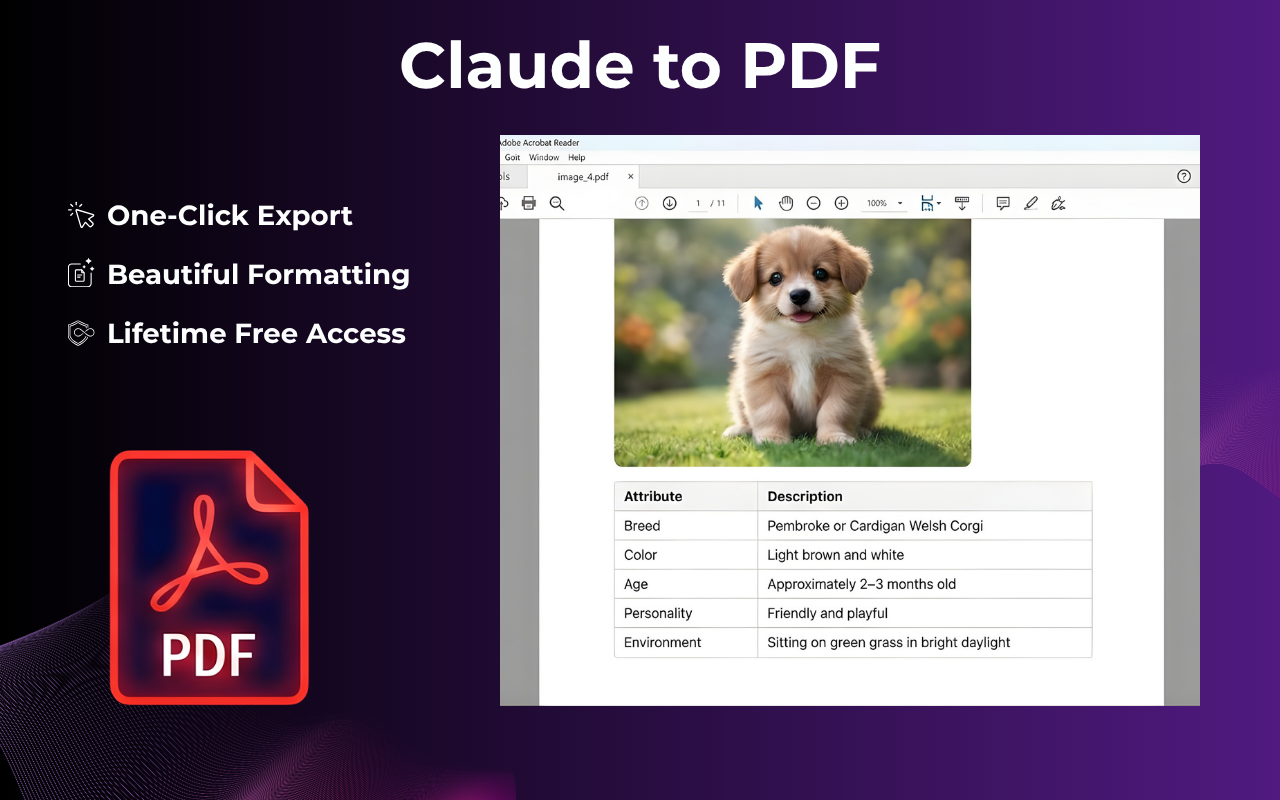
Export to PDF
Stable layout for printing and long-term archiving.
Google Docs
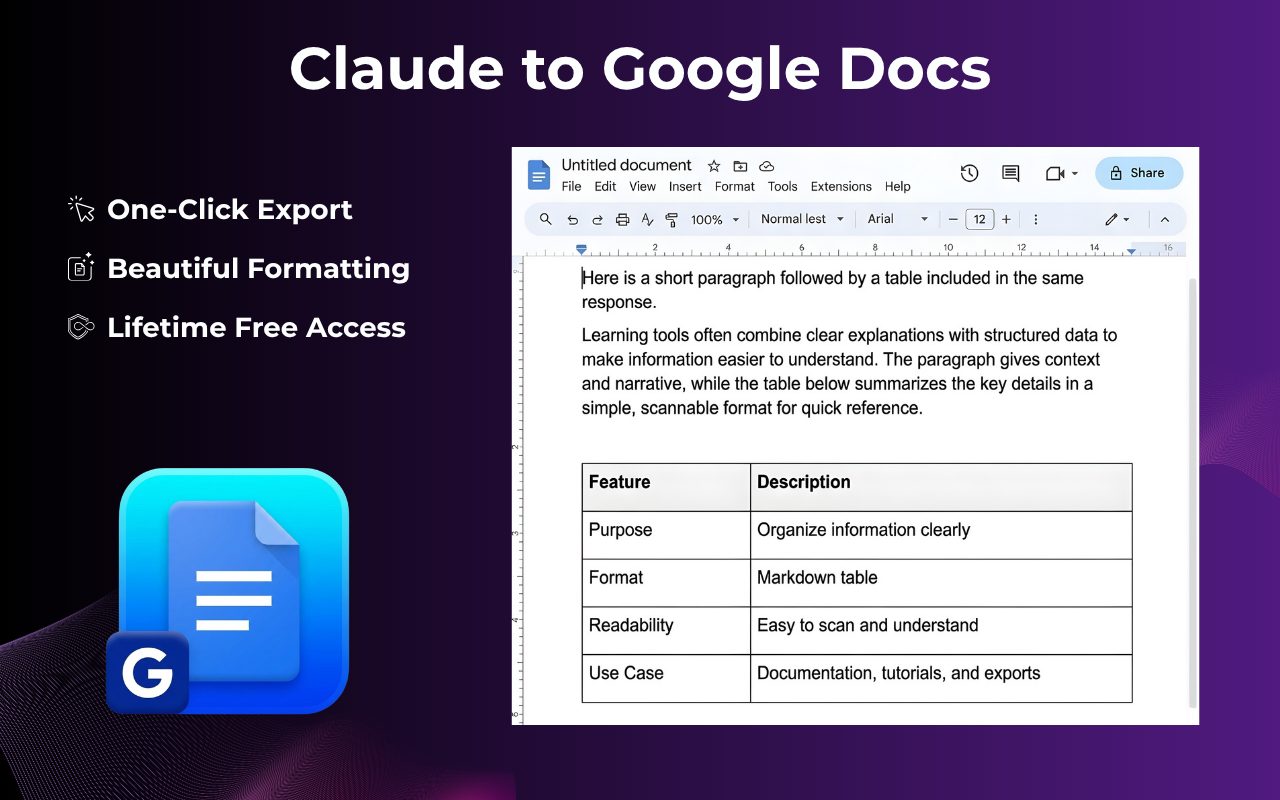
Export to Google Docs
Creates a file on Drive for online editing and sharing (Google sign-in required when exporting).
Notion integration
Export to Notion
Send conversations into a Notion database with clear structure.
- Connect Notion: sign in with OAuth
- Pick a database: where new entries are stored (needs a suitable title field)
- Formatting: markdown, code blocks, and tables map to Notion blocks
- Code: syntax highlighting for many languages
Quick steps
Step 1: Connect Notion
- Click the Notion icon on the extension toolbar
- Choose Connect Notion
- Sign in and grant access
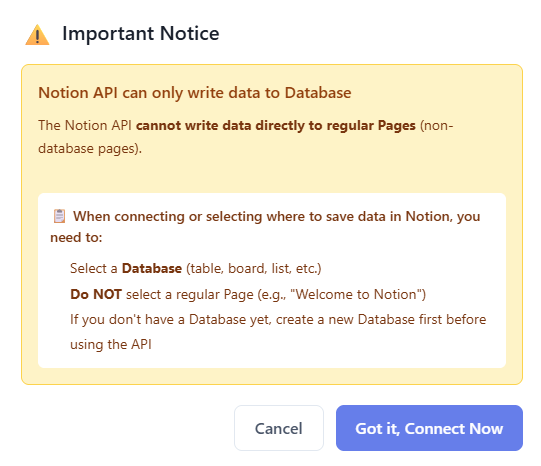
Connect your Notion account
Step 2: Select a database
- After connecting, choose the database to store exports
- The database must have an appropriate name / title property
- You can change the database anytime
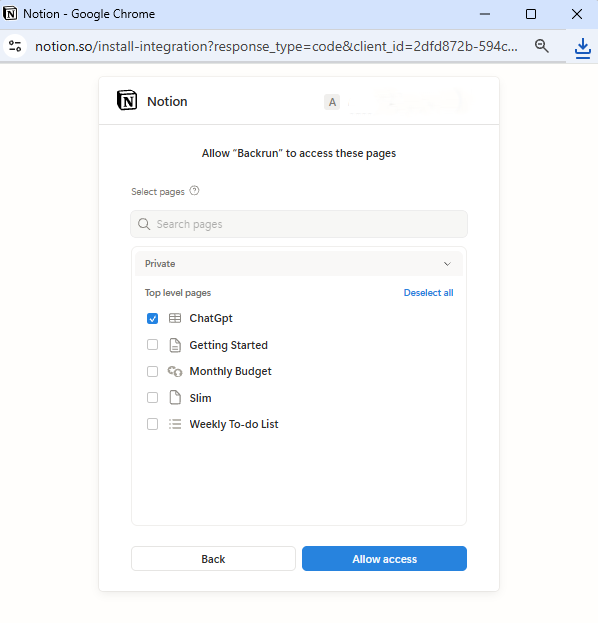
Select a Notion database
Step 3: Export the chat
- Open the Claude conversation you want
- Click the Notion icon on the toolbar
- A new item is created in the chosen database; you get a link to open it in Notion
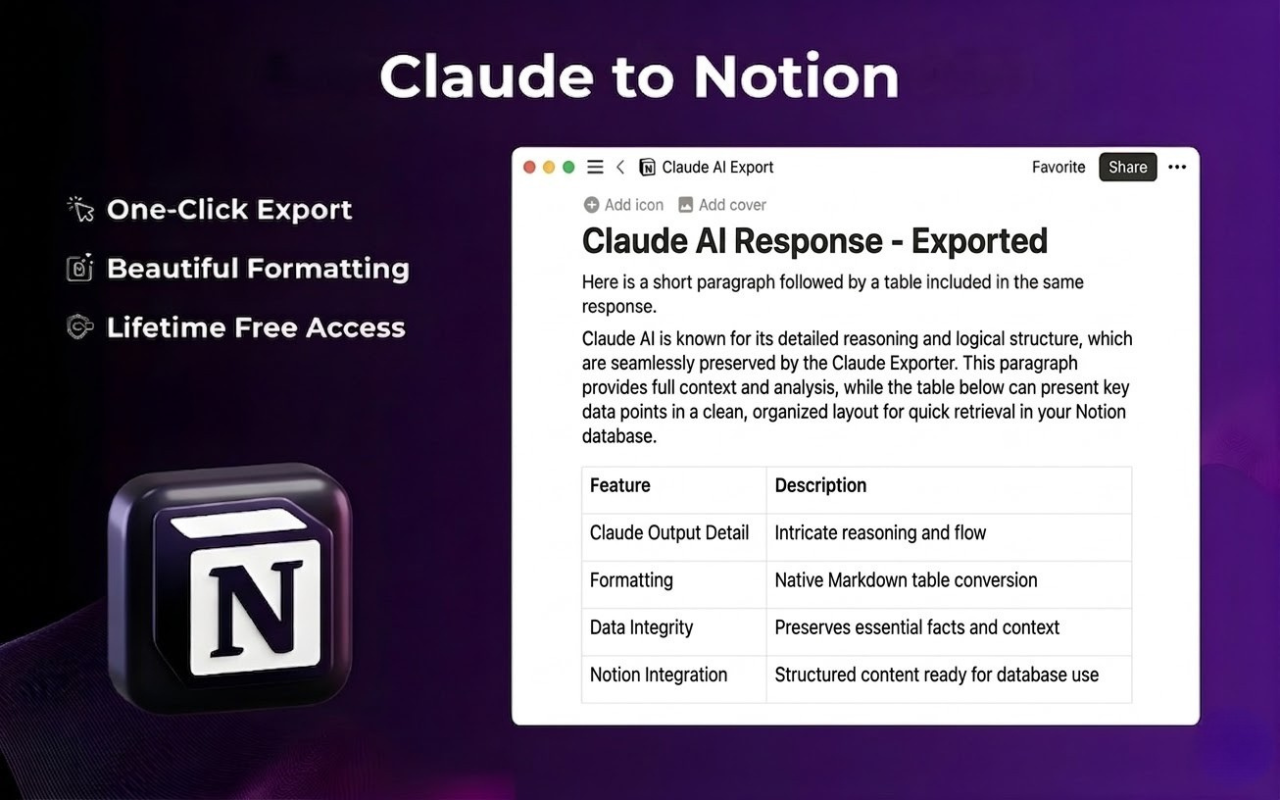
Example result in Notion
Notion formatting support
- Headings: H1–H3 become heading blocks
- Code blocks: many programming languages
- Tables: from HTML/Markdown (column limits may apply per extension version)
- Lists, quotes, links, bold/italic are preserved where possible
Advanced & quota
License
Paid plans use a license key to unlock full functionality (e.g. unlimited exports per your plan terms, Notion, etc.).
- Enter the key in the extension’s license panel
- Device limits follow your license terms (often a cap on simultaneous activations)
- Internet is required for activation and license checks
Free plan — monthly quota
On the FREE tier, exports are limited per calendar monthly (server timezone, typically Vietnam). Each month you get separate allowances for:
- Full conversation exports (entire thread)
- Single-message exports (one reply at a time)
The two counters are independent: using one type does not subtract from the other. At the start of a new month, counts reset.
Content processing
- Markdown and HTML from Claude’s UI
- Automatic detection of code blocks and tables
- Core formatting preserved for Word / PDF / Docs
License activation
How to activate
Step 1: Open the license panel
- Open Claude in your browser
- Find the license (key) icon on the extension toolbar
- Click it to open the activation field
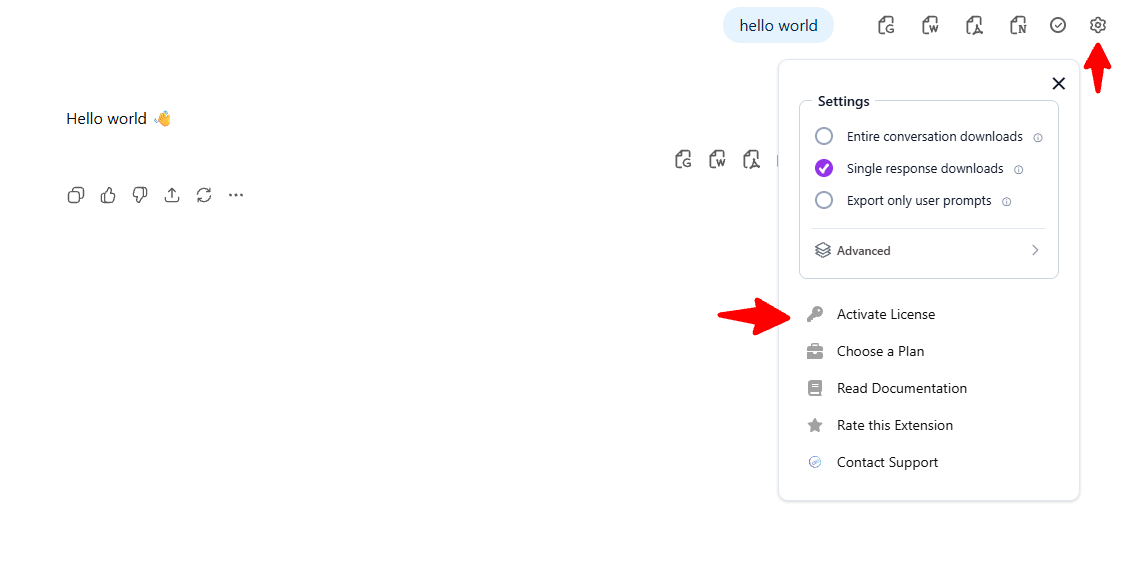
Open the activation panel
Step 2: Enter your key
- Paste the full key from your purchase email
- Avoid extra spaces at the start or end
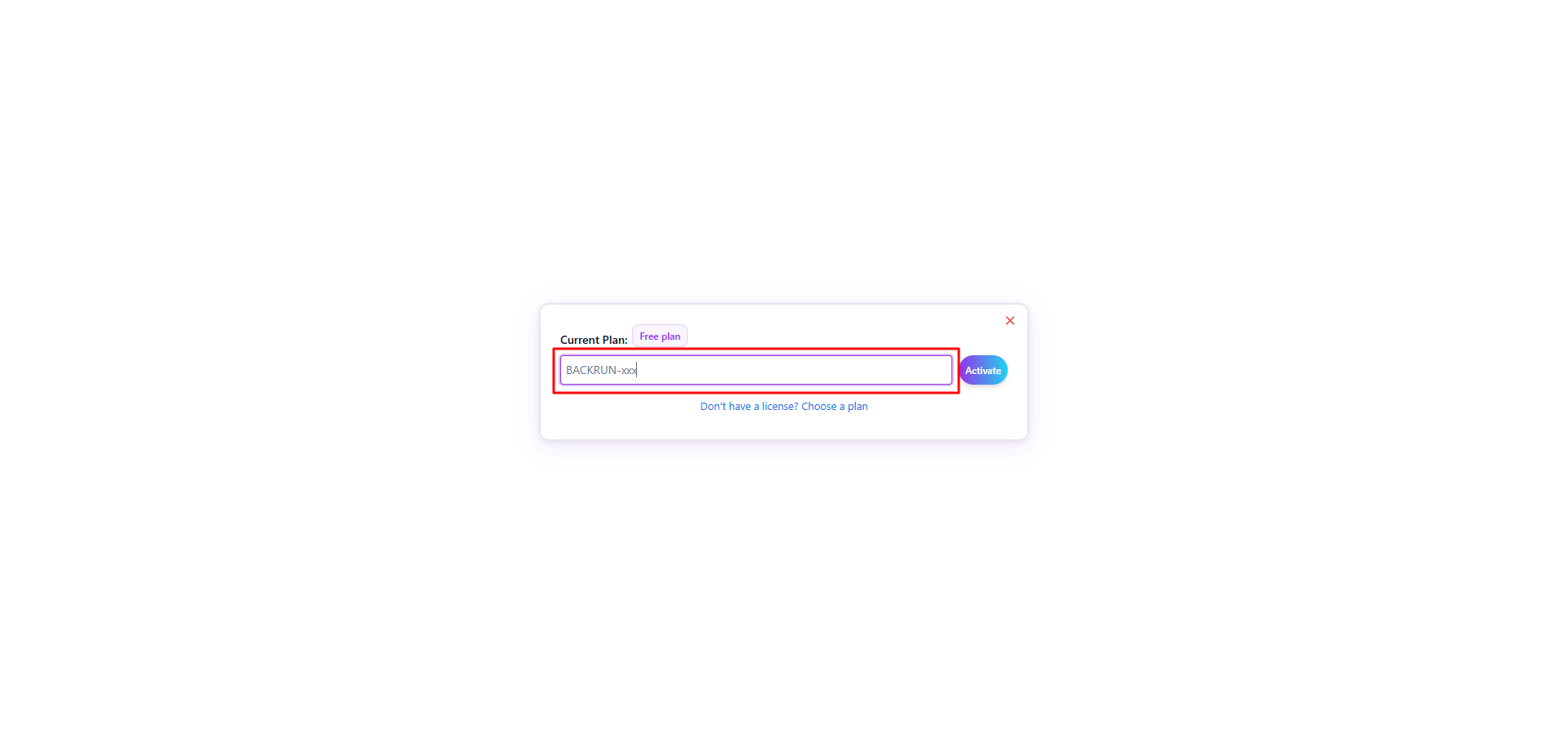
Enter your license key
Step 3: Confirm
- Click Activate / Submit
- Wait for the success message in the UI
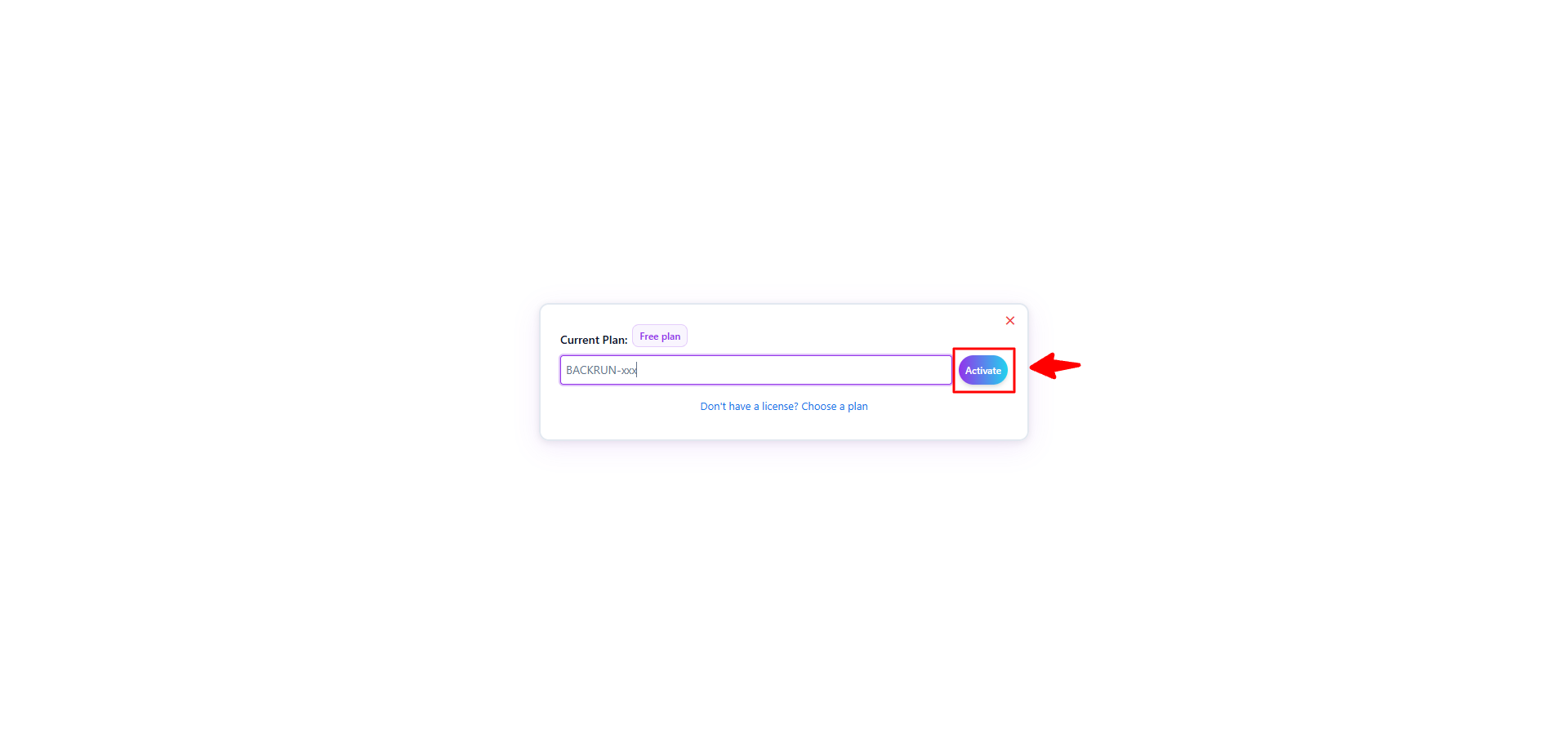
Activation successful
- The key is sent to your billing email — treat it like account credentials
- Use a stable connection when activating or validating
- Support: hi@backrun.co — Contact
- Concurrent devices follow your license; you can deactivate an old device to add a new one
- Expired license: renew to keep paid features
Troubleshooting
- Invalid key: copy the full string, including hyphens or special characters
- Device limit: deactivate on another device or contact support
- Network errors: retry or switch networks
- Expired: renew via checkout or support email
Filter option rules
- Turning one on turns the others off to avoid conflicts
- You can change this anytime
- With all three off, exports include both prompts and answers (full thread)
Quick guide
Open settings
- Open Claude in the browser
- Click the Settings (⚙️) icon on the extension toolbar
- Pick a filter or leave defaults for a full thread
Export a file
- Open the conversation to export
- Choose Word, PDF, Google Docs, or Notion on the toolbar
- For one reply only, use the export control next to that message
Use cases
Answers-only document
Enable full-conversation “answers only”, then export the whole thread.
Save one important reply
Enable single-response mode and export that message.
List of questions you asked
Enable “user prompts only”, then export the full thread.
Archive as PDF
Choose PDF and the filter that fits your archive needs.
Work in Notion
Connect Notion → pick a database → export (paid plan).
Pricing & payment
Choose a plan
Free tier has monthly limits. Paid plans add unlimited exports and Notion. See current prices.
Free
- Limited exports per month (resets each month)
- All formats + Notion
Month
- Unlimited exports
- All formats + Notion
Year
- Same as month
- Better value vs paying month
Deals and exact prices: pricing page.
Email: hi@backrun.co
FAQ
Are settings saved automatically?
Yes. They are stored in the browser and apply to future exports until you change them.
Can I turn off all filter options?
Yes. With none selected, the export includes both prompts and answers by default.
Do settings apply to every chat?
Yes, until you change them in Settings.
How does the free quota work?
It is per calendar month: separate limits for full-thread and single-message exports. Counters reset at the start of each month. Exact numbers appear in the extension or on the pricing page.
What if I hit the limit this month?
Wait for next month’s reset or upgrade for unlimited exports on a paid plan.
Multiple devices?
Paid plans follow your license’s device rules; you can usually deactivate an old device to add a new one. Details are in your purchase email or from support.
How do I connect Notion?
Click the Notion icon → connect your account → pick a database → export. Requires a paid plan.