📚 AI Chat Exporter Help Guide
Export ChatGPT, Gemini, Claude, and Grok conversations to PDF, Word, Google Docs, Notion, and Markdown
Introduction
AI Chat Exporter is a Chrome extension for exporting conversations from ChatGPT, Gemini, Claude, and Grok. You can save a full conversation or selected messages to PDF, Word, Google Docs, Notion, or Markdown. Before exporting, you can adjust the font family, font size, and text color.
✨ Key Features
One Extension for Four AI Platforms
Use one consistent export workflow across the AI tools you already use.
- ChatGPT: Export conversations, answers, code, tables, and research sessions
- Gemini: Save chats for editing, sharing, printing, or documentation
- Claude: Export Claude web conversations, coding discussions, research sessions, and structured responses
- Grok: Save chats and continue working with the content outside the original conversation
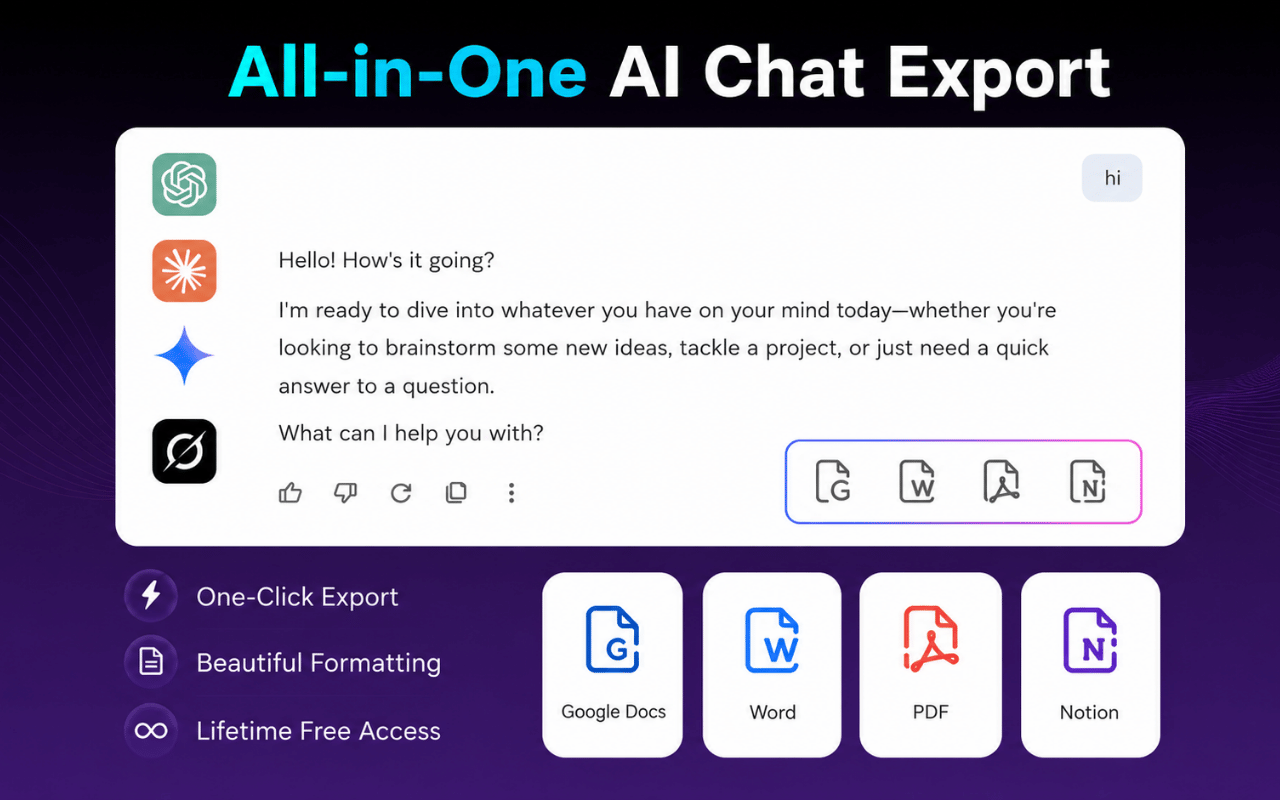
Supported Export Formats
- PDF: Printing, archiving, offline reading, and sharing
- Word (.docx): Editing, formatting, and reusing content
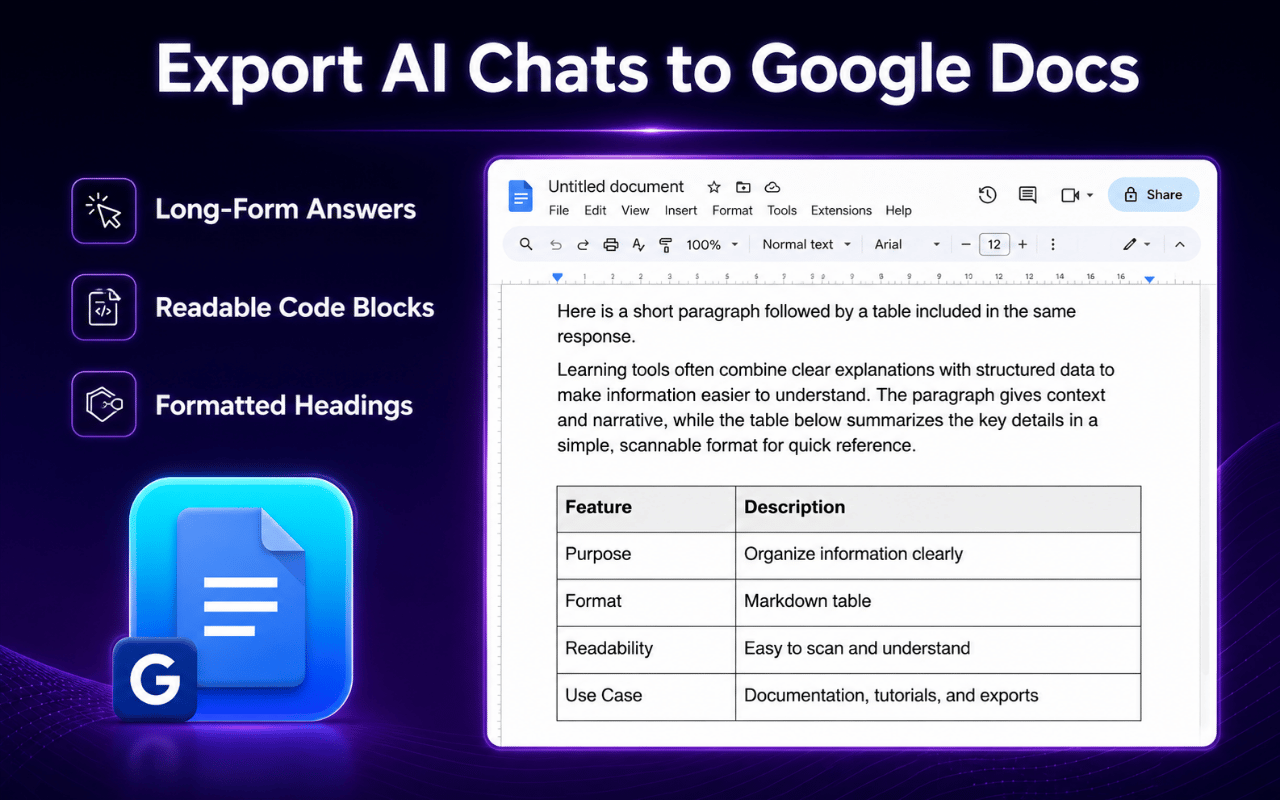
- Google Docs: Collaboration and online editing
- Notion: Knowledge management, project planning, and organized notes
- Markdown: Documentation, publishing systems, note-taking apps, and developer workflows
Export Selected Messages or the Full Conversation
Use the checkmark control beside individual messages when you only need a specific answer, code block, table, or section. Choose full-conversation export when you want to preserve the complete session and its context.
Customize Typography Before Export
Choose the font family, adjust the font size, and select a text color before creating the exported document.
Preserve Rich Conversation Content
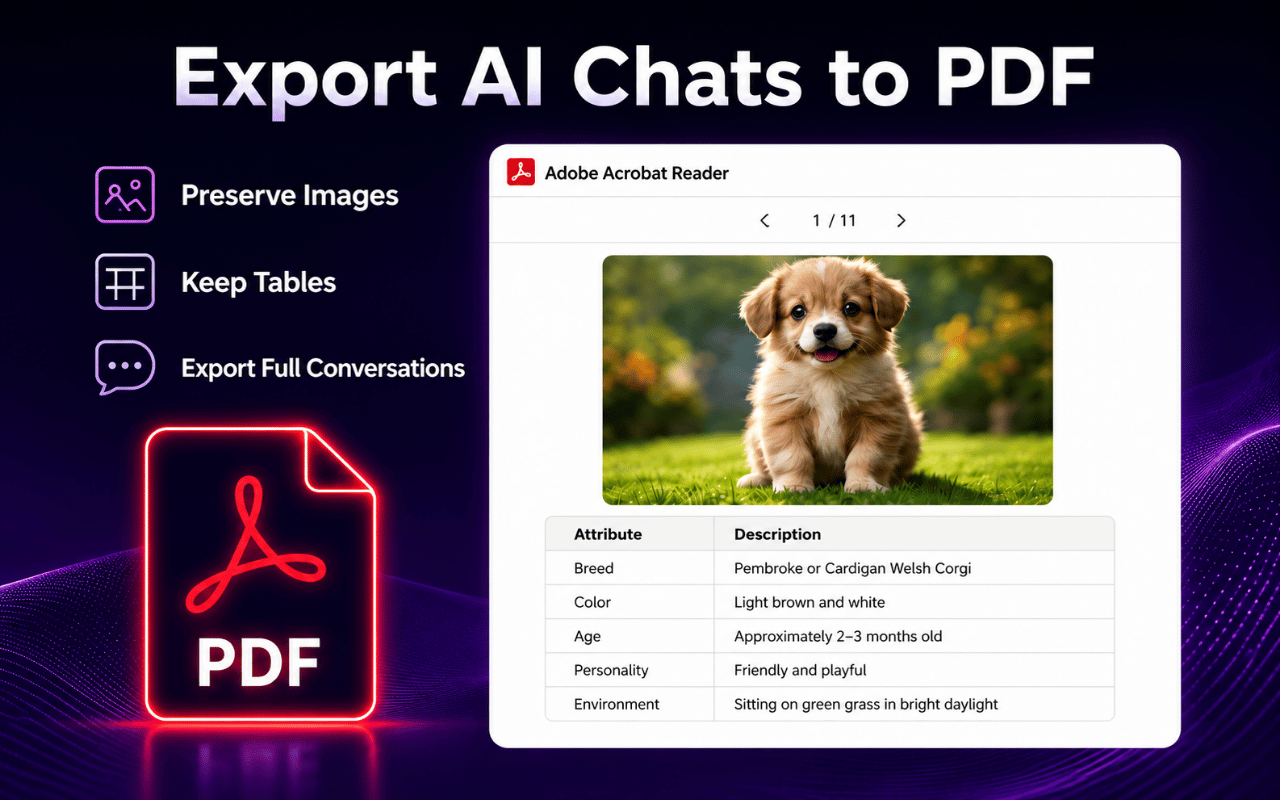
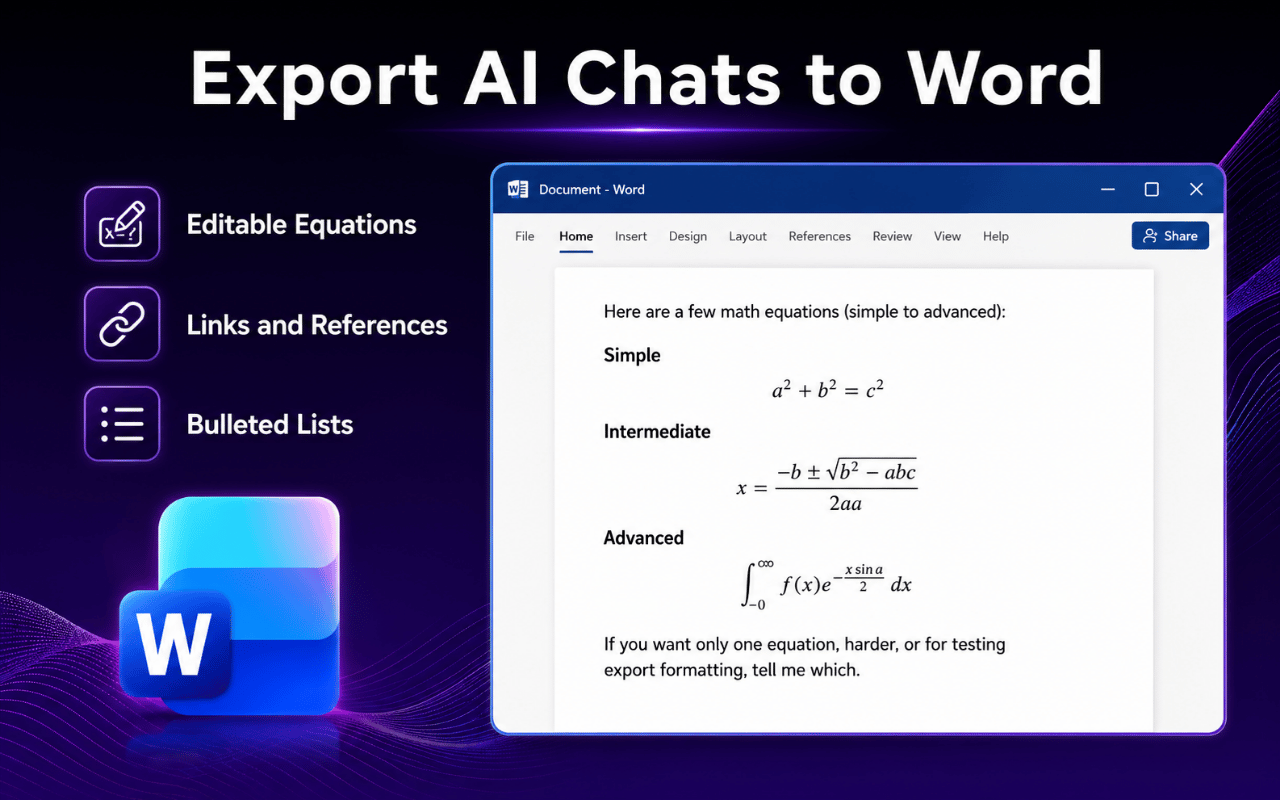
AI Chat Exporter preserves regular text, headings, formatted sections, numbered and bulleted lists, code blocks, tables, structured outputs, formulas, links, long-form answers, images, and AI-generated documentation.
Export Settings
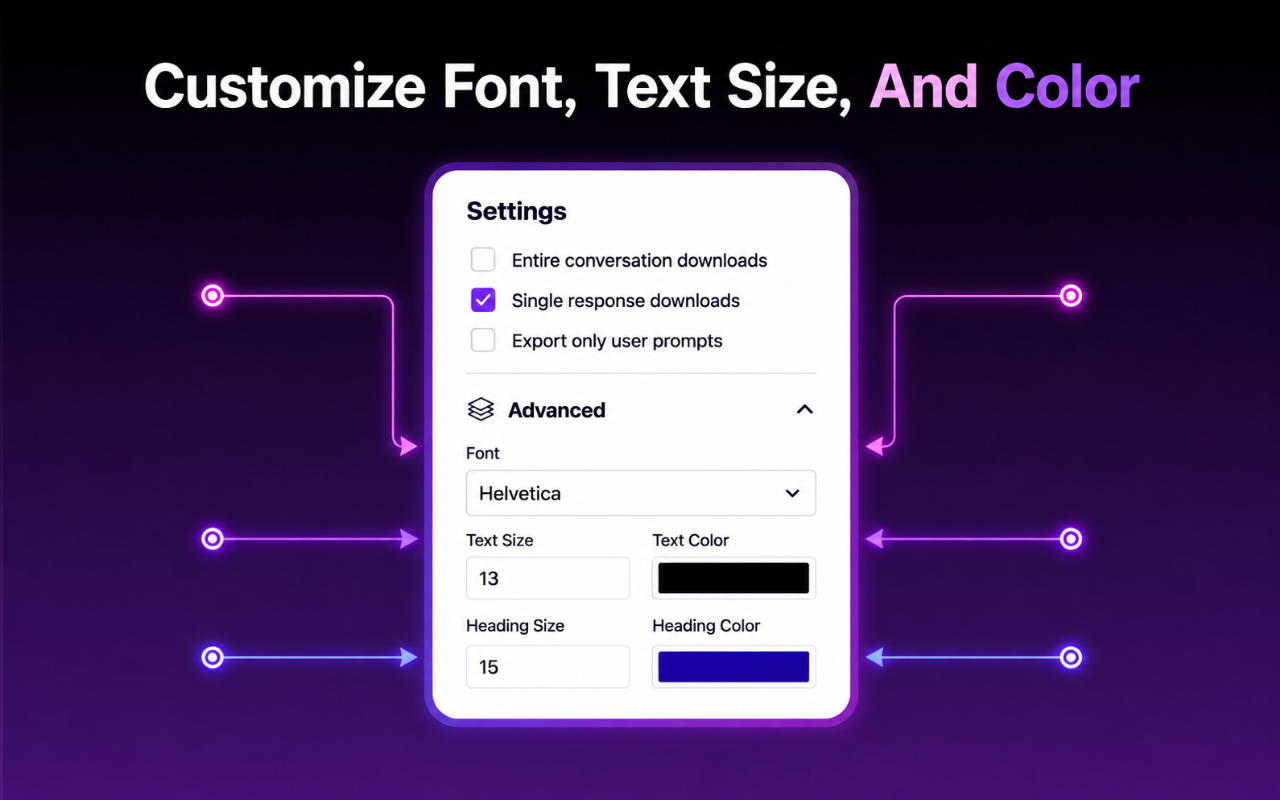
Configure your export settings
Entire conversation downloads
Function: When enabled, exporting an entire conversation will include only AI responses and exclude all user prompts or questions.
- Applies to: Full conversation exports
- Supported formats: PDF, Word (.docx), Google Docs, Notion, Markdown
- Result: The file contains only AI responses
Single response downloads
Function: When enabled, exporting a selected AI response will include only that response and exclude the user prompt that came before it.
- Applies to: Individual response exports
- Supported formats: PDF, Word (.docx), Google Docs, Notion, Markdown
- Result: The file contains only the selected AI response
Export only user prompts
Function: When enabled, exporting an entire conversation will include only user prompts or questions and exclude all AI responses.
- Applies to: Full conversation exports
- Supported formats: PDF, Word (.docx), Google Docs, Notion, Markdown
- Result: File contains only user questions
🧩 Integrations
Notion Integration
Direct Export to Notion
Export AI conversations directly to your Notion workspace with clean formatting and a clear structure.
- Connect Notion: Connect your Notion account through secure OAuth
- Select Database: Choose a Notion database to store your conversations
- Beautiful Formatting: Automatically converts markdown, code blocks, tables, and other formats to Notion blocks
- Code Support: Syntax highlighting for code blocks with multiple programming languages
- Tables: Converts HTML/Markdown tables to Notion table blocks
- Rich Text: Supports bold, italic, underline, and other rich text formatting
How to Use Notion Export
Step 1: Connect Notion
- Open AI Chat Exporter and choose Notion
- Select "Connect Notion"
- Log in to your Notion account
- Allow the extension to access your workspace
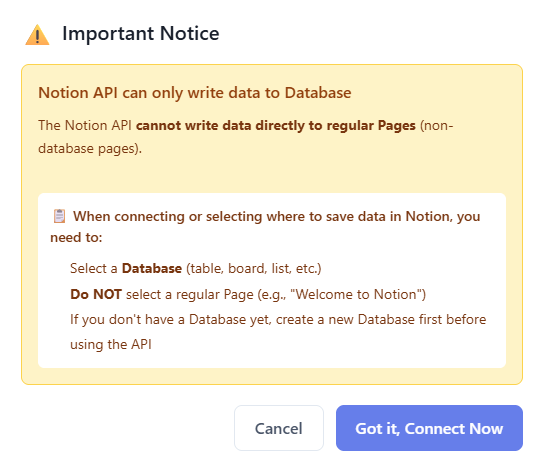
Connect your Notion account
Step 2: Select Database
- After connecting, select a Notion database to store conversations
- The database must have a "Name" or "Title" field to store the title
- You can change the database at any time
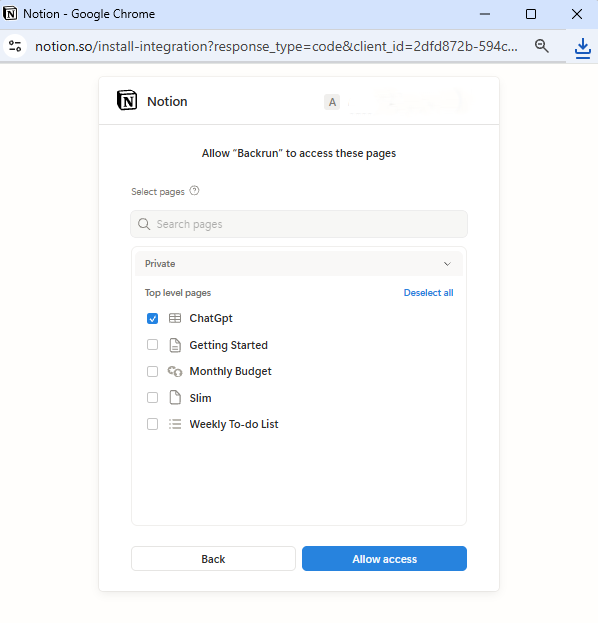
Select a Notion database to store conversations
Step 3: Export Conversation
- Open the Gemini conversation you want to export
- Open AI Chat Exporter and choose Notion
- The conversation will be created as a new page in the selected database
- You will receive a link to open the page in Notion

Result when exporting conversation to Notion
Notion Formatting Features
AI Chat Exporter automatically converts supported AI conversation content into Notion blocks with the following features:
- Headings: H1, H2, H3 are converted to Notion heading blocks
- Code Blocks: Supports syntax highlighting for over 50 programming languages
- Inline Code: Code within sentences is formatted with code annotation
- Tables: HTML/Markdown tables are converted to Notion table blocks (max 5 columns)
- Lists: Bulleted and numbered lists are preserved
- Blockquotes: Quotes are converted to callout blocks
- Links: Links are preserved and clickable
- Text Formatting: Bold, italic, strikethrough are fully supported
🚀 Advanced Features
License Key System
Manage and activate license keys to use premium features:
- Activate License: Enter license key to unlock all premium features
- Device Management: Activate the license on one device at a time
- License Status: View whether your license is active on the current device
Quota Management
AI Chat Exporter uses monthly limits on the free plan:
- Full conversations: 7 exports per month
- Selected messages: 10 exports per month
- Reset: Free usage resets at the beginning of each calendar month
- Formats: The limits are shared across PDF, Word, Google Docs, Notion, and Markdown
- Platforms: The limits are shared across ChatGPT, Gemini, Claude, and Grok
Smart Content Processing
Advanced content processing features:
- Markdown Support: Automatic markdown recognition and conversion
- HTML Parsing: Handles structured HTML from supported AI platforms
- Code Detection: Automatically detects and formats code blocks
- Table Conversion: Converts HTML/Markdown tables to document format
🔑 License Activation Guide
How to Activate Your License Key
Follow these simple steps to activate your license key and unlock all premium features:
Step 1: Locate the License Icon
- Open ChatGPT, Gemini, Claude, or Grok in your browser
- Open Settings by clicking the gear icon (⚙️), then look for the license icon (🔑) on the extension toolbar.
- Click on the license icon to open the license activation panel
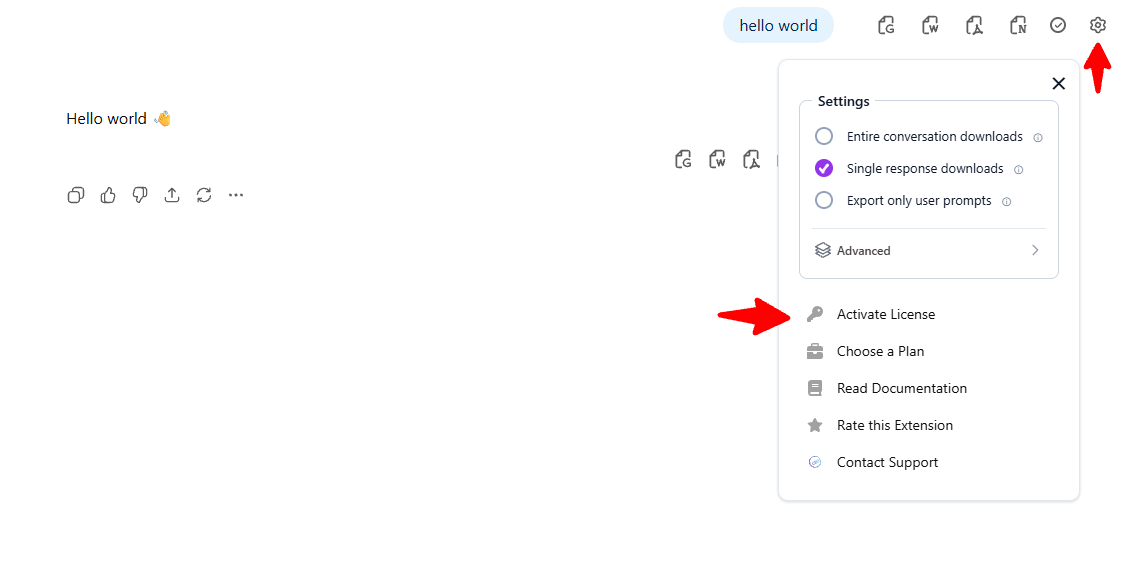
Click on the license icon to open the activation panel
Step 2: Enter Your License Key
- In the license activation panel, you will see an input field
- Enter your license key (received via email after purchase)
- Make sure to copy the entire license key without any extra spaces
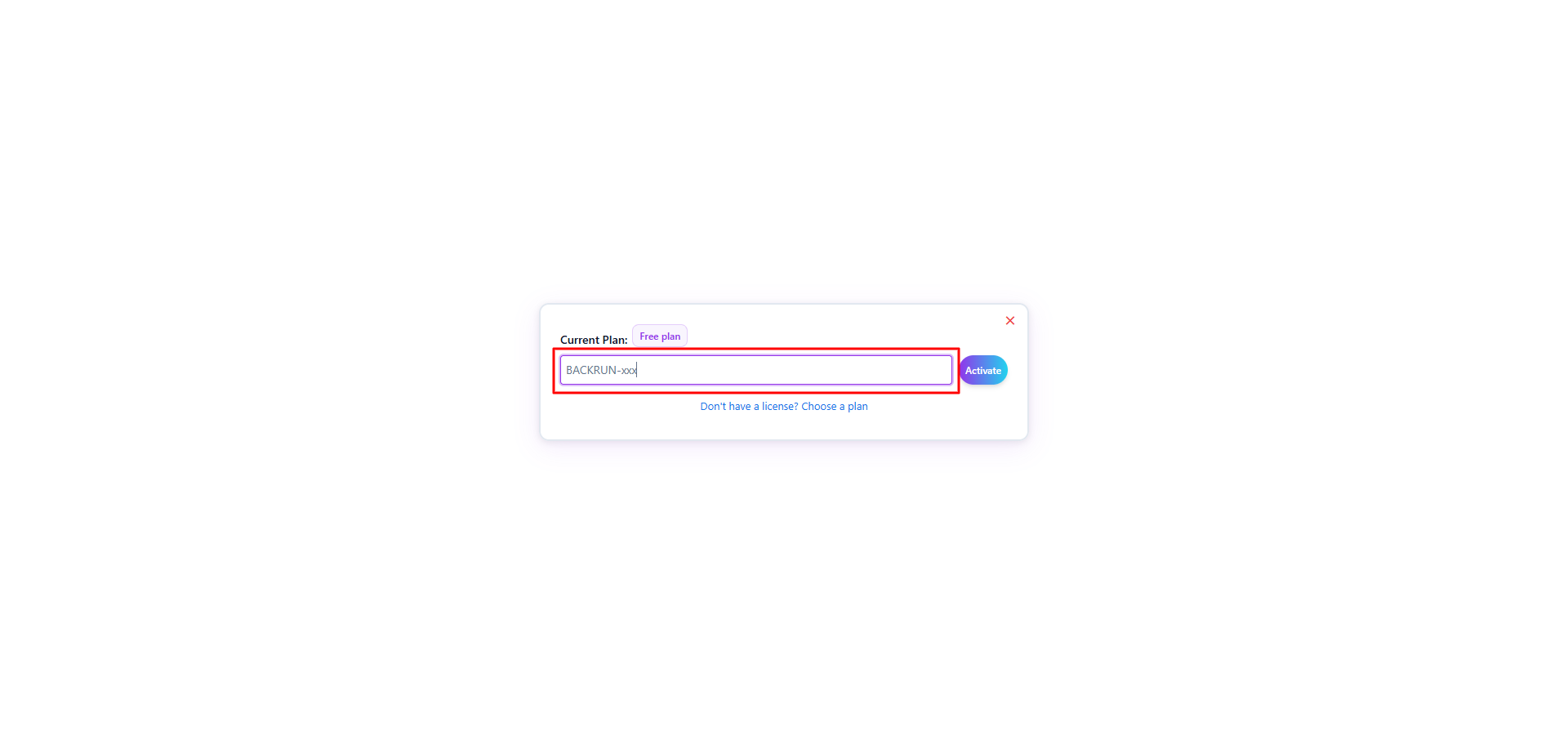
Enter your license key in the input field
Step 3: Activate License
- Click the "Activate" or "Submit" button
- Wait for the activation process to complete
- You will see a success message confirming your license is activated
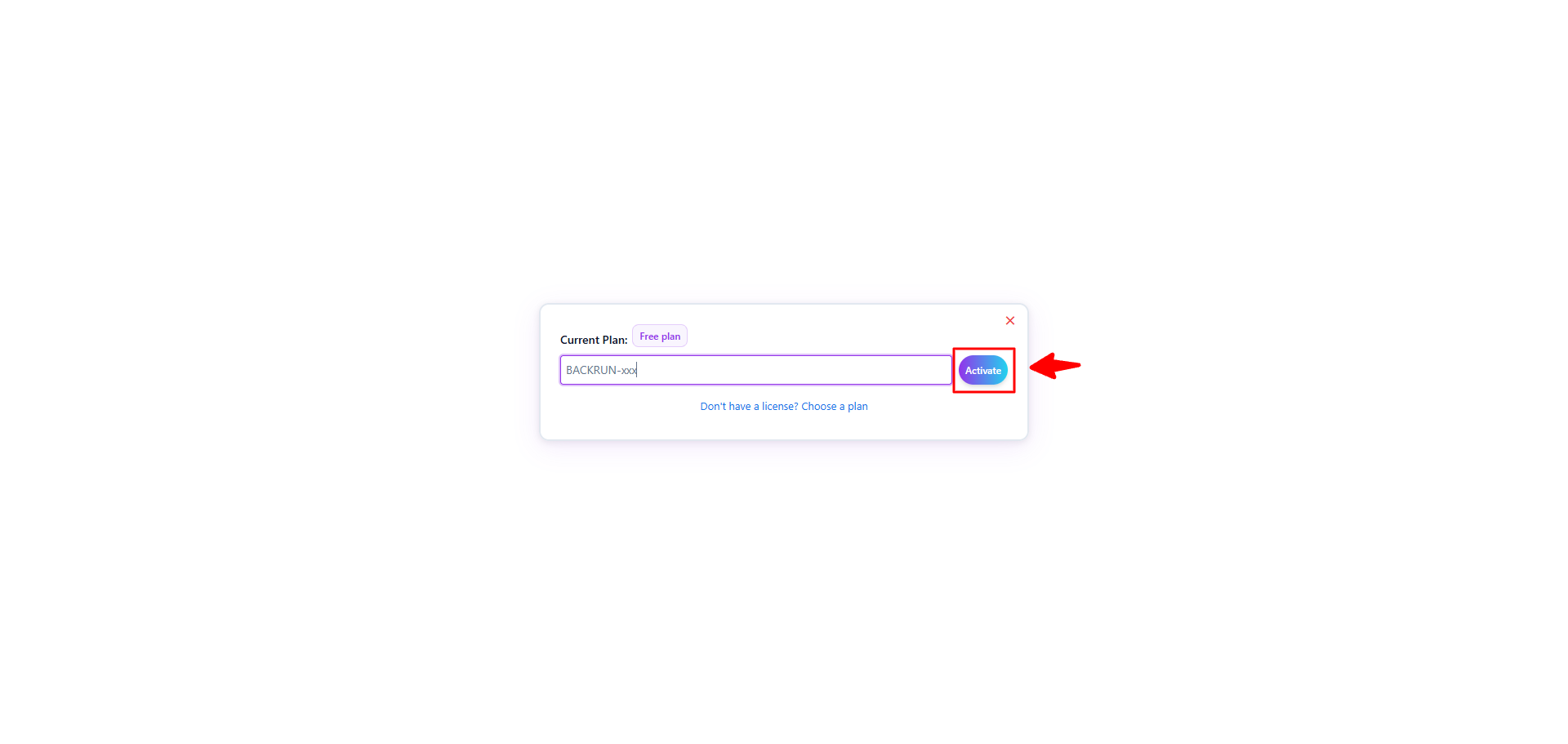
License successfully activated - you now have access to all premium features
- Your license key is sent to the email address you provided during purchase
- Make sure you have an active internet connection during activation
- If you encounter any issues, contact support at hi@backrun.co or visit Contact Support
- One license can be active on one device at a time. Remove or deactivate it from the current device before activating it elsewhere.
- If your license expires, you will need to renew it to continue using premium features
Troubleshooting License Activation
If you're having trouble activating your license, try these solutions:
- Invalid License Key: Double-check that you copied the entire license key correctly, including any hyphens or special characters
- License Already Used: If you see a message that the license is already in use, you may have reached the maximum number of devices. You can remove the license from your old device to activate it on a new one. Contact support if you need further assistance.
- Activation Failed: Ensure you have a stable internet connection and try again. If the problem persists, contact support
- License Expired: If your license has expired, you'll need to renew your subscription. Contact hi@backrun.co for renewal options
📖 Using AI Chat Exporter
Usage Rules
- When you select one option, the other two will automatically be disabled
- This ensures clear settings and prevents conflicts
- You can change your selection at any time
- You can also disable all options to export complete conversations (both prompts and responses)
User Guide
How to Access Settings:
- Open ChatGPT, Gemini, Claude, or Grok in your browser
- Click on the Settings icon (⚙️) on the extension toolbar
- The Settings panel will open with export options
How to Use:
- Select one of the three options that best fits your needs (or leave all unchecked for complete conversations)
- Click the checkbox to enable/disable an option
- When you select one option, other options will automatically turn off
- Export as usual to PDF, Word, Google Docs, Notion, or Markdown
- The exported file will follow your selected settings
Exporting Conversations:
- Open any supported AI conversation
- Choose PDF, Word, Google Docs, Notion, or Markdown from the AI Chat Exporter controls
- Use the checkmark control beside each message to select the content you want to export
- Your file will be generated according to your settings
Use Cases
Export only AI responses
You want to create a Word file containing only AI responses without your prompts.
Solution: Enable "Entire conversation downloads" → Export the full conversation
Save selected messages
You want to save an important response without the accompanying question.
Solution: Enable "Single response downloads" → Click export on that specific response
Export only user prompts
You want to export all your prompts for future reference.
Solution: Enable "Export only user prompts" → Export the full conversation
Create training materials
Export AI responses to create training documents, guides, or reference materials for your team.
Solution: Use "Entire conversation downloads" to get clean response-only documents
Archive complete conversations
Save important conversations as PDFs for long-term storage and easy access.
Solution: Export to PDF format with your preferred content filtering
Organize conversations in Notion
Export AI conversations to Notion to organize, search, and share them with your team.
Solution: Connect Notion → Select database → Export conversation
🎁 Invite Friends
Share Your Invite Code
Invite a friend to use AI Chat Exporter by sharing your personal invite code.
- Complete at least one export to unlock your invite code.
- Open the Invite Friends section in AI Chat Exporter.
- Copy your invite message or invite code.
- Send it to a friend before they complete their first export.
Enter a Friend's Code
Paste a friend's invite code or the full invite message, then select Apply.
- Open the Invite Friends section before completing your first export.
- Paste the invite code or full invite message into the code field.
- Select Apply.
- Complete your first export to activate the invite bonus.
💳 Pricing & Payment
Choose a plan
The free plan includes monthly export limits. Google Docs and Notion are available on the free plan. Paid plans provide unlimited exports across all supported formats.
Free
- 7 full-conversation exports per month
- 10 selected-message exports per month
- PDF, Word, Google Docs, Notion, and Markdown
Month
- Unlimited exports
- PDF, Word, Google Docs, Notion, and Markdown
Year
- Same features as the monthly plan
- Better value than paying monthly
View the latest plans, deals, and exact prices.
❓ Frequently Asked Questions
Are settings saved automatically?
Yes, your settings are automatically saved and will apply to all future exports until you change them.
Can I disable all options?
Yes, you can uncheck all options. In this case, the exported file will contain both questions and answers as default.
Do these options apply to all conversations?
Yes, settings will apply to all conversations until you change them.
How do I activate a license key?
After purchasing a plan, you will receive a license key via email. Click on the license icon in the extension, enter your license key, and click activate. For assistance, contact hi@backrun.co or visit Contact Support.
What happens if I exceed my free plan limit?
The free plan uses a monthly quota. If you hit the limit this month, you can wait for next month’s reset or upgrade to a paid plan for unlimited exports. See Pricing Plans or contact hi@backrun.co.
Can I use the extension on multiple devices?
A paid license can be active on one device at a time. To move it to another device, first remove or deactivate it from the current device.
How do I connect Notion?
Open AI Chat Exporter and choose Notion, select "Connect Notion", log in to your Notion account and allow access. Then select a database to store conversations.
Does AI Chat Exporter preserve code formatting?
Yes. Code blocks are preserved across supported export formats. The final appearance may depend on the destination format.
Where can I find current pricing and payment information?
Visit the pricing page for current plans and payment information.
Where can I get technical support?
For technical support, visit our support portal at Contact Support or email us at hi@backrun.co. Our support team will help you with technical or account-related issues.